Overview
In this article, we'll discuss the Payment Center tool and how to enter:
- Bulk recurring ACH Payments
- Single or bulk private payor payments
- Supplemental payments
Steps to Make Bulk Recurring ACH Payments
Step 1: After signing into the Aline Leasing & Billing application, select the Quick Actions Menu and then select Manage Payments.
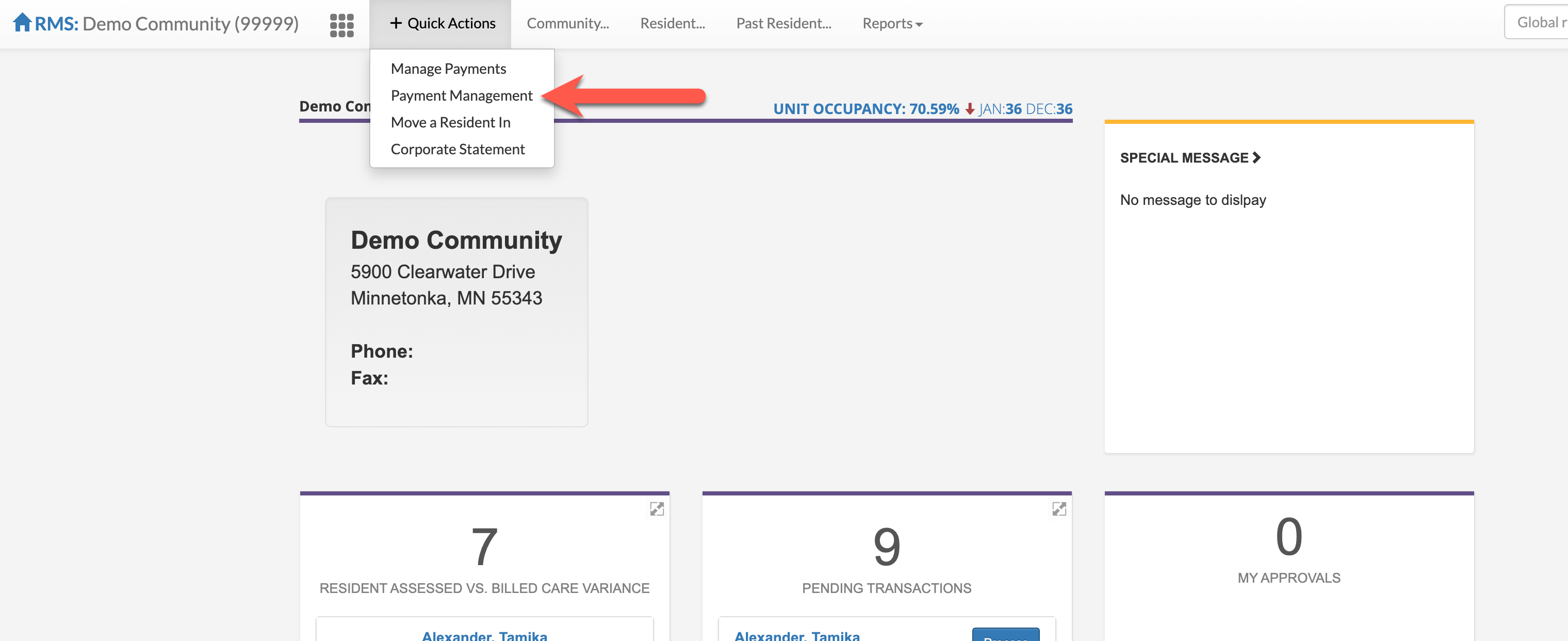
This will take the user to the Payment Center. From the Payment Center, the user can make bulk recurring ACH payments, single or bulk private payments, single or bulk supplemental payments, or review past payment history.
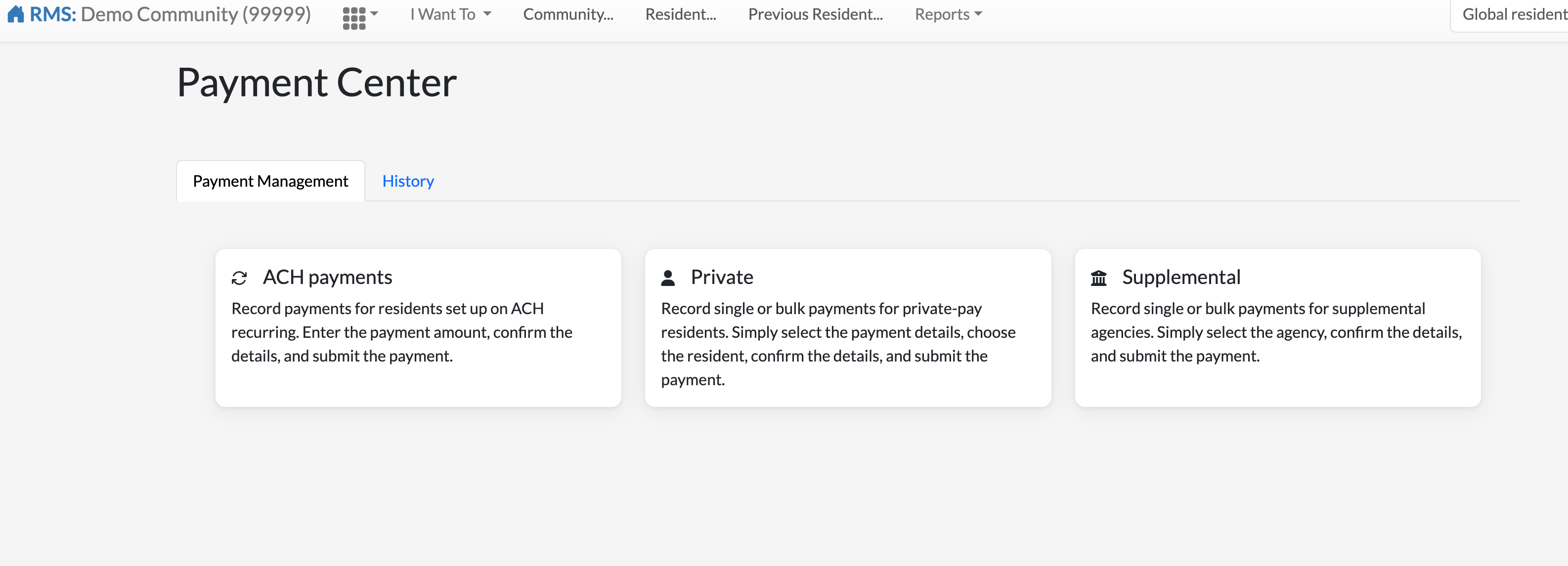
Step 2: Select ACH Payments.
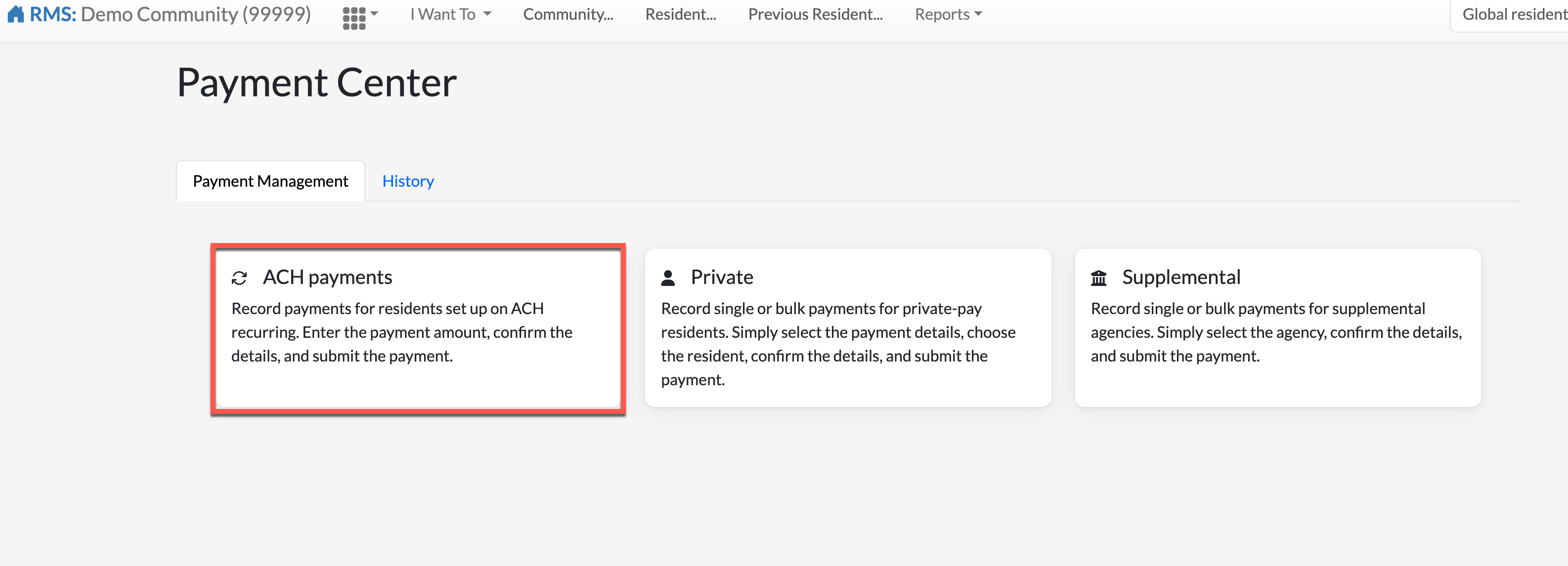
The Payment Detail page will display.
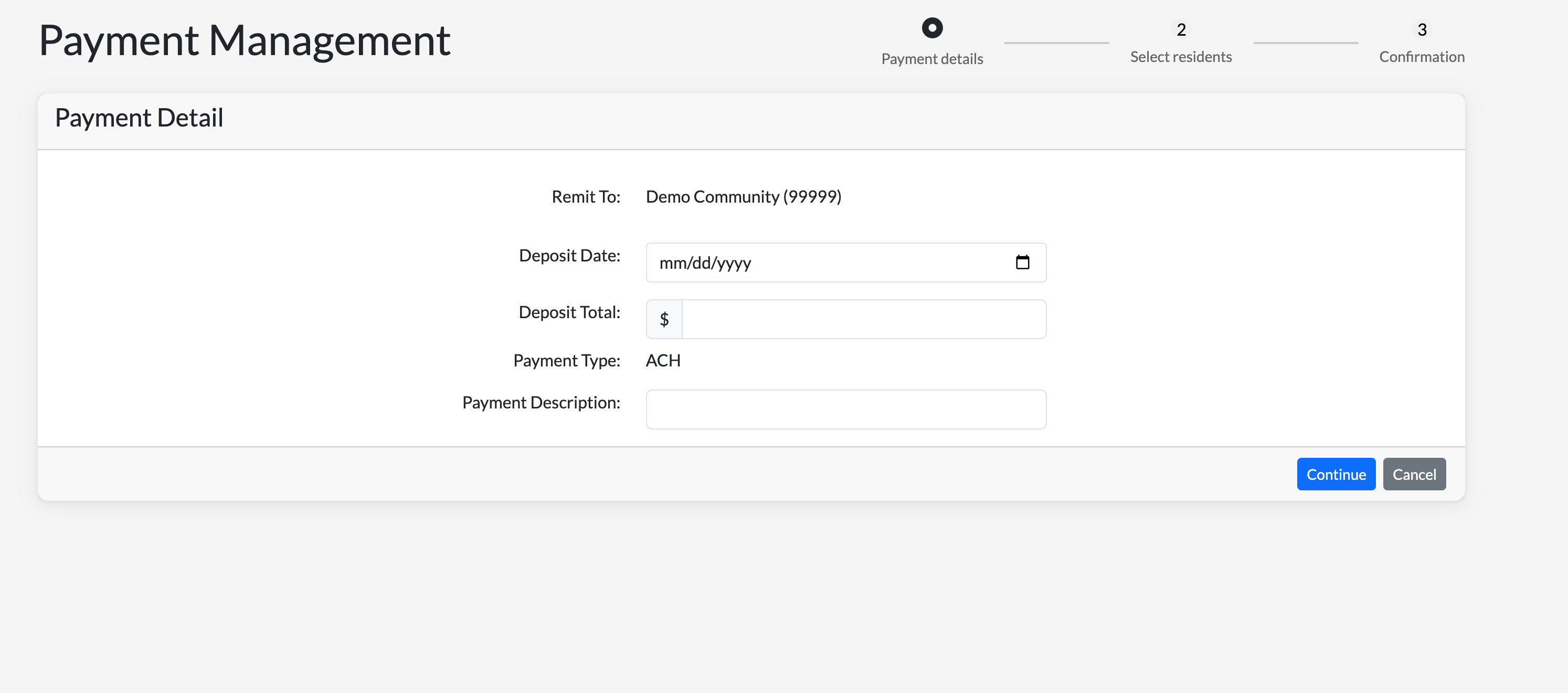
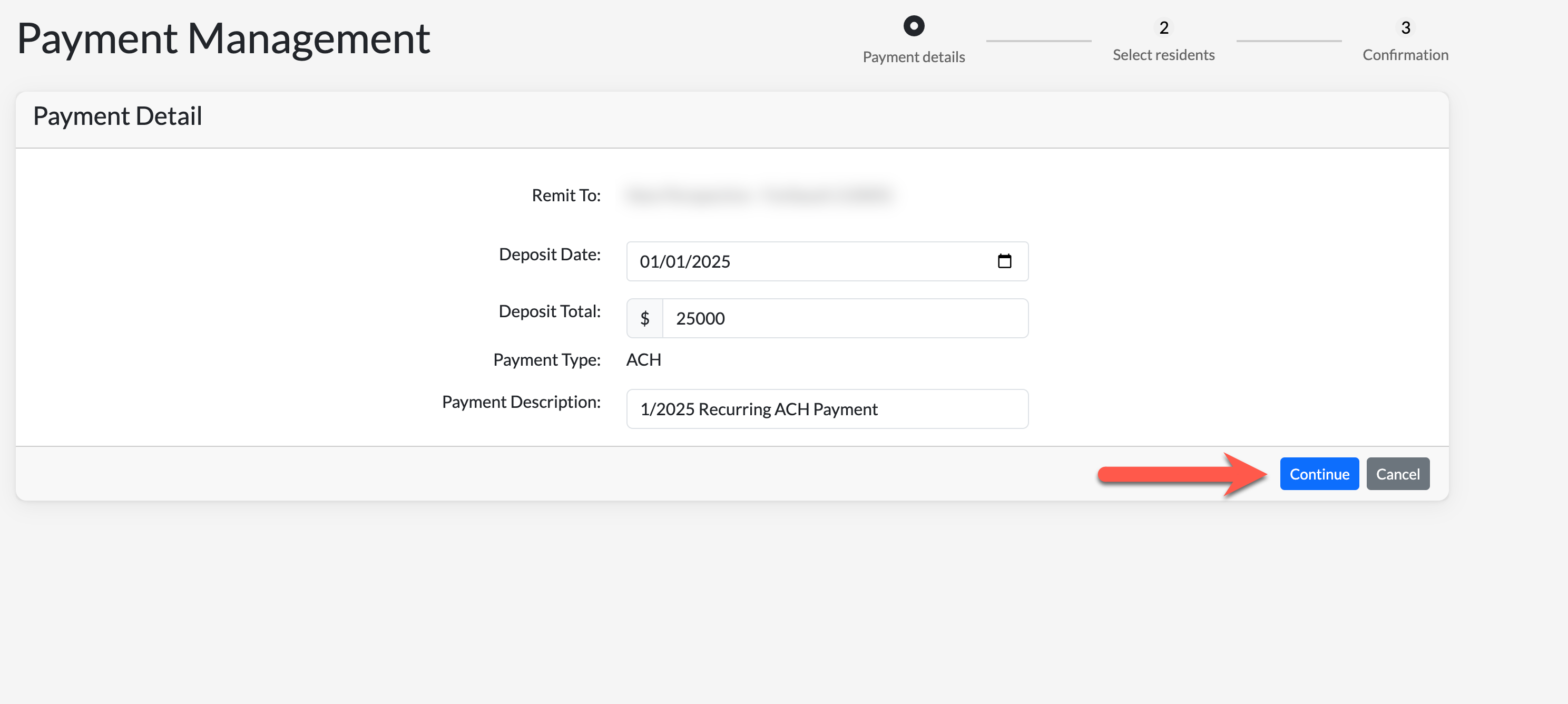
Step 3: For the bulk recurring ACH payment, enter in the Deposit Date, the total amount of all payment funds, and then a Payment Description. Select Continue.
The following page will display:
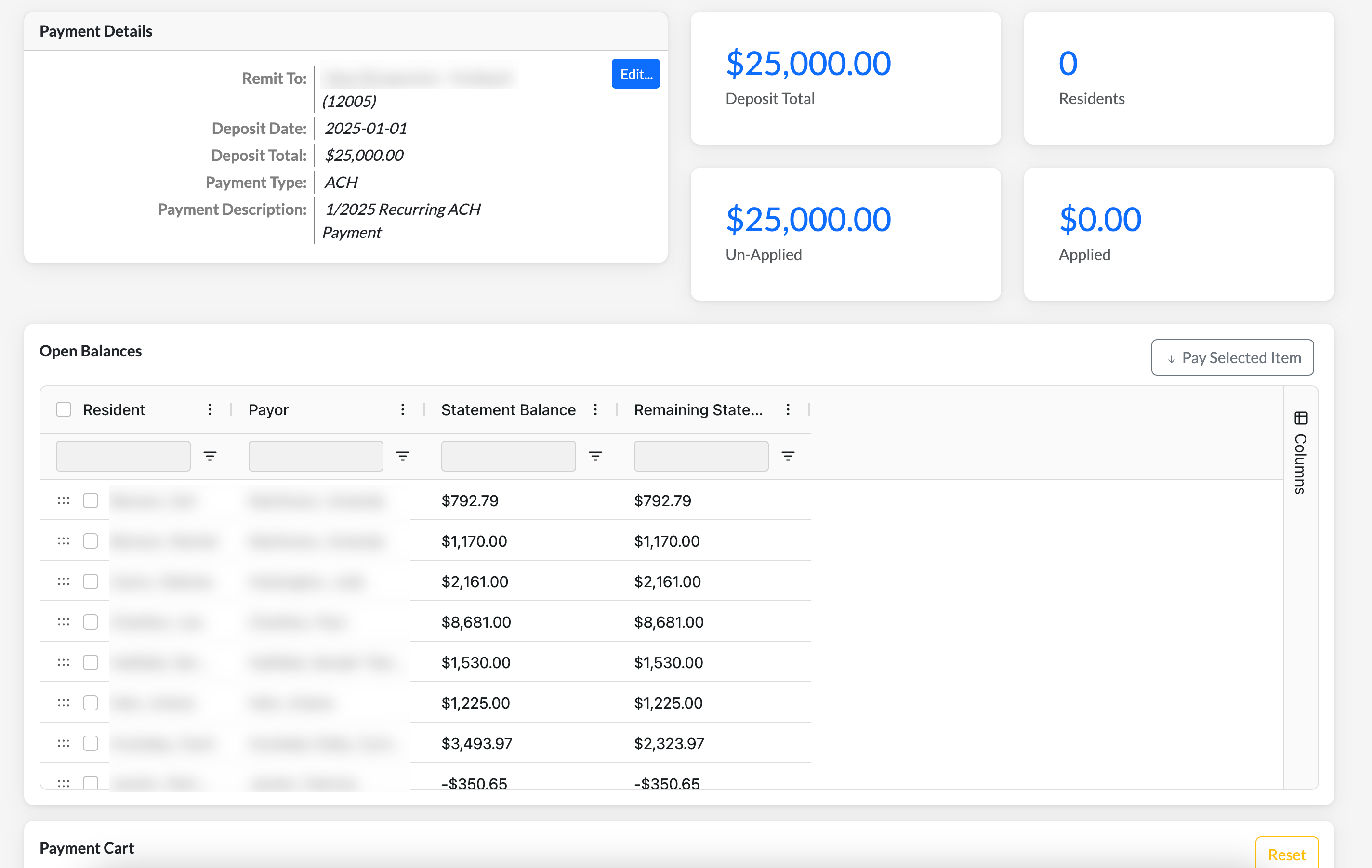
On the top left, the bulk Payment Details will display including the remittance, deposit date, deposit total, payment type, and the payment description. To the windows on the right, users will see the Deposit Total once again along with the residents included in the transaction, the total amount Un-Applied, and the total amount Applied.
Below, is the Open Balances panel that will display all resident's with open balances. This table will display the resident name, payor/responsible party names, statement balances, and remaining statement balances. The table headers can be dragged and dropped as needed and specific columns can be added or removed via the Columns Tab on the right side panel.
Step 4: To assign residents/resident balances to the deposit total, select the checkboxes for applicable entities. To select all checkboxes at once, select the top checkbox next to the Resident column header. Once all desired resident/resident balances have been selected, select Pay Selected Item.
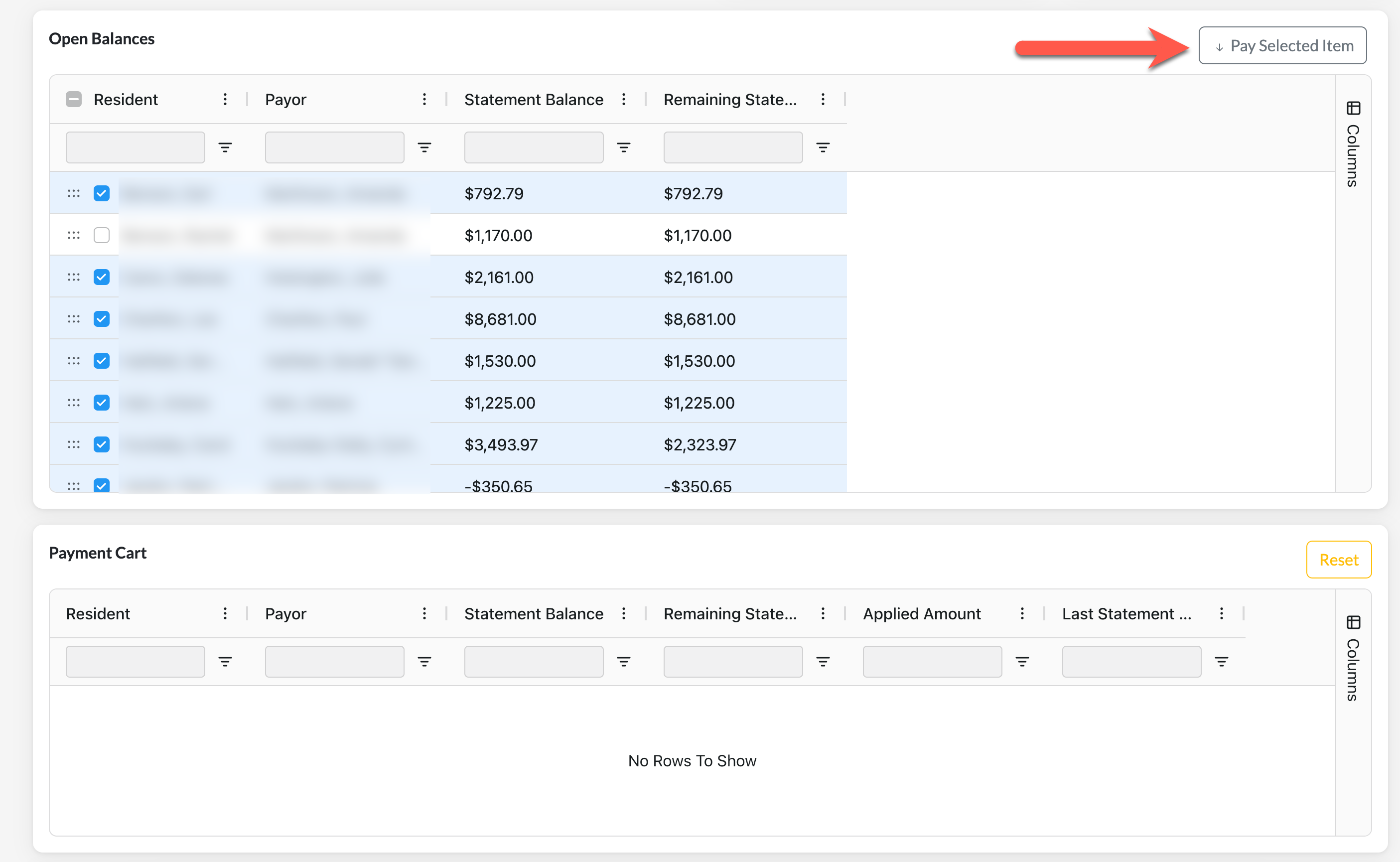
Step 5: Selecting Pay Selected Item will place the selected residents/resident balances in the Payment Cart for final review, as seen below:
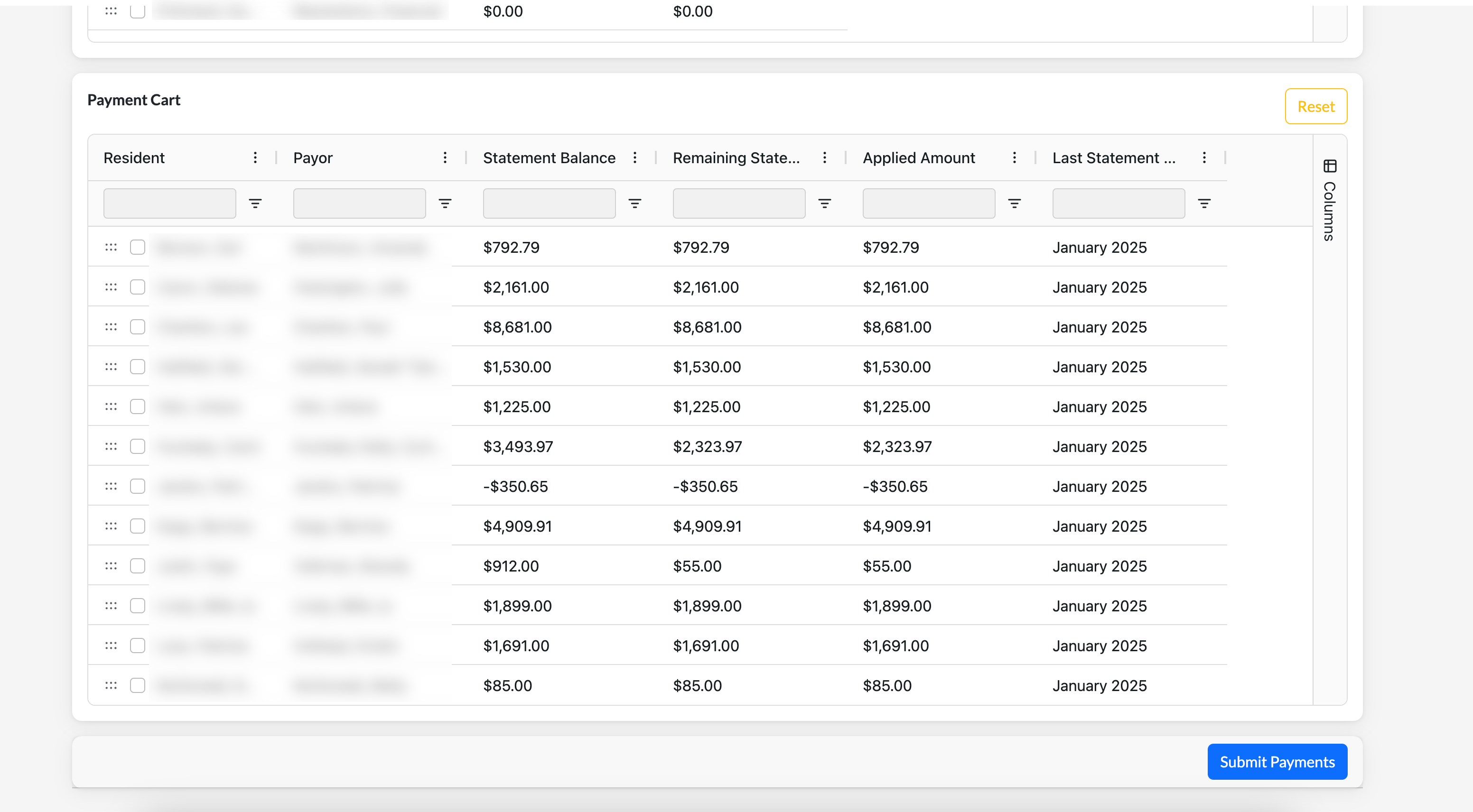
If selected residents/resident balances need to be itemized or removed, scroll to the right of the table to access those specific options.
Before selecting Submit Payments, users can conduct a deposit validation utilizing the top right panel above to ensure the amount deposited matches the ACH payment:
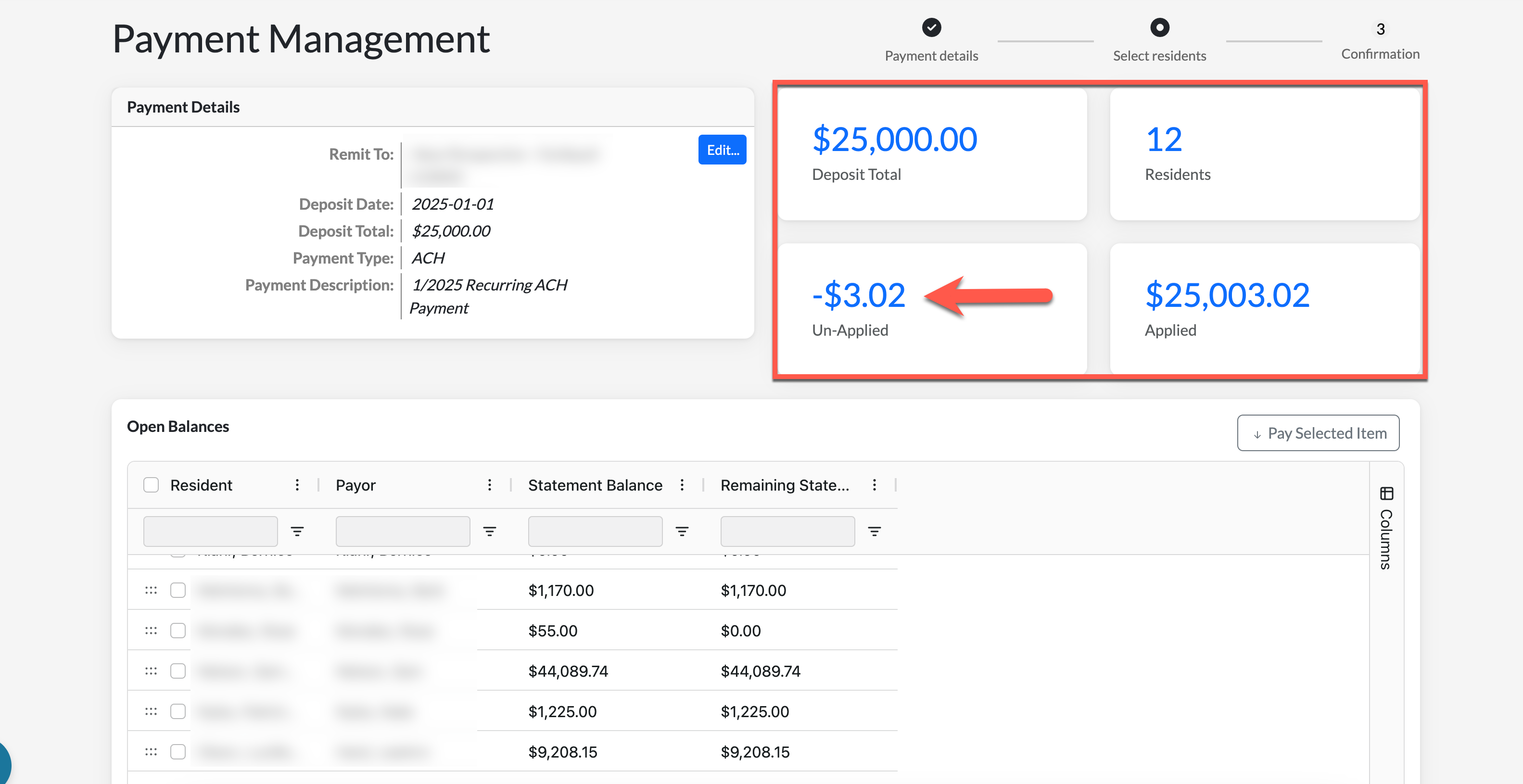
An error will display if the deposit total differs from the applied amount. If satisfied with the deposit validation, select Submit Payments on the bottom of the page.
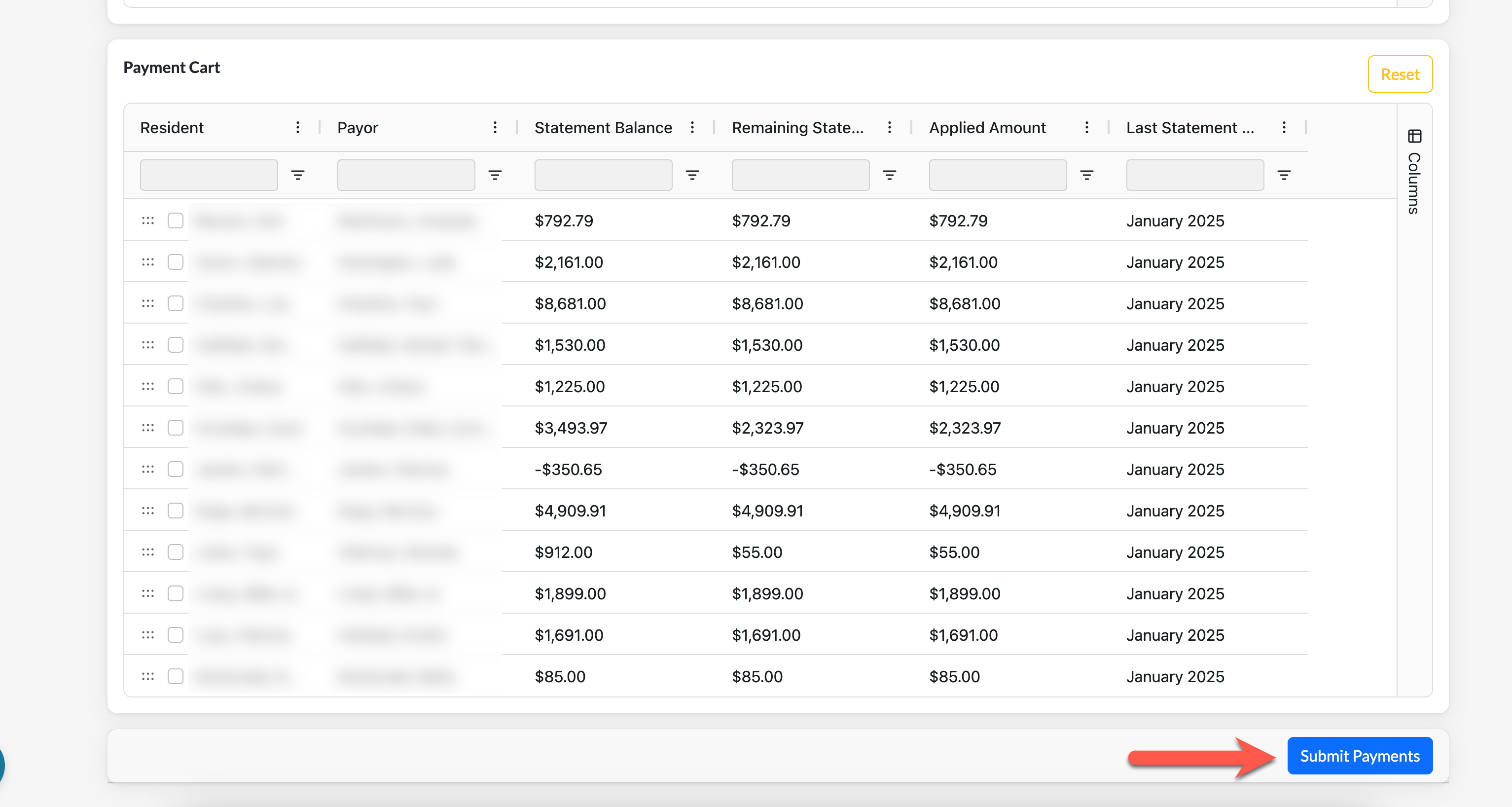
Finally, select OK to complete the process. The bulk recurring ACH payments will then be applied to the selected residents/resident balances and reflect in related reporting and the resident's ledger.
Steps to Make Single or Bulk Private Payor Payments
Step 1: After signing into the Aline Leasing & Billing application, select the Quick Actions Menu and then select Manage Payments.
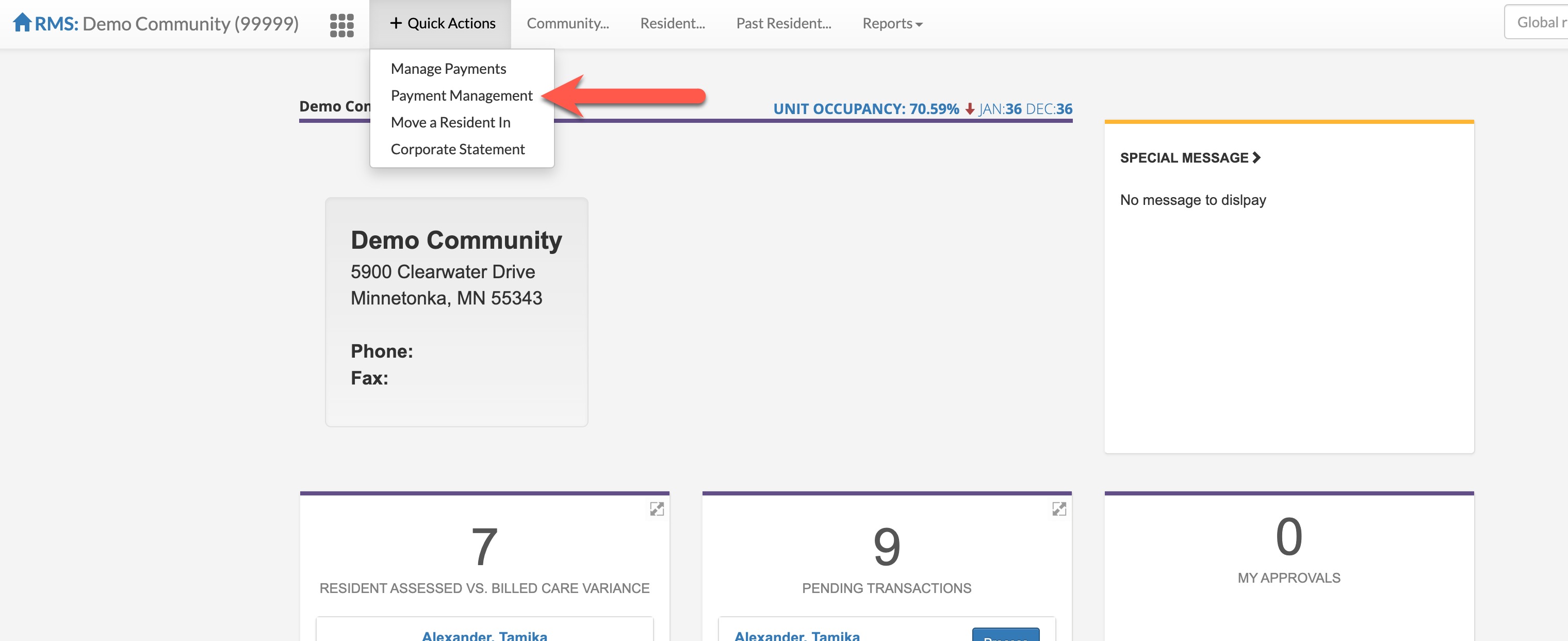
This will take the user to the Payment Center. From the Payment Center, the user can make bulk recurring ACH payments, single or bulk private payments, single or bulk supplemental payments, or review past payment history.
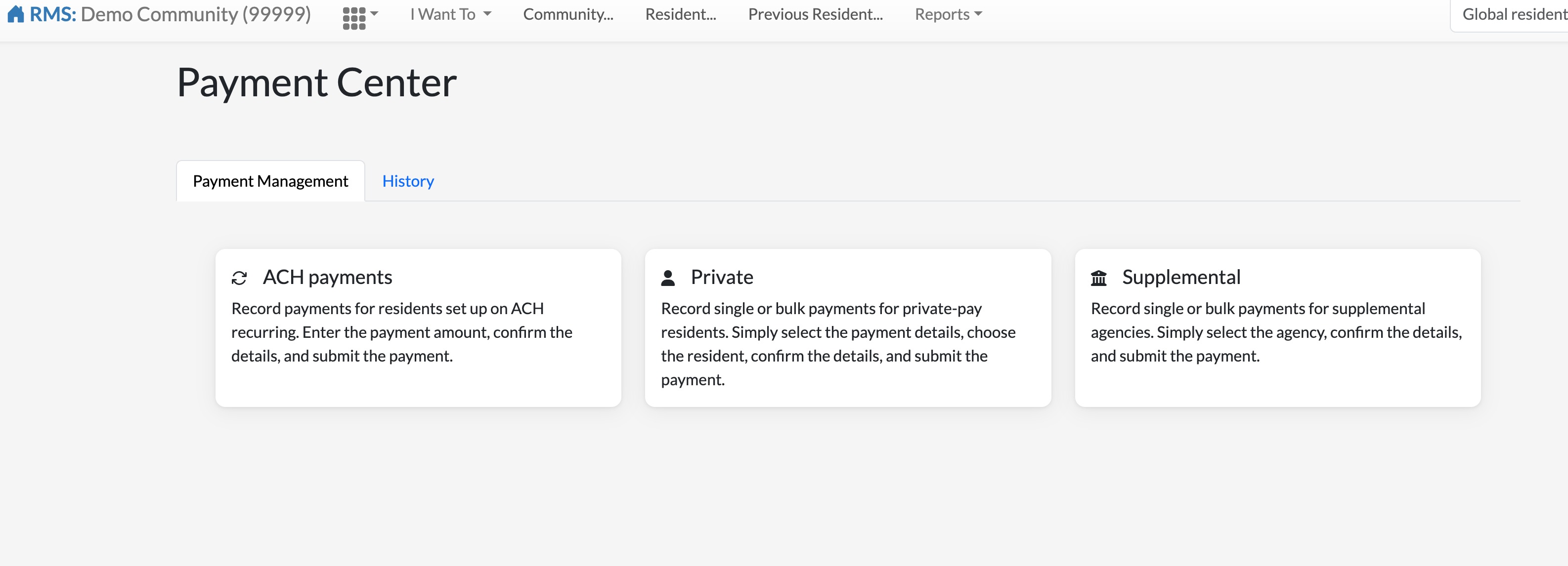
Step 2: Select Private.
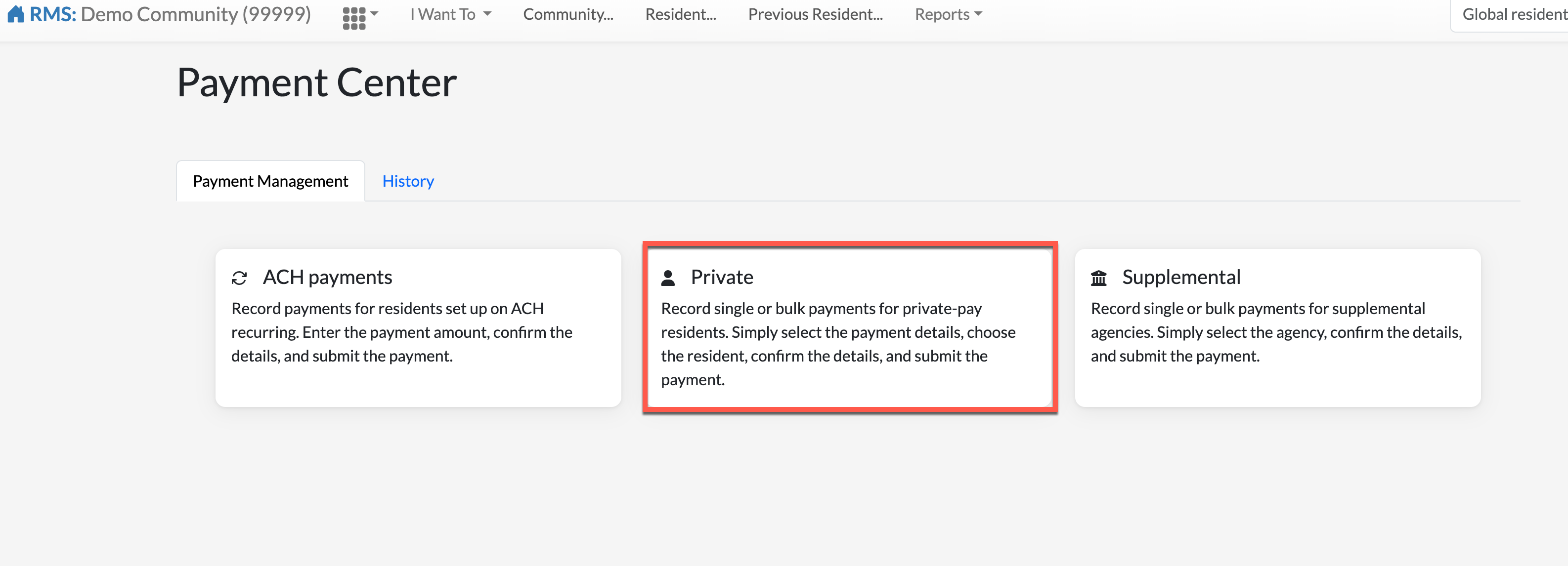
The Payment Detail page will display.
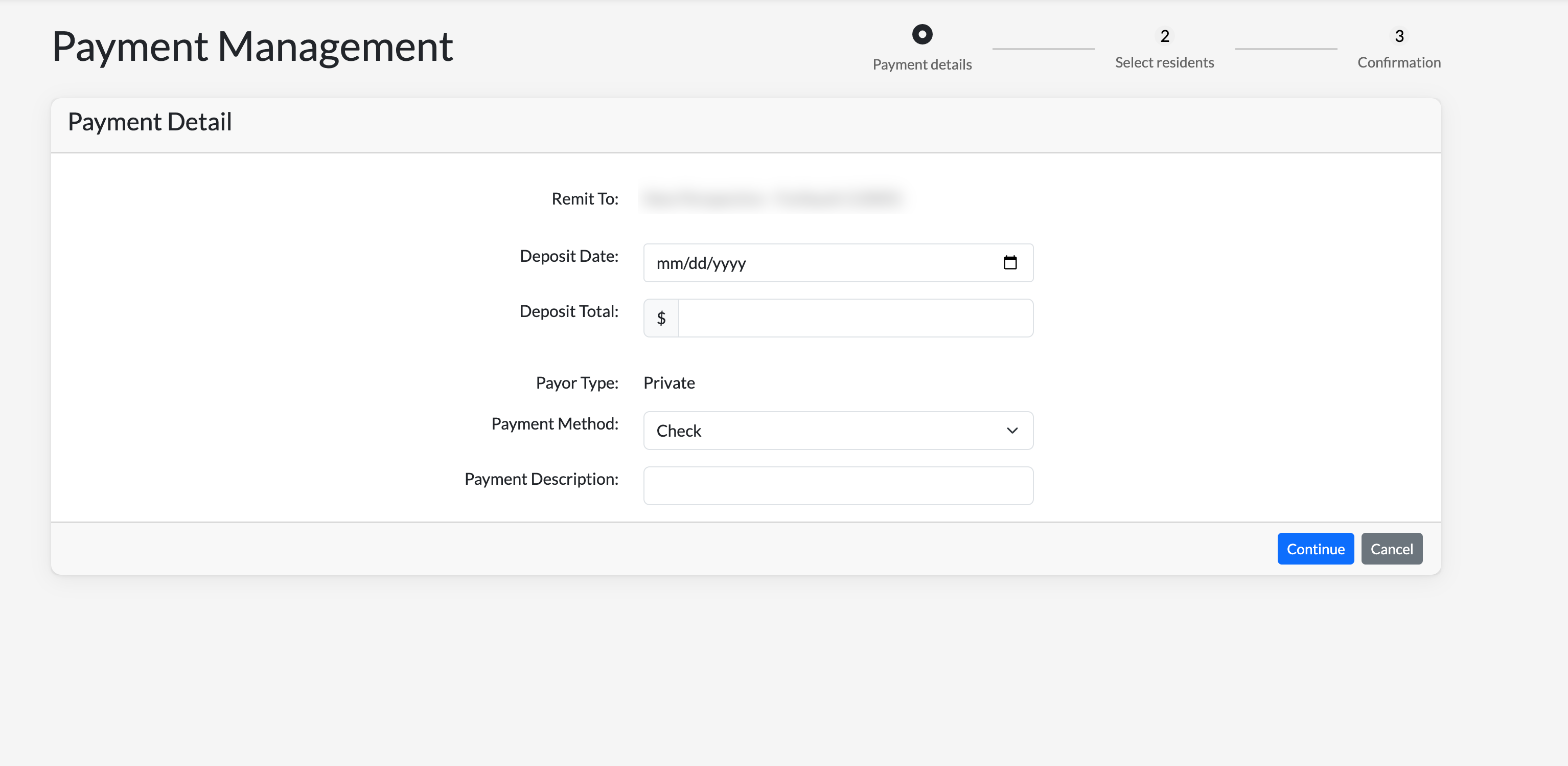
Step 3: For the private payment, enter in the Deposit Date, the total amount of all payment funds (Deposit Total), the Payment Method, and then a Payment Description. Select Continue.
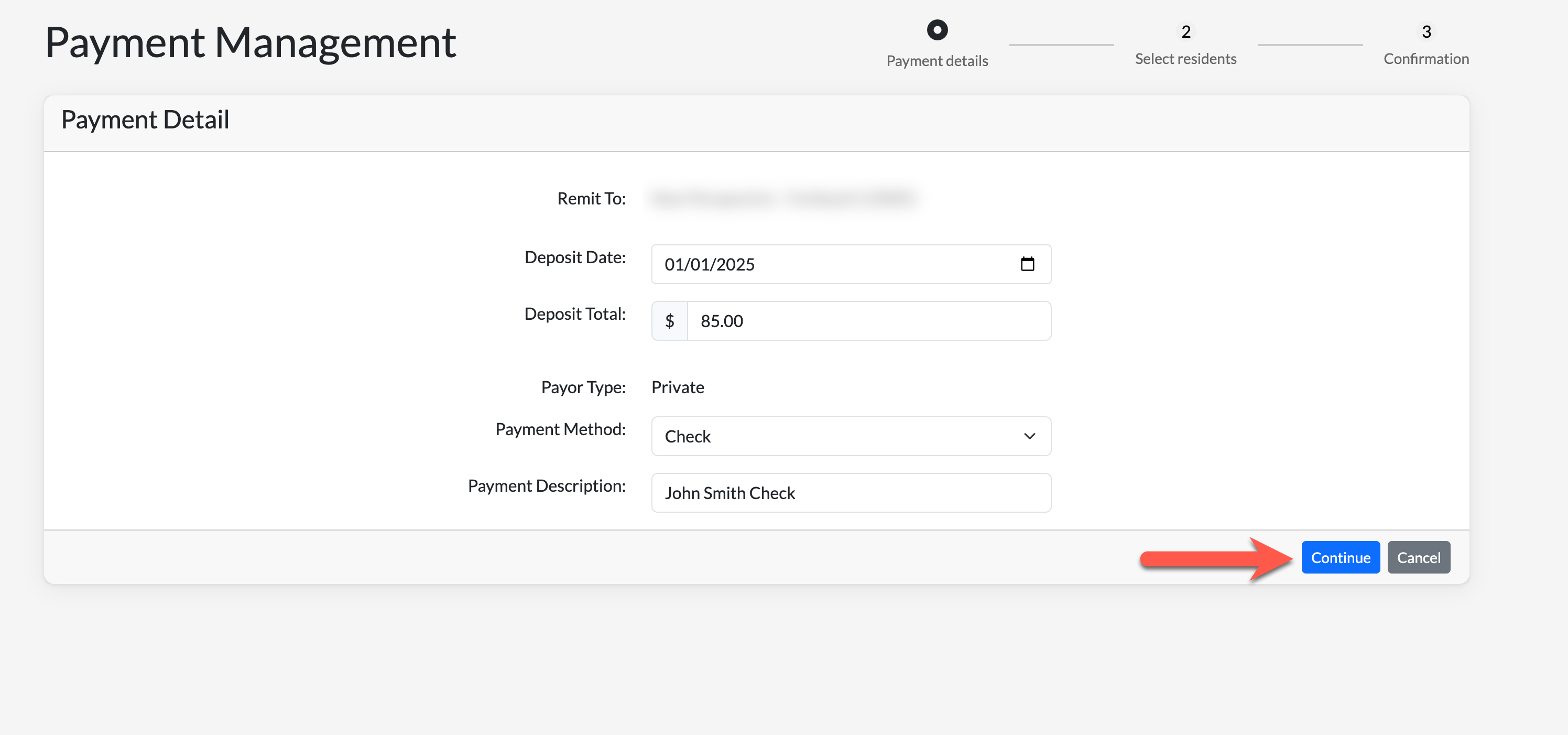
The following page will display:
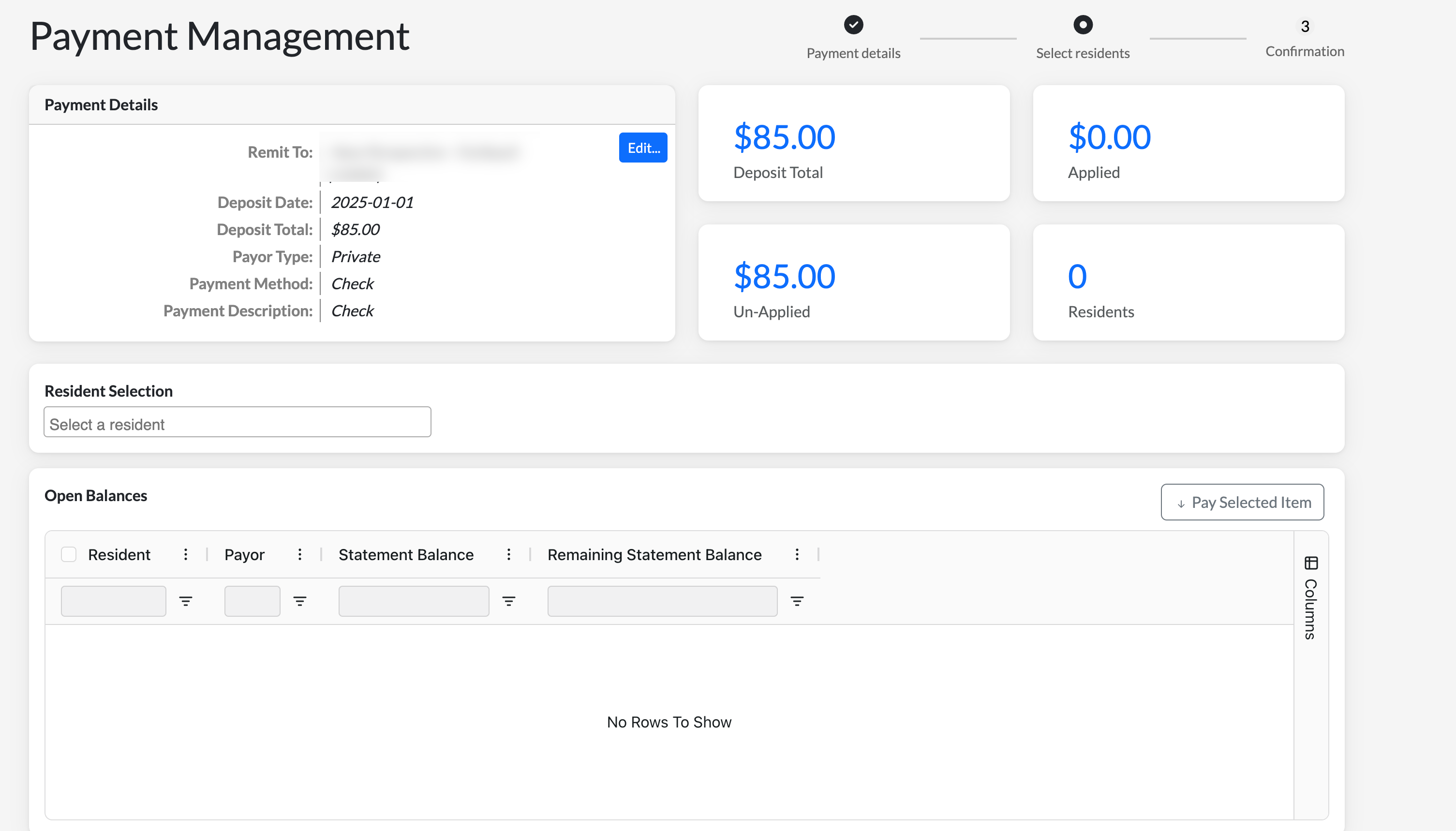
On the top left, the Private Payment Details will display including the remittance, deposit date, deposit total, payor type, payment method, and the payment description. To the windows on the right, users will see the Deposit Total once again along with the residents currently included in the transaction, the total amount Un-Applied, and the total amount Applied.
In between, the Resident Selection tool.
Below, is the Open Balances panel. This table will display the resident name, payor/responsible party names, statement balances, and remaining statement balances. The table headers can be dragged and dropped as needed and specific columns can be added or removed via the Columns Tab on the right side panel.
Step 4: Select desired resident/resident balances to assign to the deposit using the Resident Selection tool. After adding the selected residents to the Open Balances panel, select them by checking the checkbox next to their name.
Please note: payments can be entered for residents who do not have any prior statements or billing created, even if their current balance is zero.
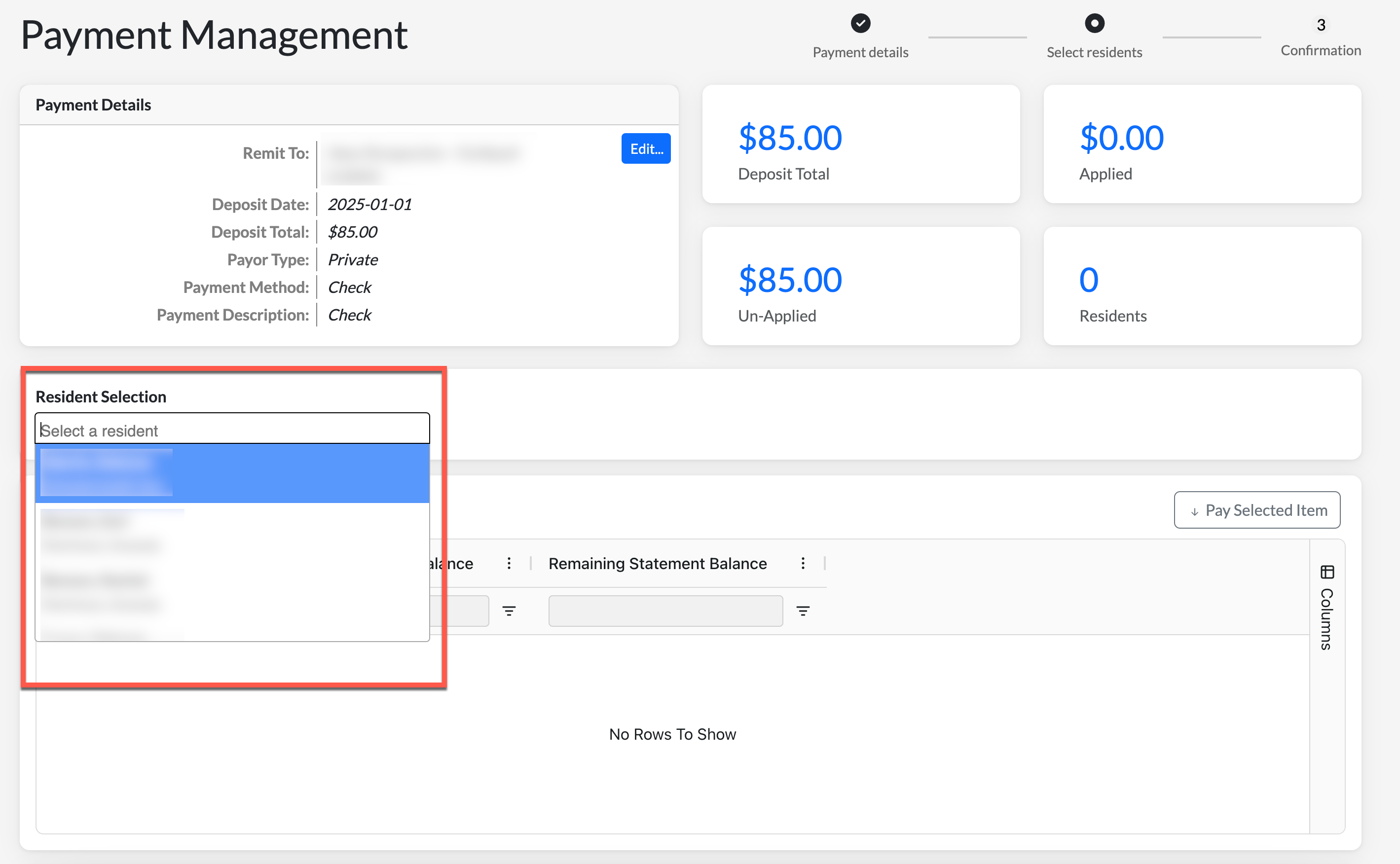
Step 5: Once all desired resident/resident balances have been selected from the Resident Selection tool, select Pay Selected Item.
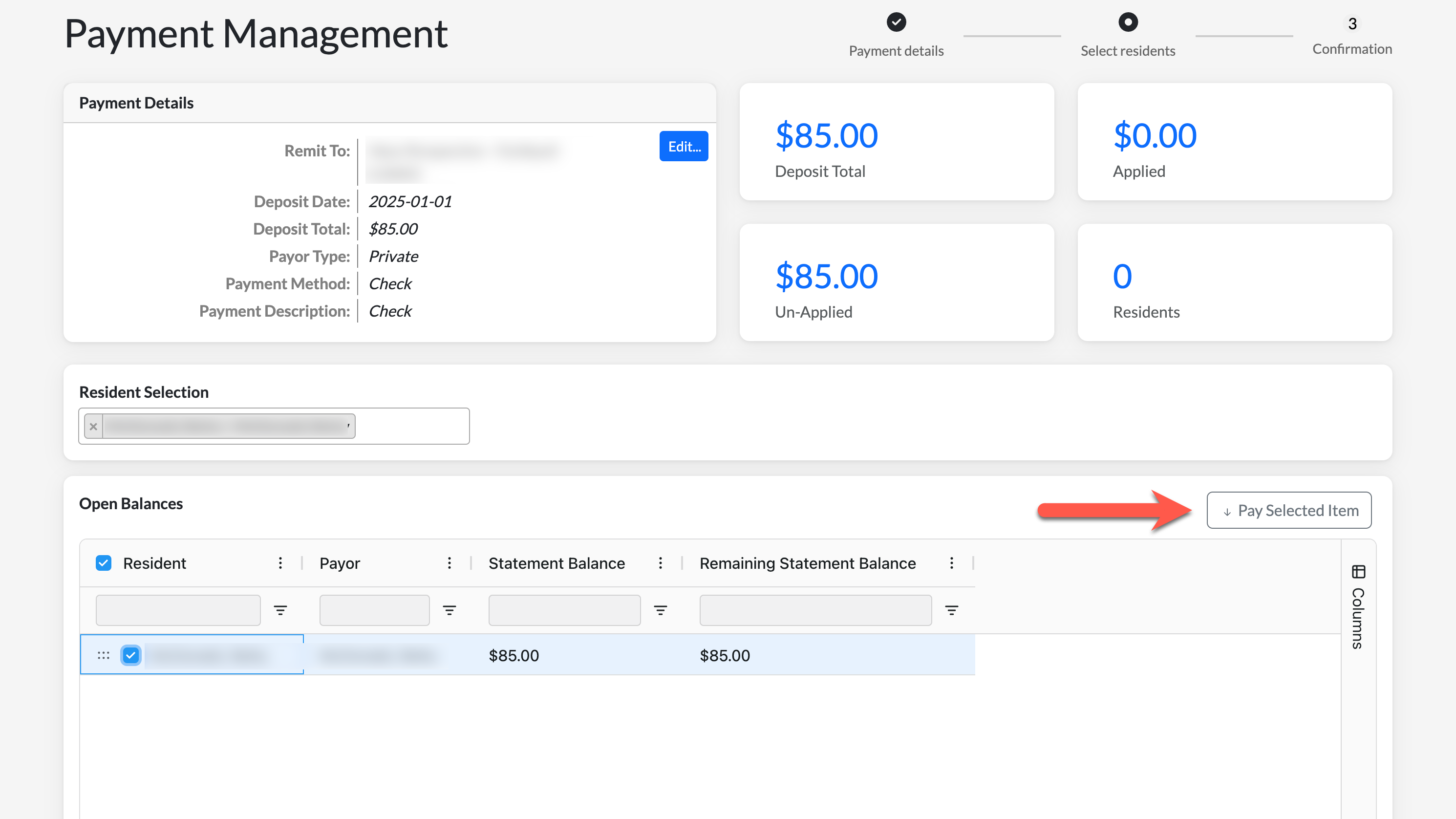
Step 5: Selecting Pay Selected Item will place the selected residents/resident balances in the Payment Cart for final review, as seen below:
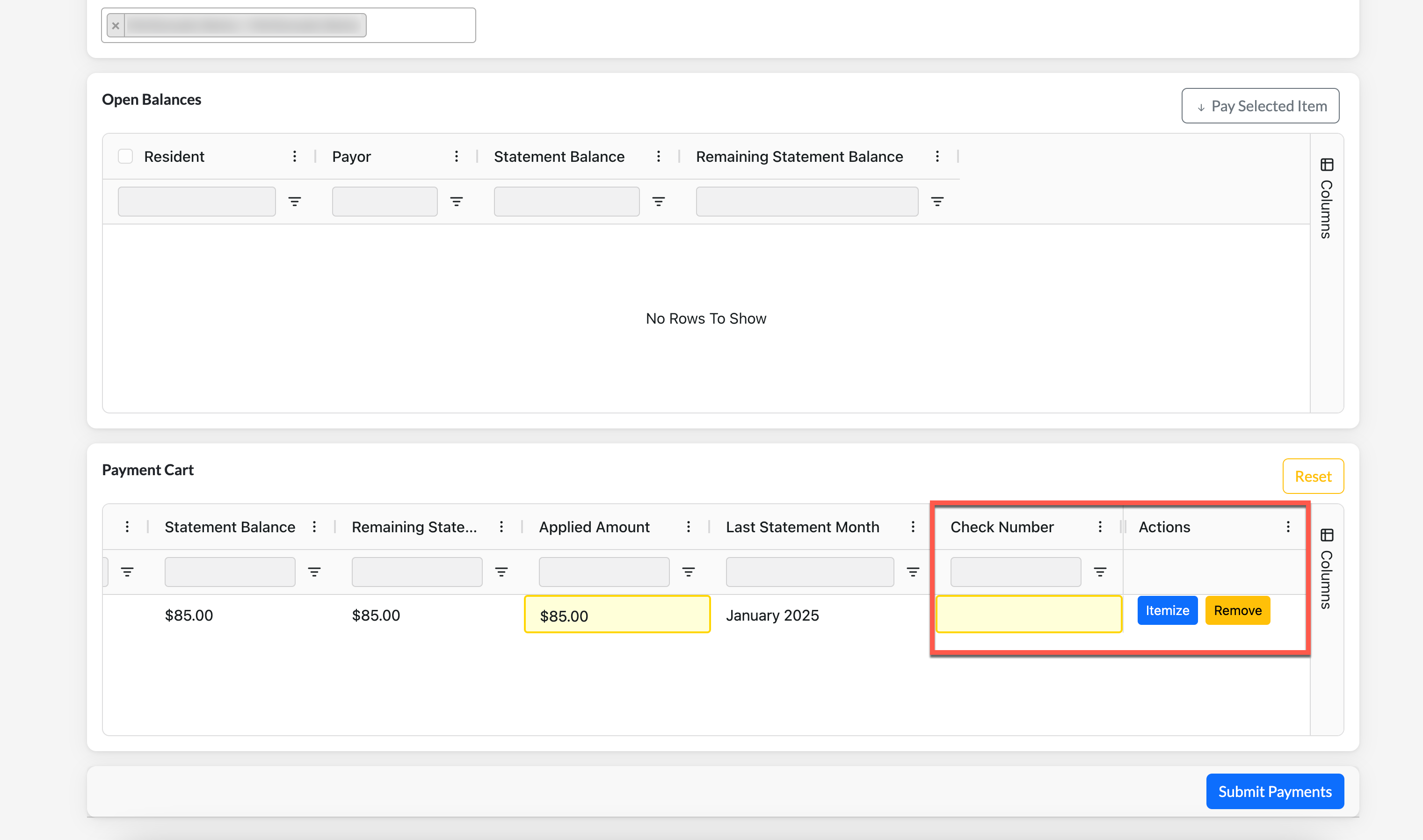
If selected residents/resident balances need to be itemized or removed, scroll to the right of the table to access those specific options. When itemizing, each bill on the resident's statement will be broken into a specific line item for additional detail.
For check payments, such as this example, the Check Number can also be entered.
Before selecting Submit Payments, users can conduct a deposit validation utilizing the top right panel above to ensure the amount deposited matches the private payment:
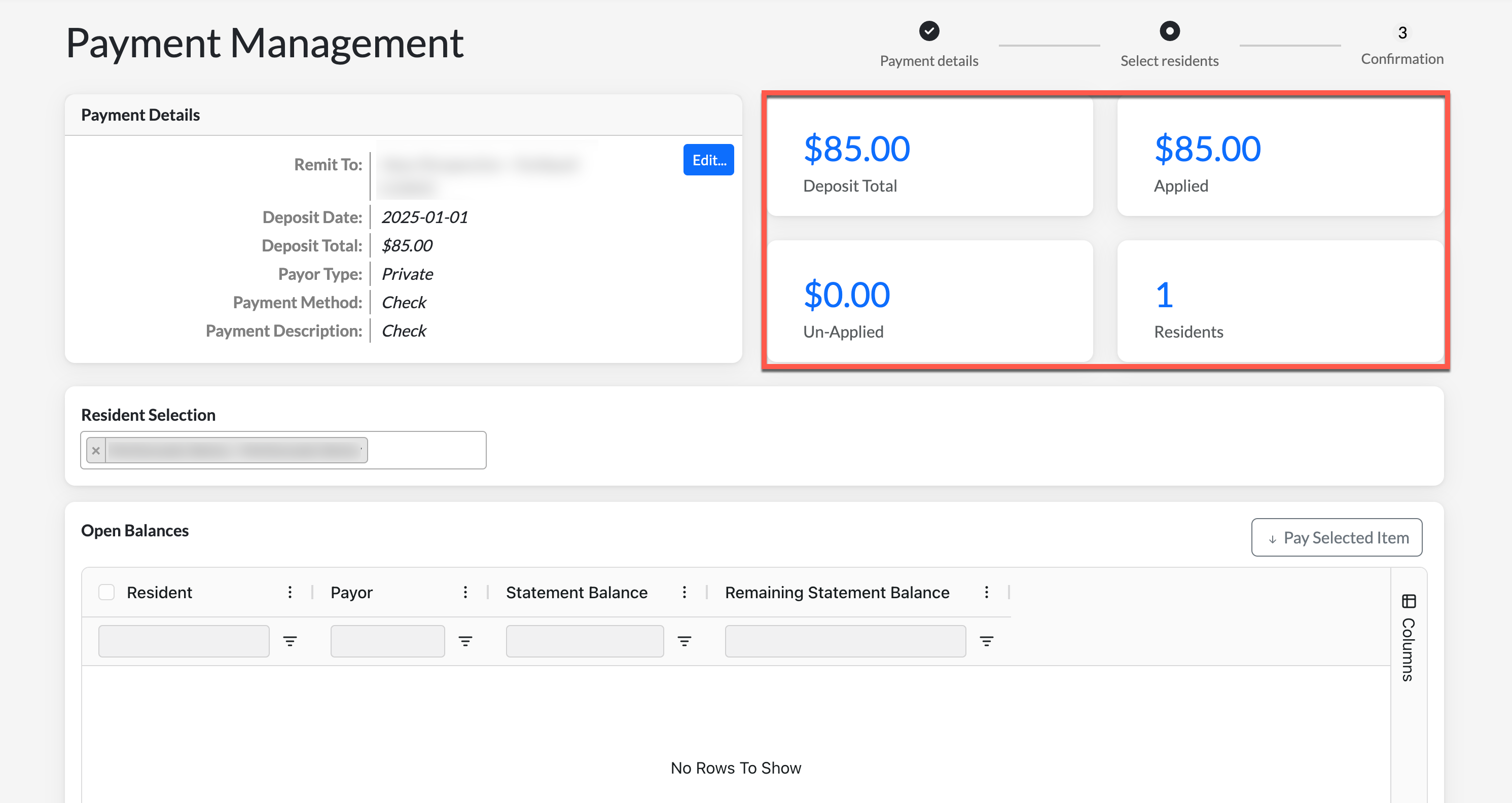
An error will display if the deposit total differs from the applied amount. If satisfied with the deposit validation, select Submit Payments on the bottom of the page.
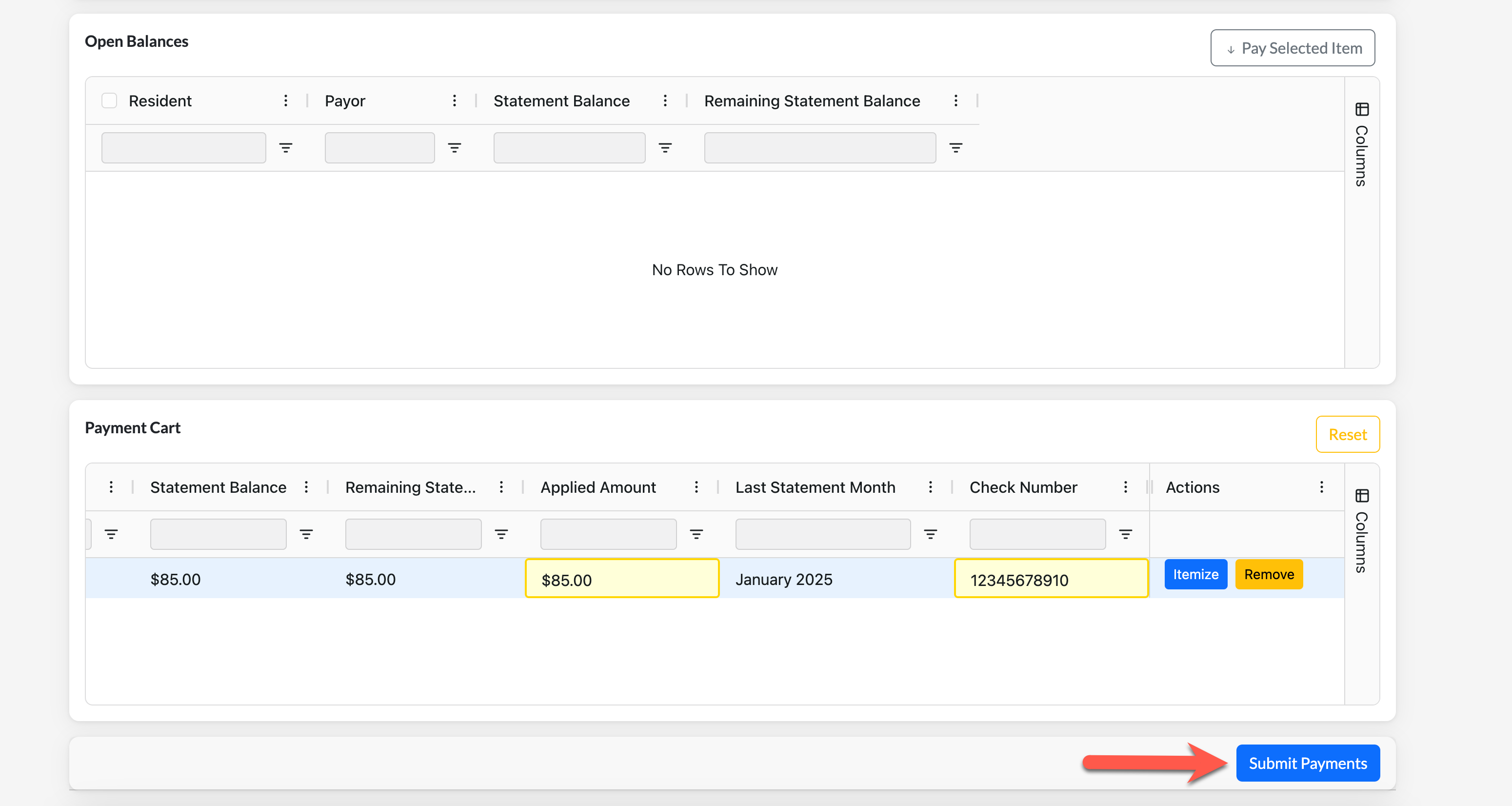
Finally, select OK to complete the process. The bulk recurring ACH payments will then be applied to the selected residents/resident balances and reflect in related reporting and the resident's ledger.
Steps to Make Supplemental Payor Payments
Step 1: After signing into the Aline Leasing & Billing application, select the Quick Actions Menu and then select Manage Payments.
This will take the user to the Payment Center. From the Payment Center, the user can make bulk recurring ACH payments, single or bulk private payments, single or bulk supplemental payments, or review past payment history.
Step 2: Select Supplemental.
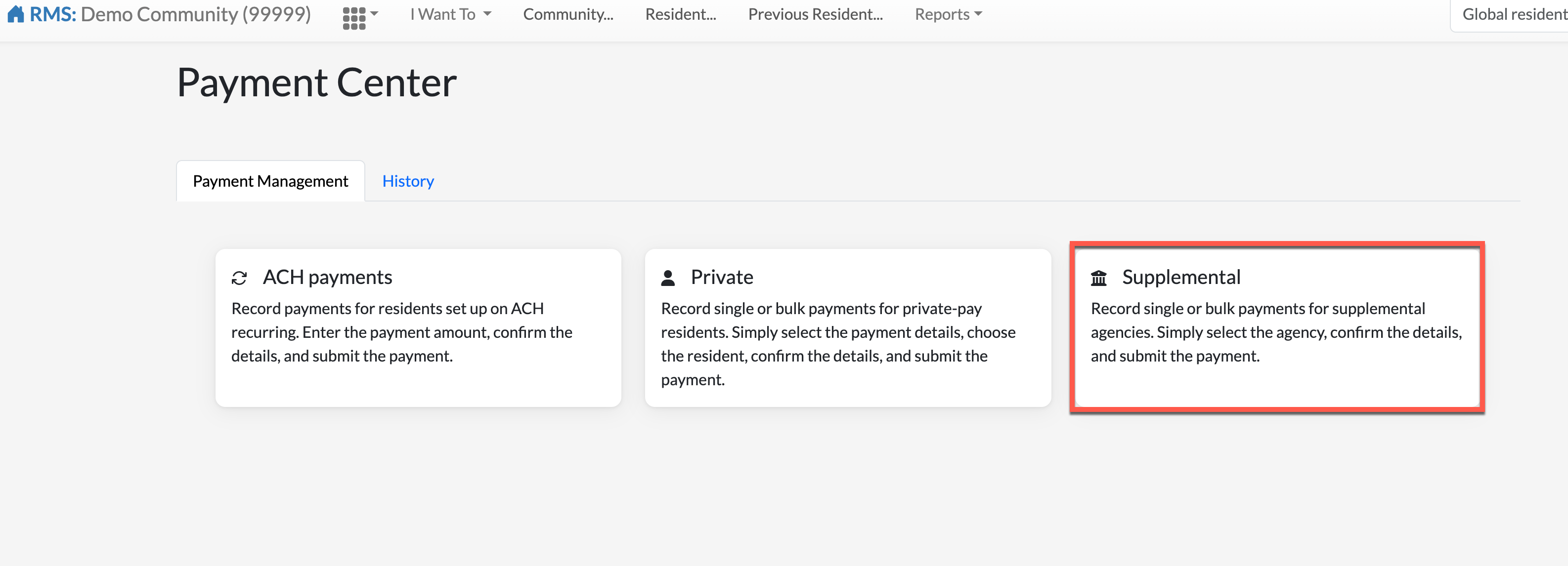
The Payment Detail page will display.
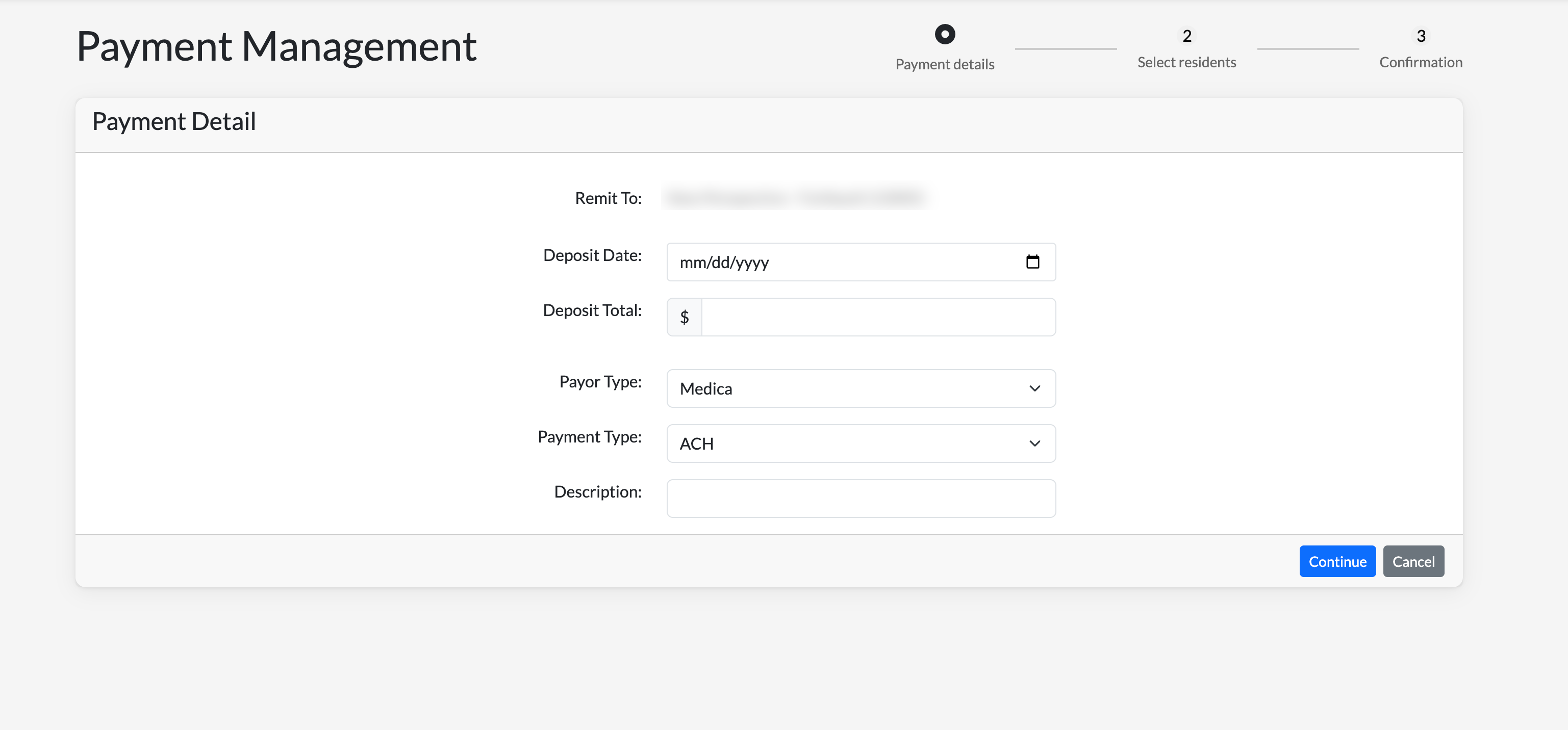
Step 3: For the private payment, enter in the Deposit Date, the total amount of all payment funds (Deposit Total), the Payor Type (supplemental provider), payment type, and then a Payment Description. Supplemental payments made with a check will also require a Check Number, as seen in the example below.
Select Continue.
The following page will display:
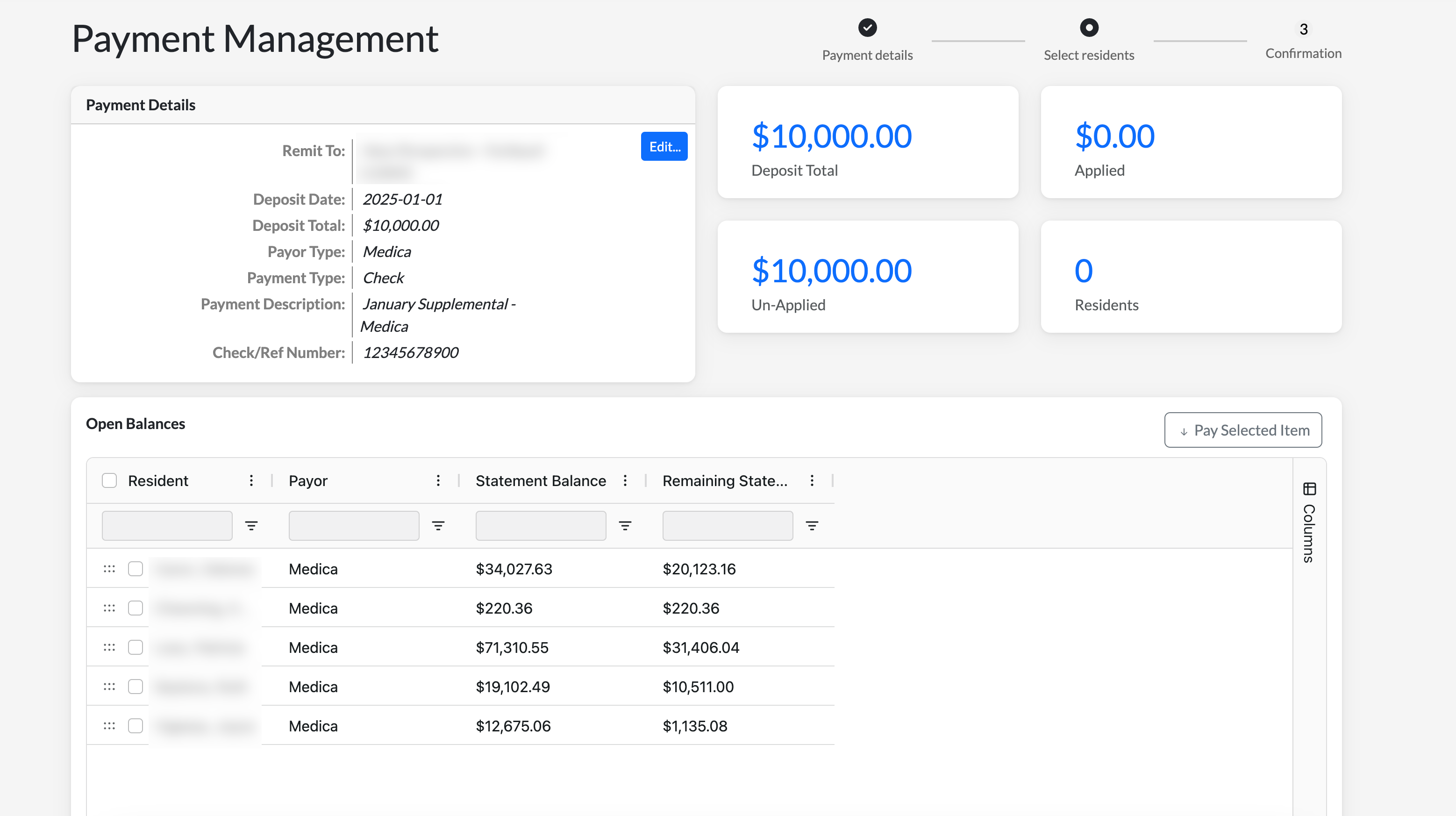
On the top left, the Supplemental Payment Details will display including the remittance, deposit date, deposit total, payor type, payment type, the payment description, and the check number if the payment is being made by check. To the windows on the right, users will see the Deposit Total once again along with the residents currently included in the transaction, the total amount Un-Applied, and the total amount Applied.
Below, is the Open Balances panel. All resident's with open balances belonging to the selected supplemental payor will display. This table will display the resident name, payor/responsible party names, statement balances, and remaining statement balances. The table headers can be dragged and dropped as needed and specific columns can be added or removed via the Columns Tab on the right side panel.
Step 4: To assign residents/resident balances to the deposit total, select them by checking the checkbox next to their name. To select all residents at once, select the checkbox next to the Resident header. Once all desired resident/resident balances have been selected from the Resident Selection tool, select Pay Selected Item.
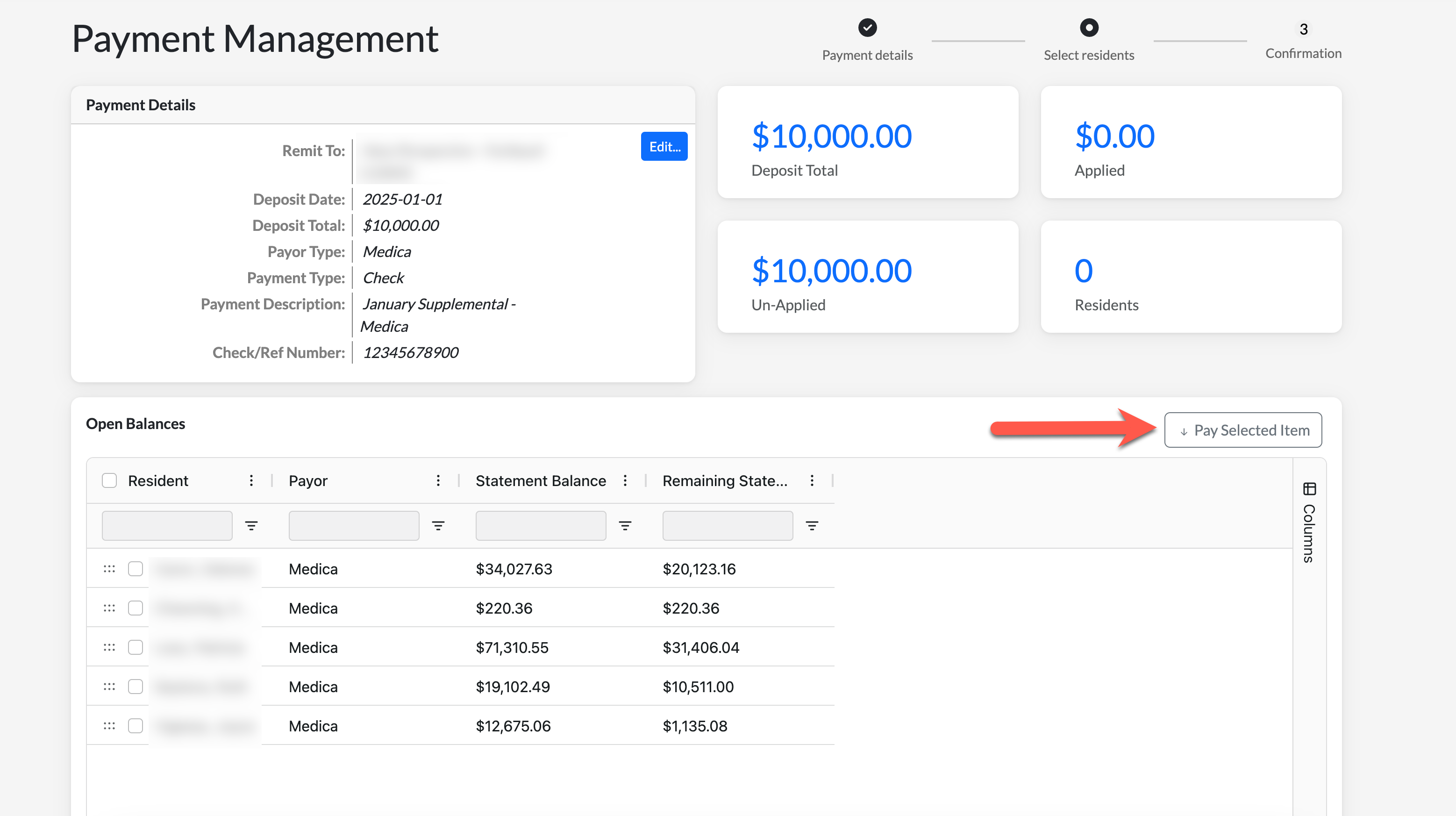
Step 5: Selecting Pay Selected Item will place the selected residents/resident balances in the Payment Cart for final review, as seen below:
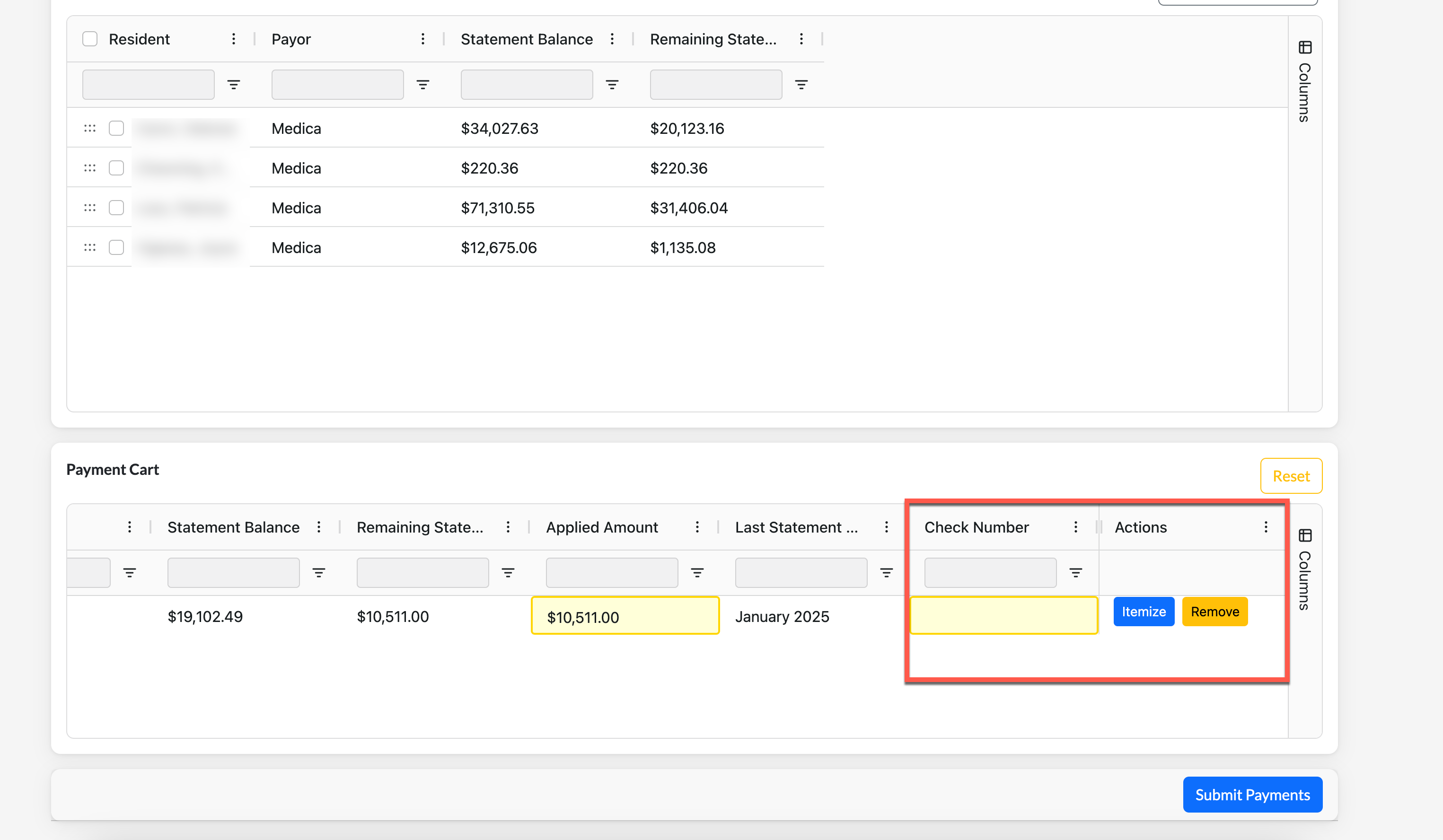
If selected residents/resident balances need to be itemized or removed, scroll to the right of the table to access those specific options. When itemizing, each bill on the resident's statement will be broken into a specific line item for additional detail.
For check payments, such as this example, the Check Number can also be entered.
Before selecting Submit Payments, users can conduct a deposit validation utilizing the top right panel above to ensure the amount deposited matches the private payment:
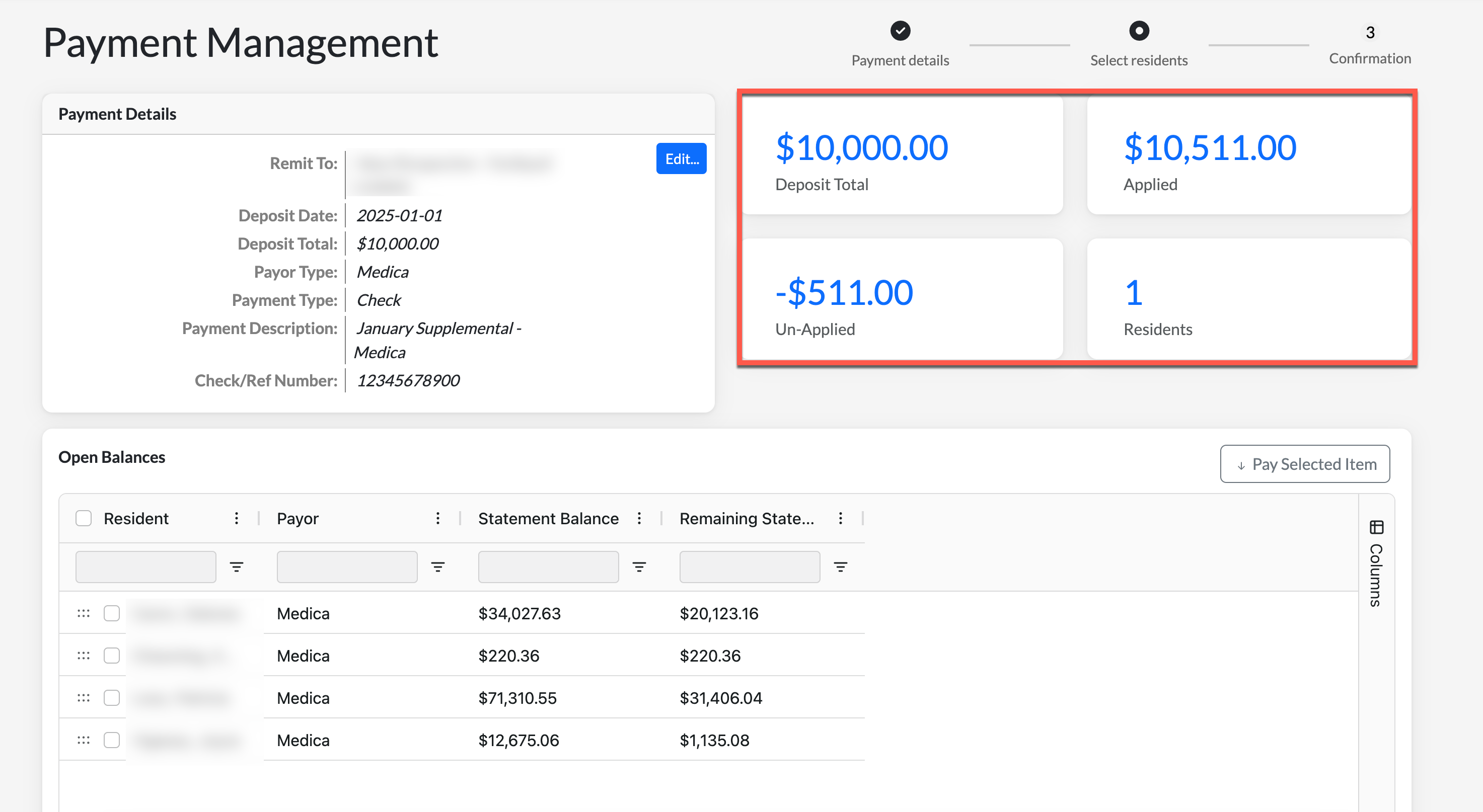
An error will display if the deposit total differs from the applied amount. If satisfied with the deposit validation, select Submit Payments on the bottom of the page.
Finally, select OK to complete the process. The bulk recurring ACH payments will then be applied to the selected residents/resident balances and reflect in related reporting and the resident's ledger.
Was this article helpful?
That’s Great!
Thank you for your feedback
Sorry! We couldn't be helpful
Thank you for your feedback
Feedback sent
We appreciate your effort and will try to fix the article