Overview
In this article, we'll cover the basics of navigating through the Aline Payments application.
Navigating Aline Payments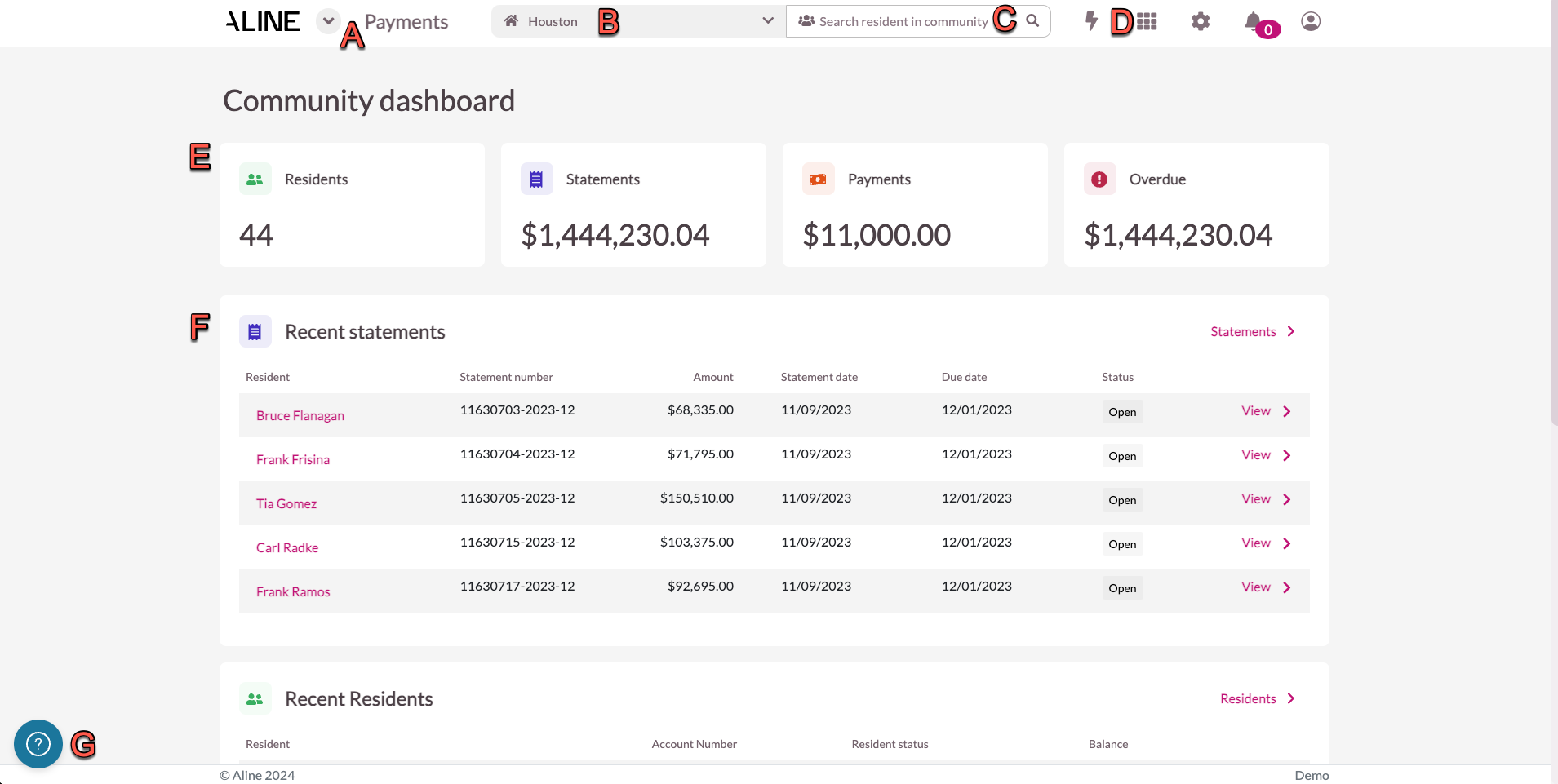
A: Selecting 'Payments' acts as a home button and refreshed the page and / or drops the user back on the Payments dashboard.
B: This is the Community Selector. Users with access to multiple communities can swap between communities here.
C: Resident Search allows users to search for specific residents by first or last name.
D: The Waffle Menu presents users with shortcuts to view Statements, Transactions, Residents, or Analytics.
E: The Community Dashboard displays various metrics that may be pertinent to the community's revenue operations like number of residents, total amount due from statements, total payments made, and total amount currently overdue.
F: Recent Statements, Recent Residents, and Recent Payments displays information pertaining to statements, residents, and payments that have taken place most recently.
G: The Aline Help Center can be accessed by selecting the Question Mark icon. Links to Aline Academy, the Payments Application Knowledge Base, and contacting Aline Customer Support can be found here.
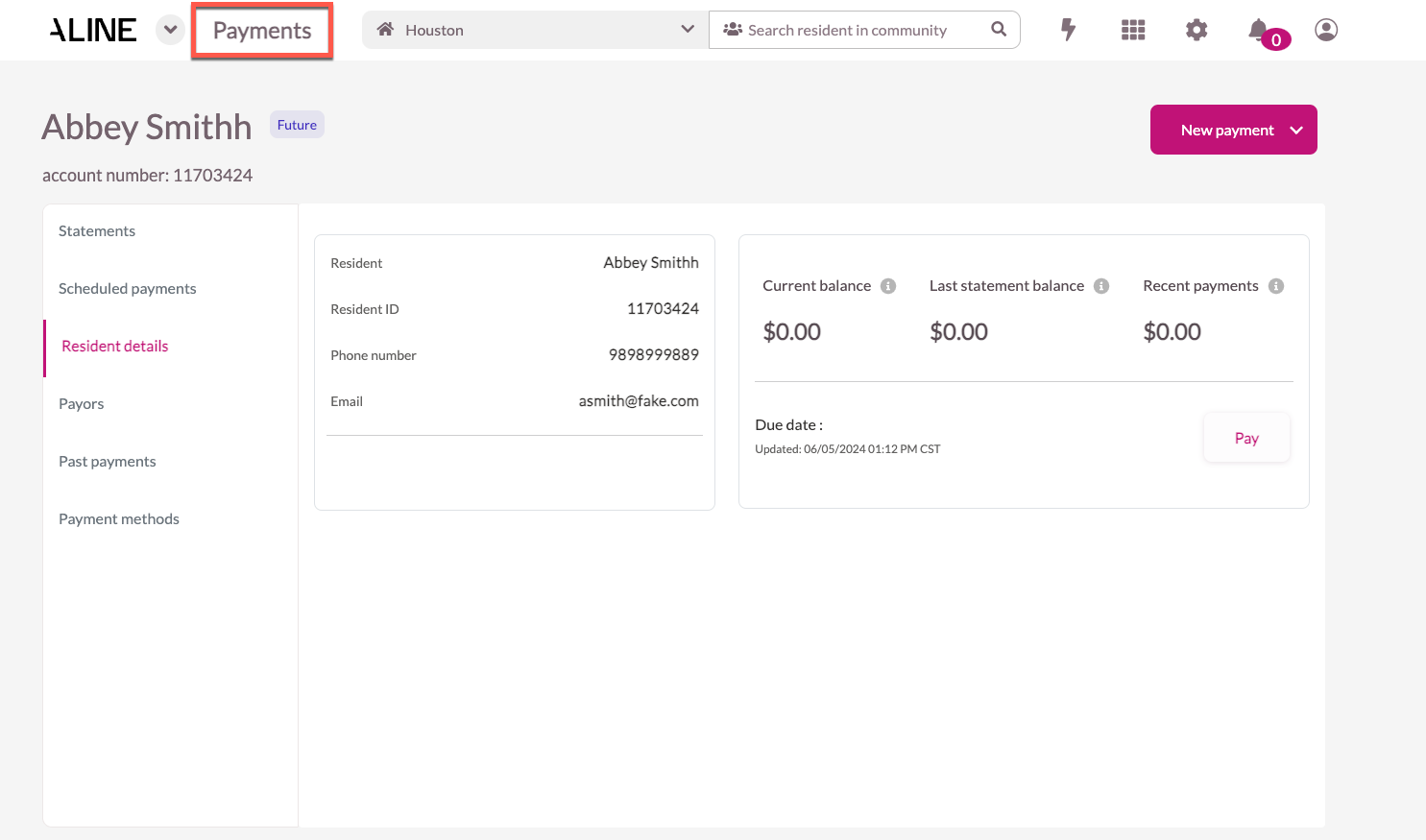
After selecting a resident profile, users will be redirected to that respective profile. The resident profile houses many functionalities including the ability to make a payment on a resident's / resident's responsible party's behalf. Selecting 'Payments' from the resident profile will return users to the Payments Dashboard.
Was this article helpful?
That’s Great!
Thank you for your feedback
Sorry! We couldn't be helpful
Thank you for your feedback
Feedback sent
We appreciate your effort and will try to fix the article