Overview
In this article, we will review adding a resident payment.
Video
Adding a Resident Payment from Aline Ops on Vimeo.
Add a Resident Payment
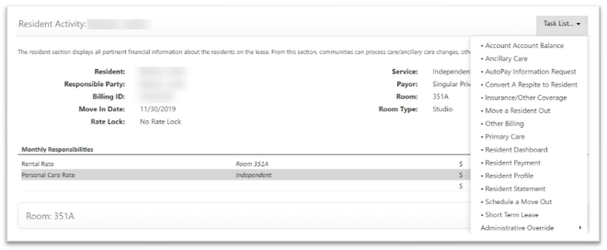
Step 1: Go to the Resident’s Lease Management page and select Resident Payment from the Resident Activity Task List.
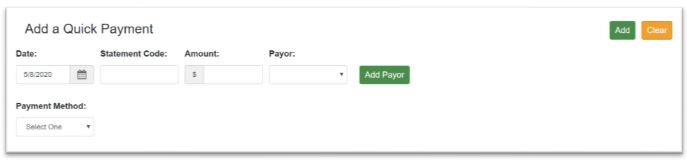
Step 2: On the Resident Payment Page, select and enter the Payment Date, Statement Code, Amount and payor.
Note: For Statement Code, you can enter an existing Statement Code or leave the field blank to enter a valid payment.

Step 3: For Payment Method, if ACH is selected, enter the Routing/Transit Number and Account Number. ACH will be recurring payment.

Step 4: If Check is selected, enter the Routing/Transit Number, Account Number, and the Check Number. Check will be one-time payment.

Step 5: Once all information is entered, select the Add button.
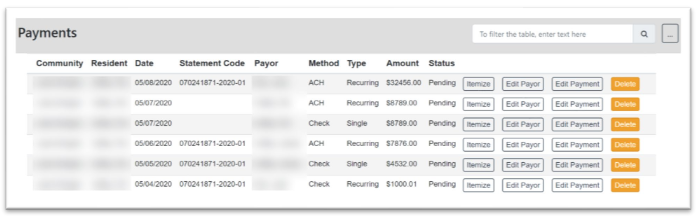
Step 6: Once the Payment is added, it will display in the Resident’s Payment Grid below Add Payment.
Was this article helpful?
That’s Great!
Thank you for your feedback
Sorry! We couldn't be helpful
Thank you for your feedback
Feedback sent
We appreciate your effort and will try to fix the article