Overview
In this article, we'll detail the steps required to add new payment methods to Express Pay along with the steps required to add a new payment method to Express Pay.
Adding New Payment Methods to Express Pay
Step 1: After signing into a resident's account in Express Pay, users can access the resident's current payment methods by selecting the dropdown arrow in the upper right-hand corner and then selecting 'Profile'.

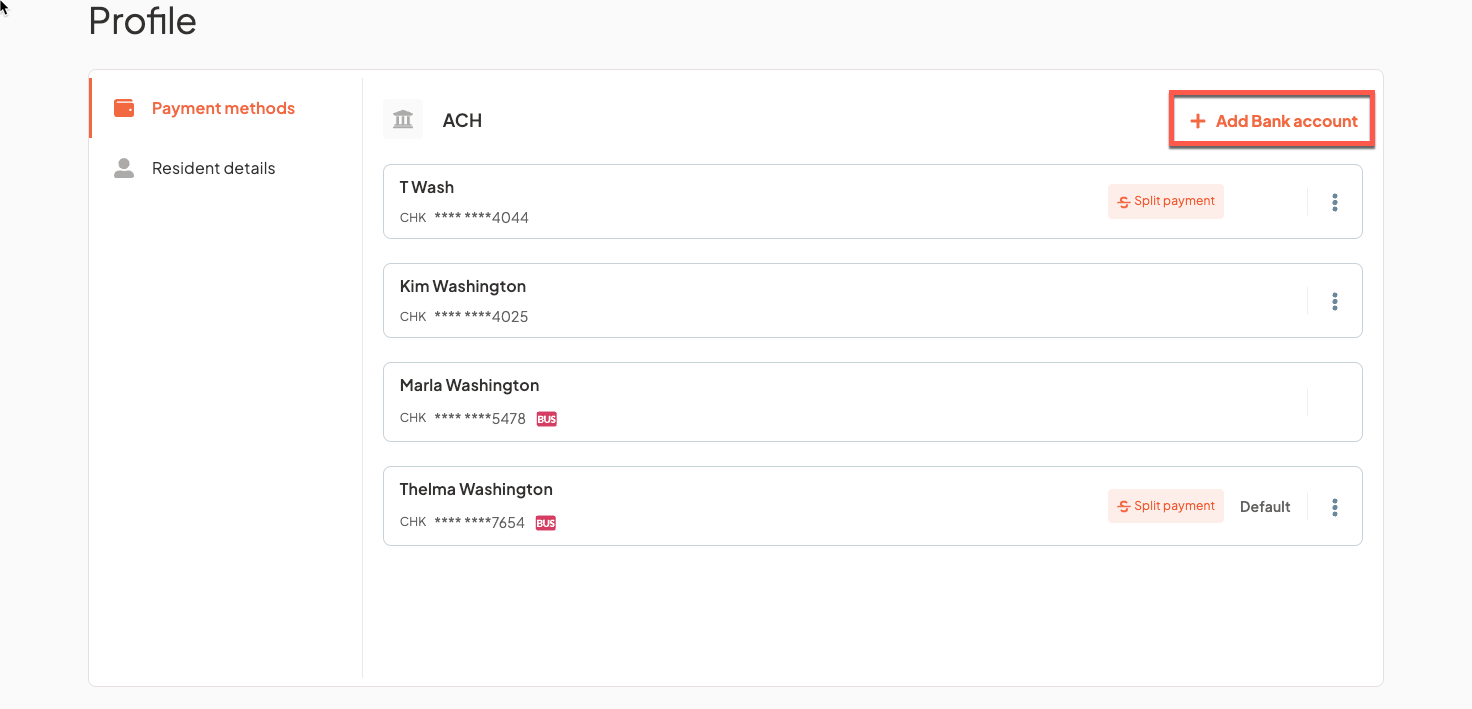
Step 2: From here, by default, the resident's current available payment methods will display. To add a new payment method to the account, select '+ Add Bank Account'.
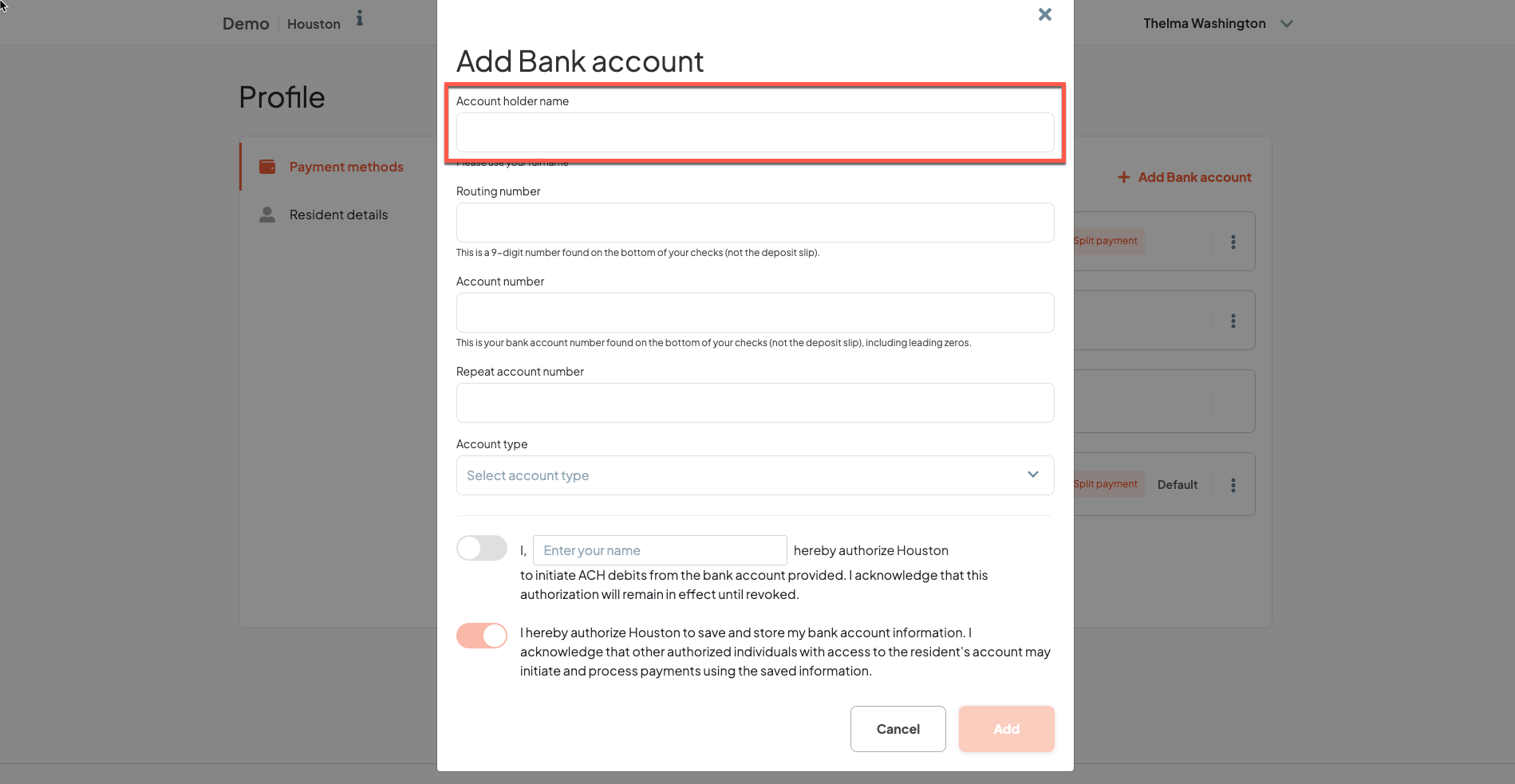
Step 3: Add Account Holder Name.
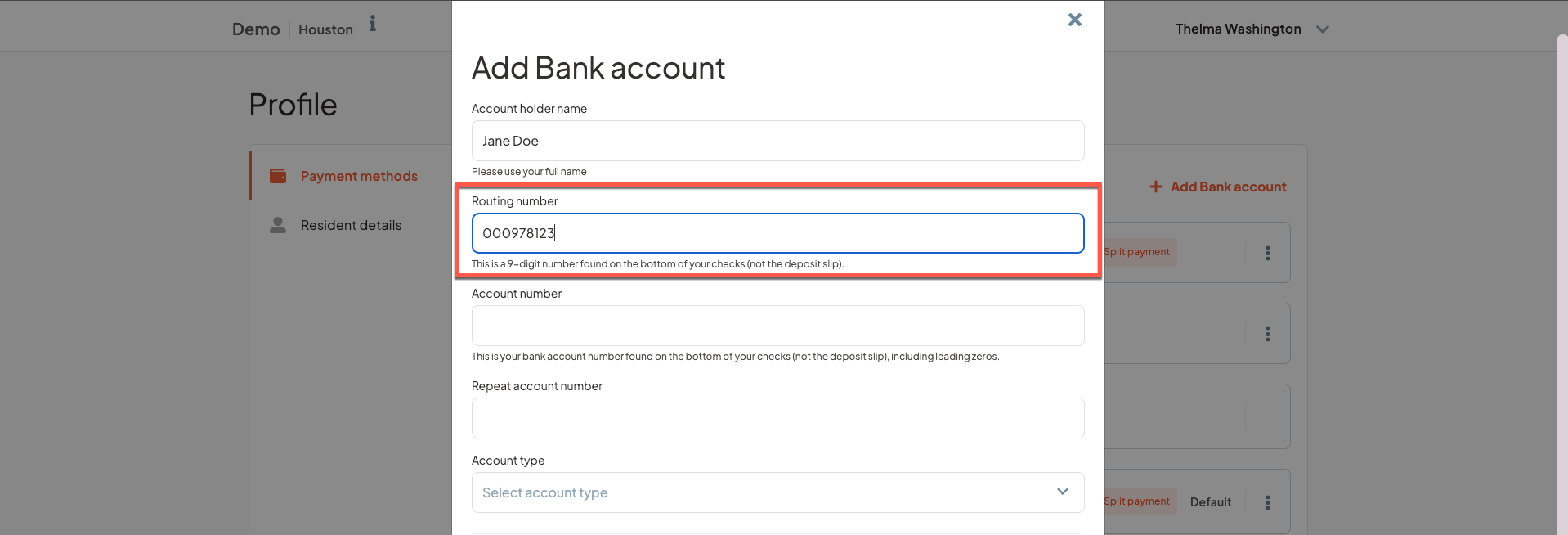
Step 4: Add Routing Number for ACH account.
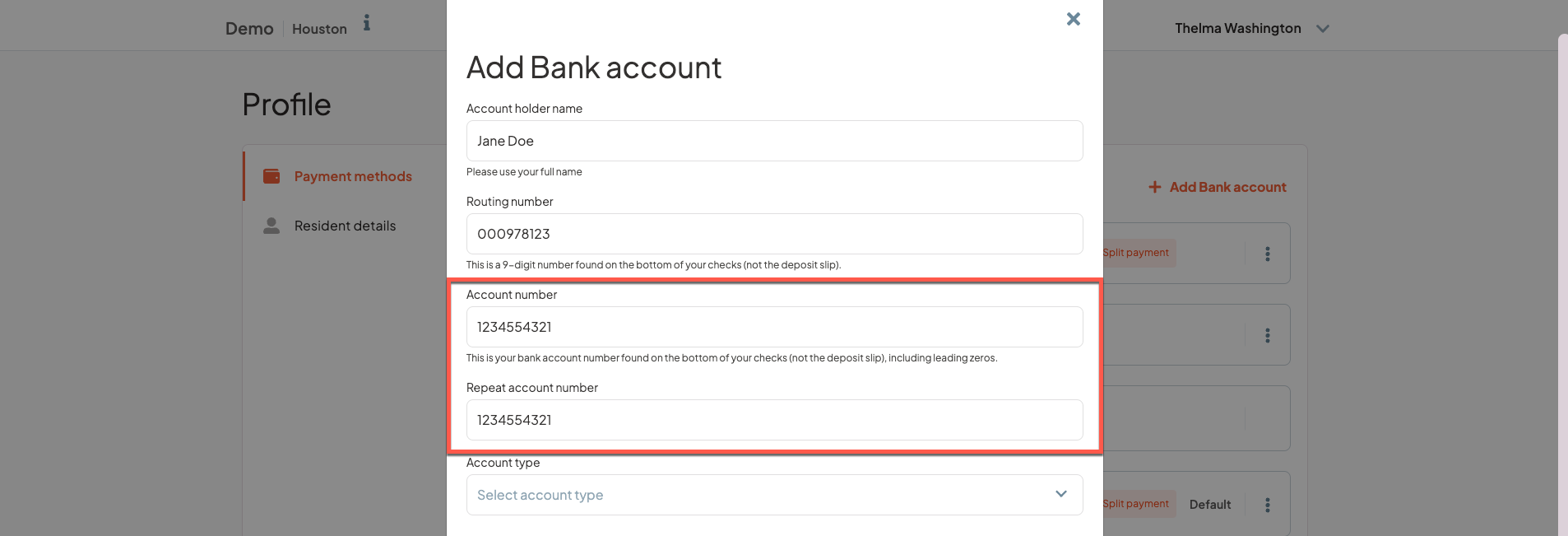
Step 5: Add Account Number and confirm Account Number by entering it again.
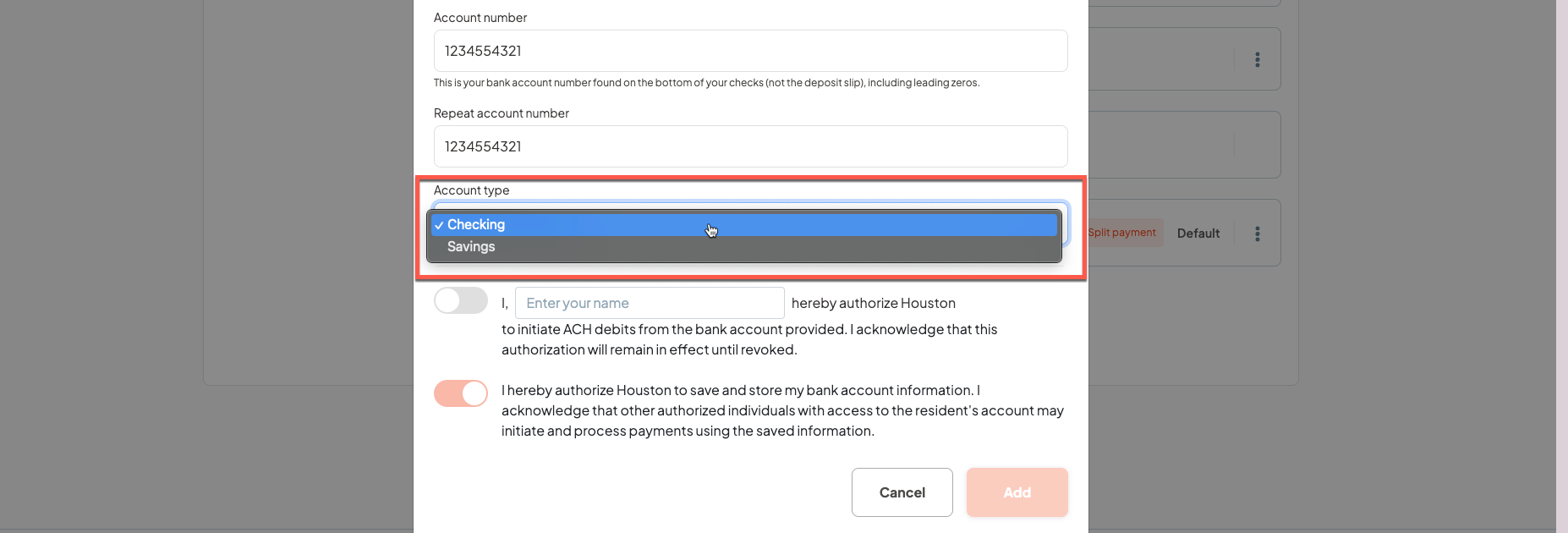
Step 6: Select the Account Type - either Checking or Savings.
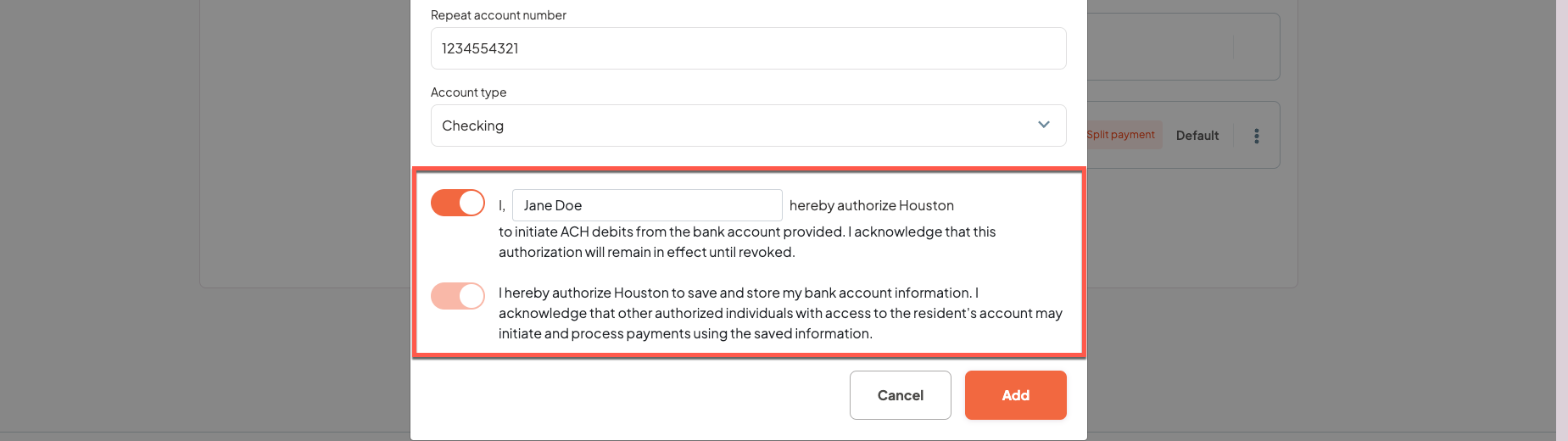
Step 7: Complete both acknowledgements for ACH authorization.
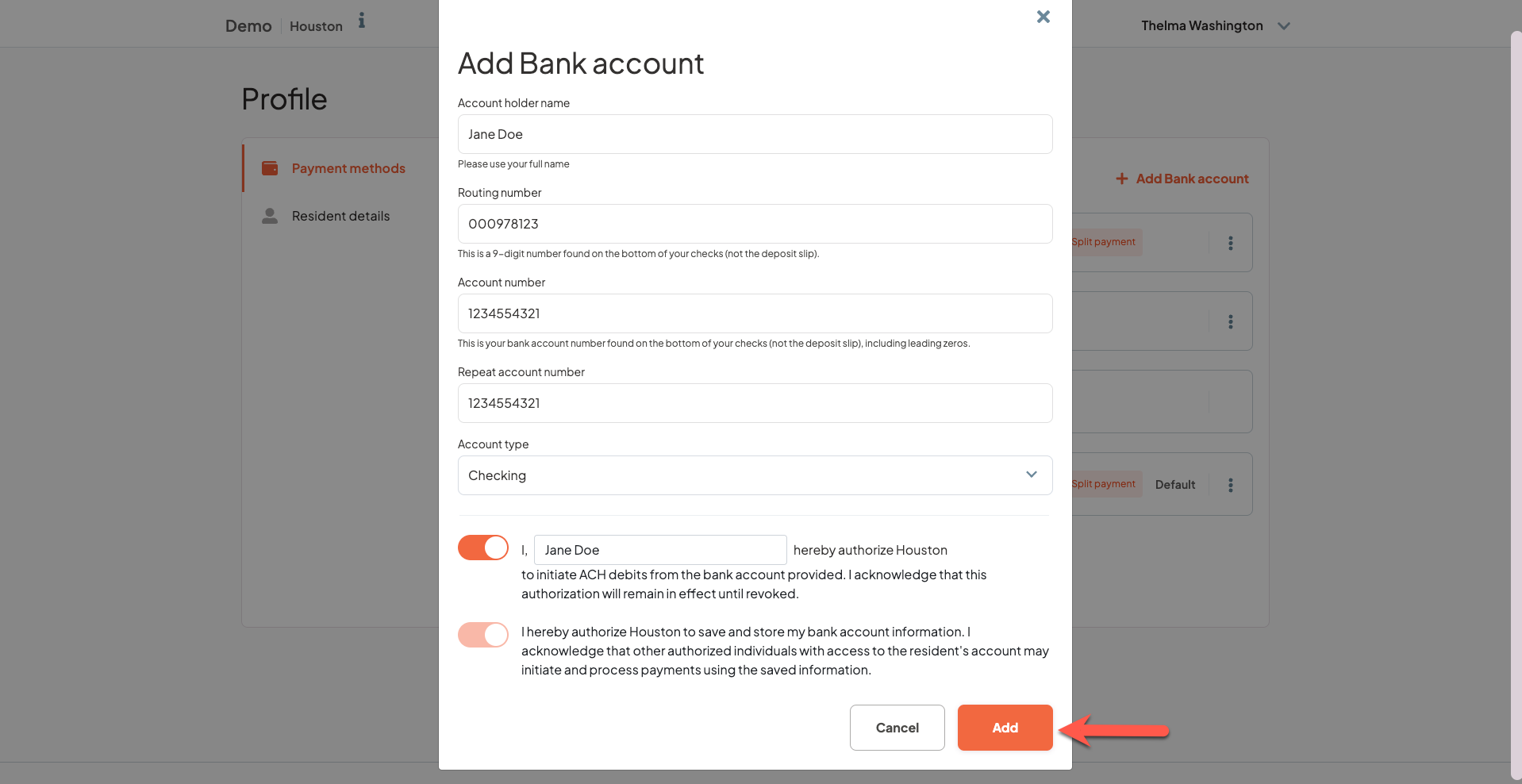
Step 8: Select 'Add' to add the new payment method to the resident's Express Pay profile. Added payment methods will also carry over to the Aline Payments Application.
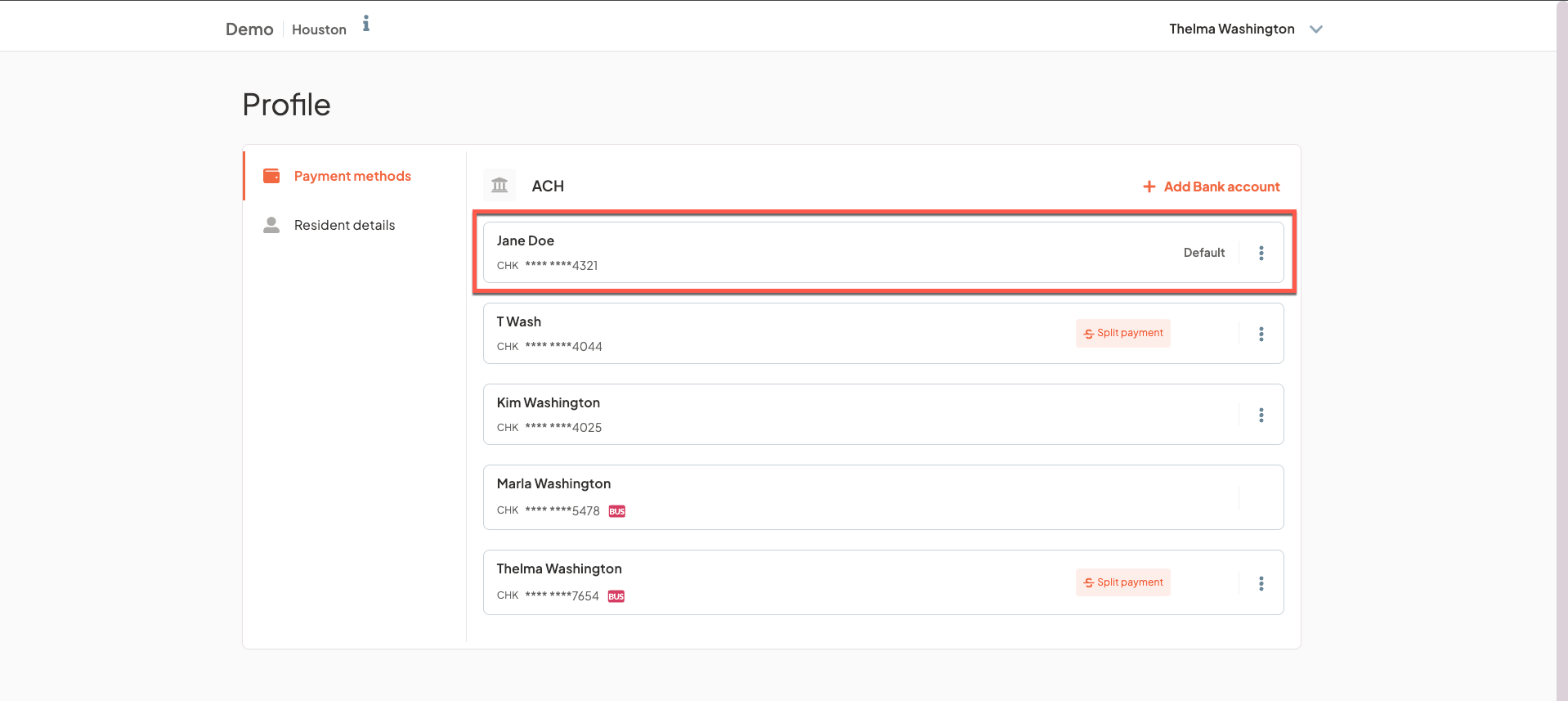
The new payment method will now be listed on the resident's profile.
Editing Payment Methods in Express Pay
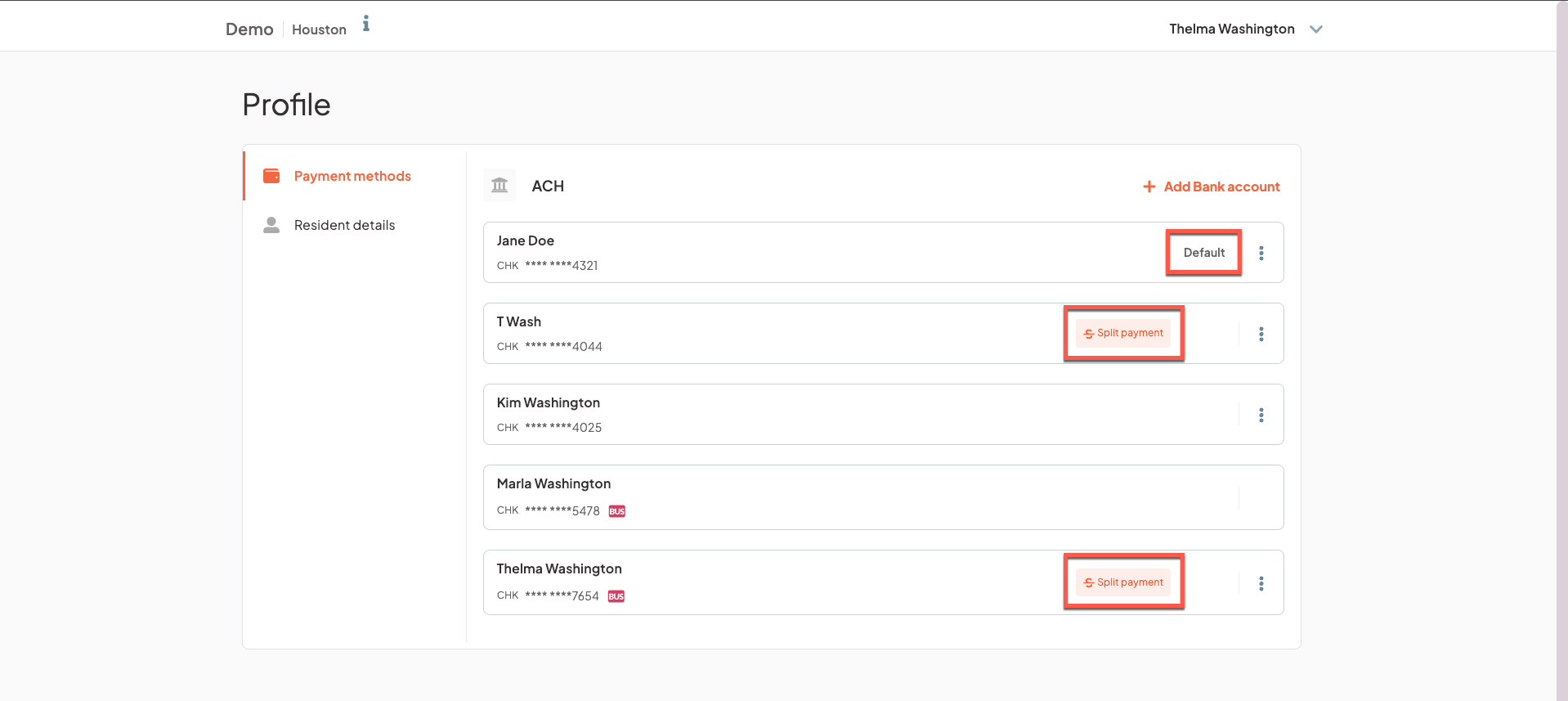
Step 1: After navigating to the resident's profile in Express Pay, existing payment methods can be edited/deleted. The default payment method will be labeled with 'Default' and split payment payment methods with recurring payments scheduled will be labeled as 'Split Payment'.
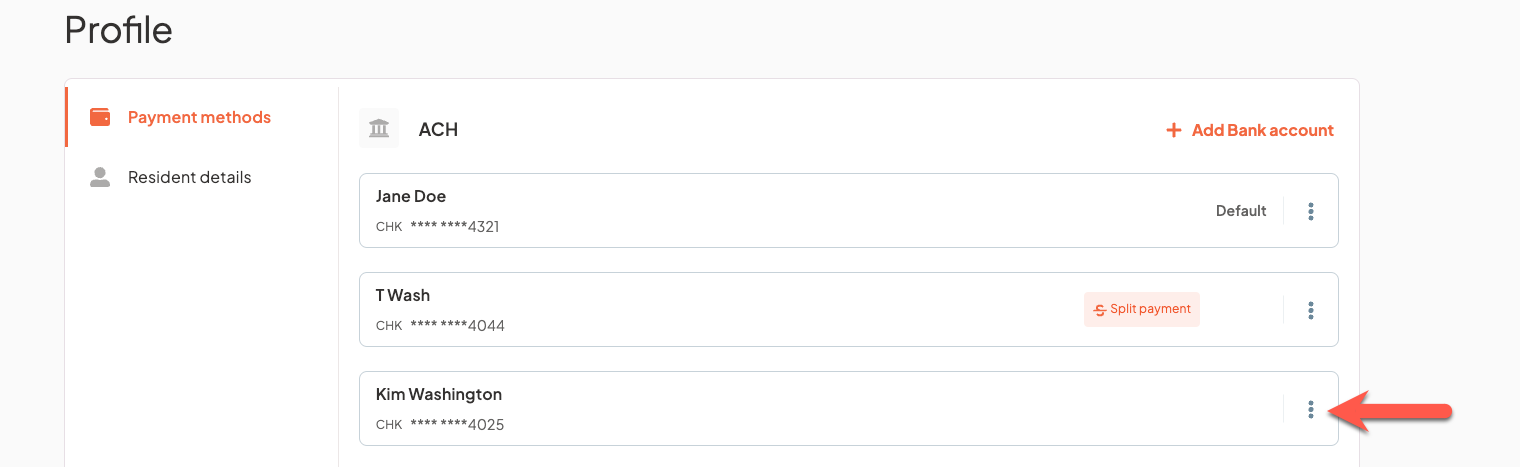
Step 2: To edit or delete a payment, select the three vertical dots on the right side of the payment method.
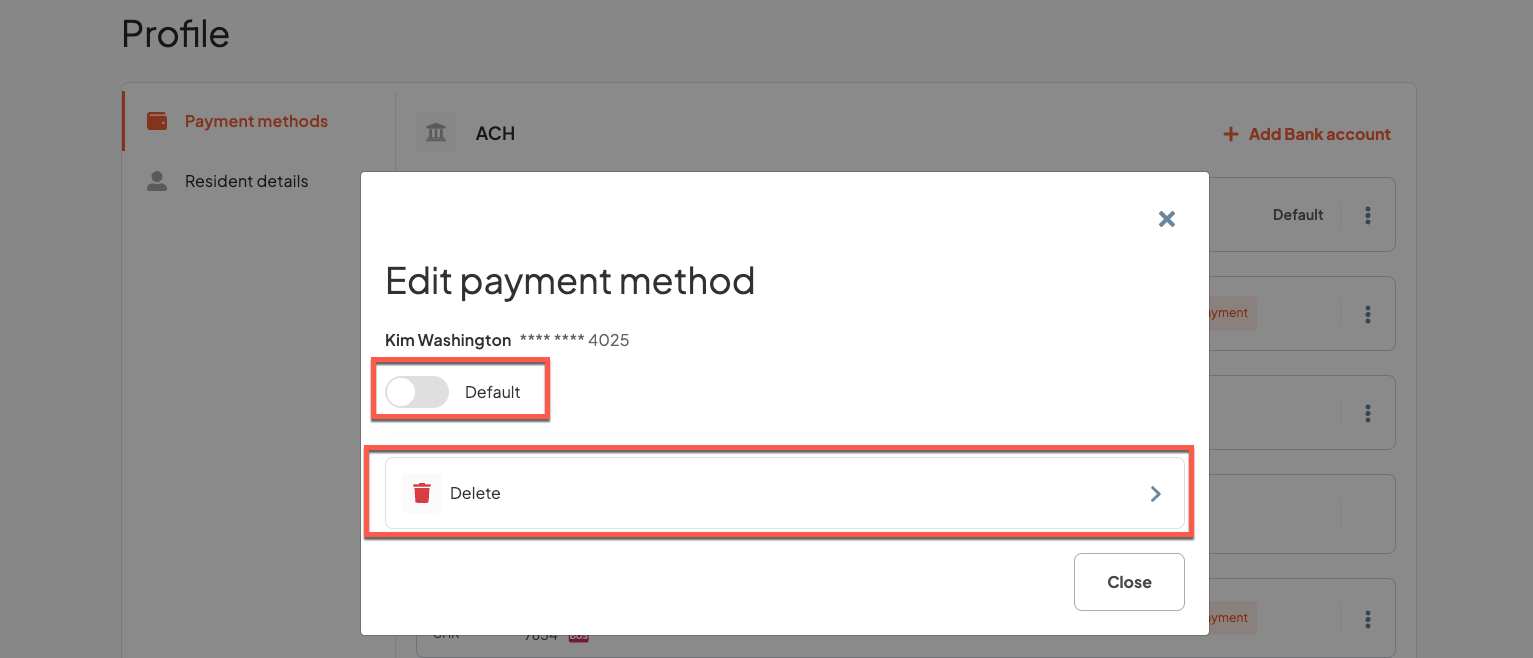
Step 3: From here, users can select the Default toggle to enable the payment method as the default payment method, or they can select 'Delete' to delete the payment method altogether.
Step 4: If 'Delete' is selected, the user must confirm that they would like to delete the payment method by selecting 'Yes, Delete'. Otherwise, users can select 'No, Keep Payment Method'.

Deleted payment methods will no longer display on the resident's profile.
Was this article helpful?
That’s Great!
Thank you for your feedback
Sorry! We couldn't be helpful
Thank you for your feedback
Feedback sent
We appreciate your effort and will try to fix the article