Overview
In this article, we'll explore how to run, and the information included in, the Six Month Aging Report that is available in the Aline Leasing & Billing application.
Steps to Run the Six Month Aging Report
Step 1: Once logged into the Aline Leasing & Billing application, select the Reports menu.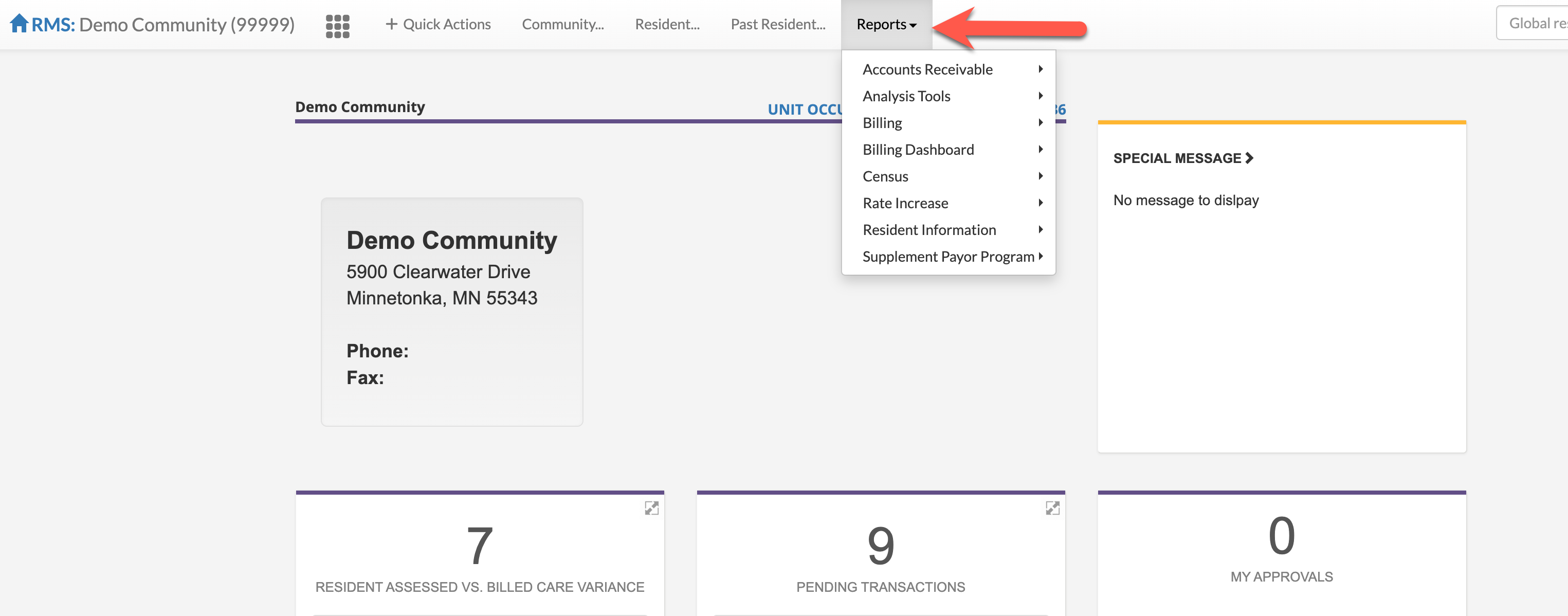
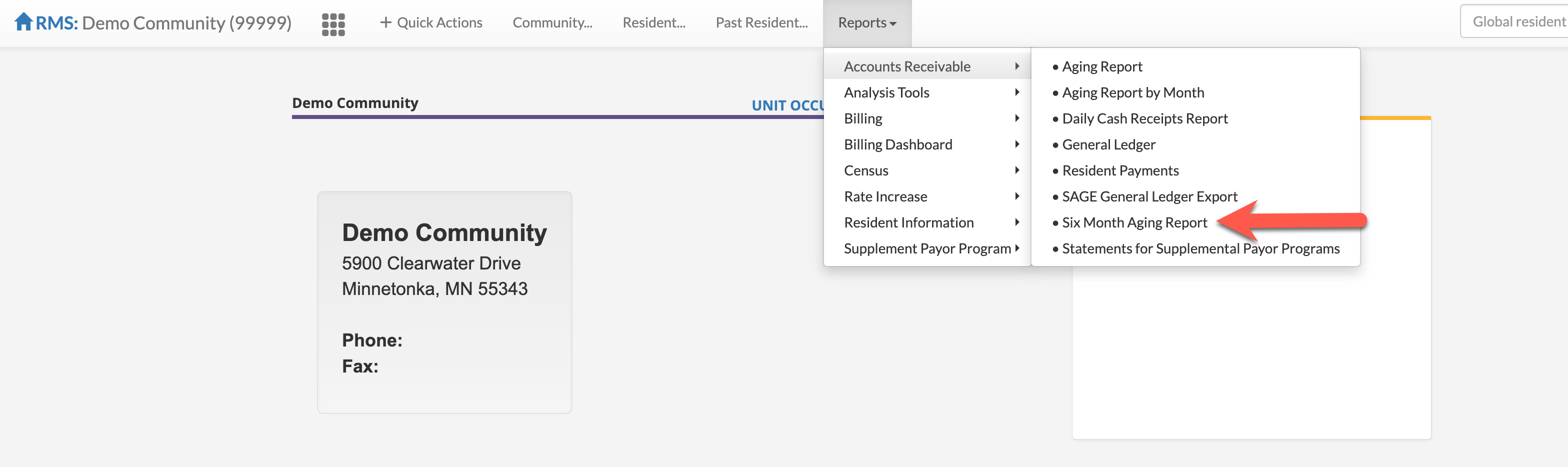
Step 2: Next, select Accounts Receivable and then select Six Month Aging Report.
As the report header states, the Six Month Aging Report allows you, for the period that you run the report for, to show lists all unpaid customer invoices, categorized by the length of time each invoice has been outstanding. This report will display the information to you by Resident, Billing Item, and Age of the invoice. The report gives you an analysis of the age of outstanding invoices.
The Resident will only display if there is an aging balance for the period of time you select.
Note that Payor Type can be filtered as well. Reports can be run for specific Supplemental Payors, groups of Supplemental Payors, or simply by Private Payors only. If this field is left blank, all applicable fields will apply.
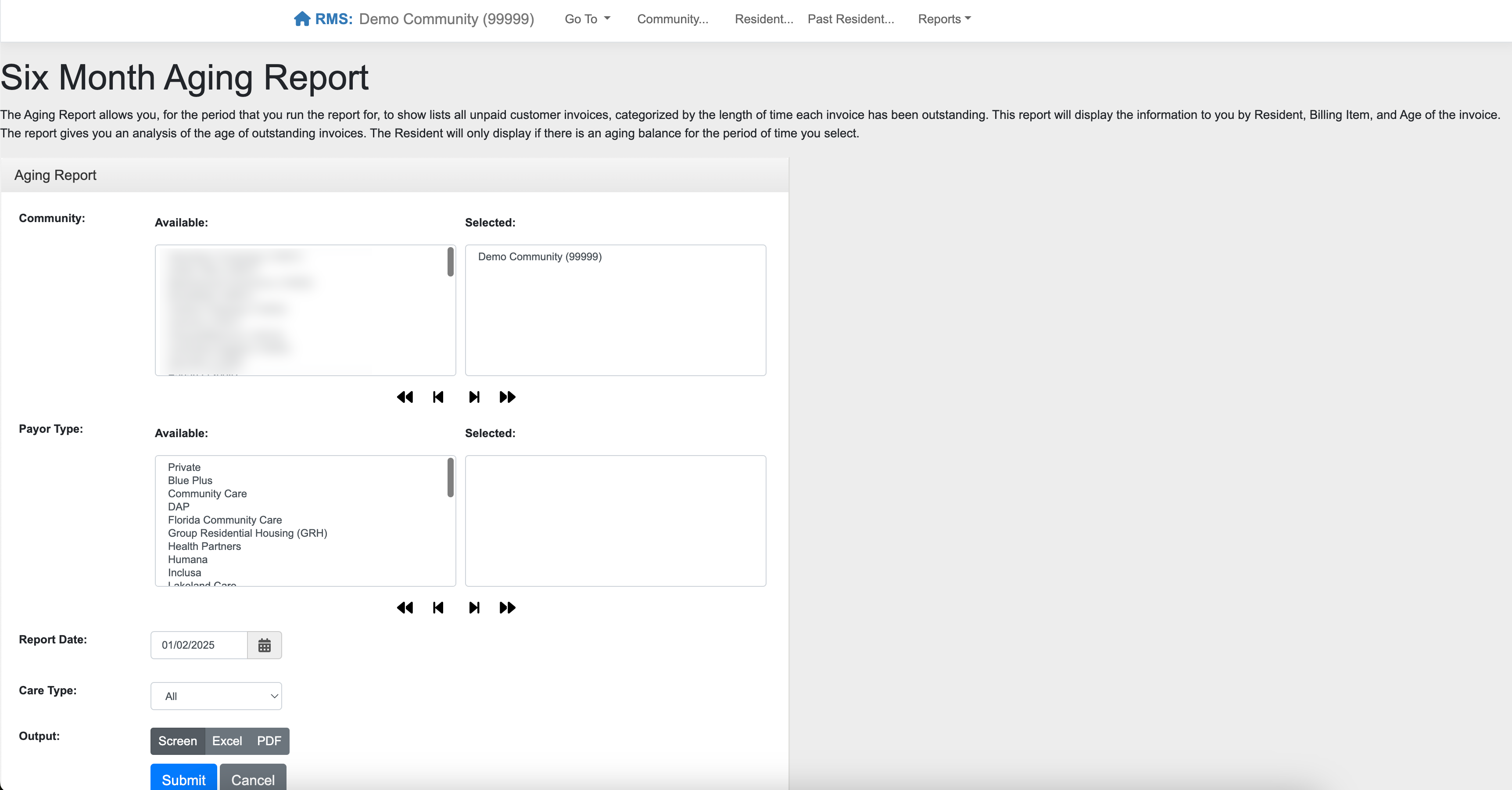
Step 3: Select the Community(s) that should be included in the report.
Step 4: Select the Payor Type(s) to be included. For all Payor Types, leave the selection blank.
Step 5: Select the Report Date.
Step 6: Select the Care Types to include. Leave All selected to run the report for all care types.
Step 7: Select the Output. The report can be exported via Excel, a PDF, or viewed onscreen.
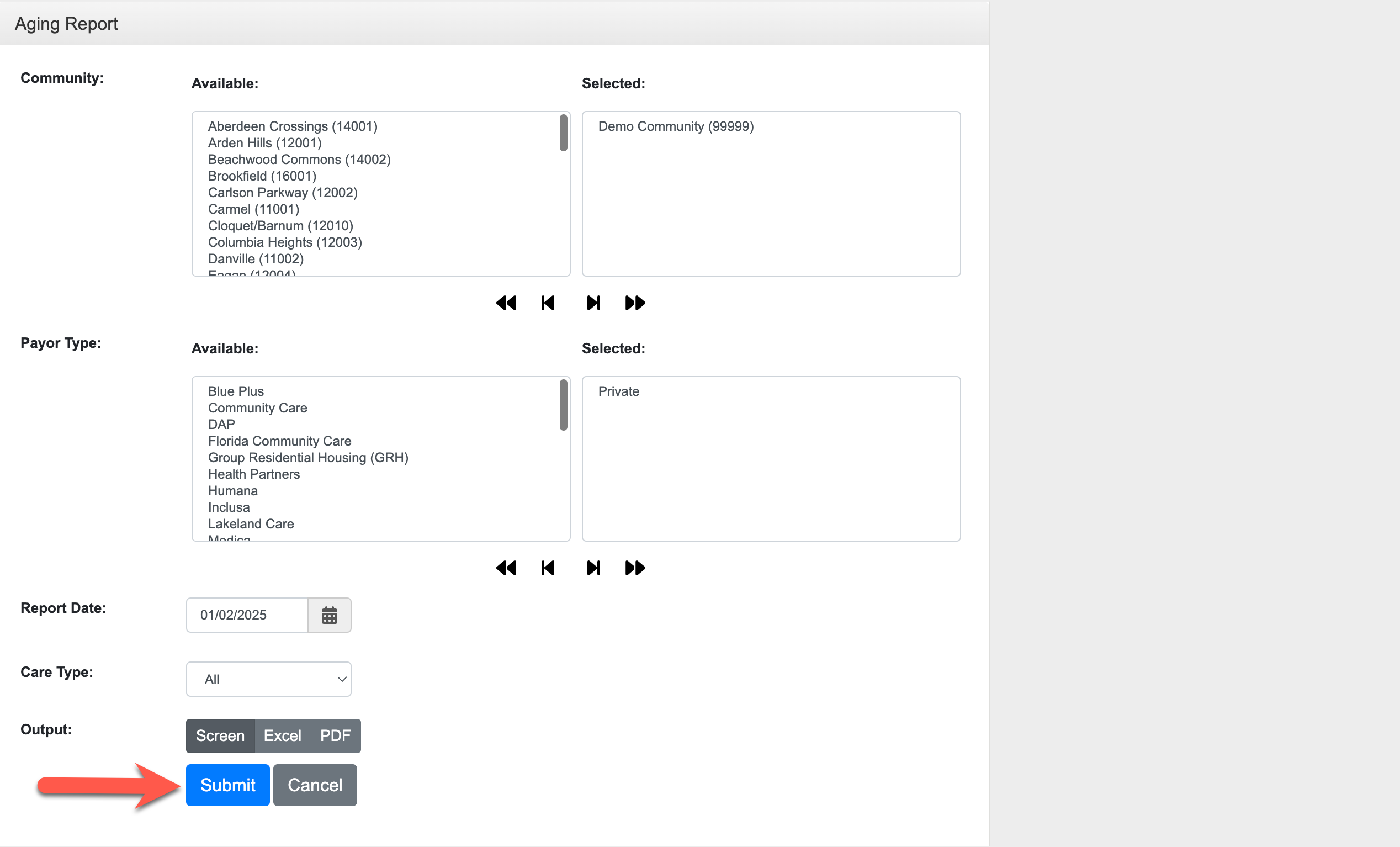
Step 8: Finally, select Submit to compile the report.
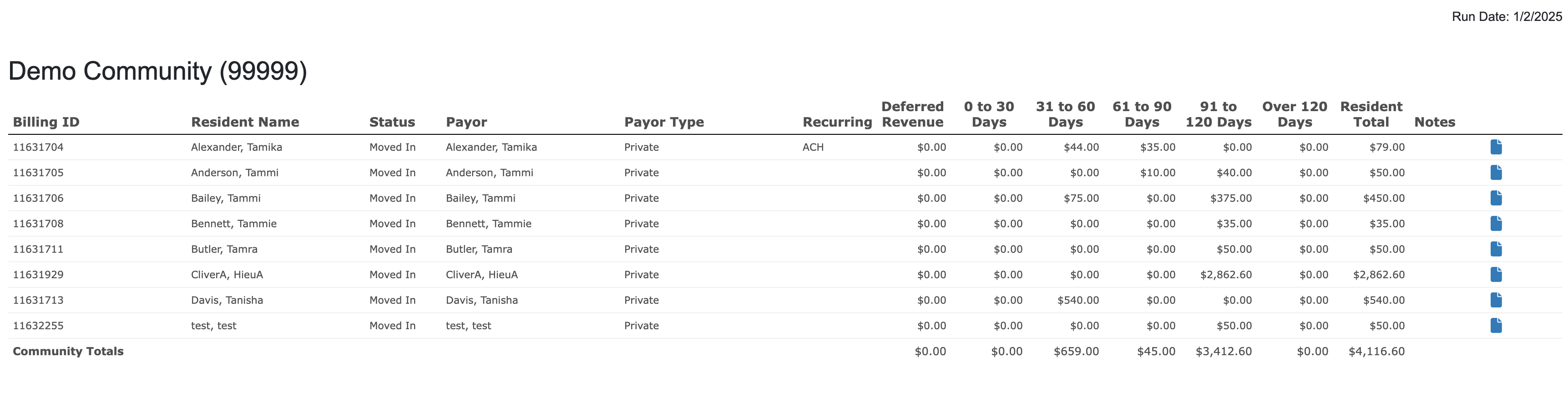
The report can now be viewed. The report can also be sorted by selecting the various headers.
Was this article helpful?
That’s Great!
Thank you for your feedback
Sorry! We couldn't be helpful
Thank you for your feedback
Feedback sent
We appreciate your effort and will try to fix the article