Overview
In this article, we'll explore how to run, and the information included in, the Supplemental Payor Report that is available in the Aline Leasing & Billing application.
Steps to Run the Supplemental Payor Report
Step 1: Once logged into the Aline Leasing & Billing application, select the Reports menu.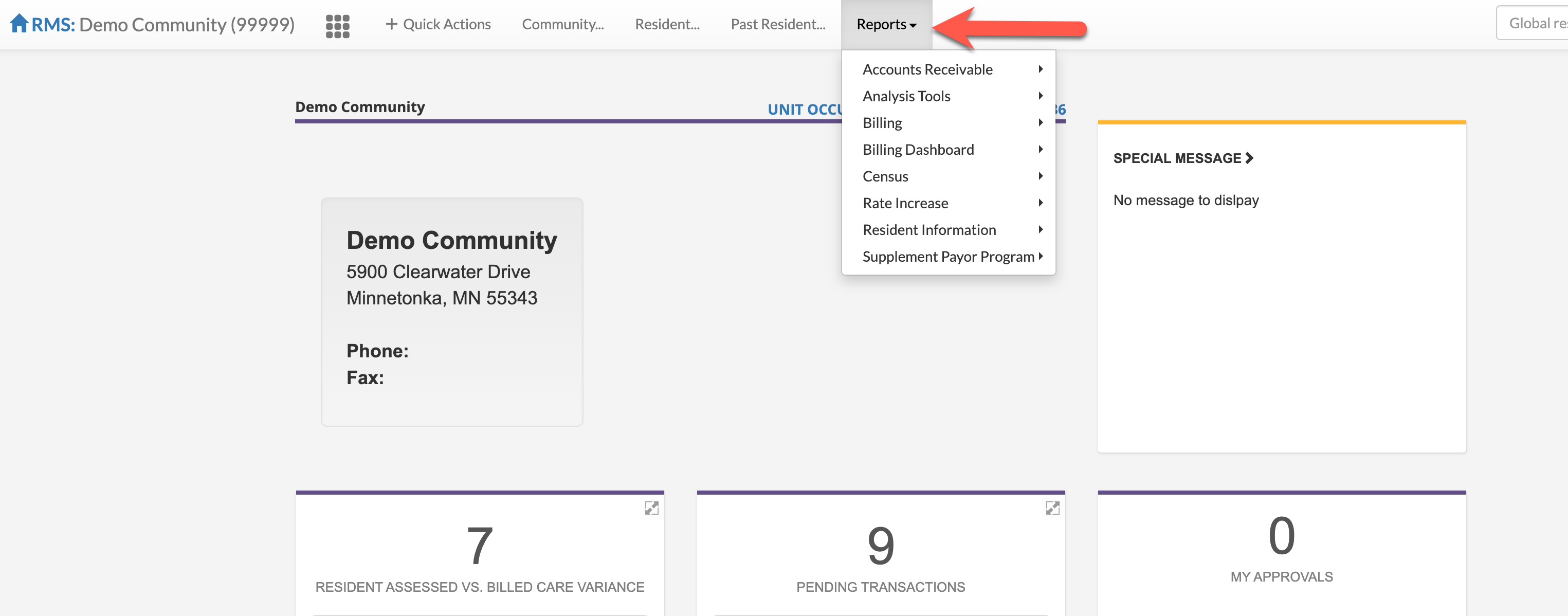
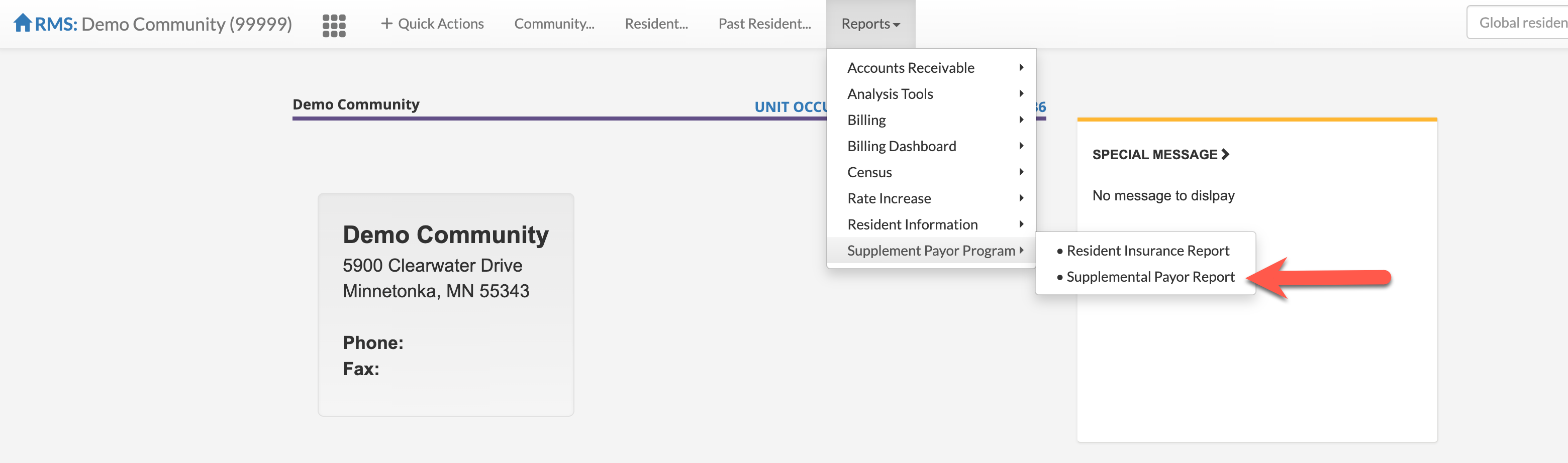
Step 2: Next, select Supplemental Payor Program and then select Supplemental Payor Report.
As the report header states, the Supplemental Program report is a quick guide for you to see what supplemental programs such as GAFC, DSS, AEC, Medicaid, SSI, and VLIT that your residents are on. This will show you the resident, Billing ID, Supplemental Program, and enrollment date.
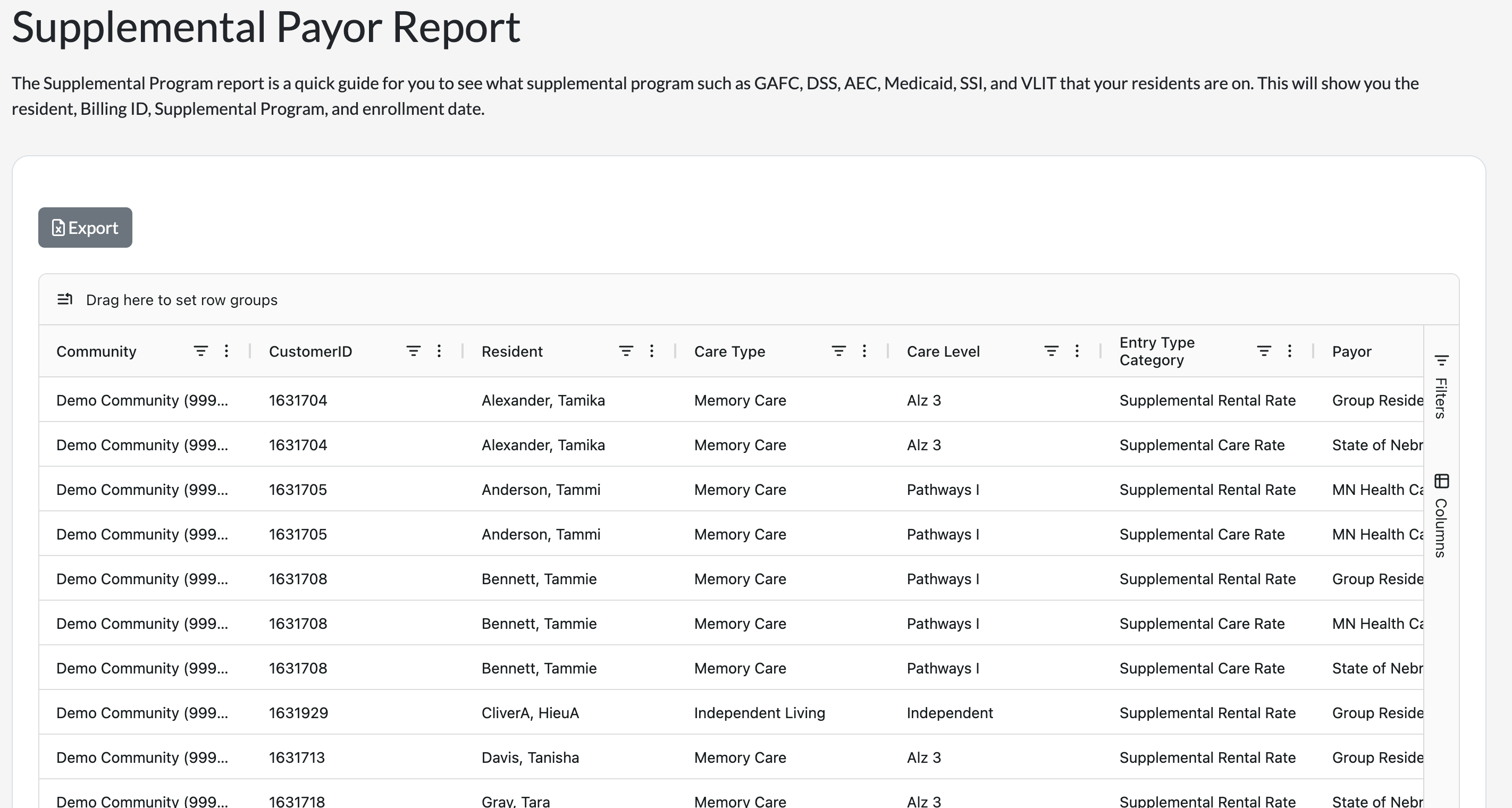
Step 3: The report will run automatically based on the currently selected community. Data can be sorted by selecting the headers. The various columns can also be dragged and dropped as needed. To add or remove Filters/Columns, select Filters or Columns on the righthand side to make selection as needed.
Selecting Export allows the user to download the data in Excel format.
Was this article helpful?
That’s Great!
Thank you for your feedback
Sorry! We couldn't be helpful
Thank you for your feedback
Feedback sent
We appreciate your effort and will try to fix the article