Overview
The General Ledger Summary Report allows you, for the period that you run the report for, to show any payments that have been applied. This report will display the information to you by Resident, Payment, and Effective Date of the payment with the latest payment date displaying first.
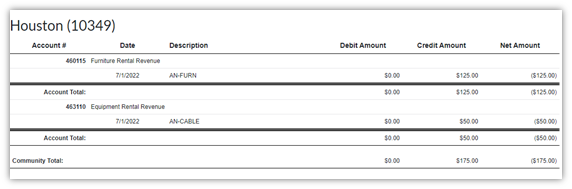
Running a General Ledger Report
Step 1: From your community dashboard, select reports
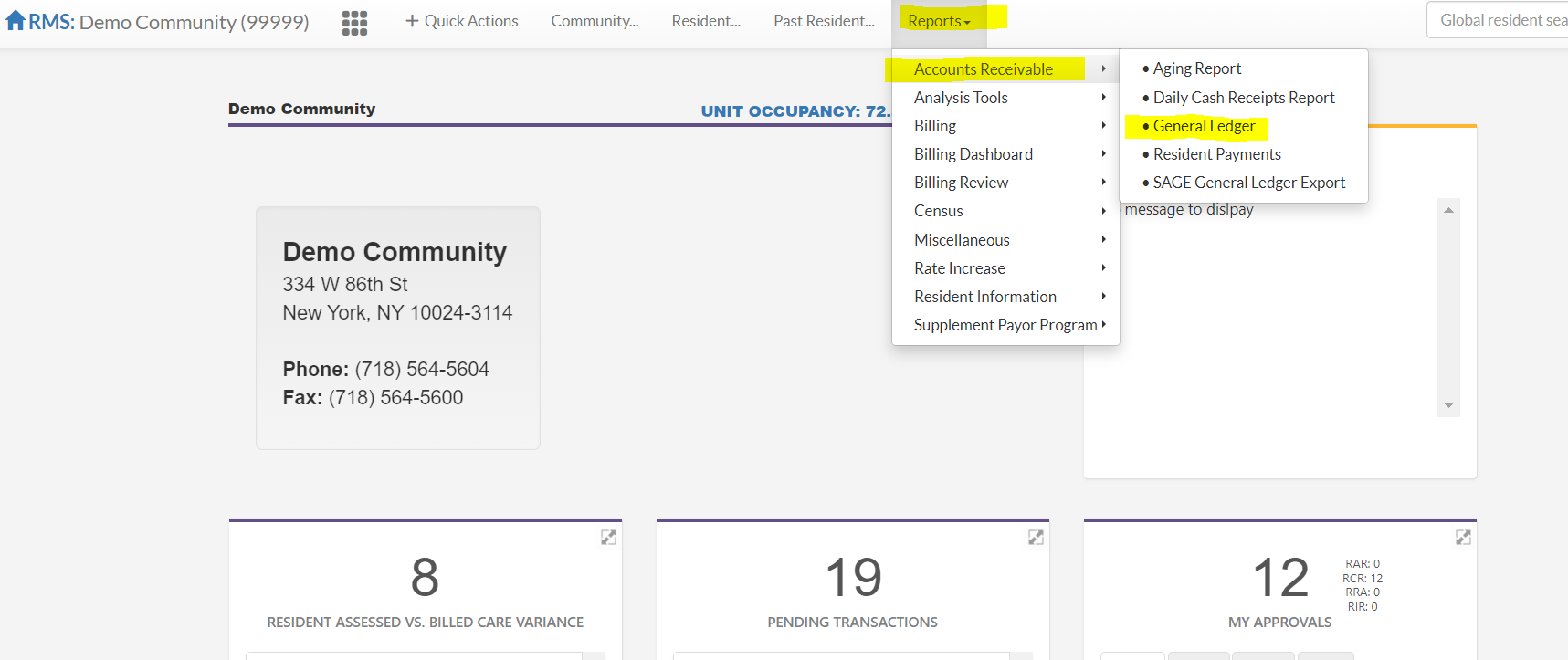
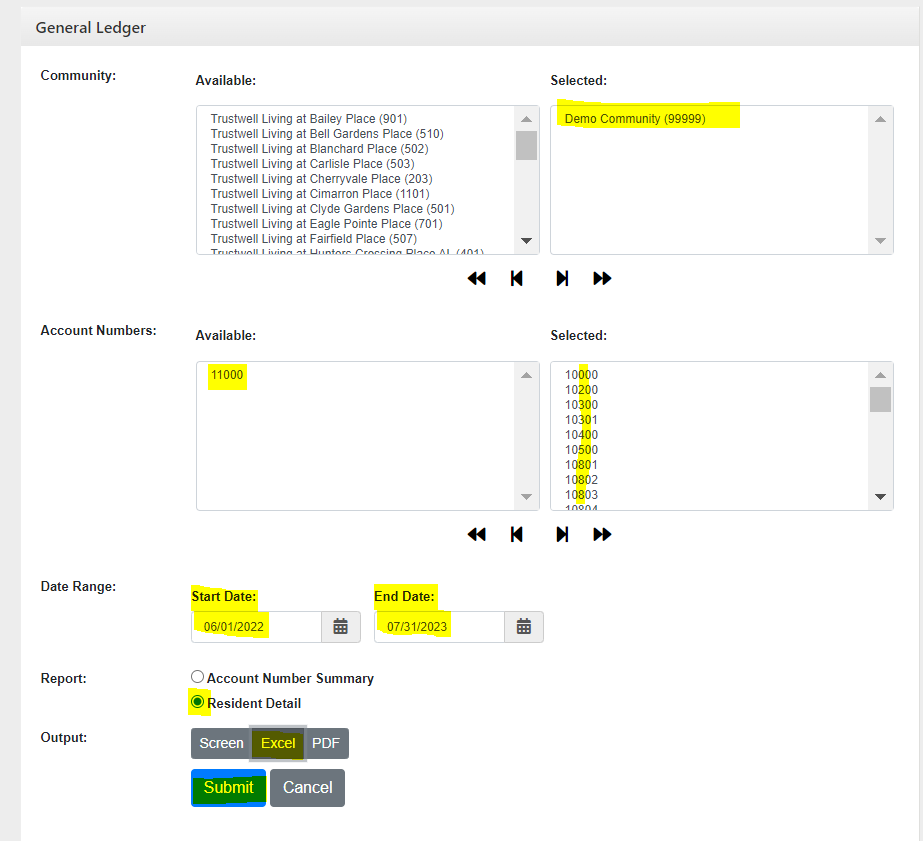
Note: Ensure your community is only listed at the right, all General Ledger accounts are selected at the right except your Account Receivable clearing account (check your chart of accounts if you are uncertain of the General Ledger #), ensure start date is very beginning of Aline go live.
Step 2: Select resident detail, select excel, click submit
Note: If you choose to, you can format payments to appear as credits by typing in =- (equals, minus) then select the amount in column i, enter

Step 3: Fill in the formula to all amounts by double clicking the bottom corner of the cell or click and drag to bottom, copy all & paste value into column i (amount)

Step 4: Highlight entire spreadsheet and sort by resident
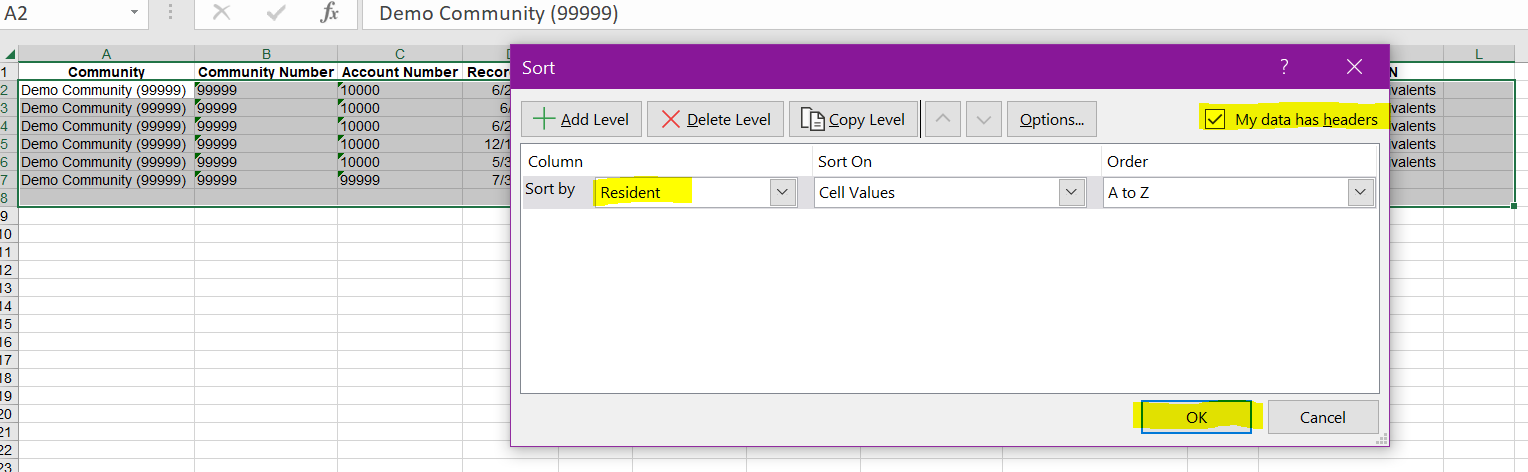
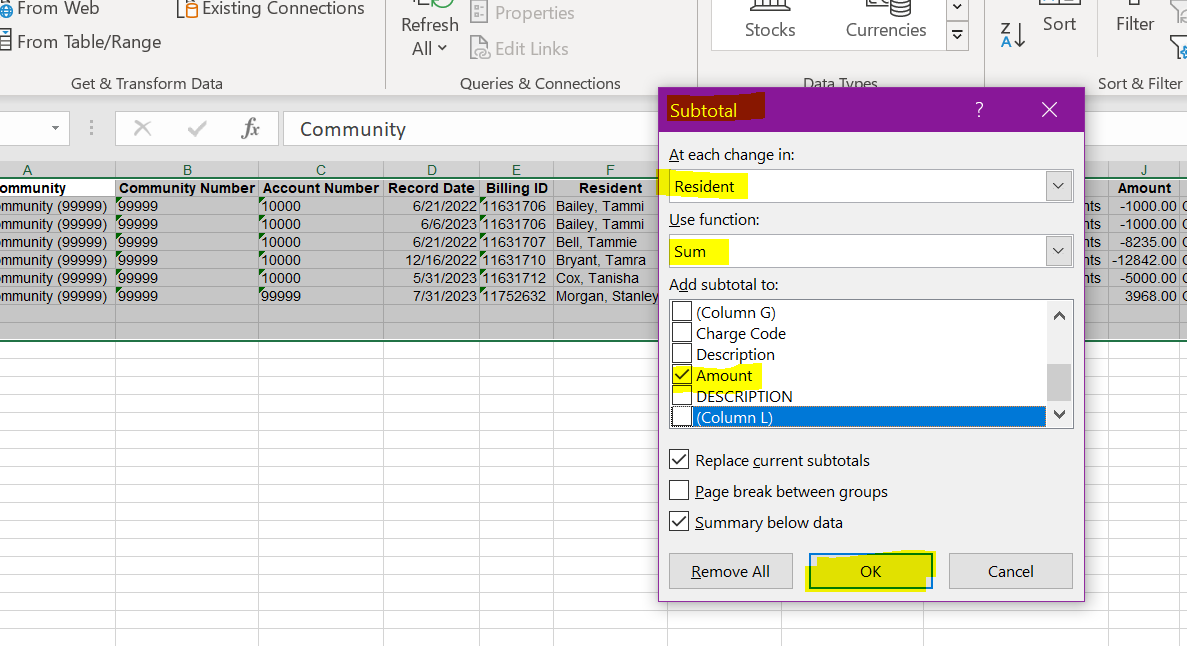
Step 5: Highlight entire spreadsheet and go to data, subtotal. Then select resident, sum, and check the box next to amount and the click ok button
Step 6: By selecting view 2 in the top left corner, all data will collapse to a more manageable view
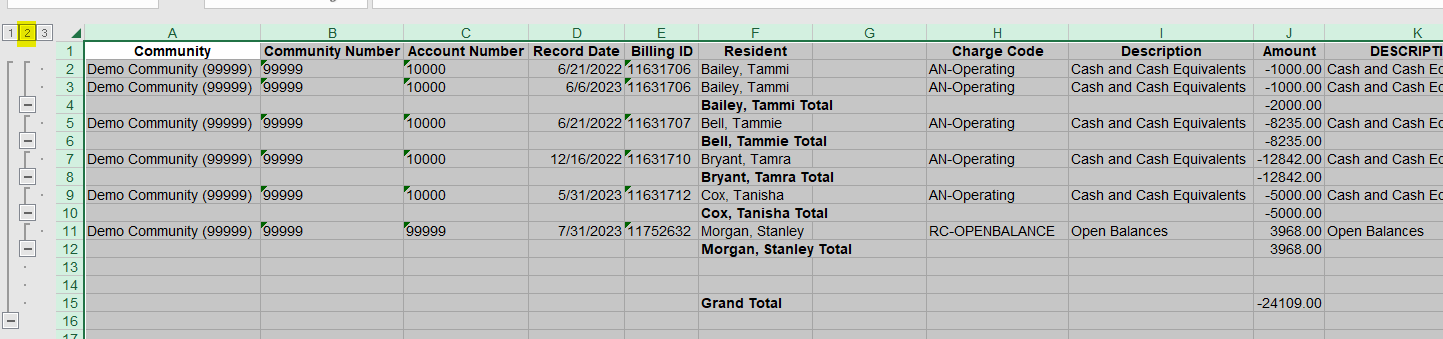
Step 7: This is now ready to compare to your aging report to ensure what was billed flowed through properly and matches what is in the General Ledger for sage intacct journal entries

General Ledger Report Video
Was this article helpful?
That’s Great!
Thank you for your feedback
Sorry! We couldn't be helpful
Thank you for your feedback
Feedback sent
We appreciate your effort and will try to fix the article