Overview
In this article, we'll explore how to run, and the information included in, the WellTower Rent Roll report that is available in the Aline Leasing & Billing application.
Steps to Run the WellTower Rent Roll Report
Step 1: Once logged into the Aline Leasing & Billing application, select the Reports menu.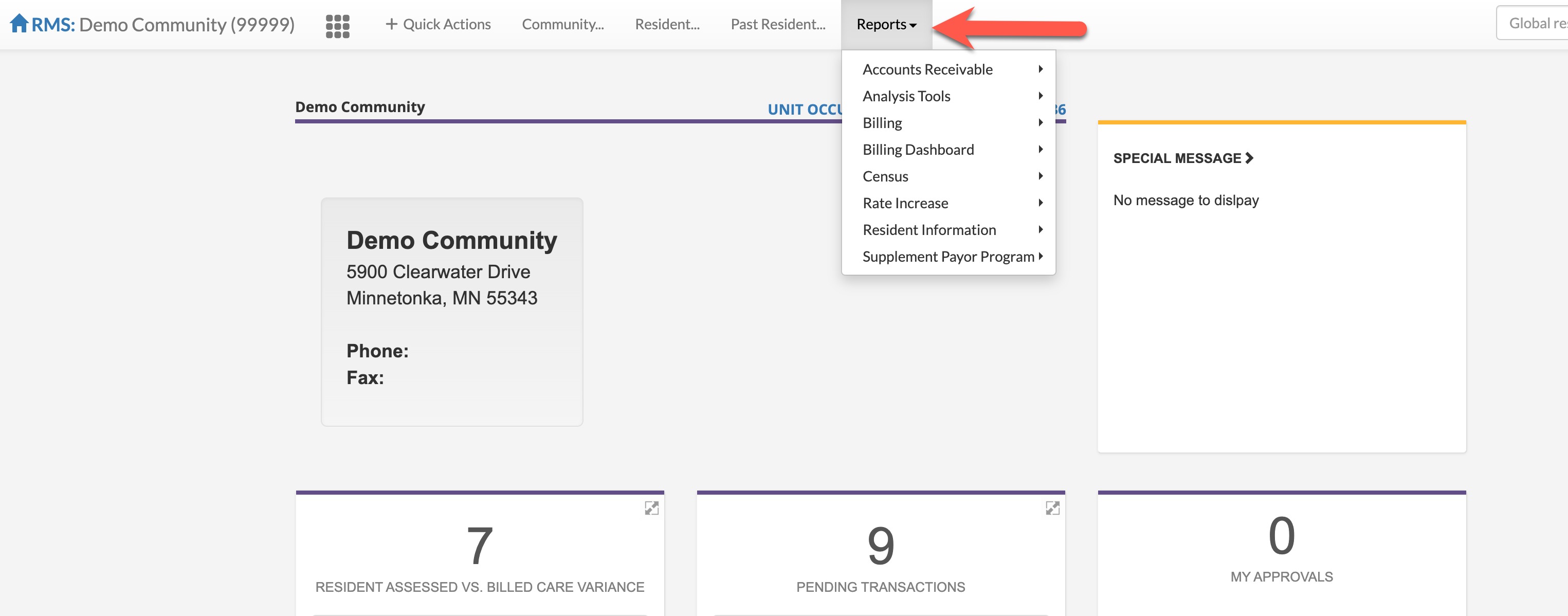
Step 2: Next, select Analysis Tools and then select Rent Roll - Property Owner.
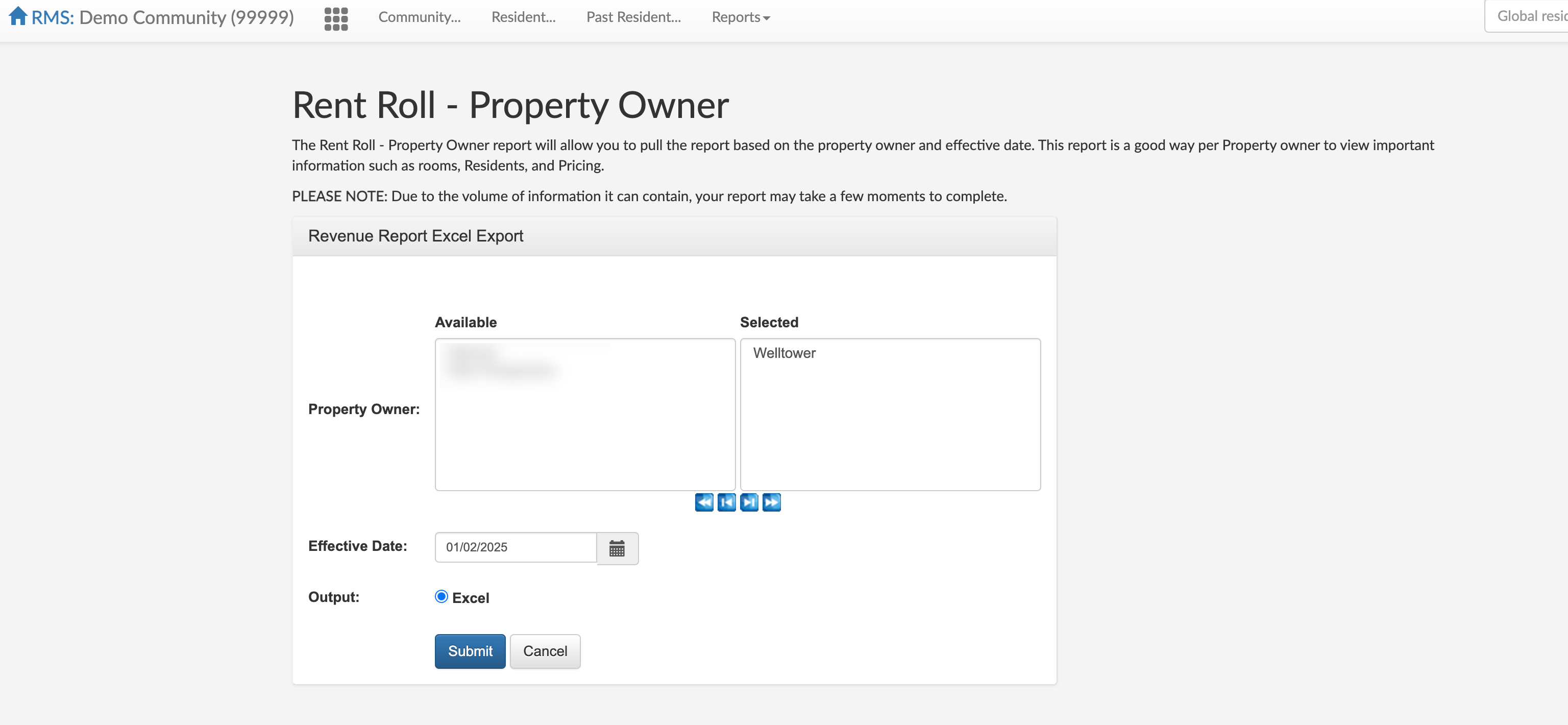
As the report header states, the Rent Roll - Property Owner report will allow users to pull the report based on the property owner and effective date. This report is a good way per Property owner to view important information such as rooms, Residents, and Pricing.
Information includes: a list of all configured rooms, Actual vs Market Rate for rent, care, and Other Billing, the variance of Actual vs Market Rate, and days of vacancy for each configured unit.
Please Note: Due to the volume of information it can contain, your report may take a few moments to complete.
Step 3: Select the desired Property Owner(s).
Step 4: Select the Effective Date.
Step 5: Finally, select Submit. The report will download into an Excel file.

The report can now be viewed and manipulated as required.
Was this article helpful?
That’s Great!
Thank you for your feedback
Sorry! We couldn't be helpful
Thank you for your feedback
Feedback sent
We appreciate your effort and will try to fix the article