Overview
In this article, we'll details the steps required to enter a resident or resident payor ACH payment into the Aline Payments application.
Entering ACH Payments
When provided an ACH account payment from a resident or resident payor, the information can be entered into the Aline Payments application for processing.
Step 1: After logging into Aline Payments, select the desired resident.
Step 2: On the resident's profile, select New Payment.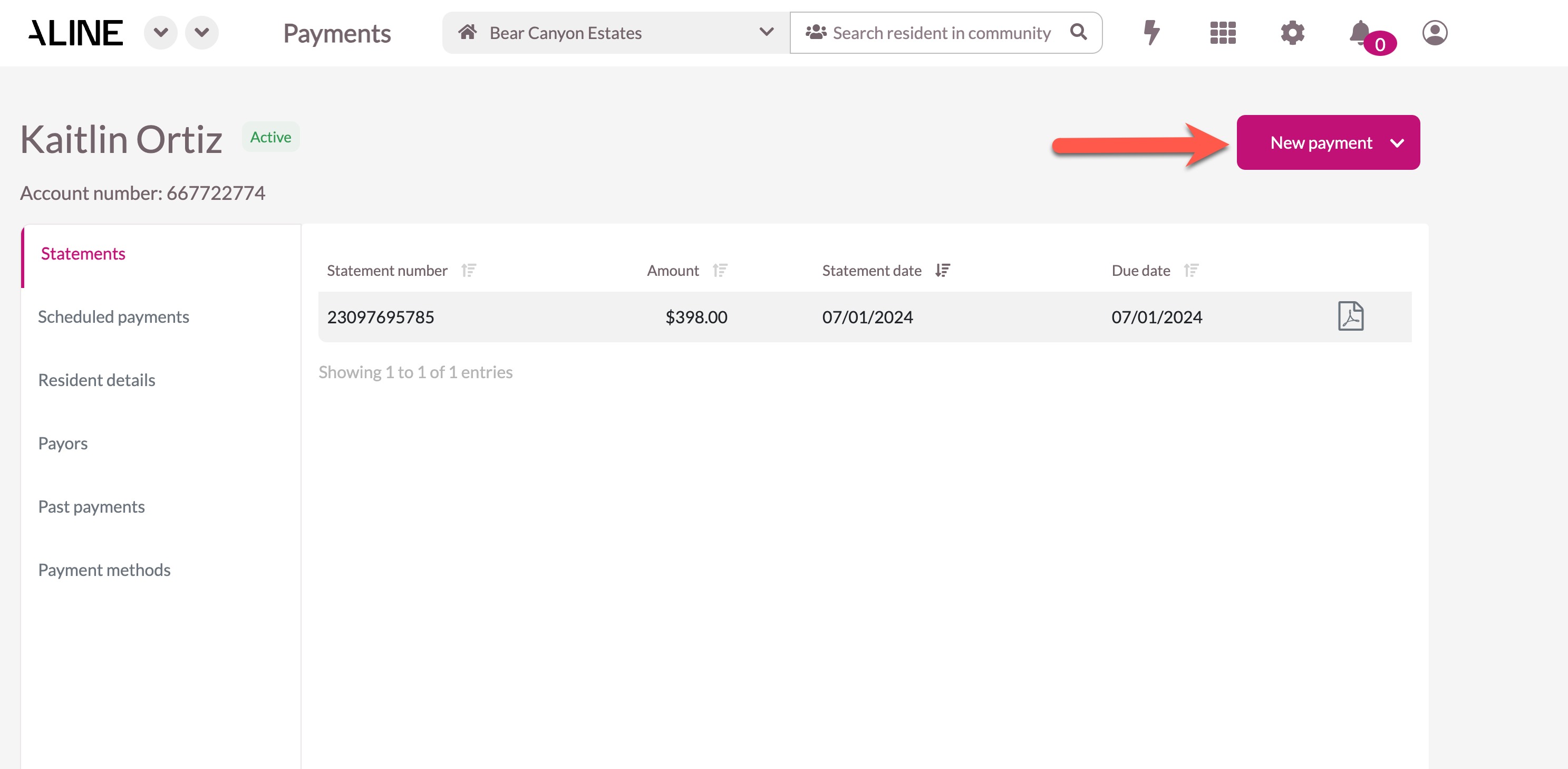
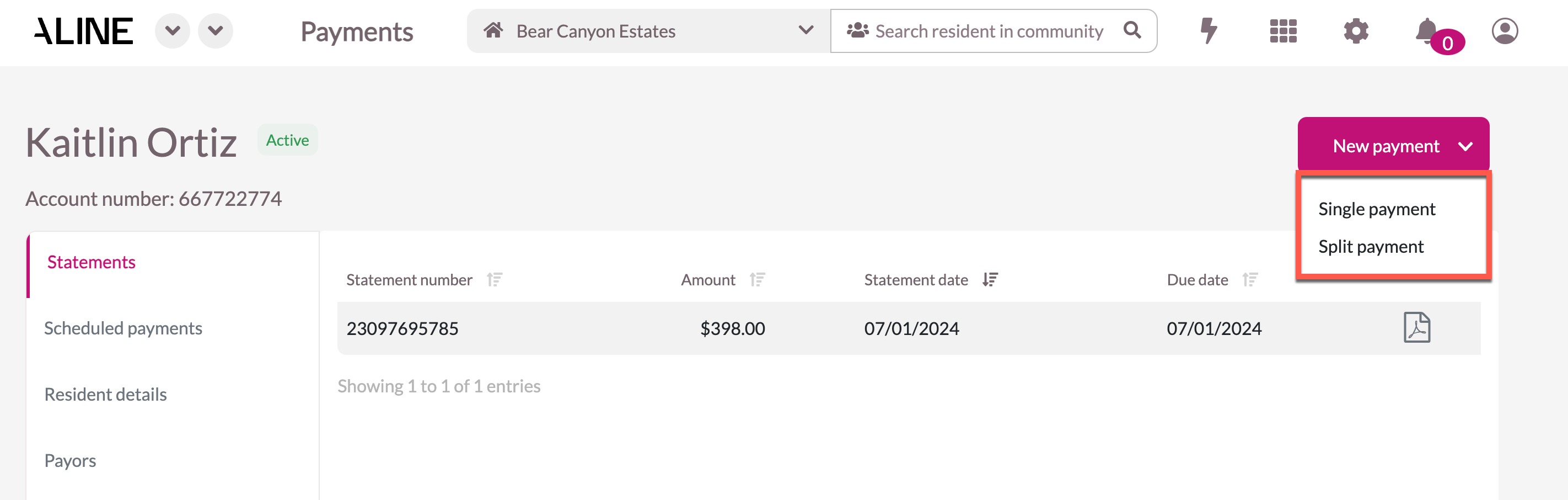
Step 3: Next, decide whether the payment will be a single payment or a split payment between two parties. We'll choose Single Payment for our example.
Step 4: Since the payment will be made by ACH, select the ACH option. 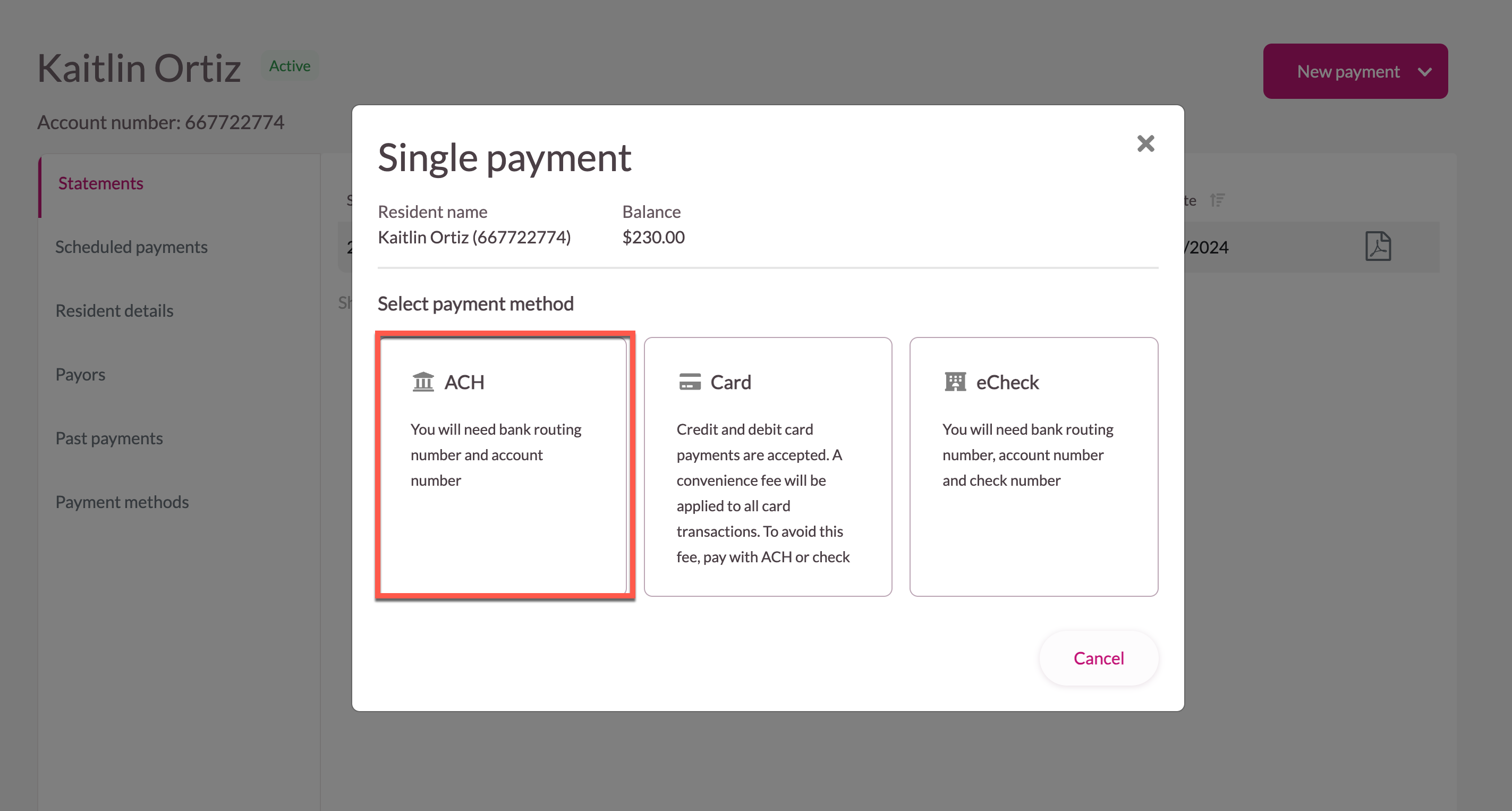
Step 5: Fill in all required fields needed to process the ACH payment. If a default payment method has already been saved to the resident's profile, the default payment method will automatically be selected.
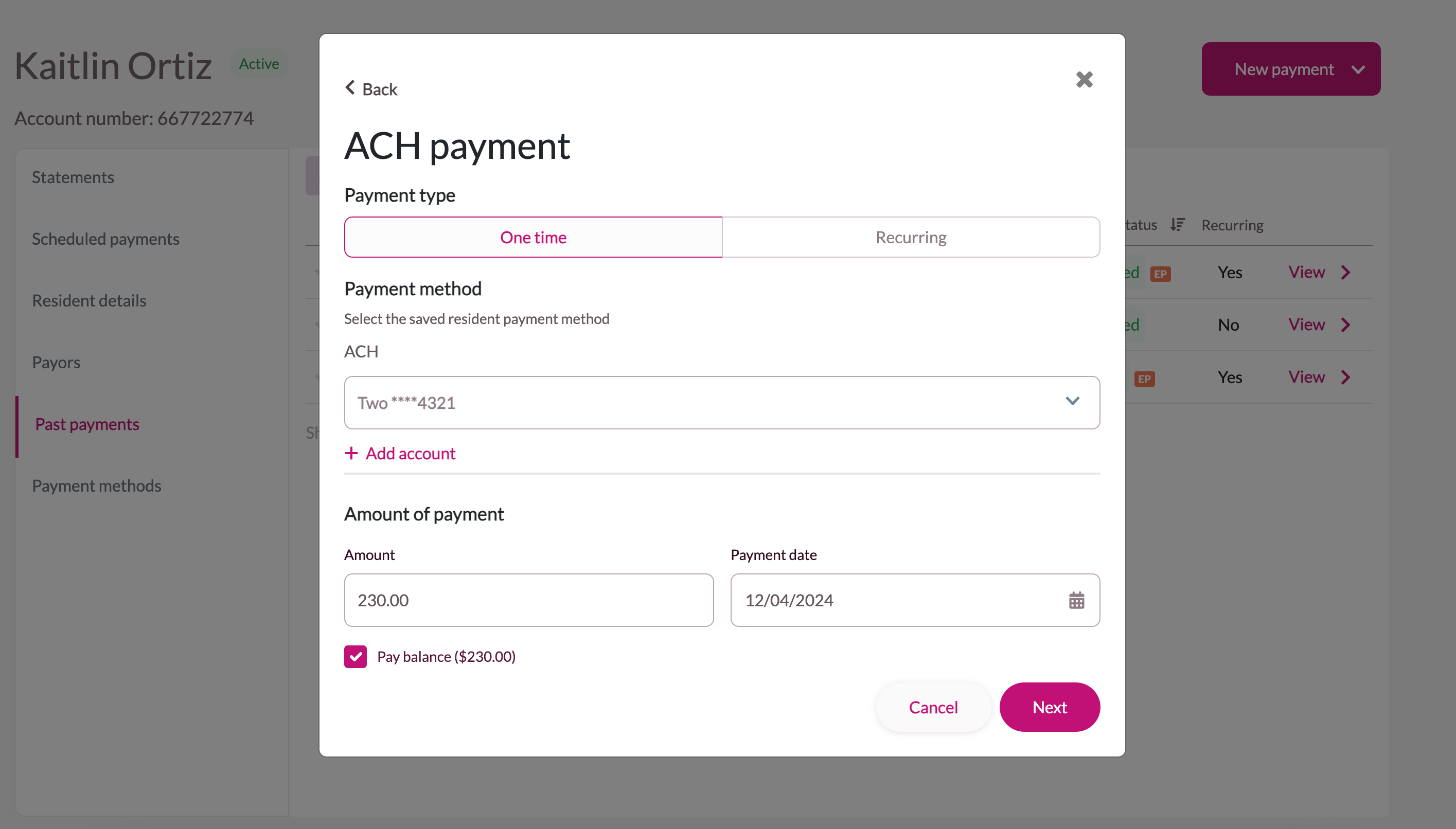
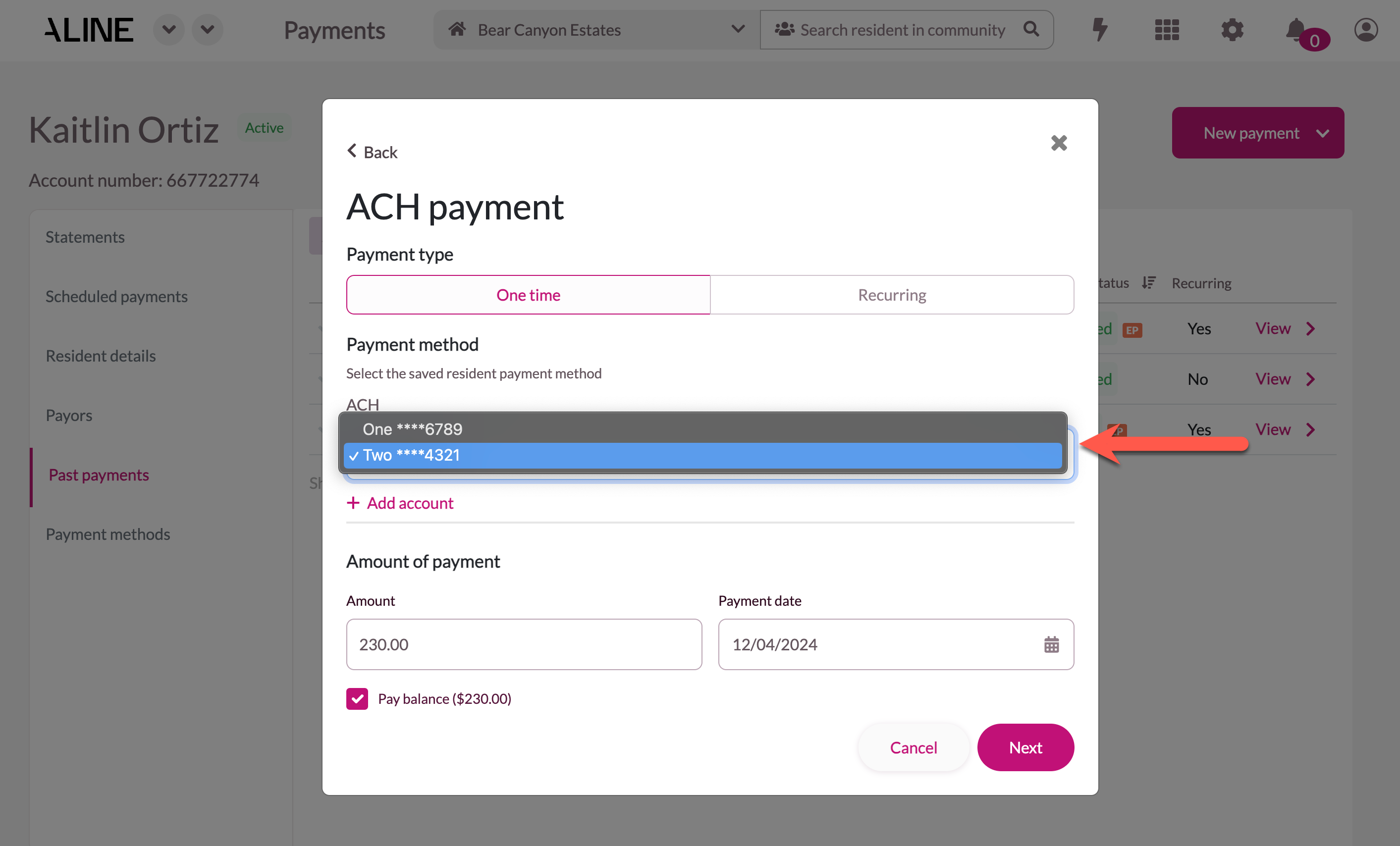
To to select a different saved ACH payment method, select the desired method from the box:
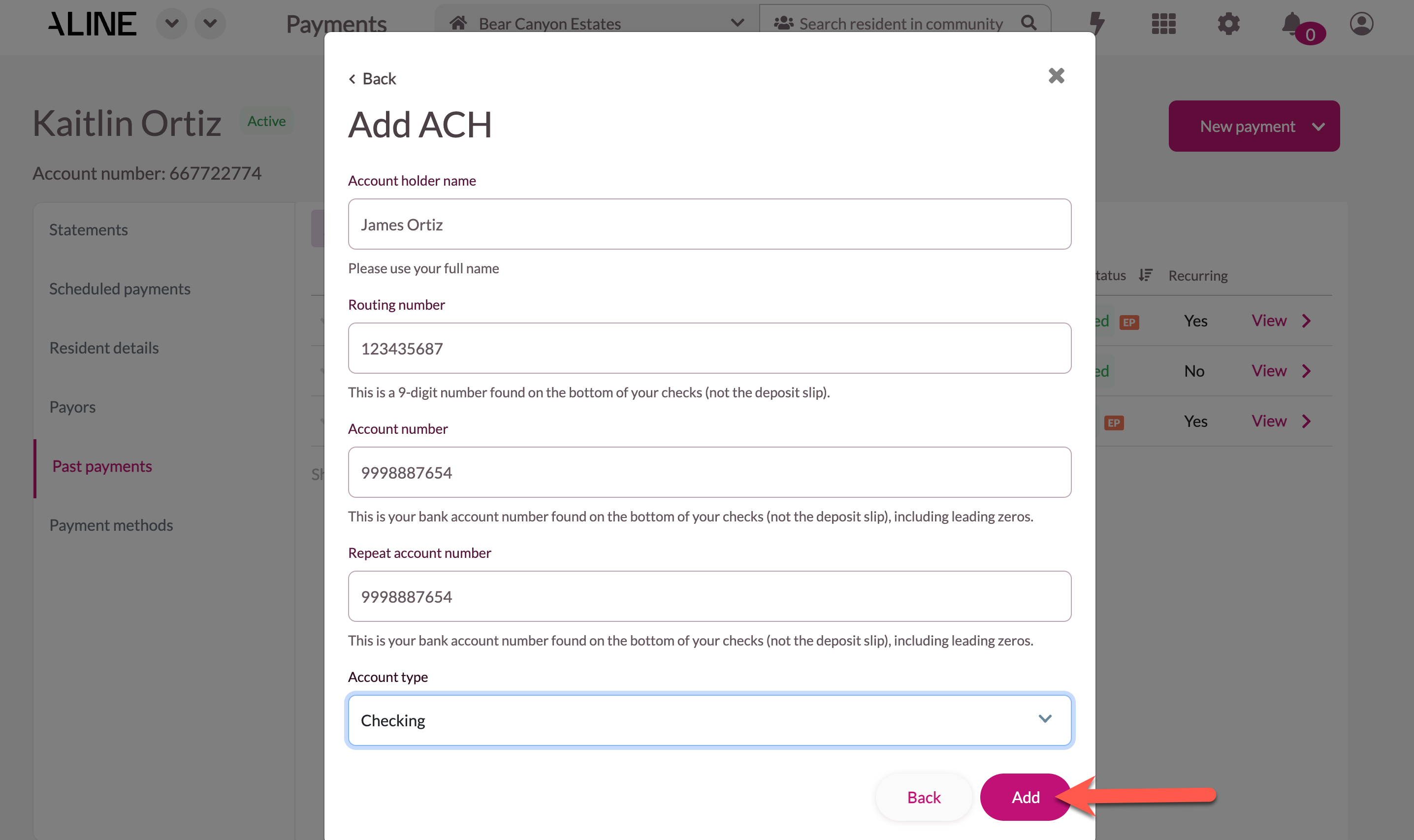
Alternatively, if a new ACH payment method needs to be added, select + Add Account and fill in all required ACH payment method information including: account holder name, routing number, account number, account number confirmation, and account type. Select Add to add the new payment method.
By default, the payment is automatically set to pay the full account balance, as pictured below. To make a payment for a different amount, uncheck the Pay Balance box and manually enter in the desired amount.
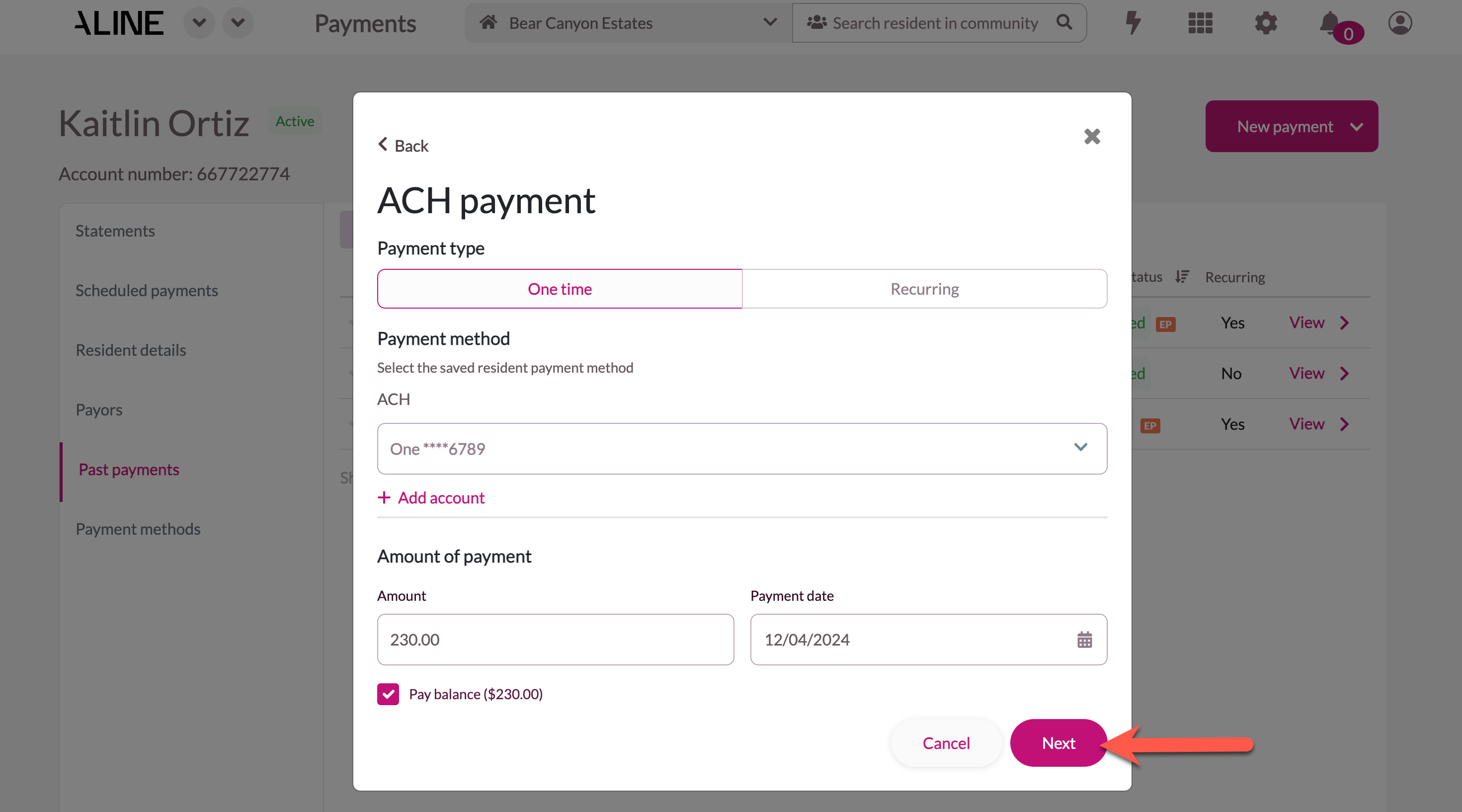
Step 6: After reviewing all details, select Next.
Step 7: A confirmation page will display. Review the details before selecting Pay to finalize the payment. As pictured, a warning will display is the selected resident already has a recurring payment set up on their account.
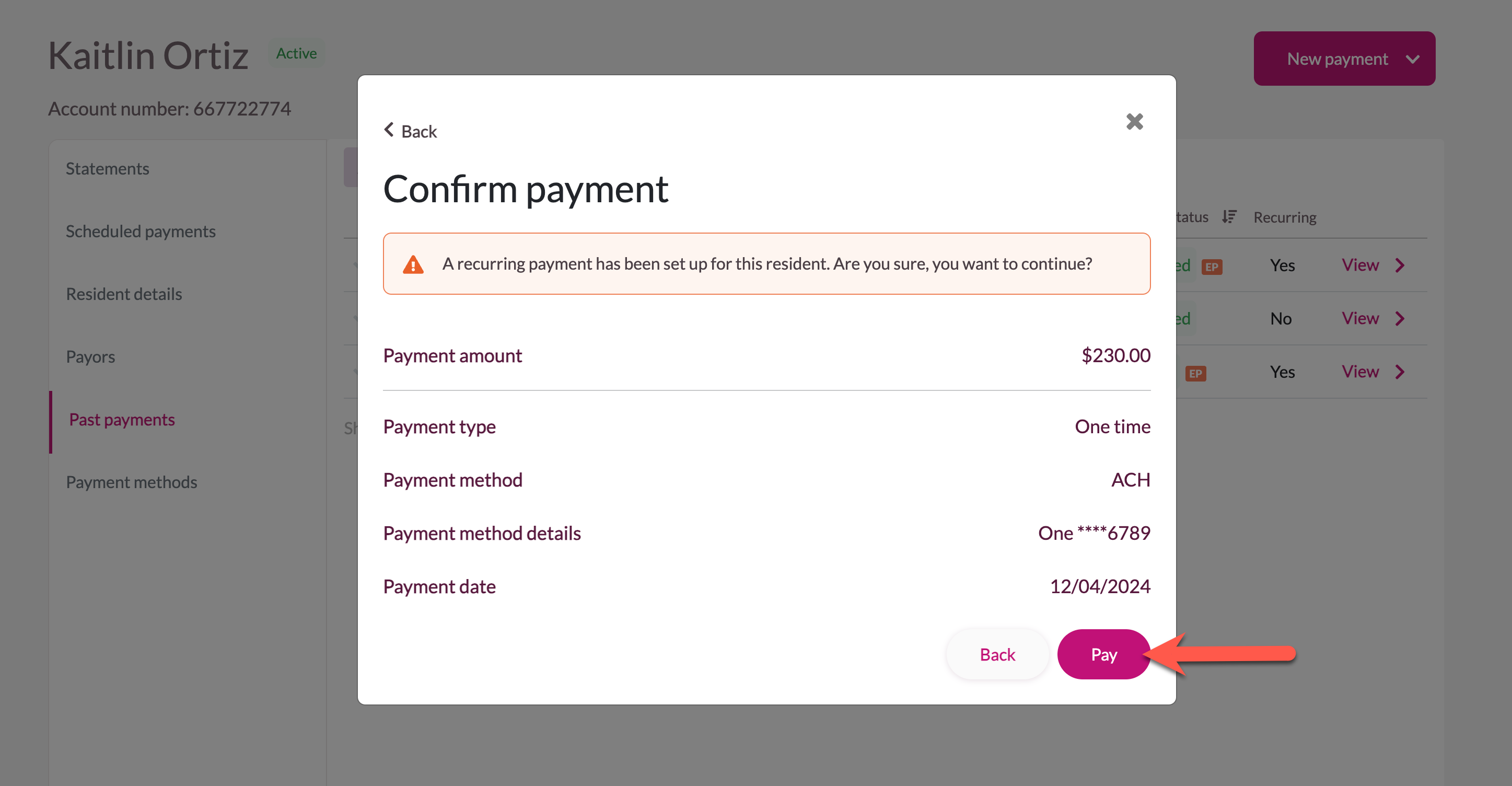
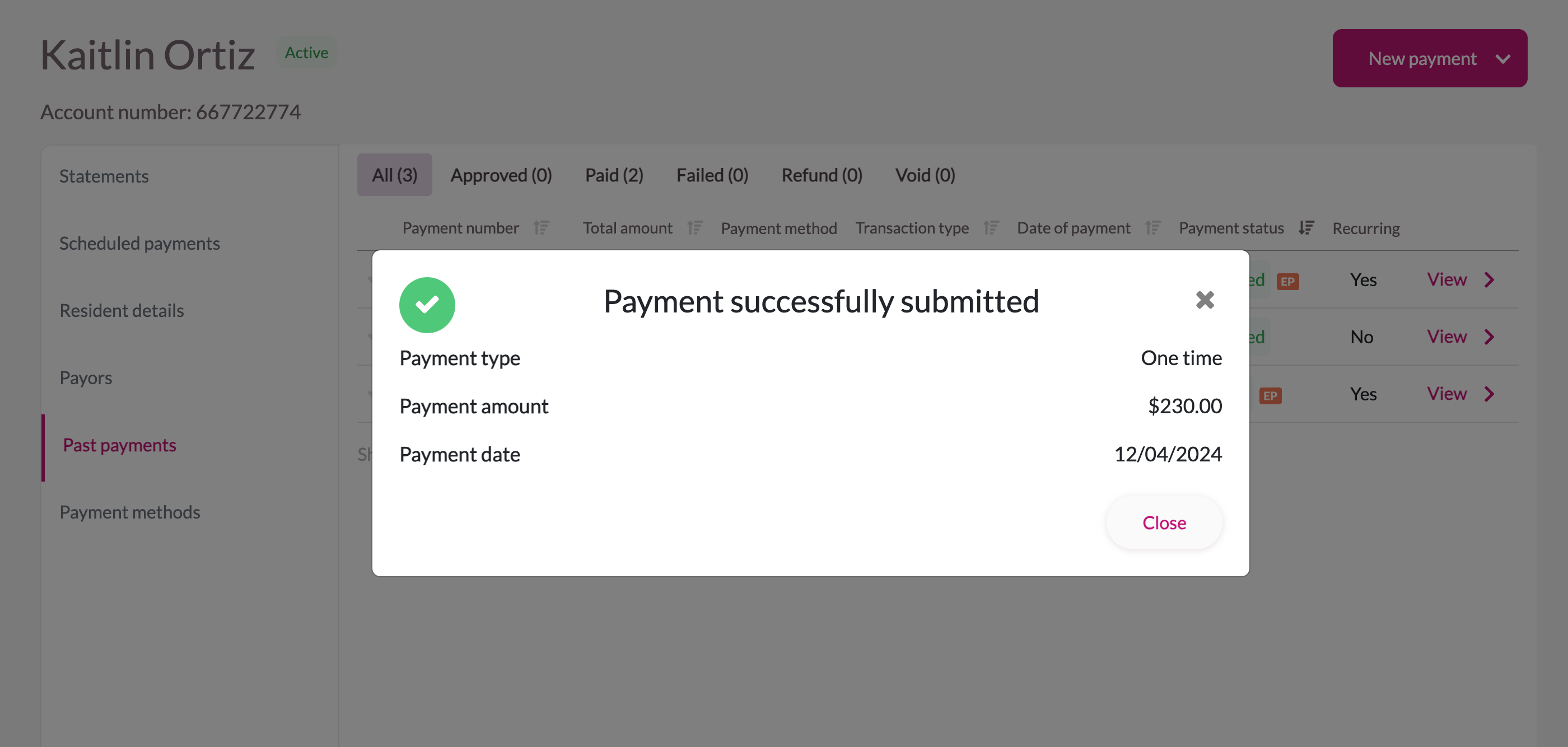
The payment has now been entered. A confirmation page will display. The transaction will also appear on the resident profile under Past Payments.
Payment status will change to Processed once the payment has been fully processed. Processed payments will reflect back on the resident's account and ledger in the Aline Leasing and Billing application.
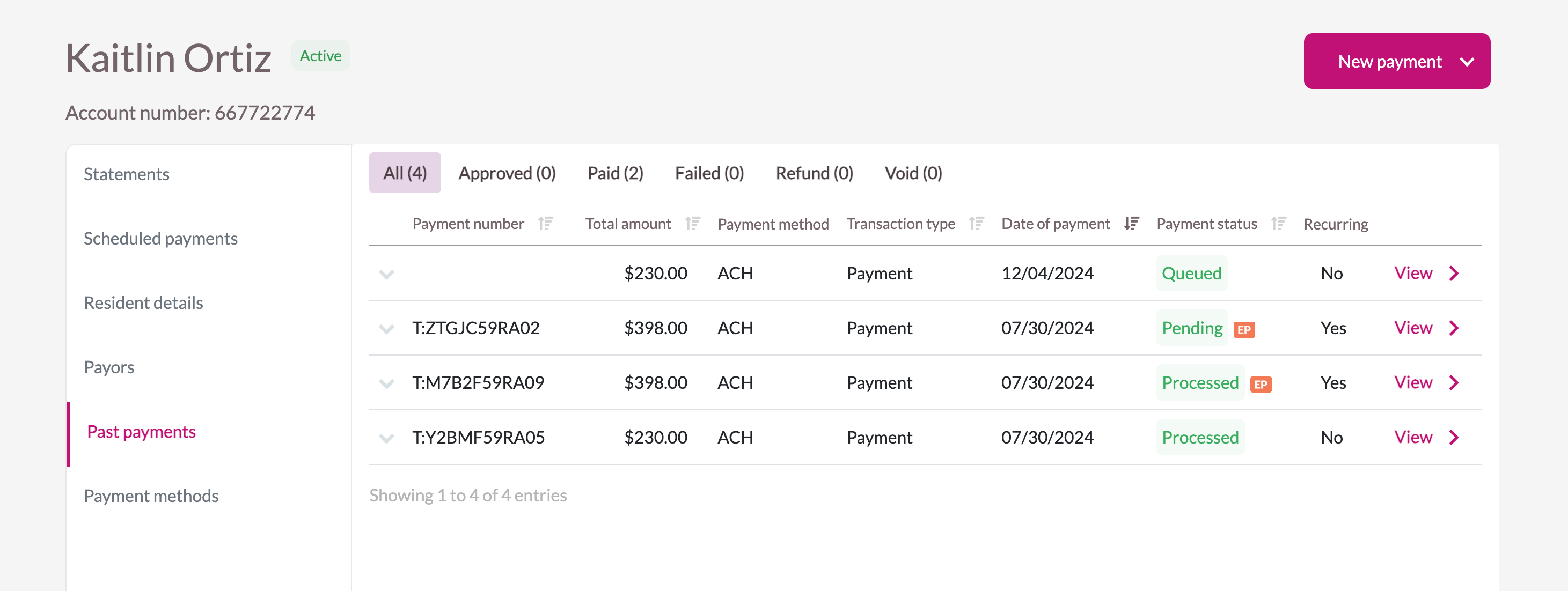
The various payment statuses include: queued, pending, approved, processed, failed, declined, refunded, or voiced.
Was this article helpful?
That’s Great!
Thank you for your feedback
Sorry! We couldn't be helpful
Thank you for your feedback
Feedback sent
We appreciate your effort and will try to fix the article