Overview
In this article, we'll detail how to sign in to access Resident Profiles for making payments in Express Pay.
Accessing a Resident's Express Pay Profile
Step 1: After accessing the Express Pay application, community users, residents, or resident payors will need three pieces of information in order to access a resident's account: the resident's Account Number (or Billing ID), the resident's last name, and, for some client environments, the resident's date of birth.
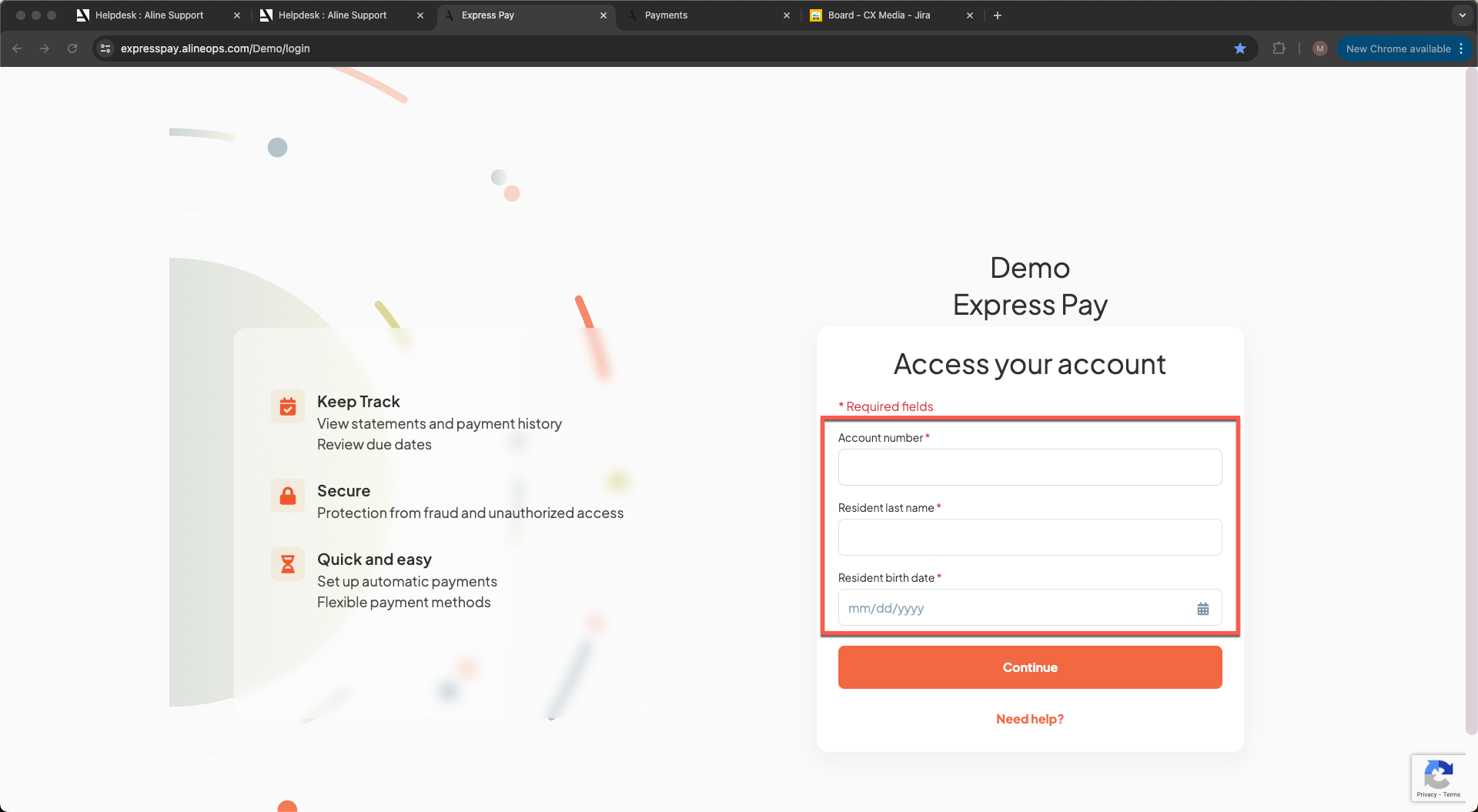
Step 2: After providing the required pieces of information, select 'Continue' to complete logging in. This will drop the user on the resident's Express Pay Profile.

Now, payments can be made by the resident, resident payor, or by the community on the resident's behalf. While similar to Aline Payments, there are a few differences on the Express Pay profile.
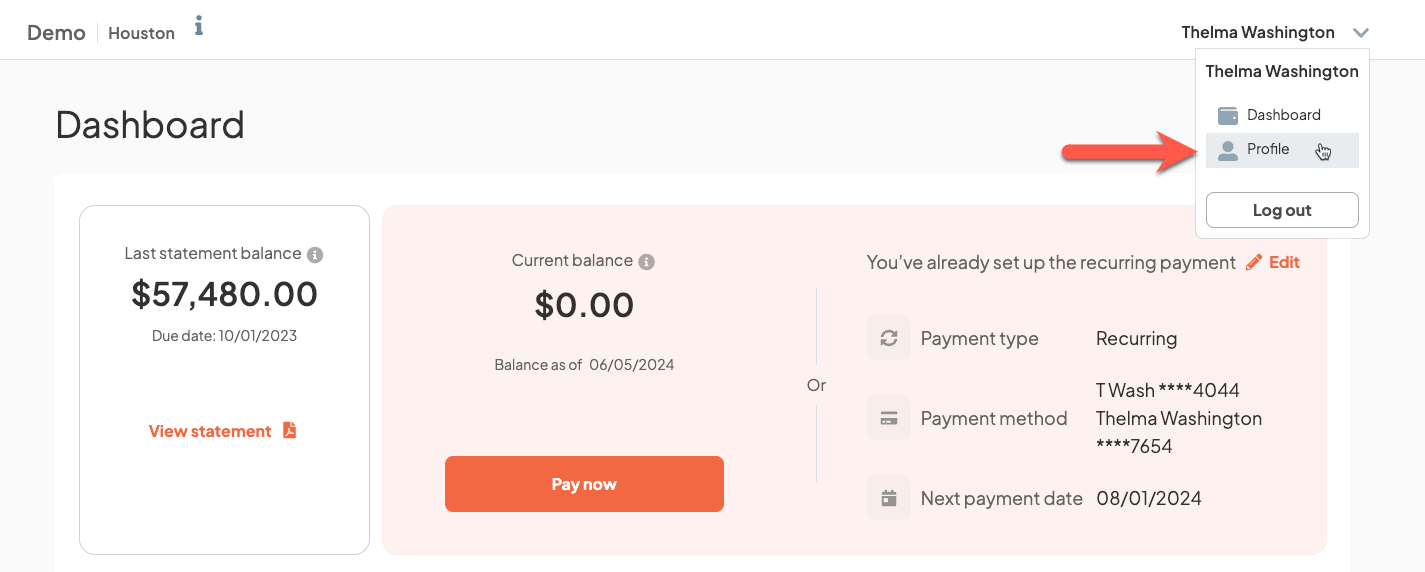
We can view the Last Statement Balance, the statement's balance, the Current Balance, and details regarding any current recurring payments, such as the ACH recurring payment setup in the example above. Additionally, recent statements and recent payments are available to review.
Selecting the drop-down arrow next to the resident's name will allow users to select to view the resident's profile.
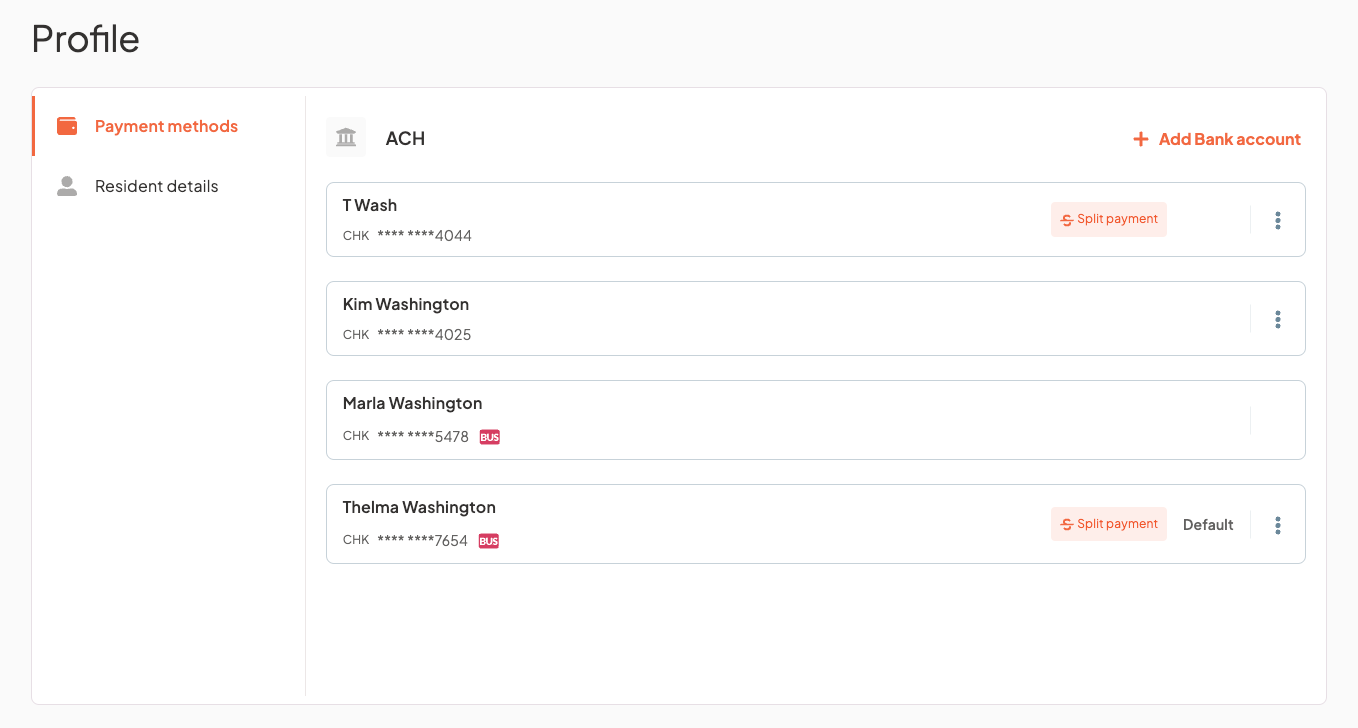
The resident's profile will display. This will, by default, display any payment methods saved to the resident's account. Payment method data will include payor name, account details, whether the payor has a recurring payment setup, and allow for the editing of listed payments methods along with the ability to add new payment methods. Payment methods can also be deleted.
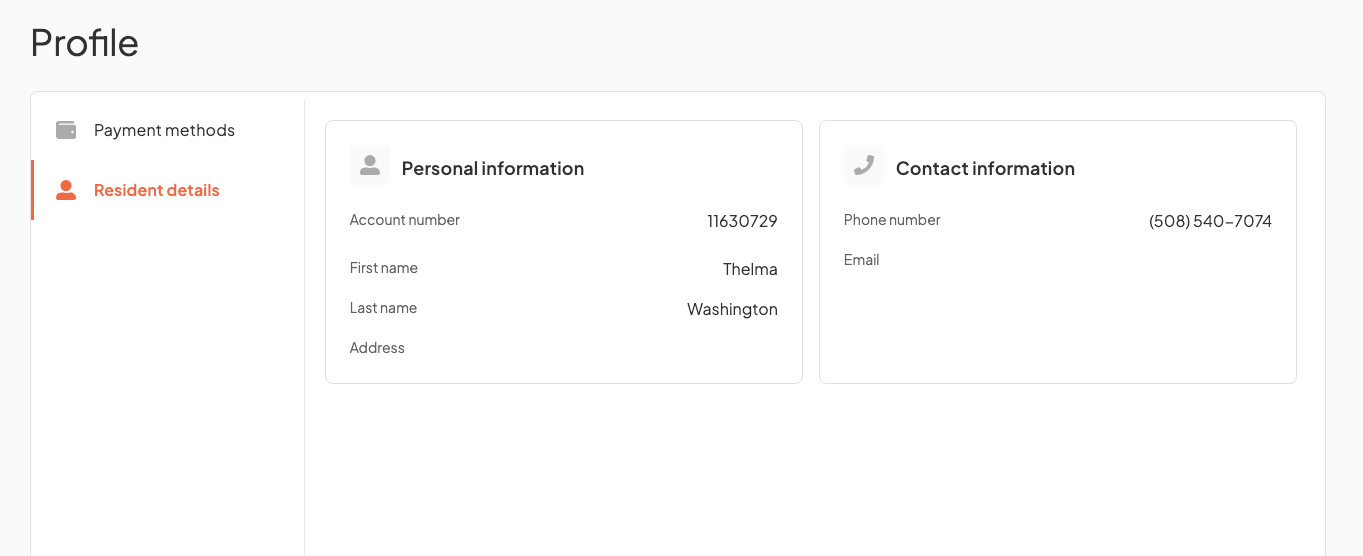
Selecting 'Resident Details' will display both personal information and contact information.
Was this article helpful?
That’s Great!
Thank you for your feedback
Sorry! We couldn't be helpful
Thank you for your feedback
Feedback sent
We appreciate your effort and will try to fix the article