Enhancements
Affected features:
- Express Pay home page/login page
- Split Payments
- Recurring Payments
- Disabling Inactive Communities
- Reporting UI Enhancements
New Express Pay Home/Login Page
The new Express Pay home page and login page will offer two authentication options:
- Residents can log in using their resident credentials.
- Payors and responsible parties can log in using their Payor ID (if available) and Payor Last Name, based on their community's configuration.
Residents and responsible parties can continue to access Express Pay using their Resident Last Name and Account Number, which can be found on their monthly statements.
Resident Login
- ID: Account Number (found on monthly statements)
- Last Name: Resident Last Name
Payor/Responsible Party Login
- ID: Payor ID (provided to responsible parties by the community and can also be found on Payor-specific statements)
- Last Name: Payor Last Name

Split Payment Transactions across ACH and Cards
Users can now split one-time and recurring payment transactions between ACH and credit/debit cards. This feature allows users to allocate specific payment methods for different portions of a transaction, providing greater flexibility. Users can now allocate specific amounts or percentages to different payment methods within a single transaction.
How to Split a One-Time Payment Transaction Across ACH and Cards
- Step 1: Click on the "Pay Now"
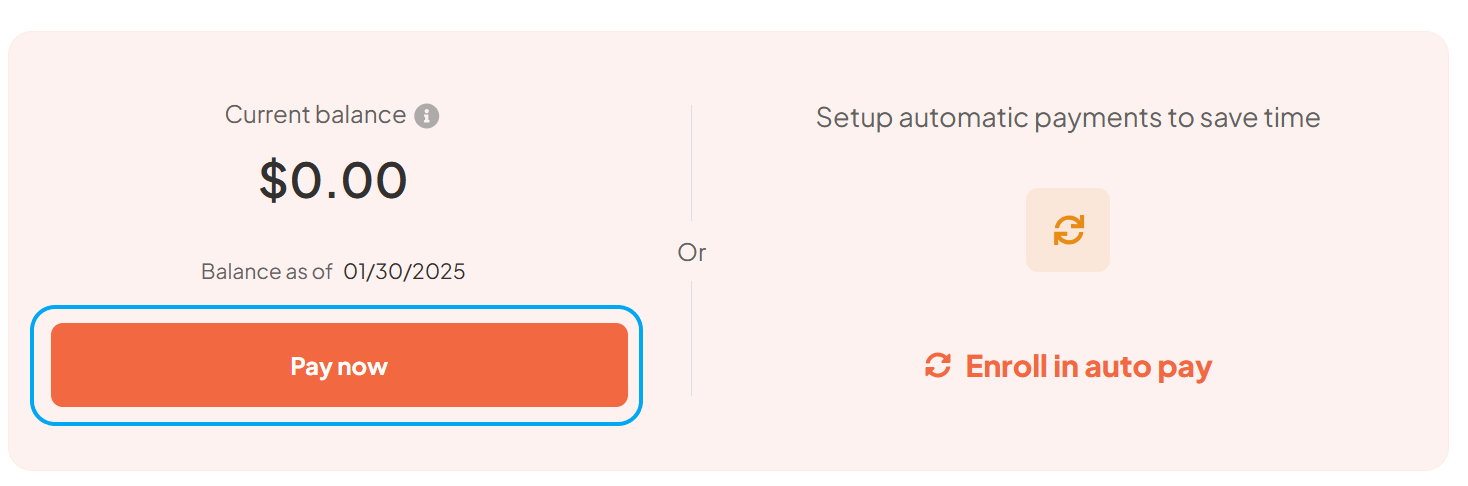
- Step 2: Select "Split Payment"
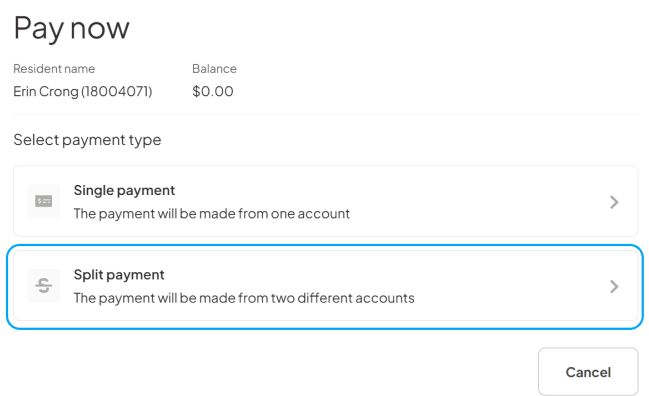
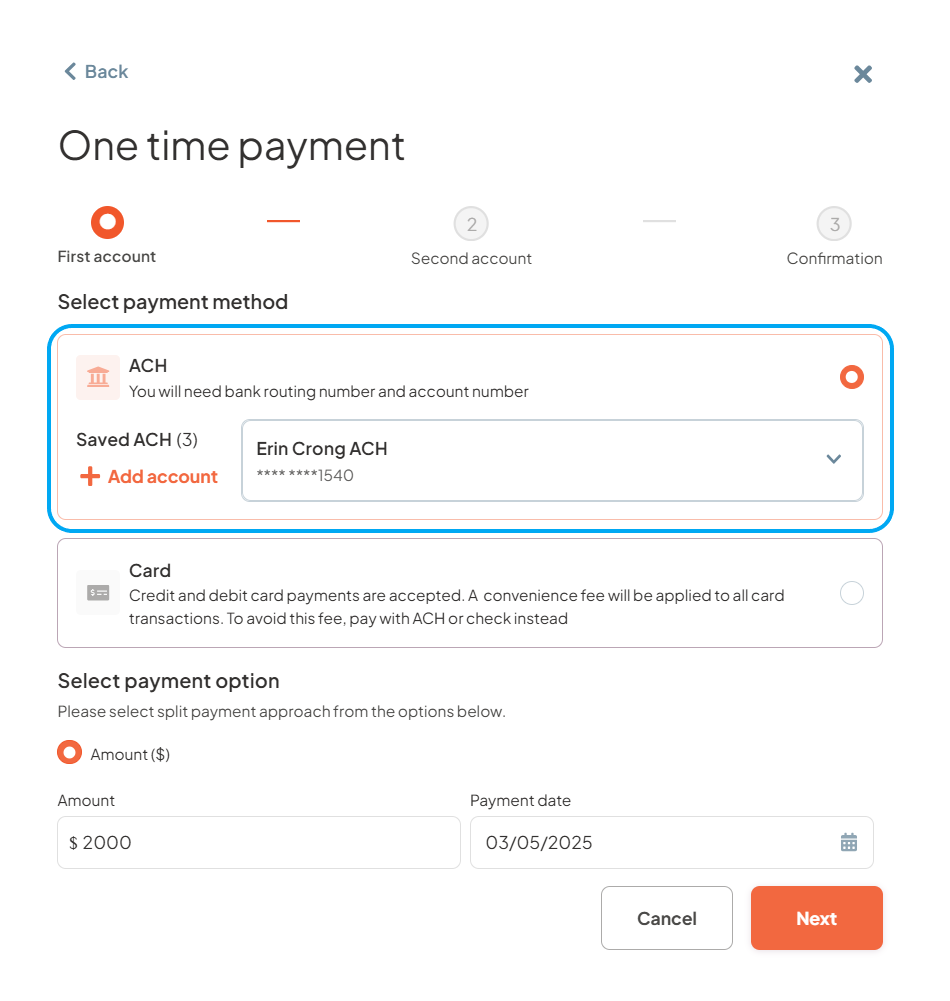
- Step 3: Select ACH as the first payment method, enter the payment amount, specify the payment date, and then click "Next".
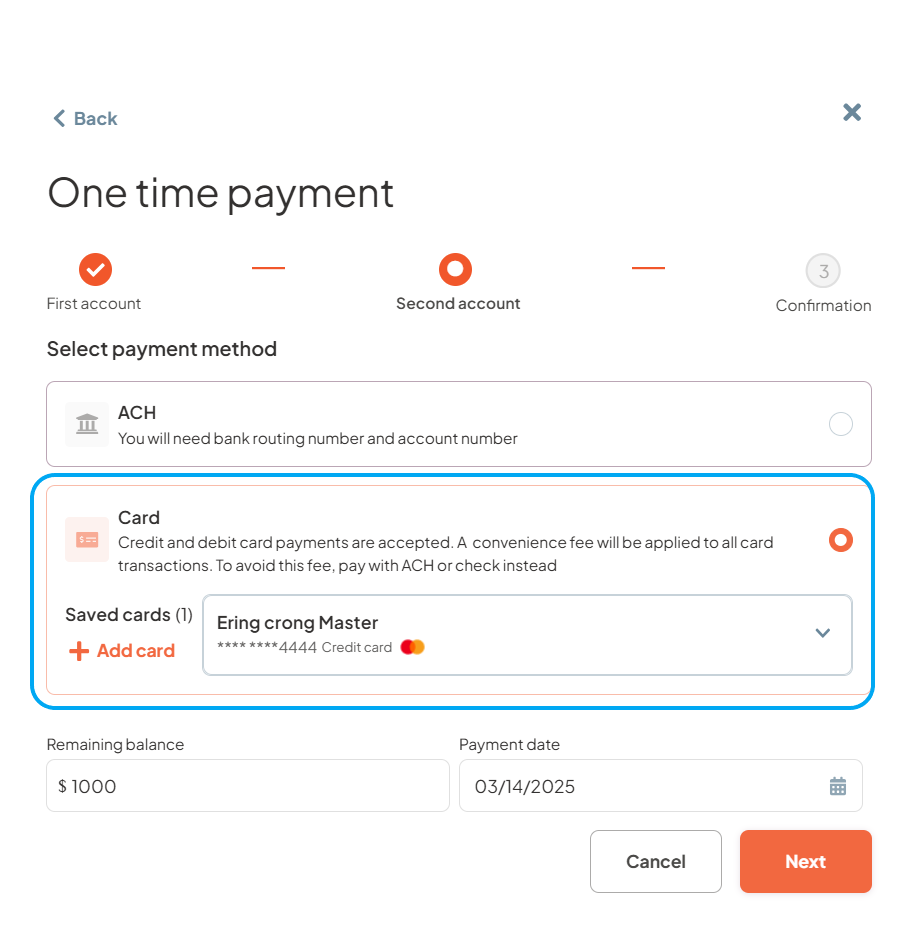
- Step 4: Select a Credit Card or Debit Card as the second payment method, enter the payment amount, specify the payment date, and then click "Next".
- Step 5: Review the payment confirmation screen to ensure everything is correct, provide payment authorization, and then click "Pay"
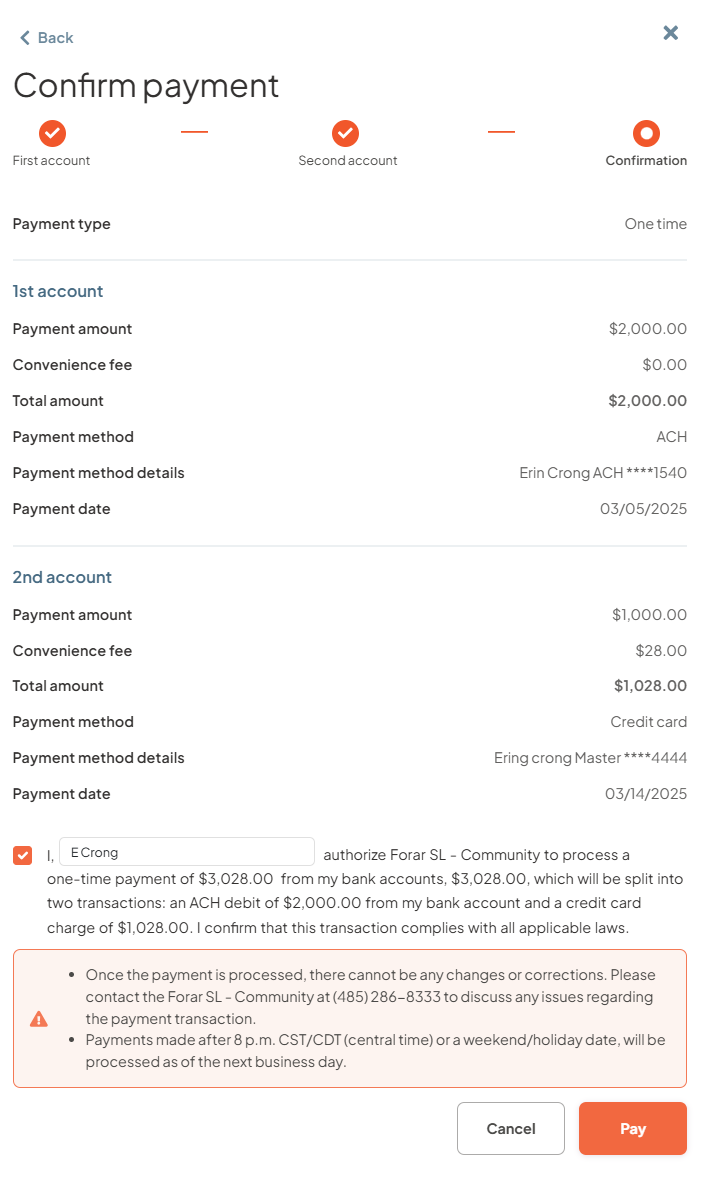
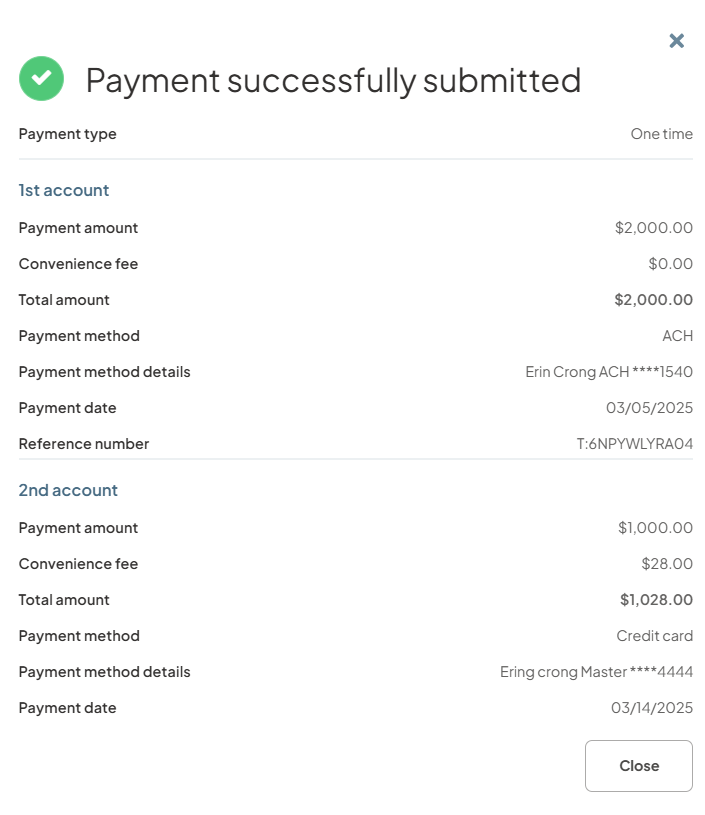
Step 7: Receive a confirmation that your one-time payment was successful
How to Split Recurring Payments Across ACH and Cards
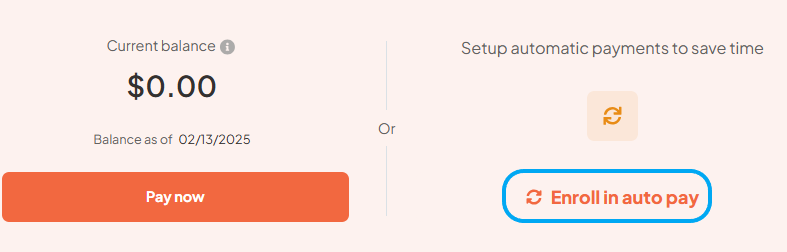
- Step 1: Click on the "Enroll in Auto Pay"
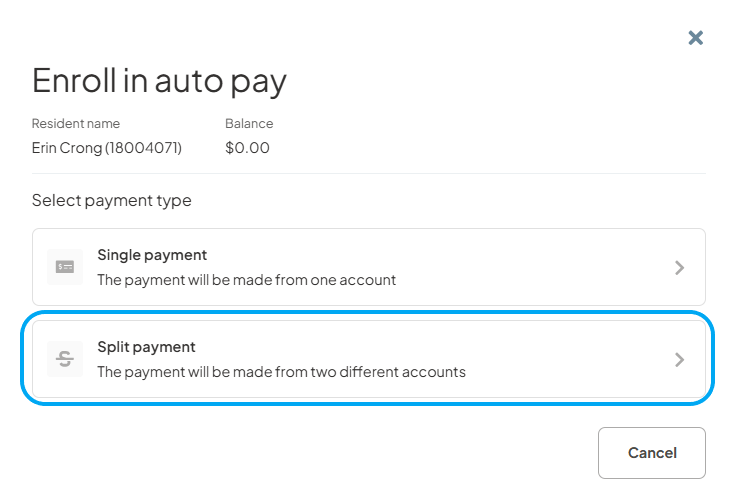
- Step 2: Select "Split Payment"
- Step 3: Select ACH as the first payment method, enter the payment amount, specify the payment date, and then click "Next".
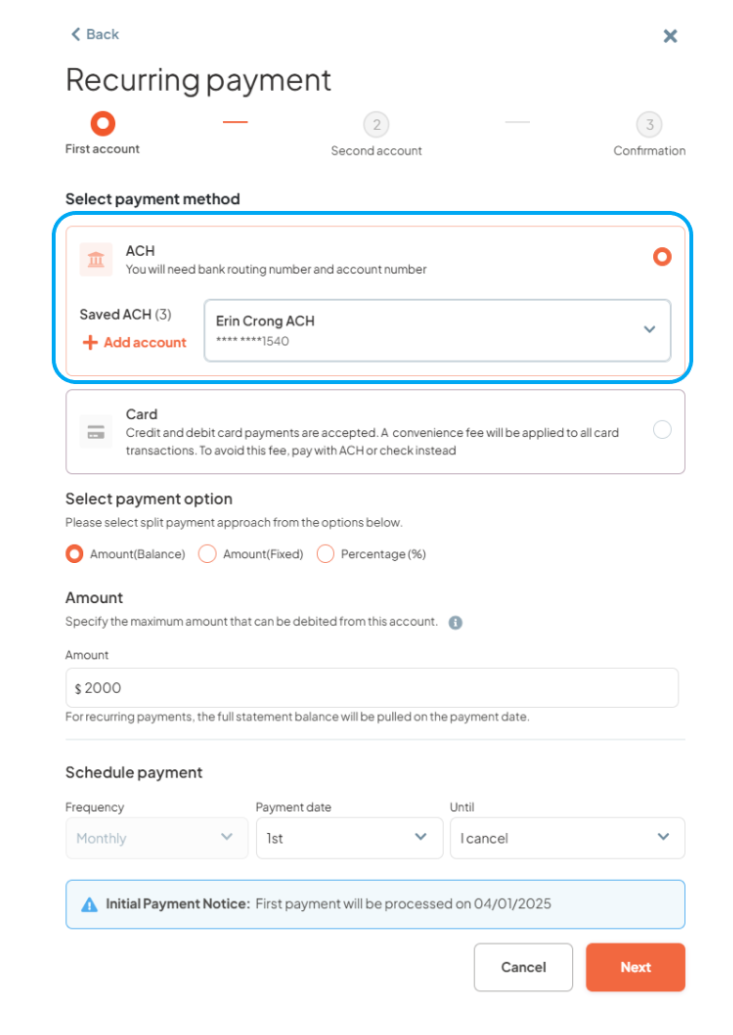
- Step 4: Select Credit Card or Debit Card as the second payment method, enter the payment amount, specify the payment date, and then click "Next".
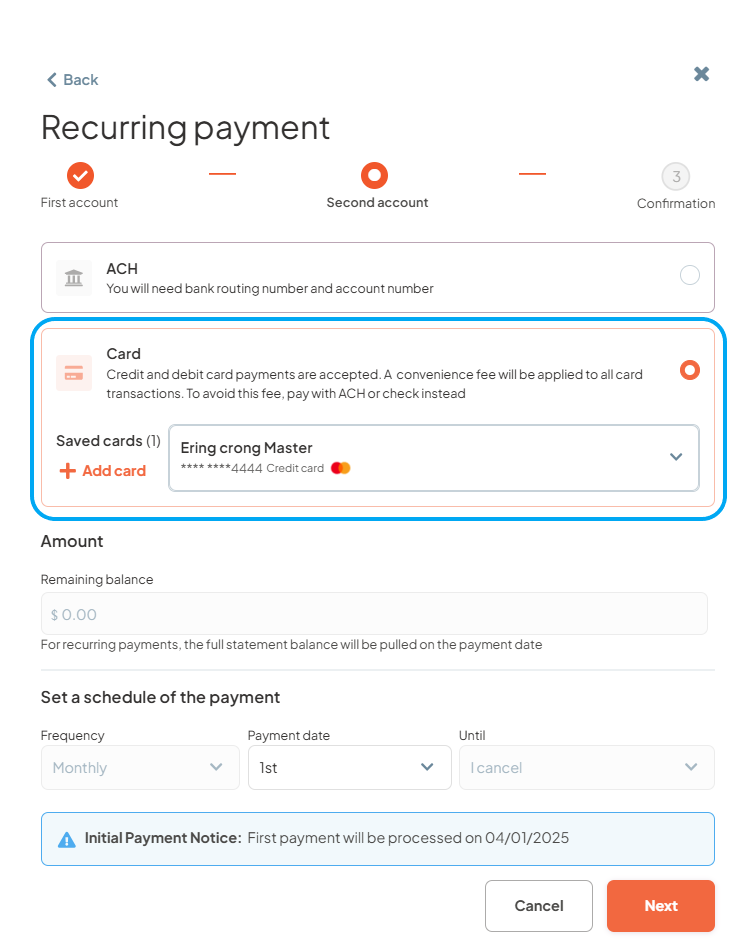
- Step 5: Review the payment confirmation screen to ensure everything is correct and provide payment authorization and clin on Enroll.
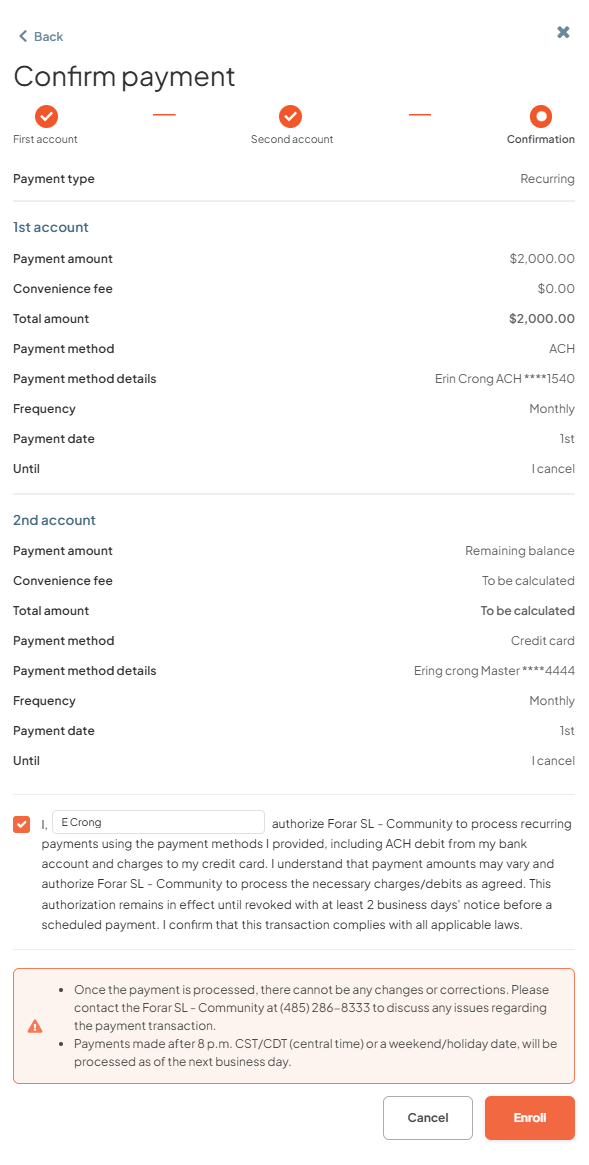
- Step 6: Receive confirmation of scheduled payment
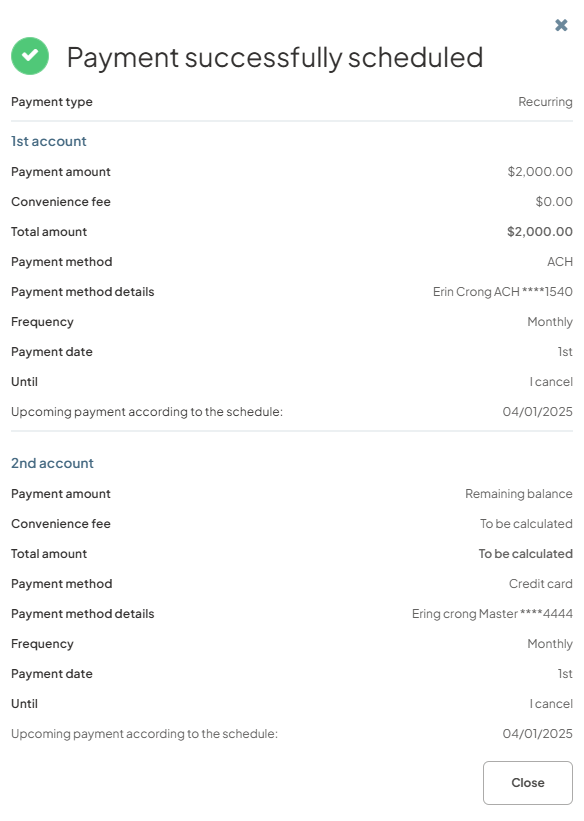
Split One-Time and Recurring Payments Across Two Dates
Users can now split a single payment transaction, including one-time and recurring payments, across two separate dates. Users can now split a one time payment transaction and recurring payments across two dates with its own payment date (based on tenant configuration and acceptable dates for the community.
How to Split Recurring Payments Across Two Dates Using One Payment Method
- Step 1: Click on the "Enroll in Auto Pay"
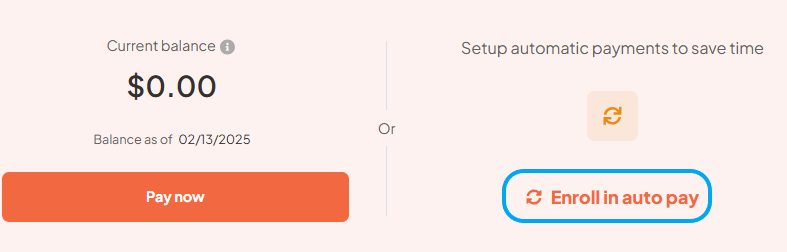
- Step 2: Select "Split Payment"
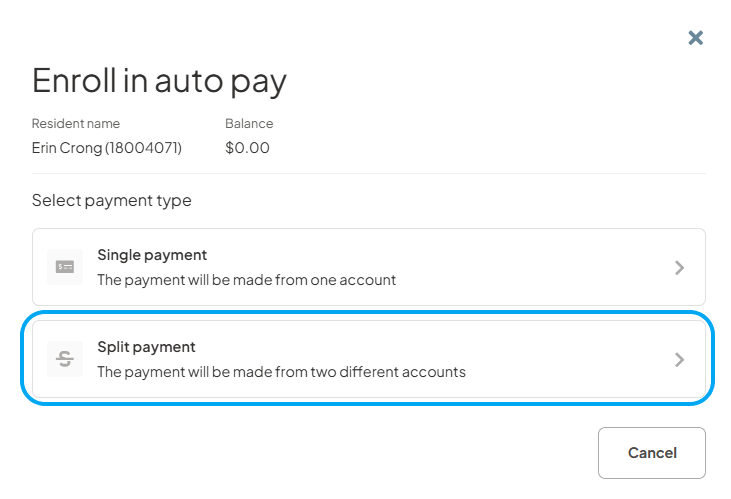
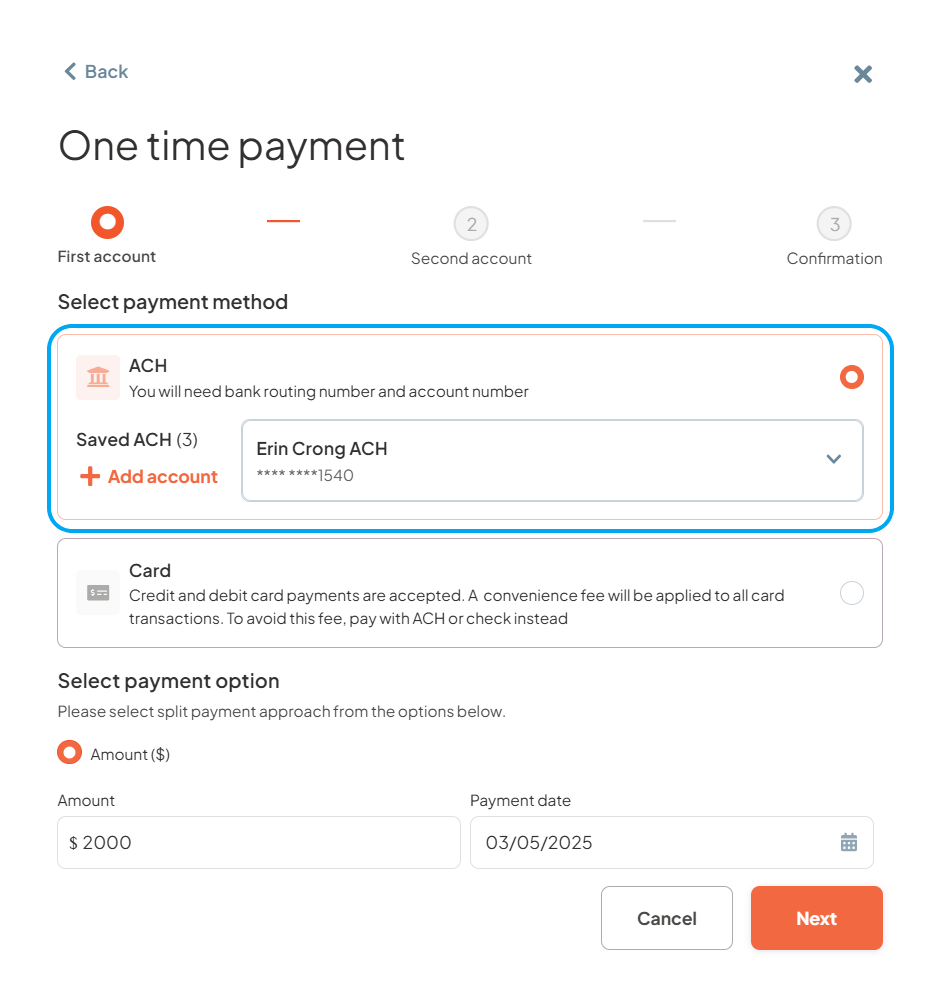
- Step 3: Select ACH, Credit, or Debit card as the first payment method, enter the payment amount, specify the payment date, and then click "Next".
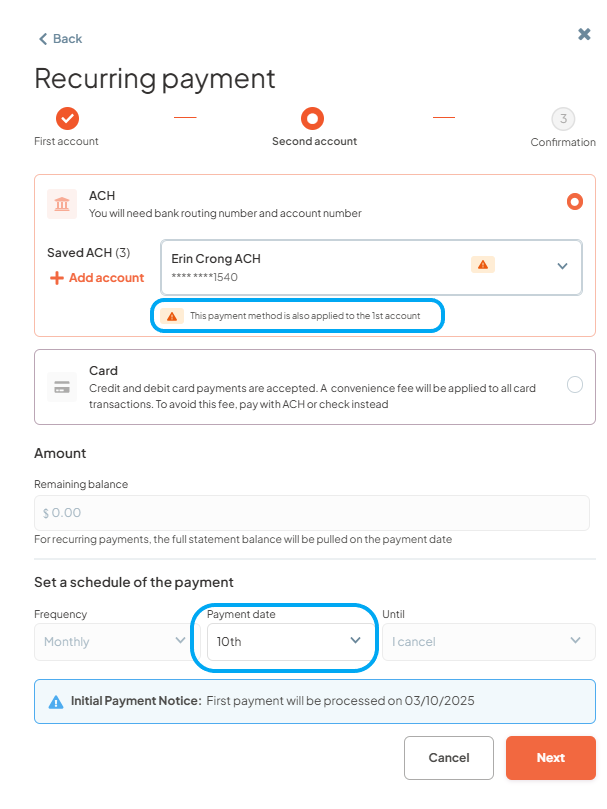
- Step 4: On the next screen, the previously selected payment method will have a "This payment method is also applied to the 1st account" flag. Enter the payment amount, specify a payment date that is different from the previously selected date, and then click "Next".
- Step 5: Review the payment confirmation screen to ensure everything is correct and provide payment authorization and clin on Enroll.
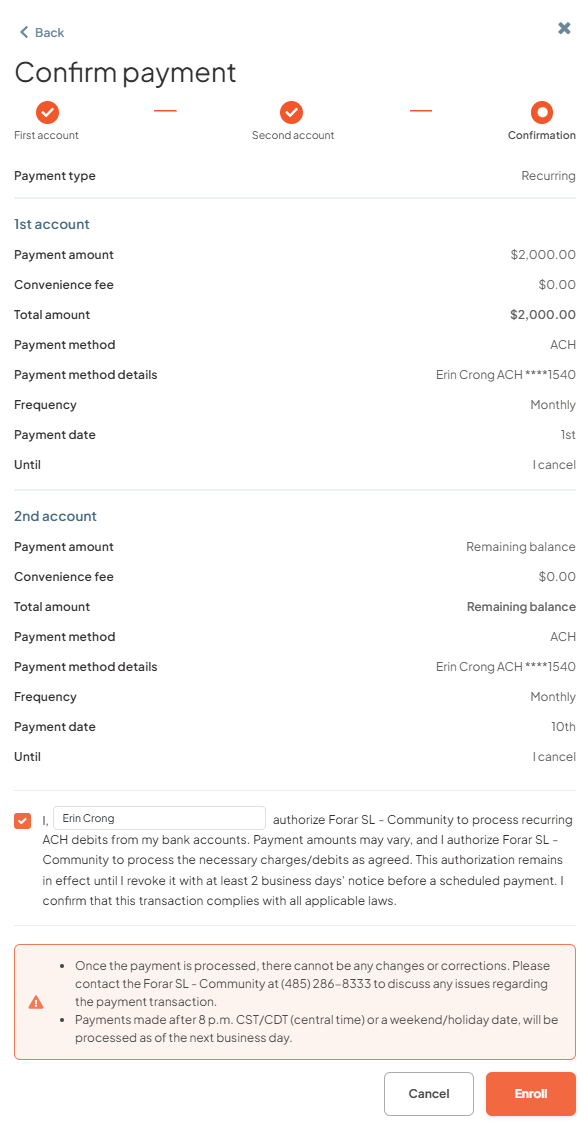
- Step 6: Receive confirmation of scheduled payment
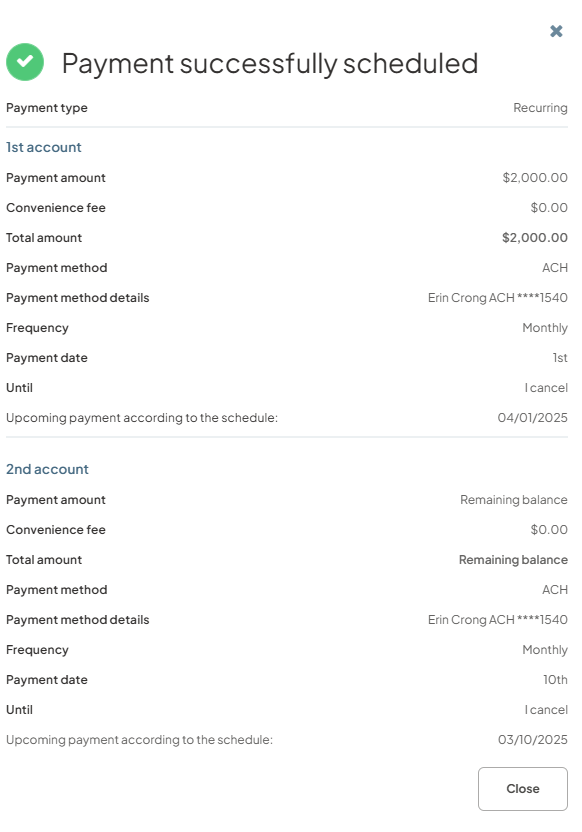
Fixed Draft Amounts for Recurring Payments
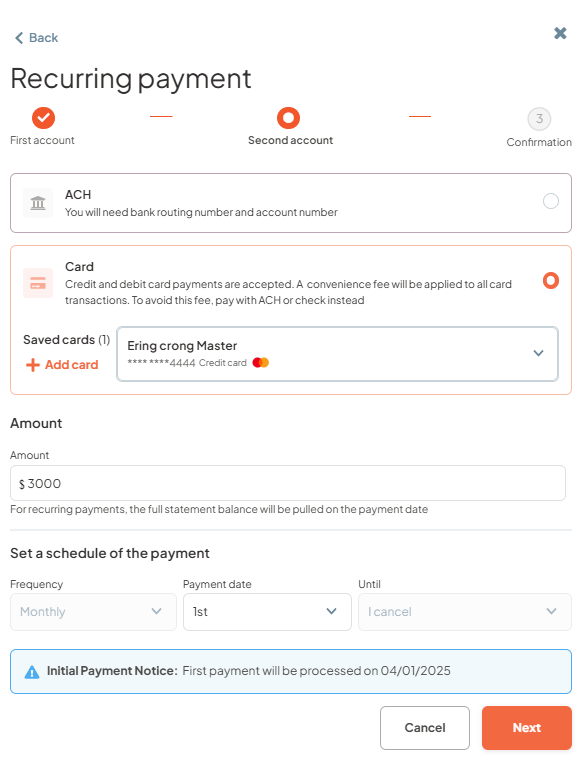
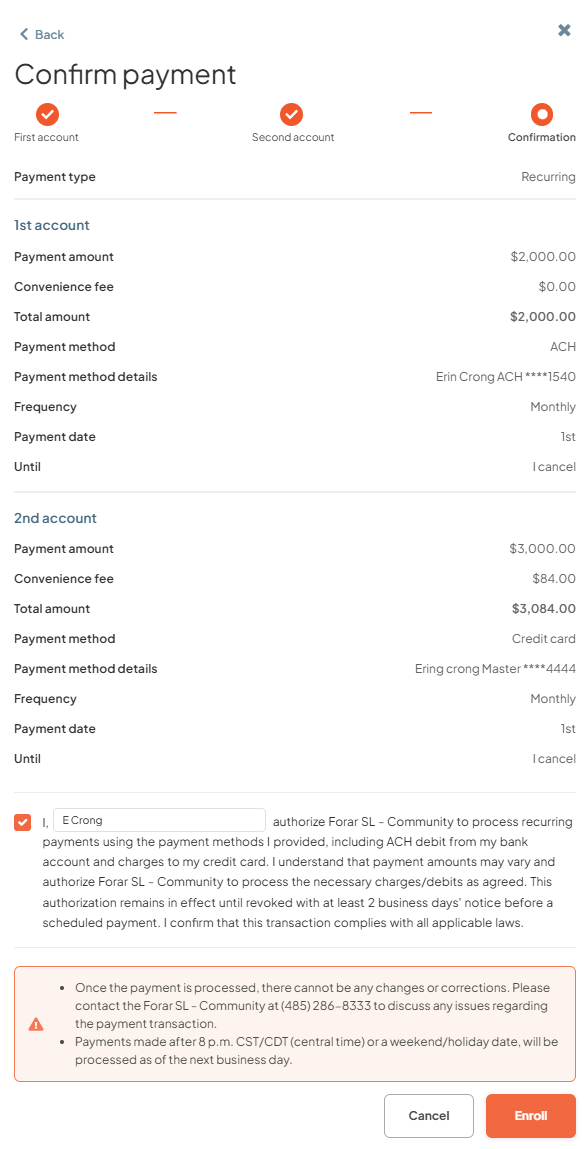
Users can now schedule fixed draft amounts for recurring payments from one or two accounts. This feature enables users to set up recurring payments that draw predetermined amounts from either a single account or split between two different accounts.
How to Split Recurring Payments Across Two Dates Using One Payment Method
- Step 1: Click on the "Enroll in Auto Pay"
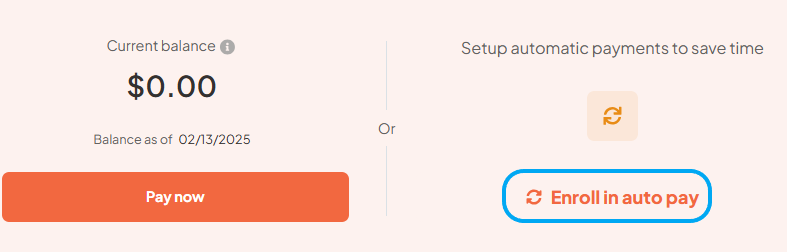
- Step 2: Select "Split Payment"

- Step 3: Select ACH, Credit, or Debit card as the first payment method, select “Amount fixed”, enter the payment amount, specify the payment date, and then click "Next".
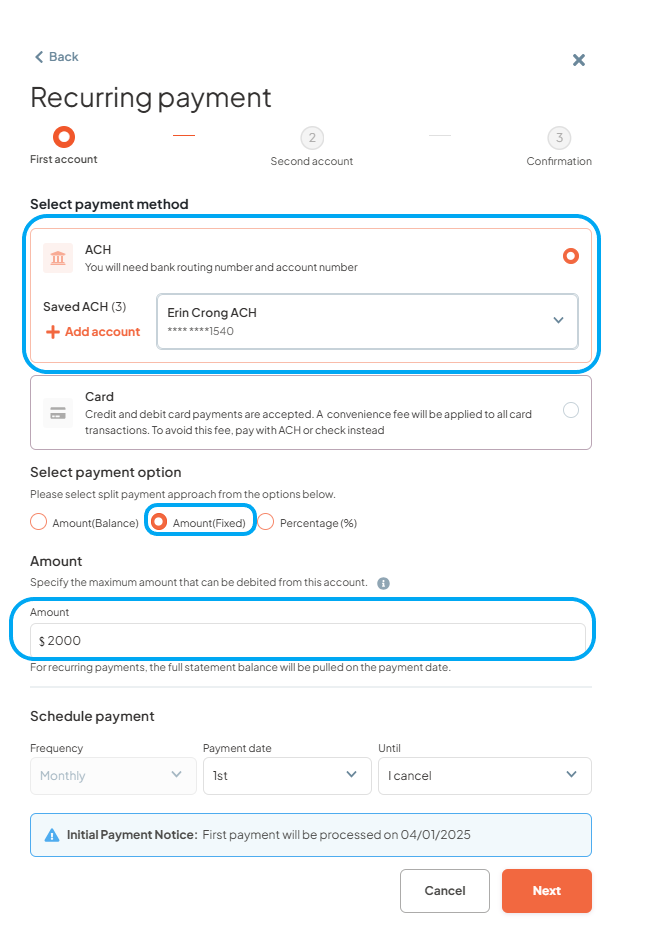
- Step 4: Select ACH, Credit Card, or Debit Card as the second payment method, enter the payment amount, specify the payment date, and then click "Next".
- Step 5: Review the payment confirmation screen to ensure everything is correct and provide payment authorization and clin on Enroll.
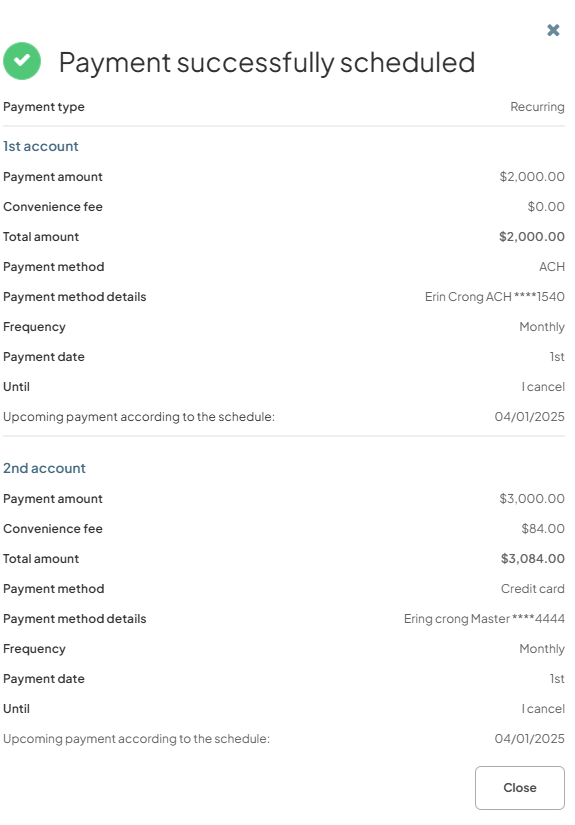
- Step 6: Receive confirmation of scheduled payment
Greyed Out Disabled Communities
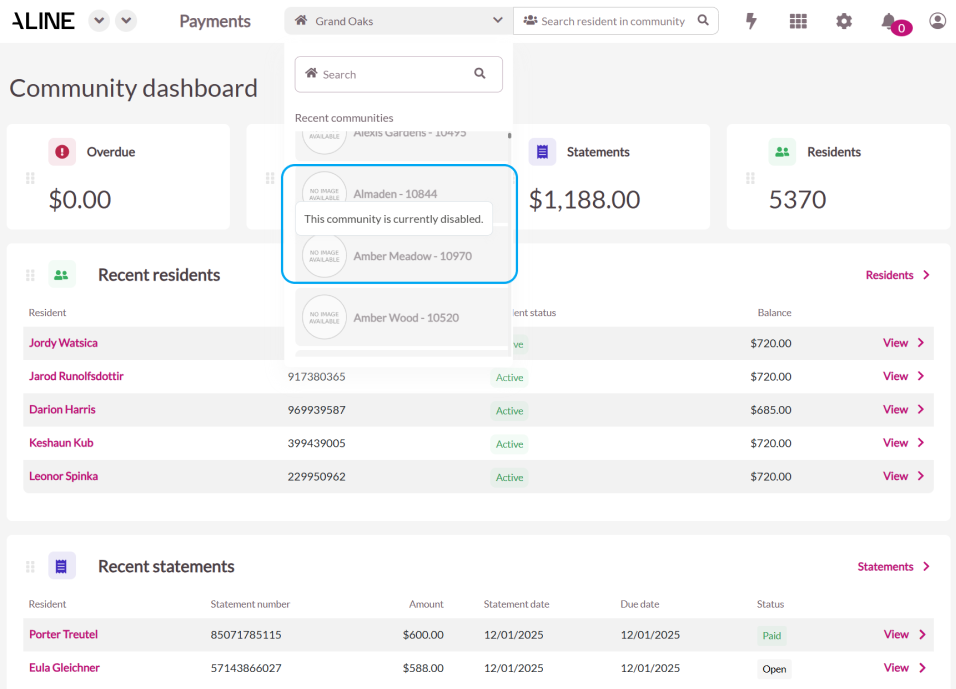
Disabled and deactivated communities are now greyed out in the Business Portal allowing users to differentiate between active and inactive communities. This feature provides users with a clear visual distinction between active and inactive communities, making it easier to manage and navigate the portal. Disabled communities are displayed in a greyed-out state, indicating that they are inactive. Users can still view historical information for these communities.
Reporting UI Enhancements
We have made significant improvements to the reporting UI, simplifying navigation with a streamlined menu that reduces clicks to access key reports. These updates also include faster report loading times, achieved through optimized database queries and data caching. Furthermore, enhanced filtering options enable quicker data discovery, making it easier to find the insights you need.
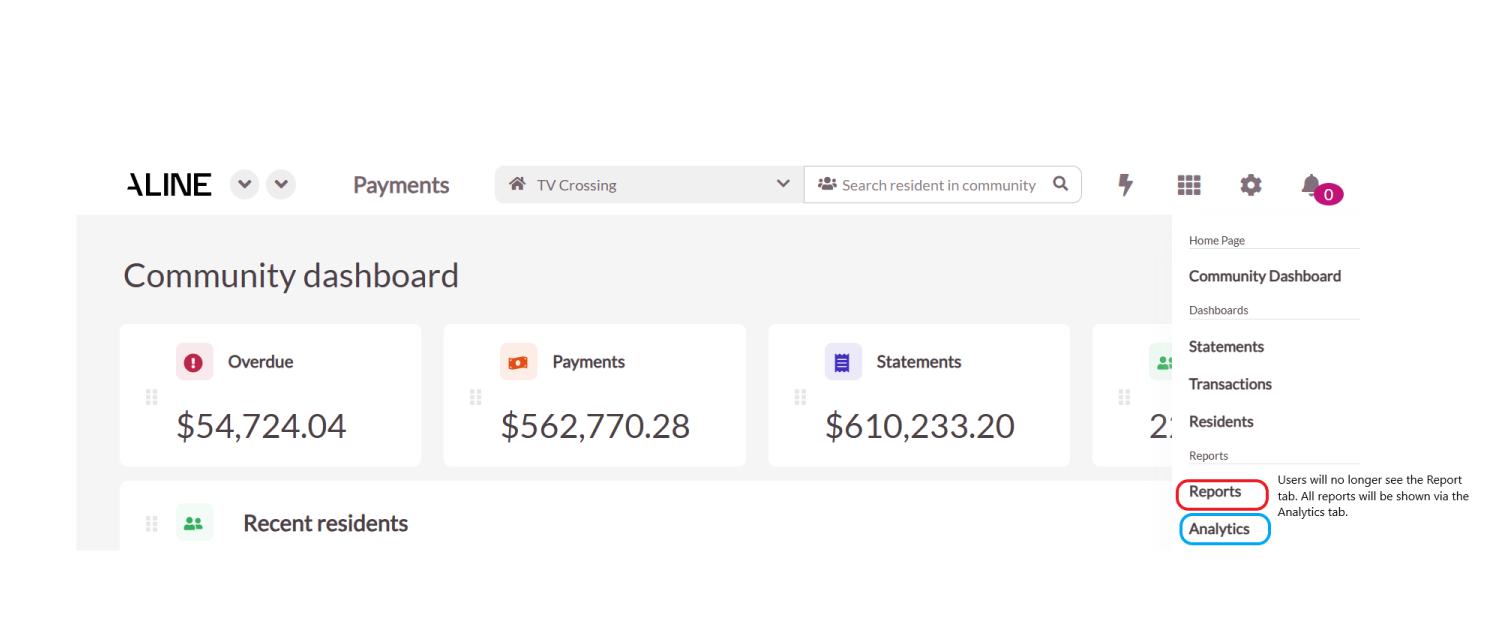
As part of this release, the "Reports" section is now replaced by the "Analytics" section. This change does not affect any functionality, and you will still have access to all the same features and reports.
How to access Payment Reports
- Step 1: Click on the waffle menu and select "Analytics"
- Step 2: Click on the drop-down menu beside "OneTime Schedule"
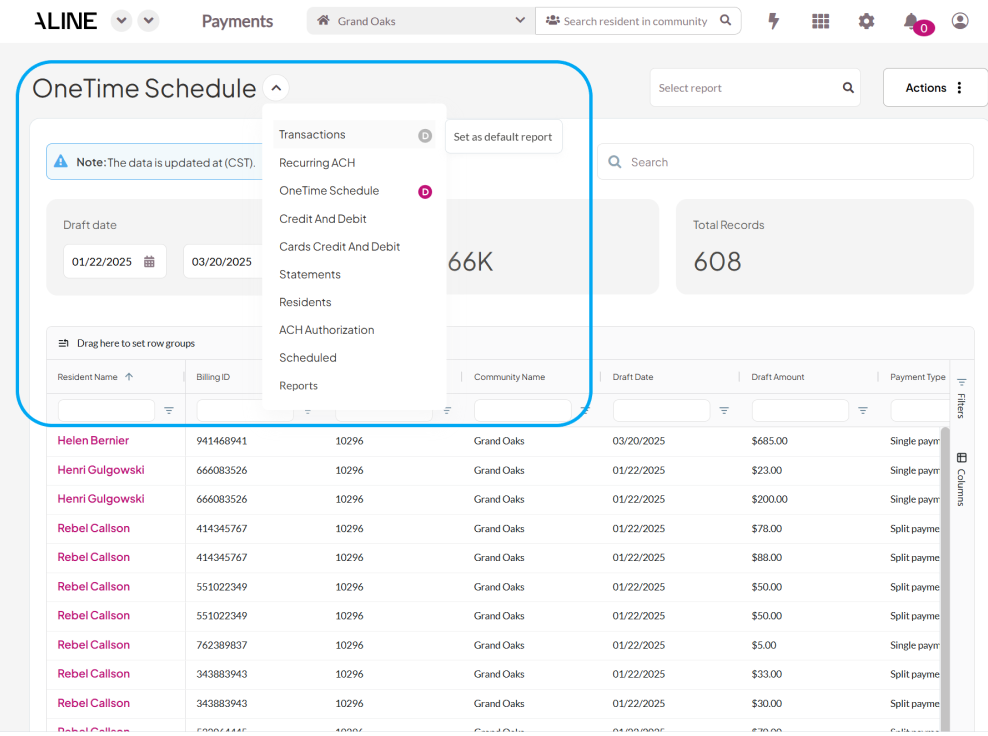
- Step 3: Users can now select any report from the dropdown menu to set as their default report, providing quick access to their most frequently used report.
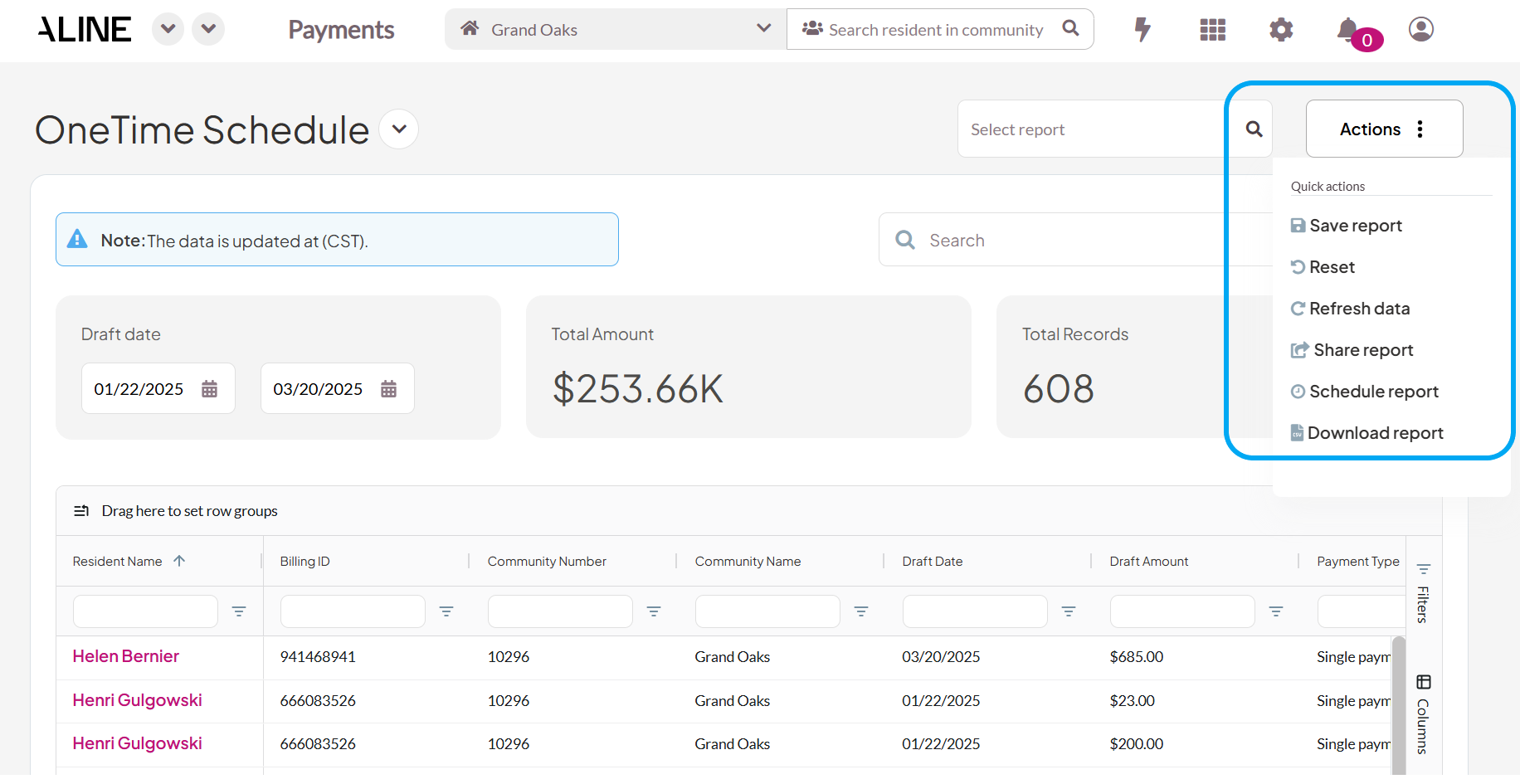
- Step 4: To access additional report options, users will click the three dots next to the "Actions" button. This menu allows users to save, download, share, schedule automated delivery, refresh, or reset your reports.
Was this article helpful?
That’s Great!
Thank you for your feedback
Sorry! We couldn't be helpful
Thank you for your feedback
Feedback sent
We appreciate your effort and will try to fix the article