Overview
In this article, we will detail the required steps needed to make, or assist with, resident eCheck or ACH payments in ExpressPay. Resident payments in Express Pay can be made by the residents themselves, resident payors, or with assistance by community business office users.
Steps to Make a Resident eCheck or ACH Payment
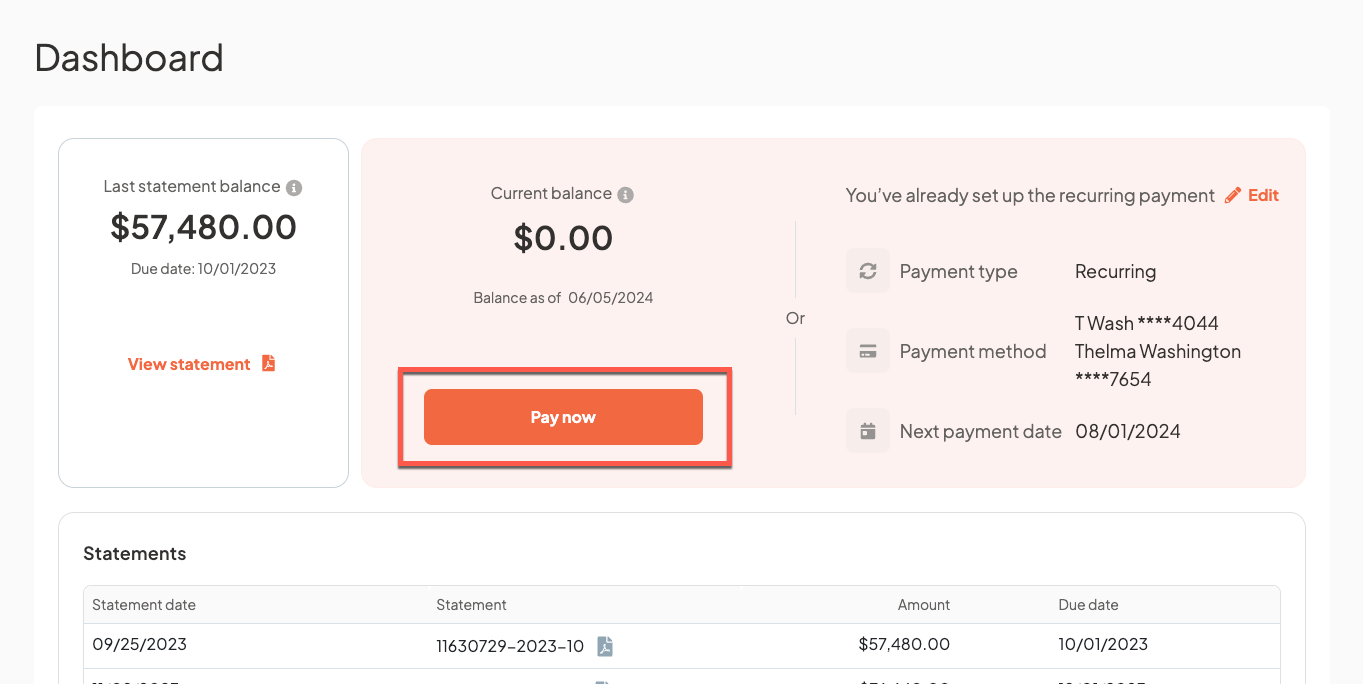
Step 1: After accessing the Express Pay application with the resident's information, users can select 'Pay Now' to enter in payment details. If recurring autopay payments have already been set up, those details will display to the right of the Pay Now button as pictured below.
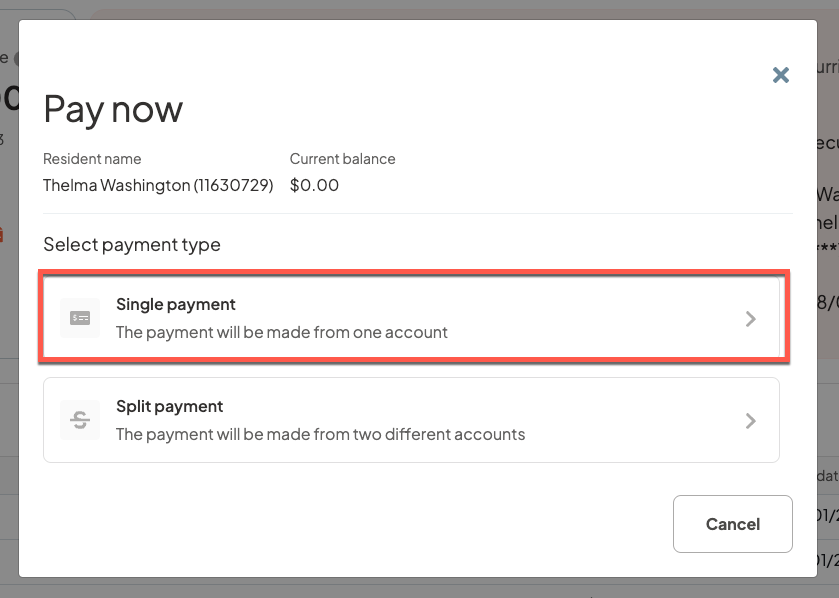
Step 2: Next, payors will select either 'Single Payment' to make a payment with one payor, or they will select 'Split Payment' to make a payment with two payors. In this example, we'll select 'Single Payment'.
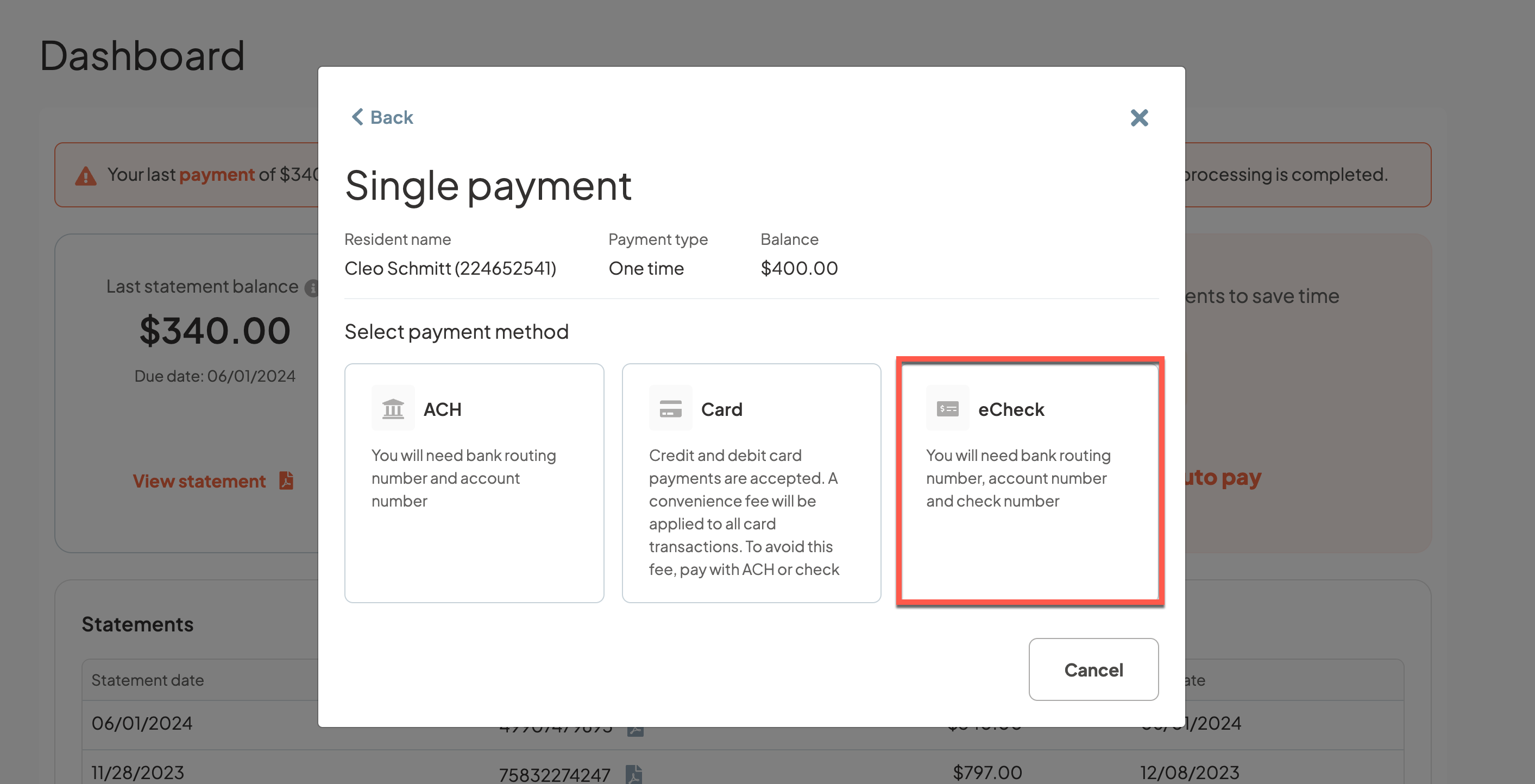
Step 3: Payors will then decide whether they are making an ACH Payment, Credit Card payment, or an eCheck Payment. In this article, we'll utilize an eCheck Payment. ACH payments follow mostly the same workflow as eCheck payments.
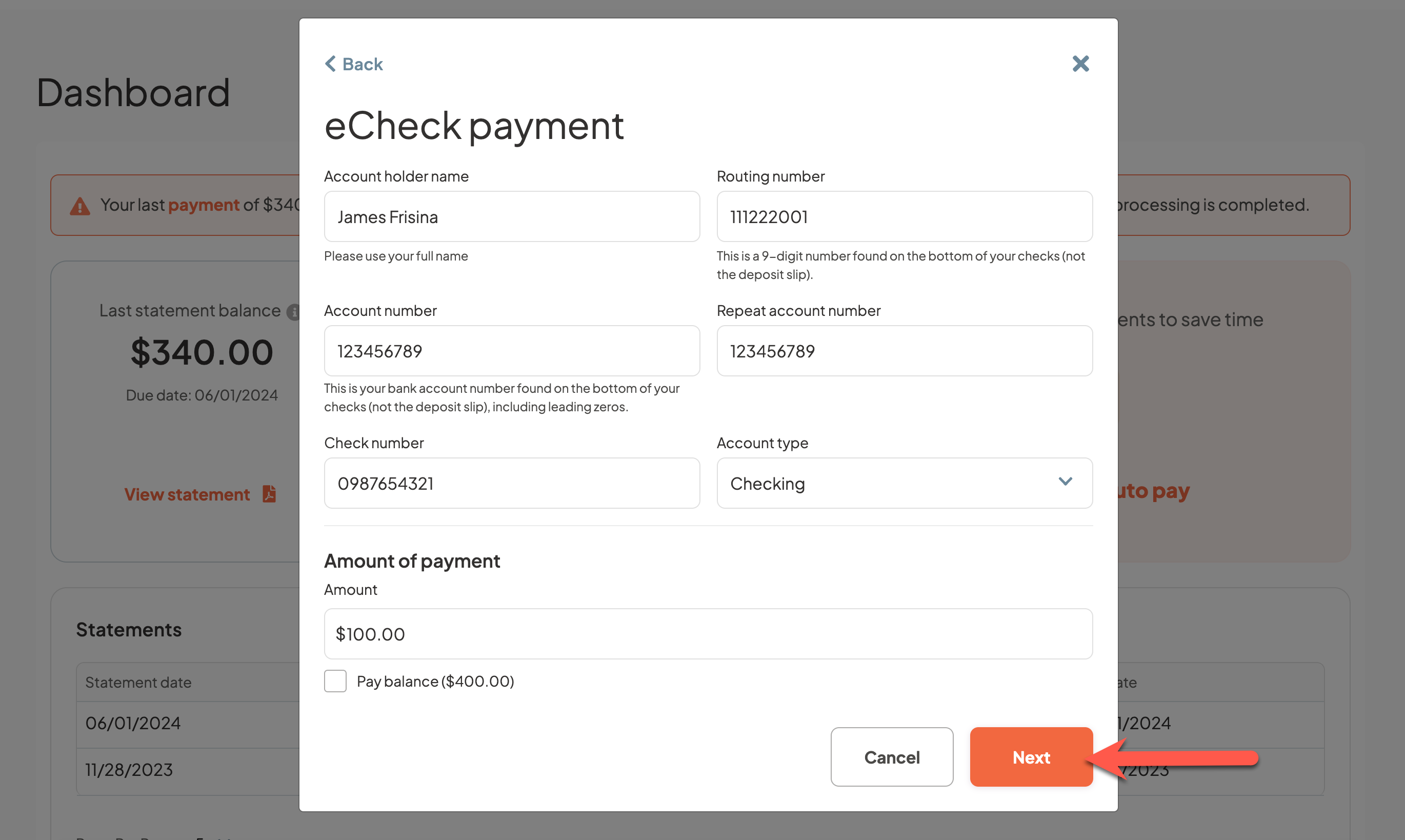
Step 4: Users will then fill in the require eCheck information including account holder name, routine number, account number, account number confirmation, check number, account type, and amount of payment. By default the amount of payment will default to the resident's balance. Unselect the Pay Balance checkbox to customize the payment amount. Select Next.
Please Note: for ACH payments, saved payment methods may be used, OR, new payment methods can be entered. Additionally, ACH payment methods do not require a check number.
Step 5: The payor will now need to enter their name and check the two displaying acknowledgements that authorizes the community to conduct the entered transaction.
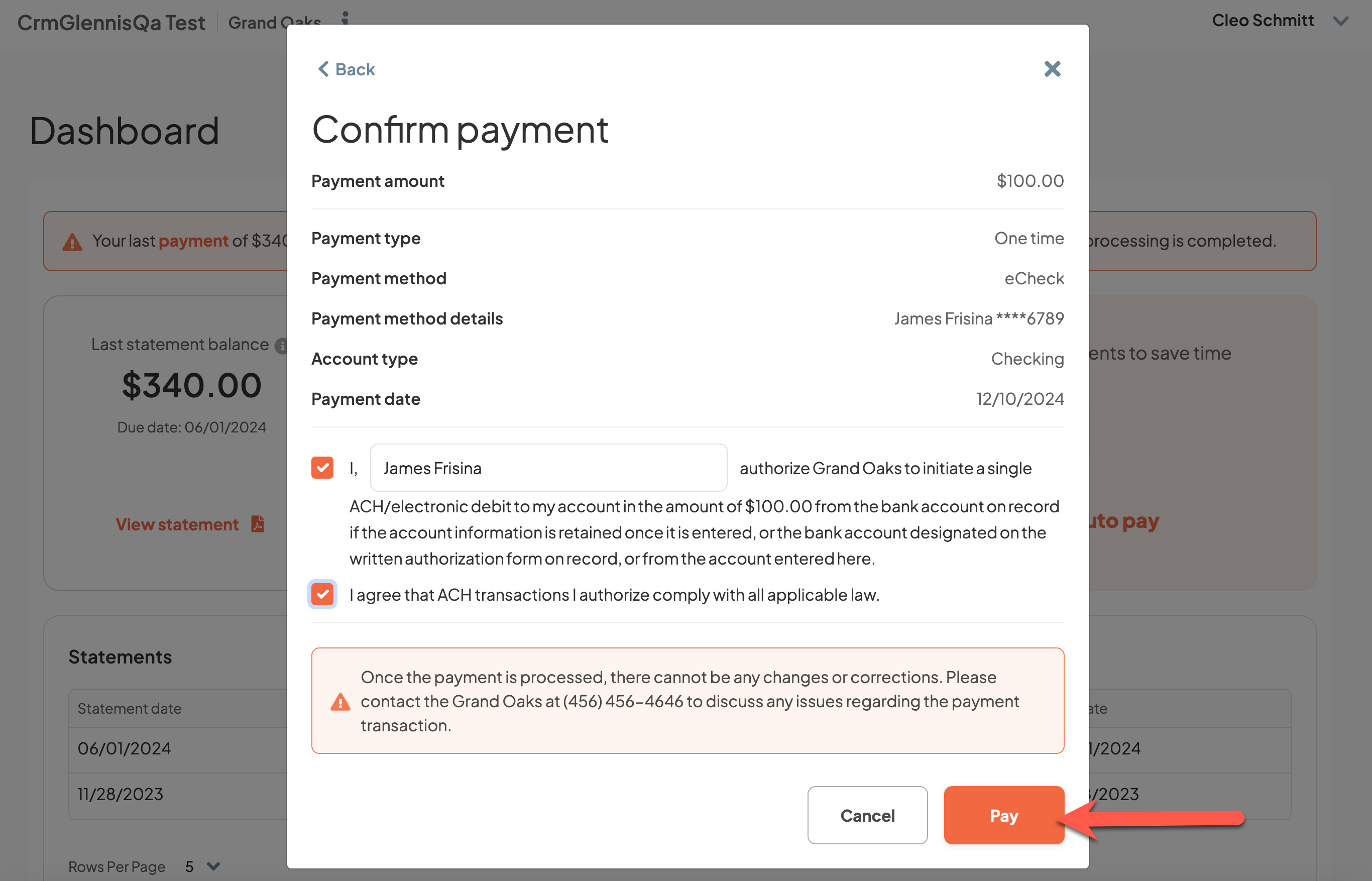
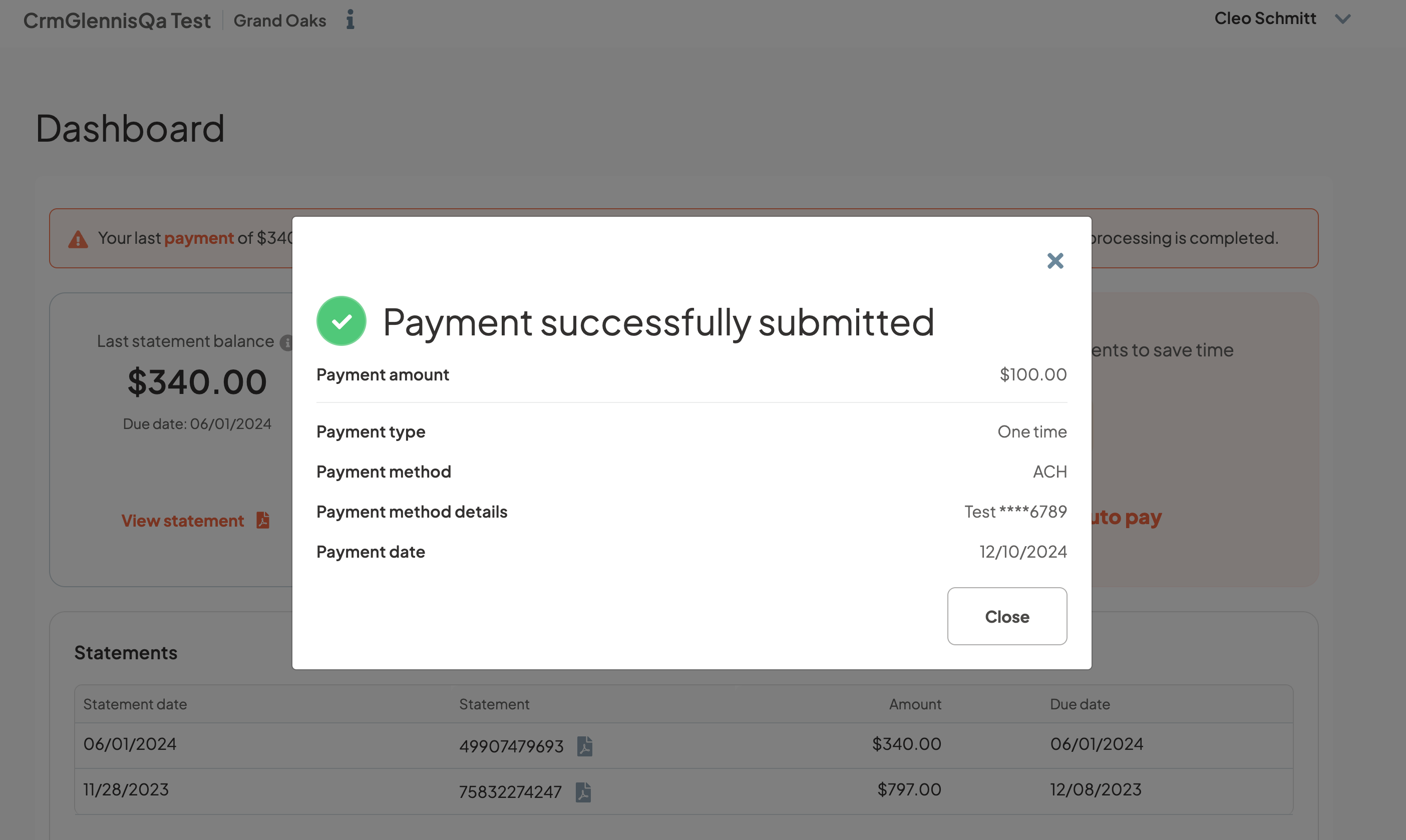
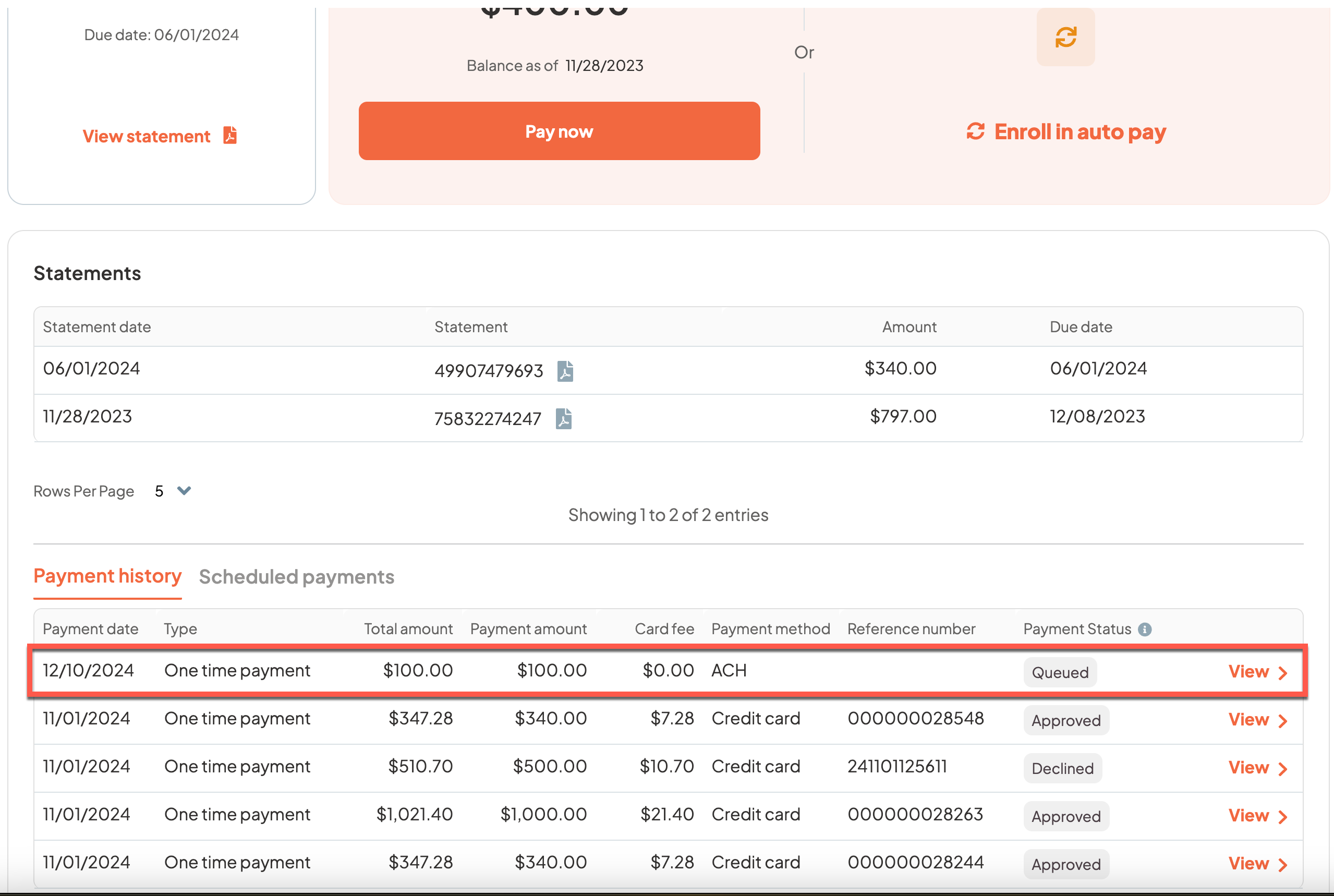
Step 6: After selecting Pay, a confirmation page will display. Select close to close the box. The payment details will display on the resident dashboard in ExpressPay under Payment History. Payment details will also display in Aline Payments on the resident profile under Past Payments.
Was this article helpful?
That’s Great!
Thank you for your feedback
Sorry! We couldn't be helpful
Thank you for your feedback
Feedback sent
We appreciate your effort and will try to fix the article