Overview
In this article, we will review navigating through Aline Insights.
Navigating Through Aline Insights
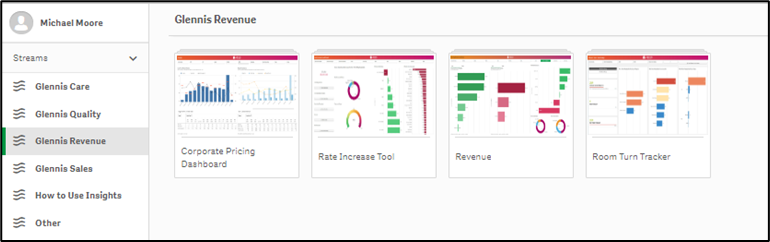
To access the Aline Revenue Stream, select Aline Revenue from the left panel. Each Aline Insights Stream will contain multiple apps. As seen below, users have access to the following Revenue Apps: Corporate Pricing Dashboard, Rate Increase Tool, Revenue, and Room Turn Tracker.
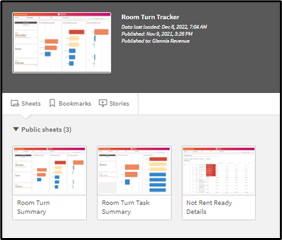
Each App will contain multiple sheets. For example, the Room Turn Tracker app contains three sheets: Room Turn Summary, Room Turn Task Summary, and Not Rent Ready Details.
To move from sheet to sheet, users can select the Navigation drop down from the top right of the screen and select the desired sheet. Navigational arrows also allow users to move forward or backwards through the available sheets.
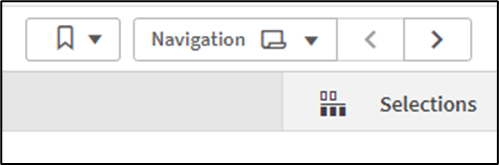 To drill down more specifically into a data set, users can filter data by making selections on the Filter Pane at the top of the page or by making selections in the data sets themselves.
By selecting data directly in the table, chart, or graph, users can isolate the value they wish to see. Confirm selections by clicking the green check mark. Data set selections made in one sheet will carry over from sheet to sheet.
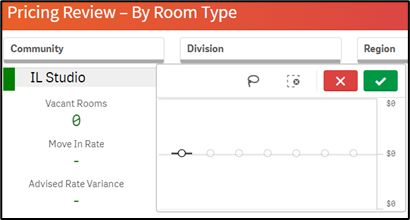
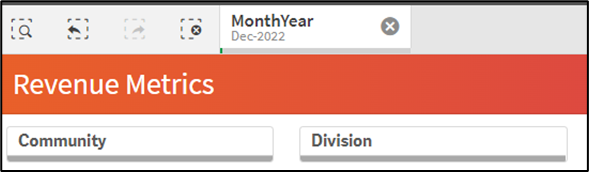
Data set selections can be cleared individually in the Filter Pane by selecting the X button on each selection. All selections can be cleared at once by selecting the button: 
To export a data set, view the data set in full screen, or take a screenshot of the data set, users can select the menu with the three horizontal dots. Data sets can be exported as Excel data, PDFs, and images.
For more information about navigating through Aline Insights, users can refer to the How to Use Insights Stream on the Aline Insights Hub.
Was this article helpful?
That’s Great!
Thank you for your feedback
Sorry! We couldn't be helpful
Thank you for your feedback
Feedback sent
We appreciate your effort and will try to fix the article