Overview
In this article, we will review how to clear a payment.
Video Tutorial
Clear a Payment
Step 1: Select "Manage Payments" from the Aline Revenue homepage's "Quick Actions" menu.

Step 2: On the Manage Payments Page, users will see Pending Payments by default. These Pending Payments will eventually need to be manually cleared so that the Aline Revenue billing engine can automatically post them to the respective resident's account. After careful review, select the payments you would like to clear by checking the accompanying checkbox next to the payment. To select all payments at once, select the checkbox in the header column.
Note: Pending Payments will stay in the "Pending" status indefinitely until they are manually cleared. All Pending Payments must be reviewed and then manually cleared before they are posted to the resident's account.
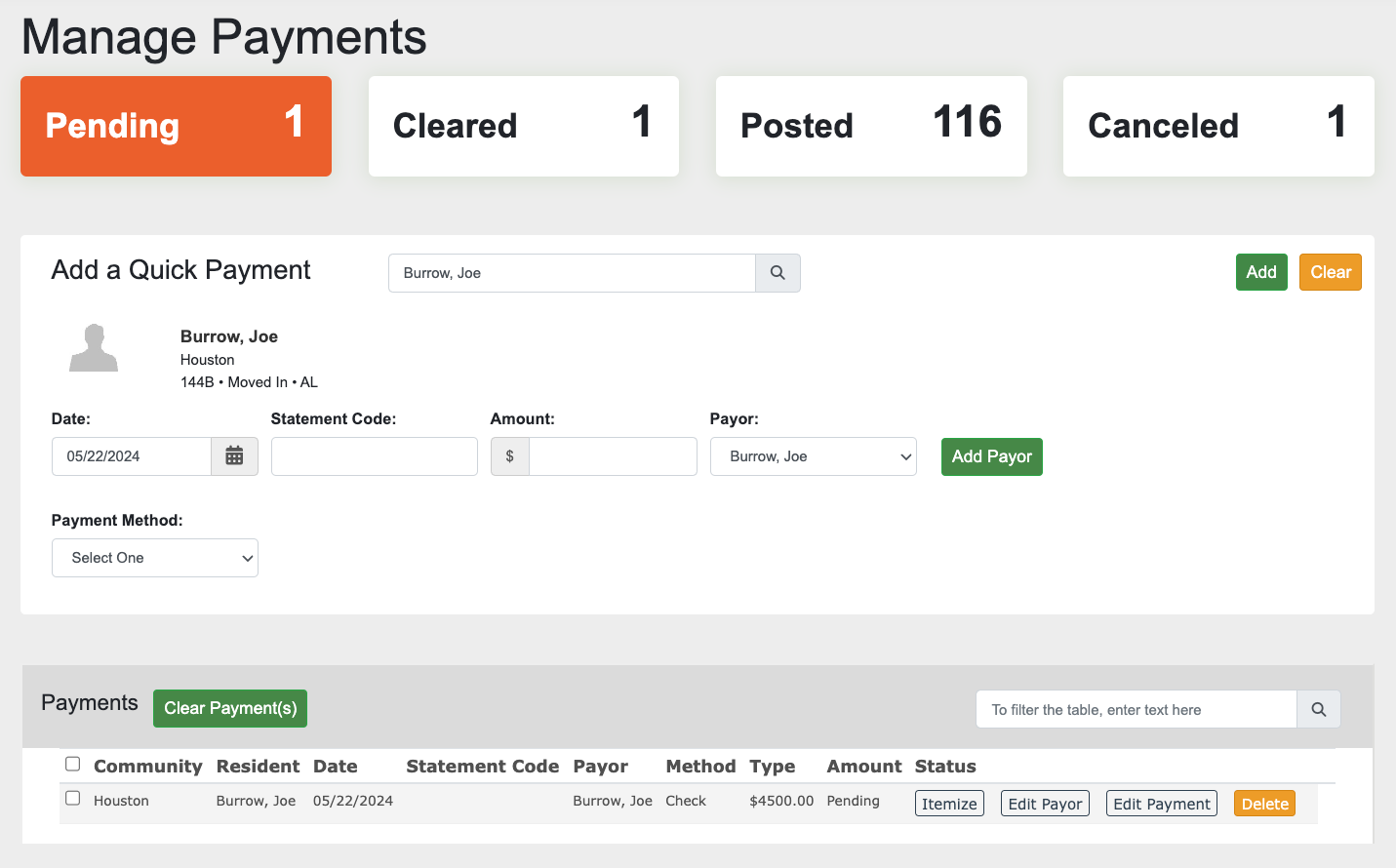
Step 3: Once the desired payments are selected, select the "Clear Payments" button.

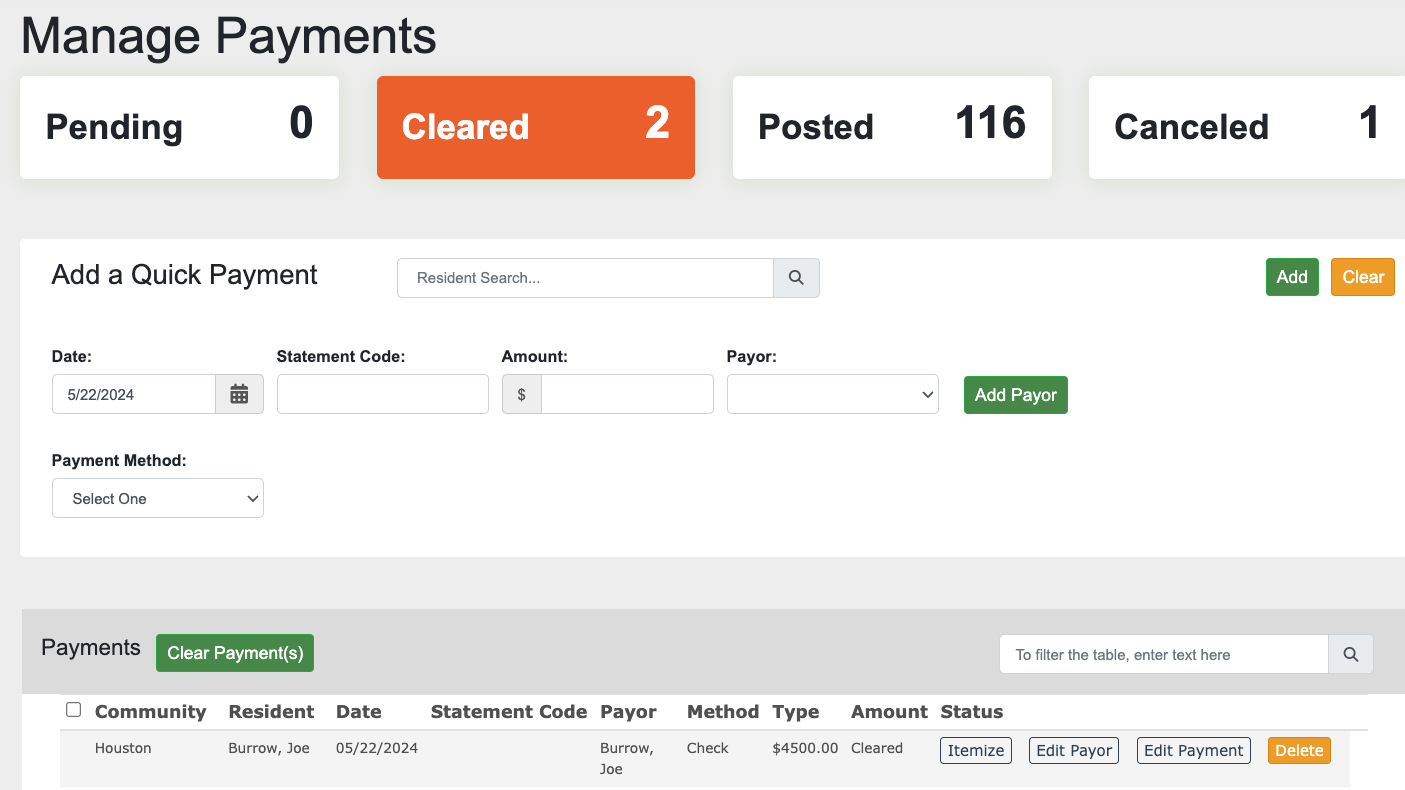
Step 4: Once cleared, the payment(s) status will display as Cleared. Aline Revenue's billing engine will run once hourly to automatically post all cleared payments to the respective resident's account.
Was this article helpful?
That’s Great!
Thank you for your feedback
Sorry! We couldn't be helpful
Thank you for your feedback
Feedback sent
We appreciate your effort and will try to fix the article