Issuing Refunds
In this article, we'll outline the steps required to issue refunds in the Aline Payments application. Note, depending on your organizational structure, only some users may have the permissions to issue refunds.
Steps to Issue a Refund
Refunds can be issued in Aline Payments once the payment has been processed by the banking institution.
When payments are first entered, either in Aline Payments or ExpressPay, they enter the status of queued. After, the payment's status changes to Pending. After two to three business days, the payment status will change to Processed.
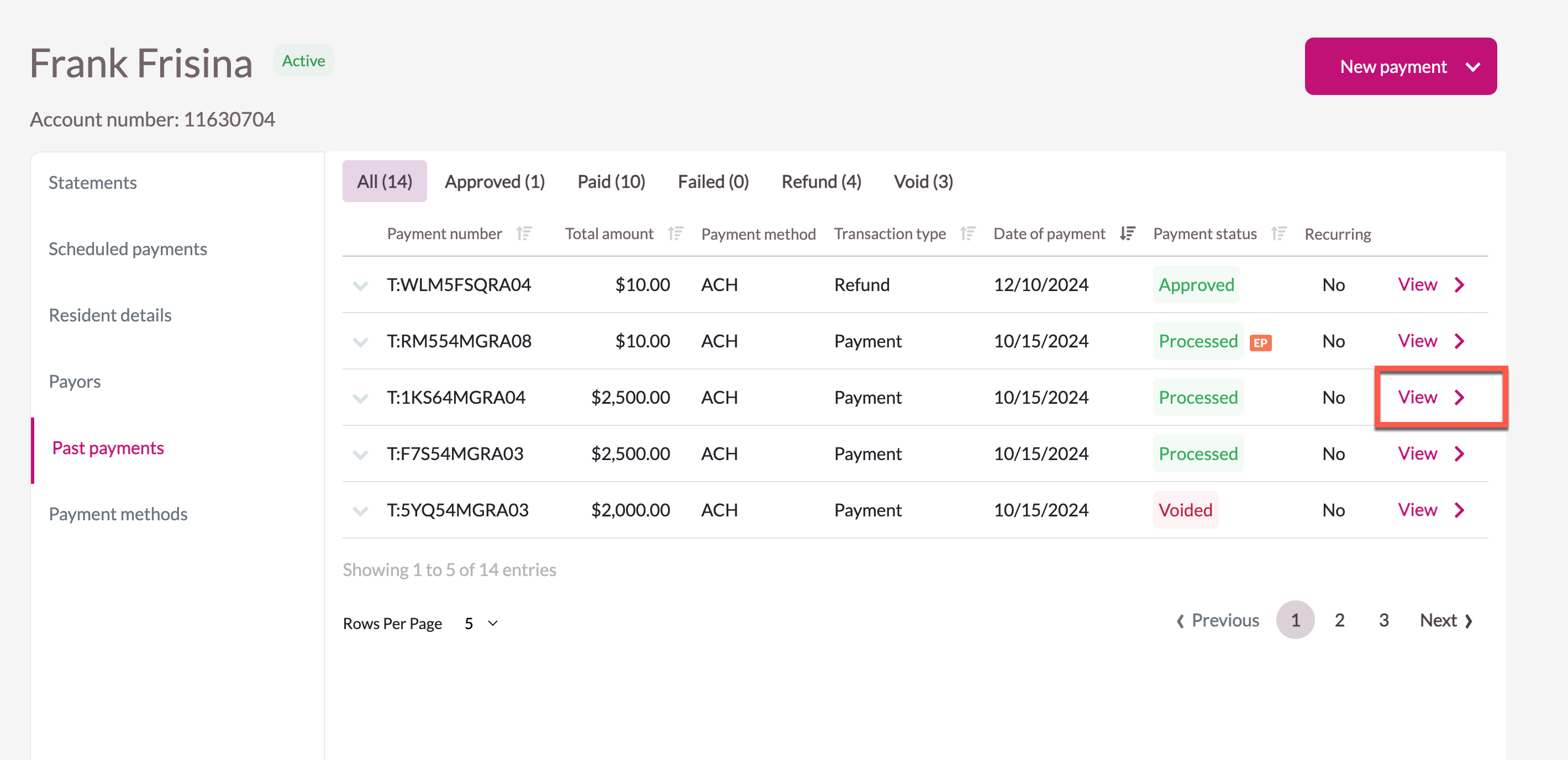
Only Payments in the status of Processed can be refunded.
Step 1: After logging into Aline Payments, select the desired resident in need of a refund.
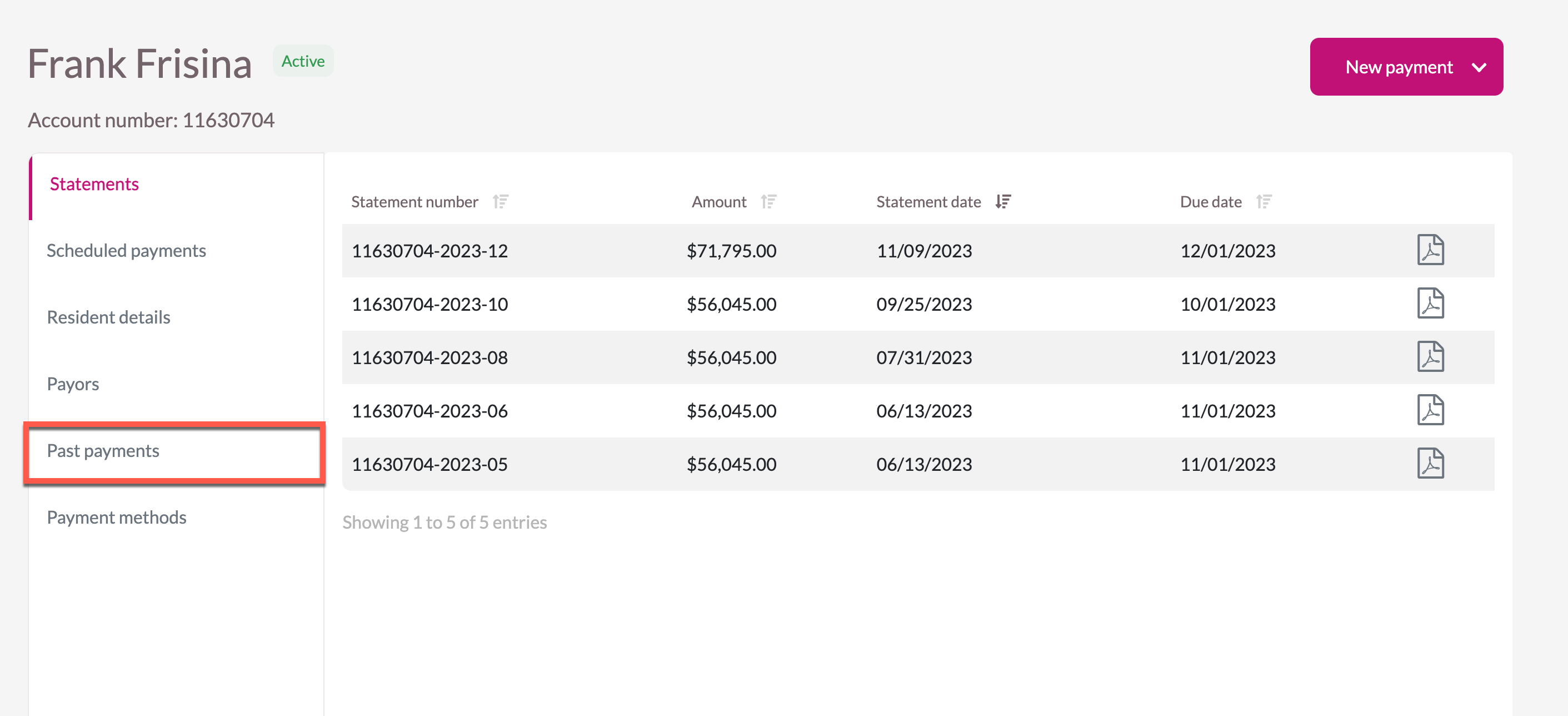
Step 2: On the resident profile, select Past Payments.
Step 3: After finding the payment that requires a refund, select View. Remember, only payments in the status of Processed can be refunded.
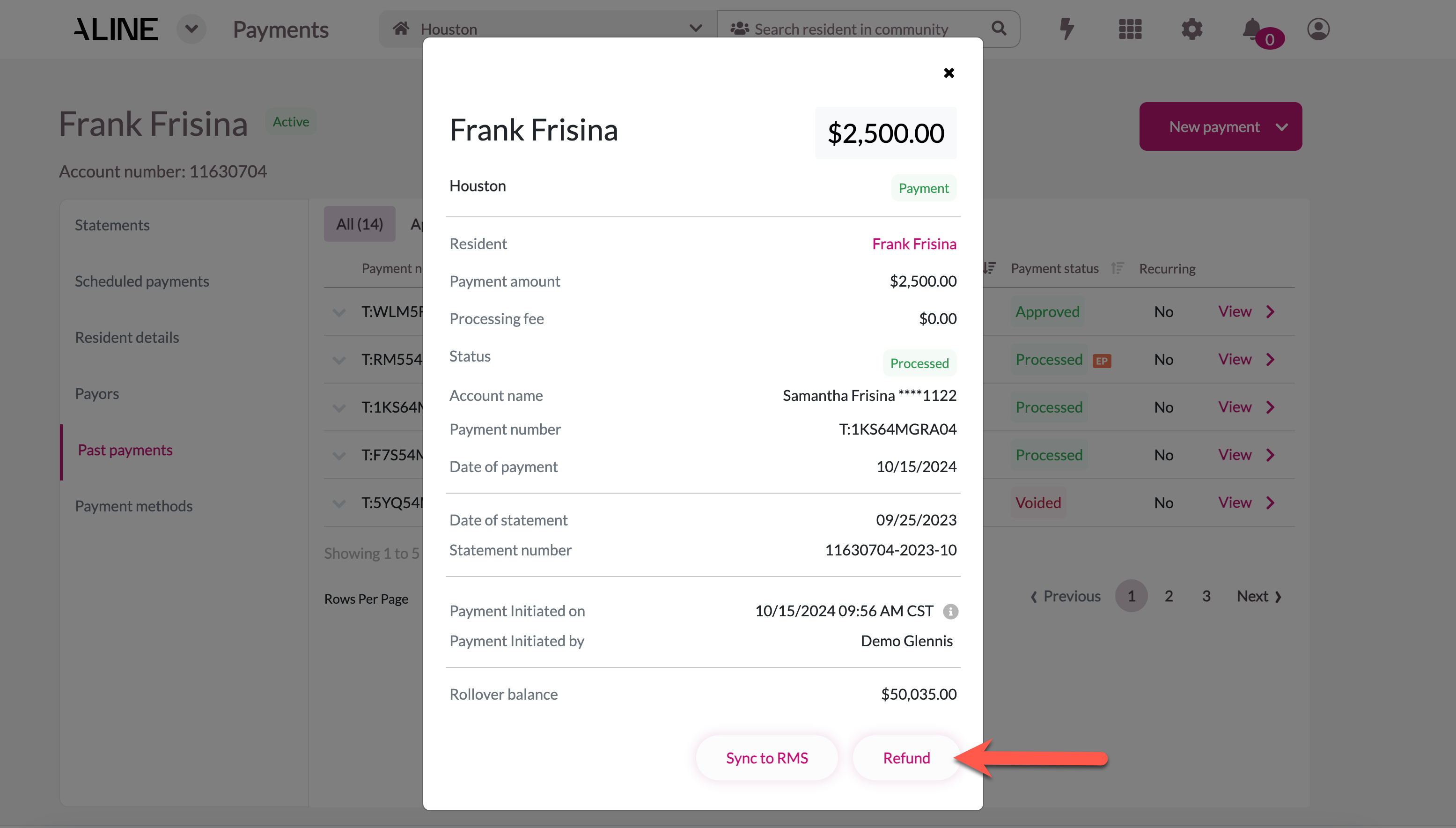
Step 4: The payment confirmation information will display. At the bottom, select Refund.
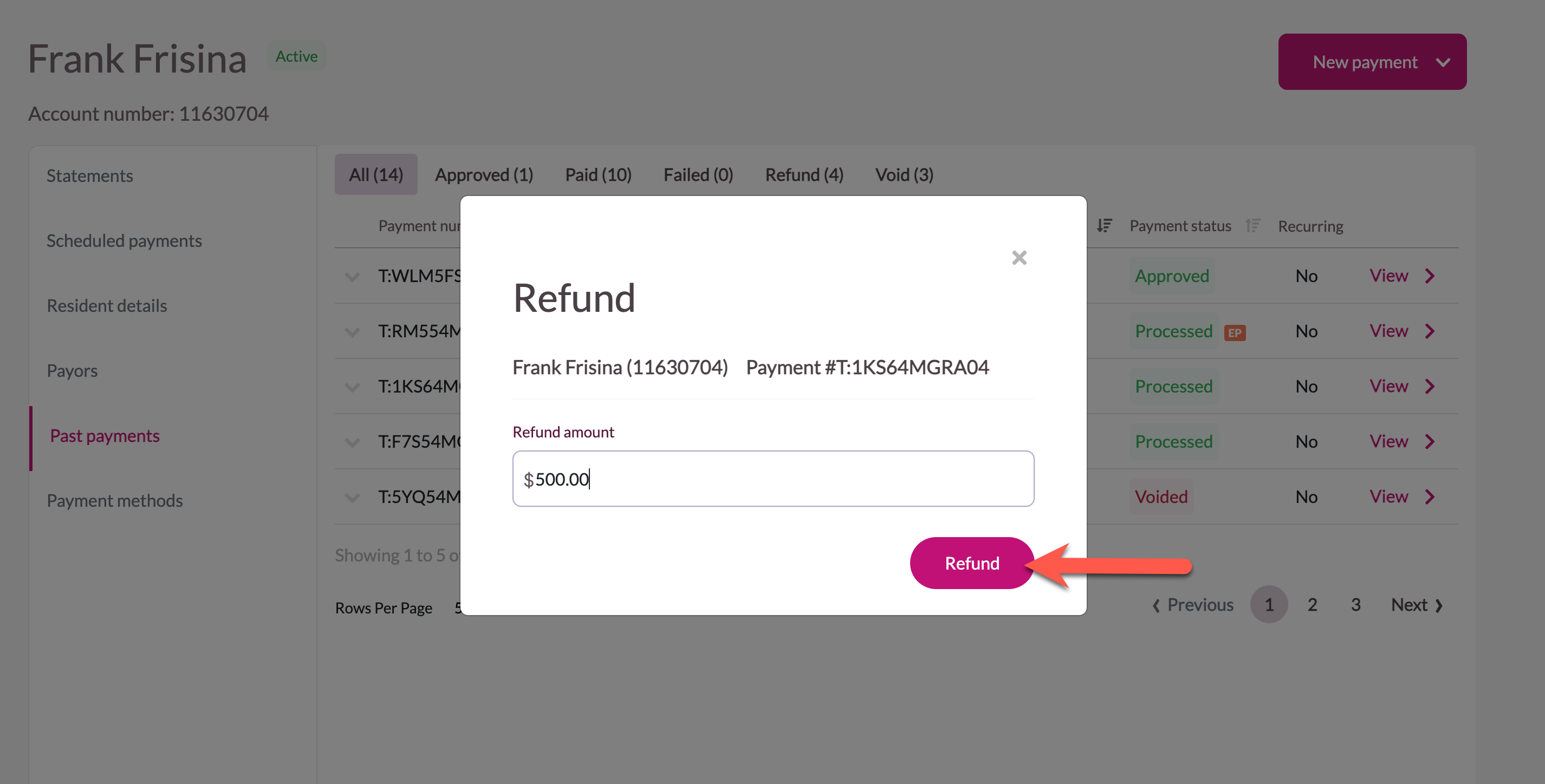
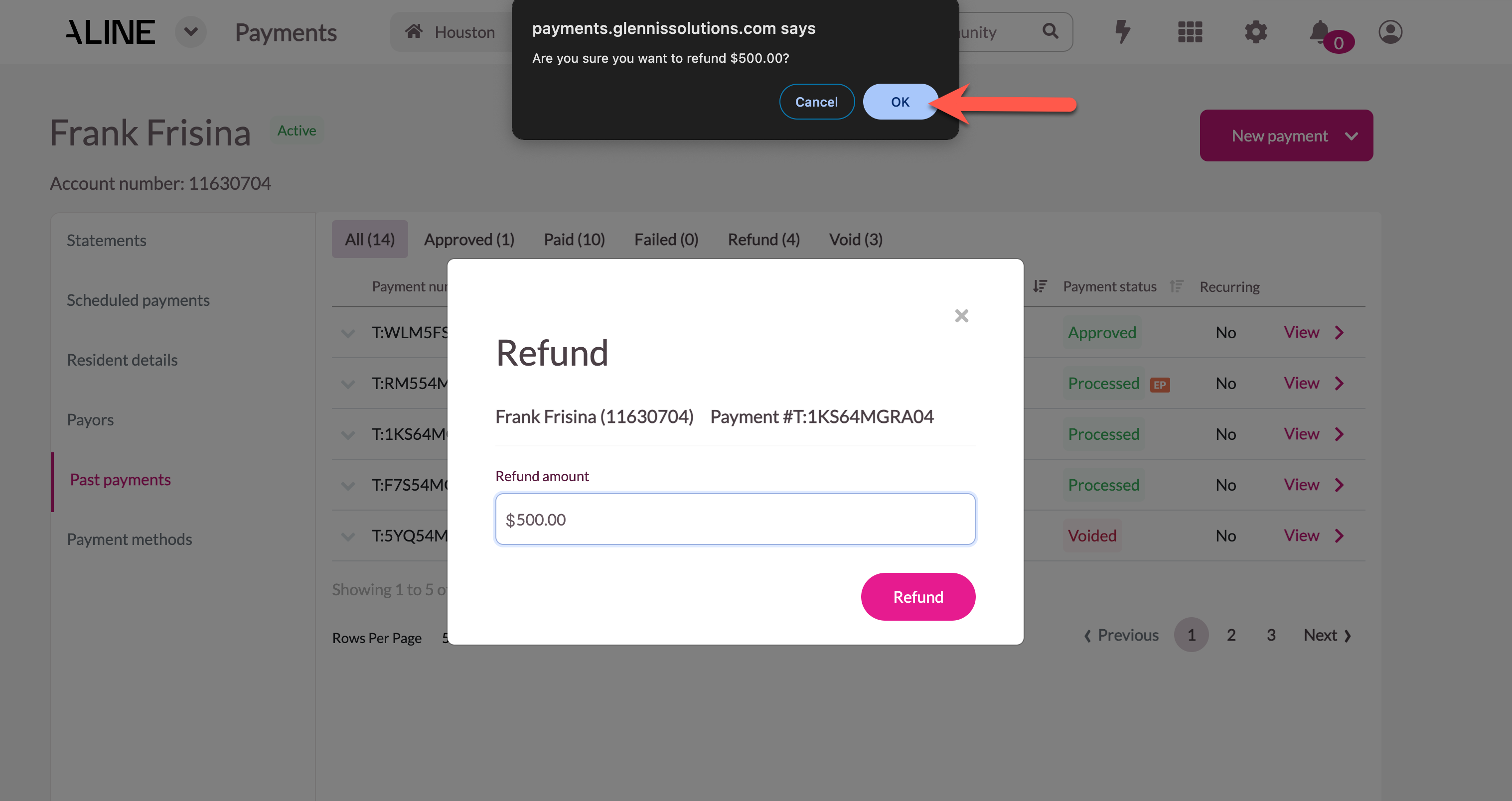
Step 5: Aline Payments is capable of making full or partial refunds. Confirm the amount of the refund and then select Refund.
Step 6: A prompt will display. Select OK to confirm and process the refund.
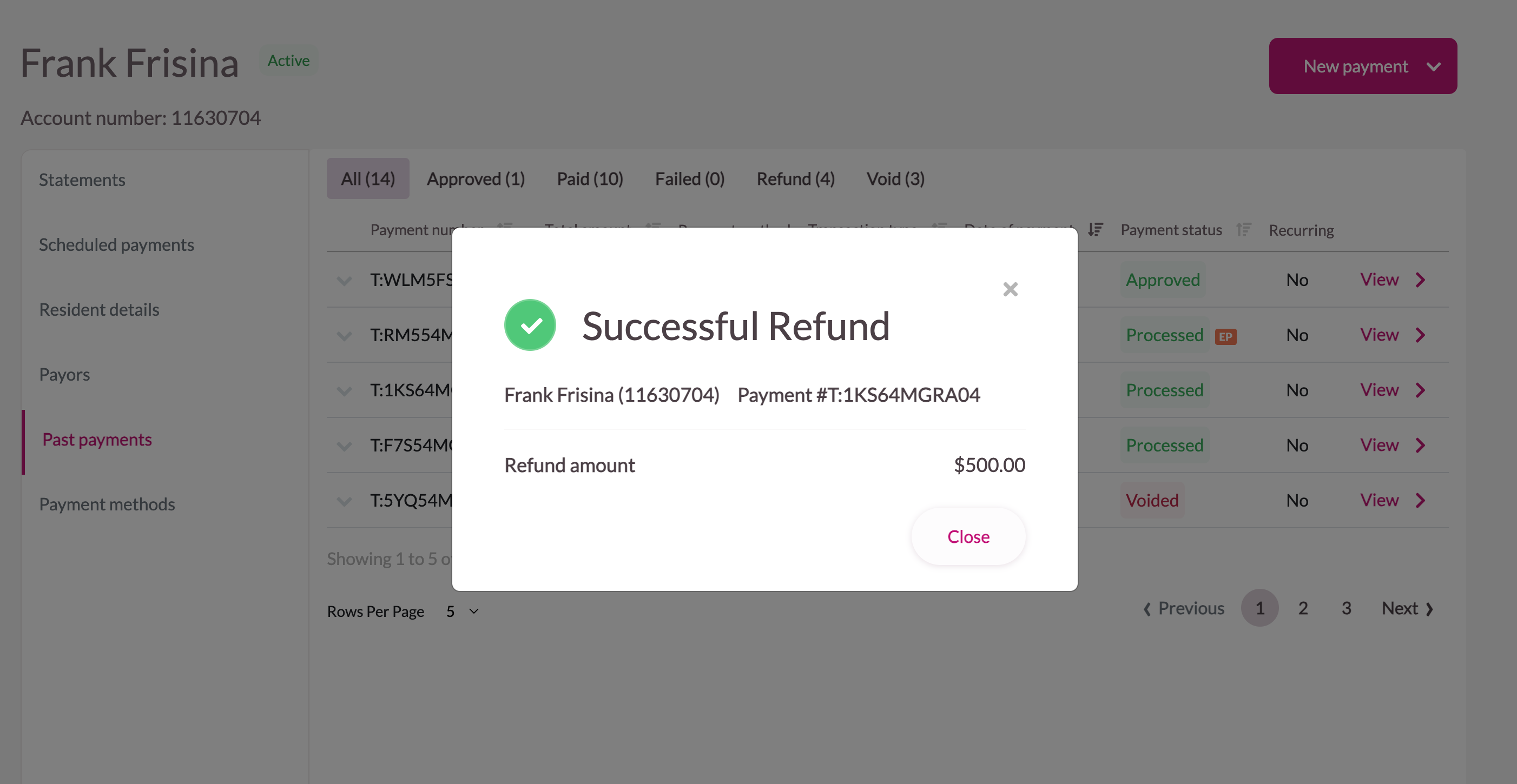
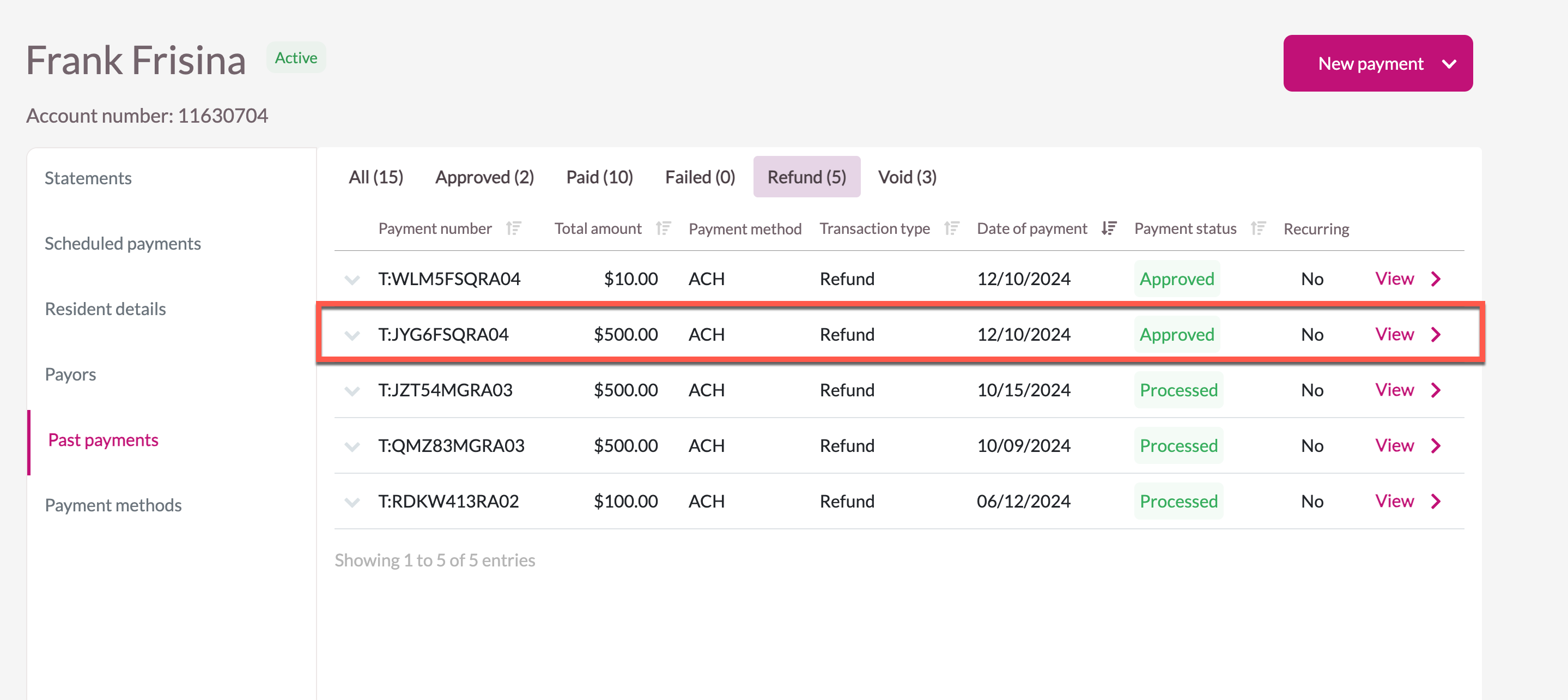
Step 7: A confirmation message will display. The refund will also display on the resident's profile under Past Payments. Refunds will go through the same process as completed payments - the status evolving from Approved to Processed over the course of two to three business days.
Was this article helpful?
That’s Great!
Thank you for your feedback
Sorry! We couldn't be helpful
Thank you for your feedback
Feedback sent
We appreciate your effort and will try to fix the article