Overview
In this article, we'll detail the steps required for users to export bulk or custom-defined batches of unsent records to their respective financial partner software.
This feature tracks line-number and dates as well as ay records marked as finalized/transmitted - meaning only new, unsent, subsequent items will be available to batch and send in each accounting/GL period.
Steps to Export a Bulk Batch to an External Partner
Step 1: From the Aline Revenue Dashboard, select the Waffle Menu and then select "External Partners".

Step 2: Select the desired External Partner.
Step 3: Select "Create Batch" to queue all ready to transmit items OR select "Customize" to customize the batch.
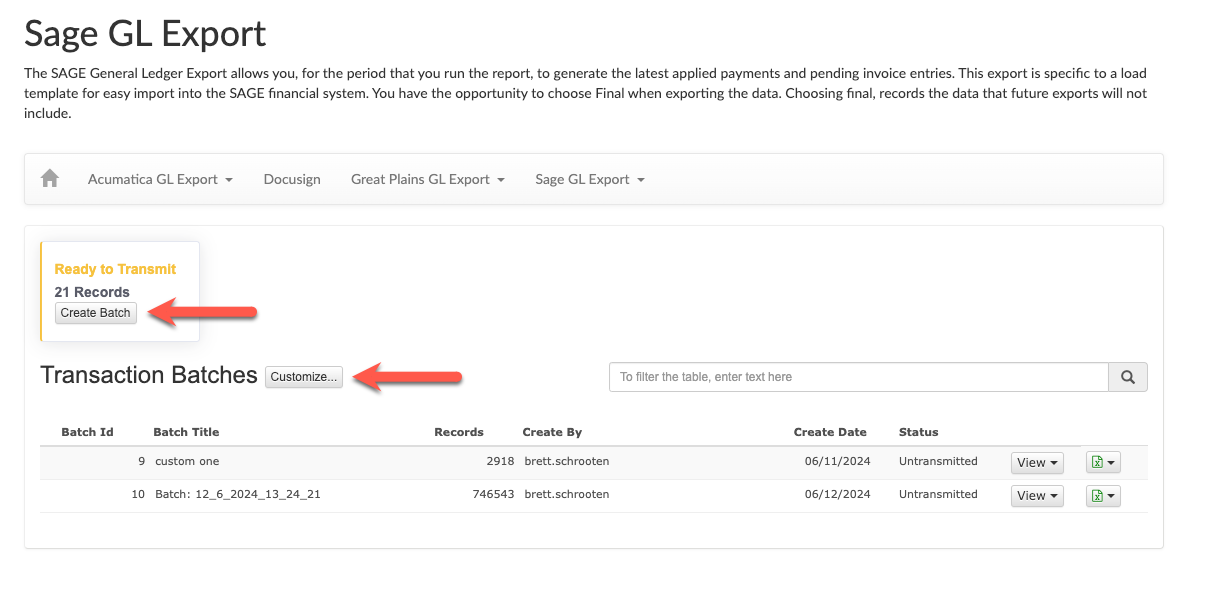
Step 4: If Customize Batch is selected, filter included data by community selection, specific account numbers, and accounting date range.
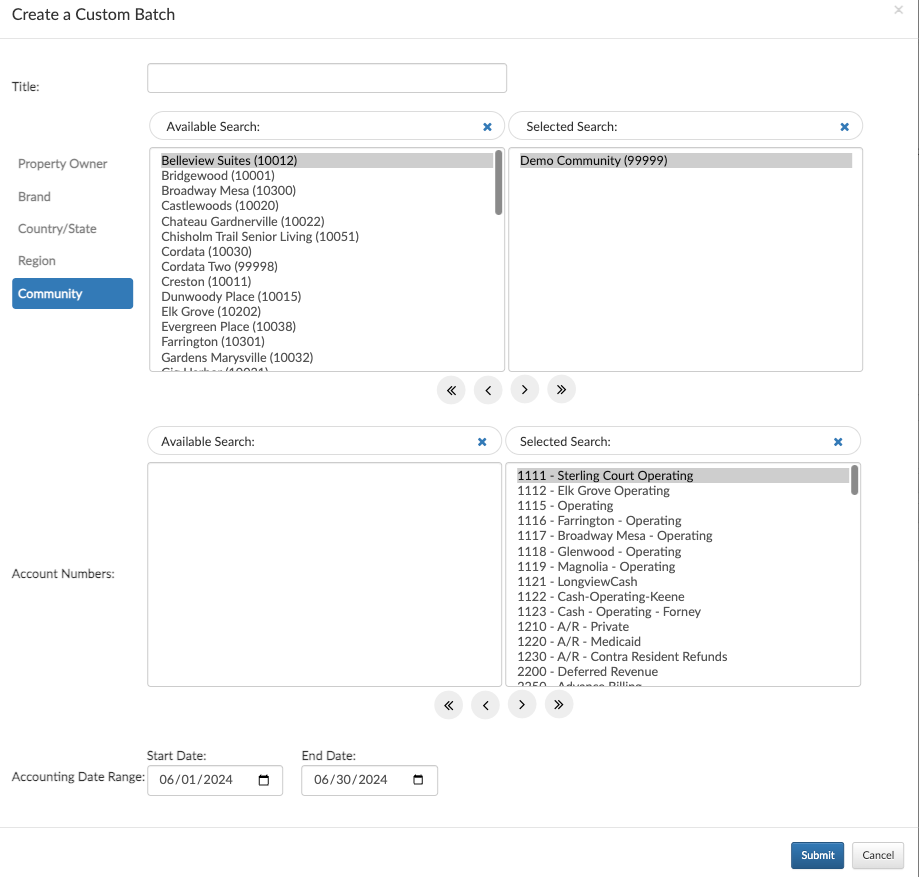
Step 5: Select "Submit" to save the custom selection.
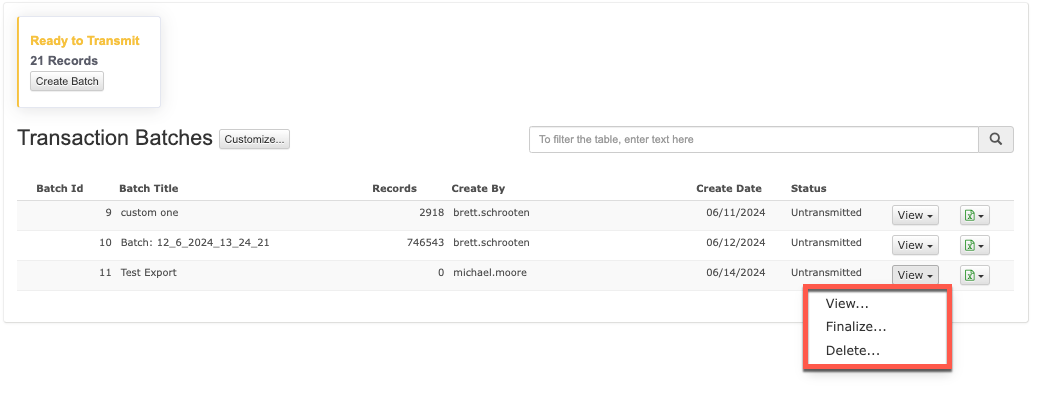
Step 6: Select "View" and select an option from the newly created batch.
View to view the batch on screen or export to Excel.
Finalize to finalize the transaction, meaning the user has confirmed upload of the export into their financial software.
Delete to remove the batch and send it back to the main "Ready to Transmit" grouping.
Step 7: After selecting "View", users can select the Export Icon and export either Detail or Summary GL formats.
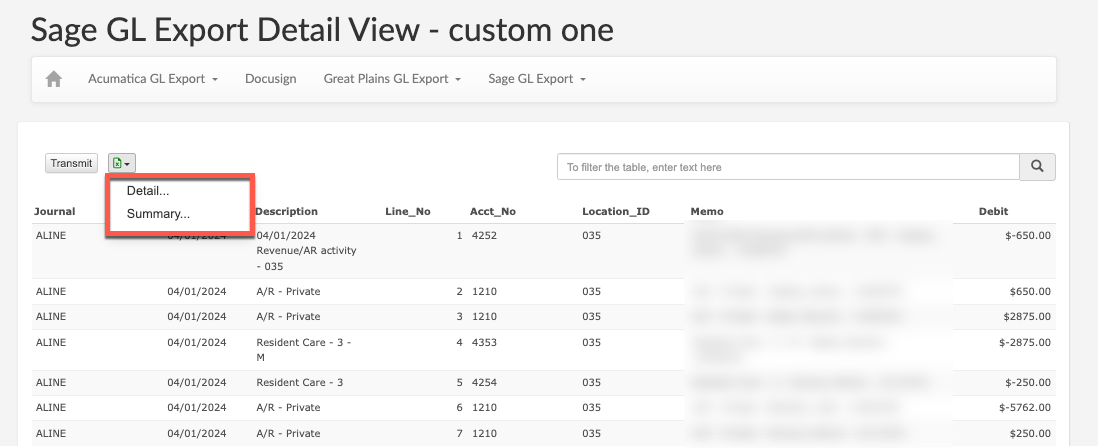
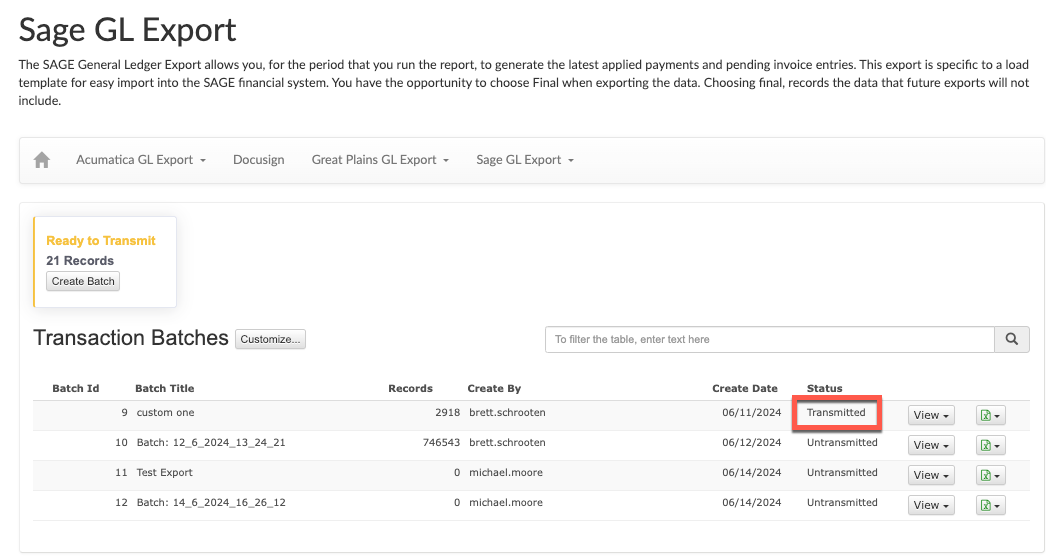
Step 8: Select "Transmit" to finalize a transaction - meaning the user has confimed upload of the export into their respective financial software.
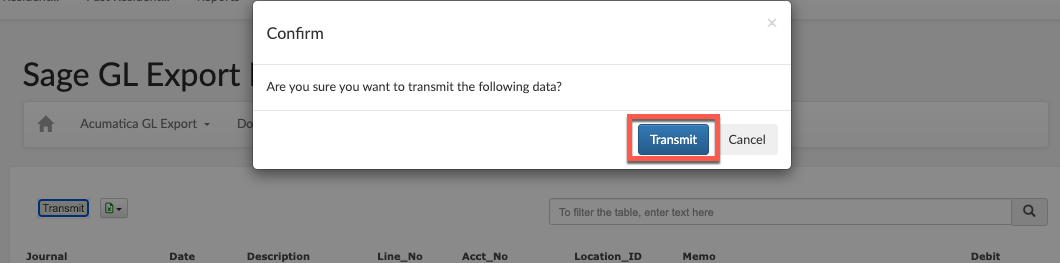
Step 9: Select "Transmit" again to confirm.
Was this article helpful?
That’s Great!
Thank you for your feedback
Sorry! We couldn't be helpful
Thank you for your feedback
Feedback sent
We appreciate your effort and will try to fix the article