Overview
In this article, we will detail the steps for attaching documents to supplemental payor residents when entering in recertification dates. After adding new authentication records, users will see the new record displaying the in the supplemental payor module grid.
Steps to Authentication, Upload a Document, and Add a Recertification Date
Step 1: From the Aline Revenue Dashboard, select the Waffle Menu and then select "Medicaid".
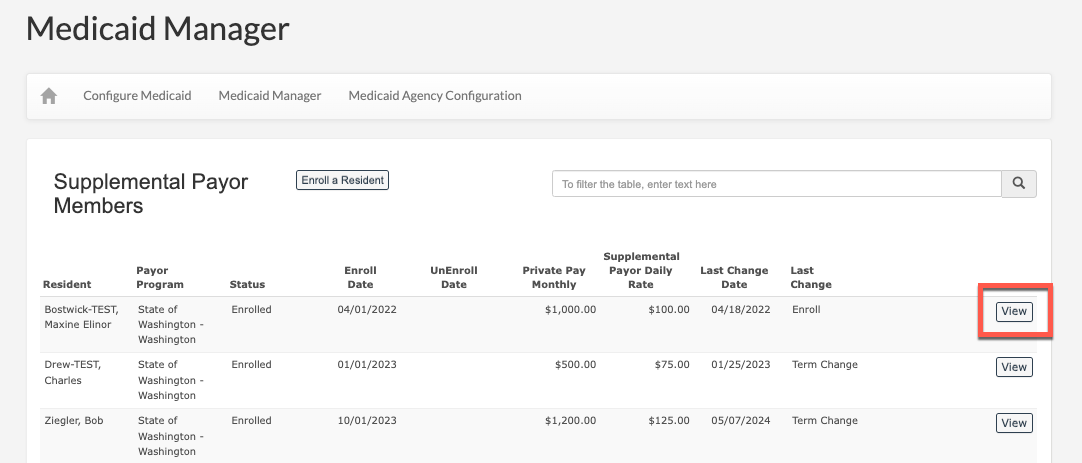
Step 2: From the Medicaid Manager module, select view on the desired resident.
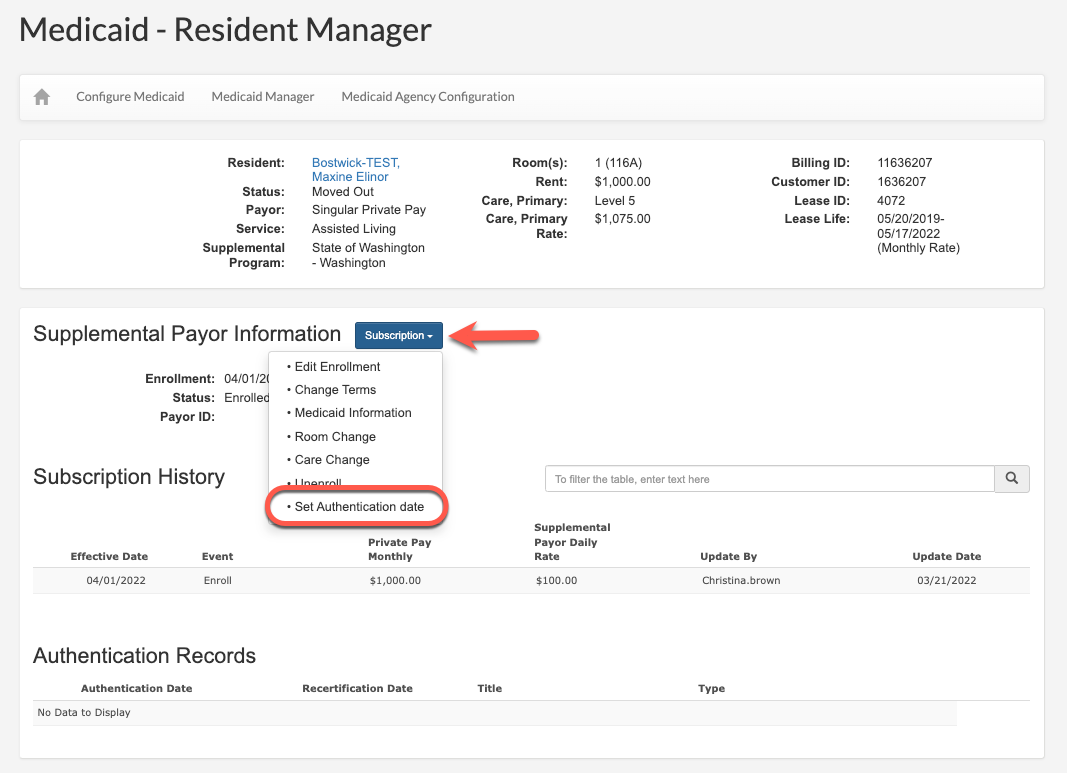
Step 3: Select "Subscription" and then select "Set Authentication Date".
Step 4: Type in the title of the authentication date recertification.
Step 5: Enter the Authentication Date.
Step 6: Enter the Recertification Date.
Step 7: Select the document Type.
Step 8: Select "Browse" and select the desired document from your device.
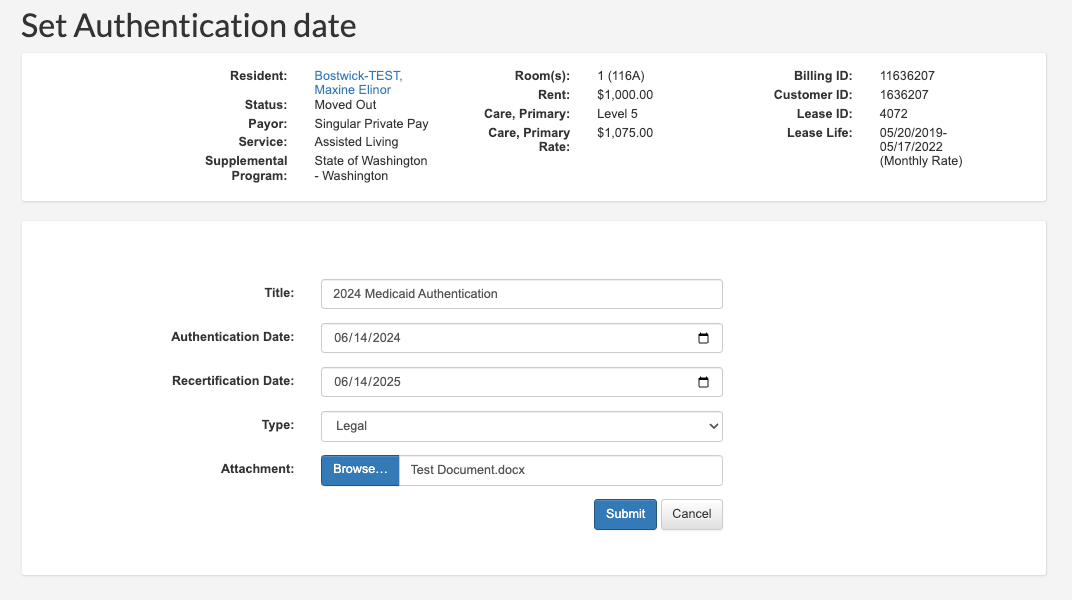
The document can now be viewed, downloaded, and edited on the resident's supplemental payor profile.

Was this article helpful?
That’s Great!
Thank you for your feedback
Sorry! We couldn't be helpful
Thank you for your feedback
Feedback sent
We appreciate your effort and will try to fix the article