Overview
In this article, we will review how to find details about rate increases.
Finding Details about Rate Increases
To dig deeper into data regarding rate increases, users should navigate back to the Aline Insights Revenue Stream and select Rate Increase Tool App. This app contains three sheets: Rate Increase Leaderboard, Resident Level Detail, and Rate Increase Outlook.
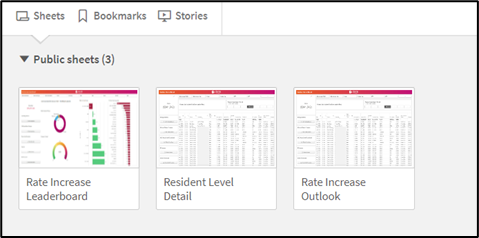
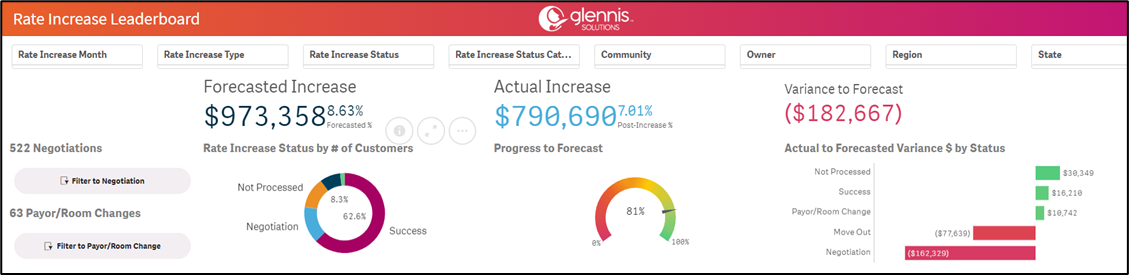
The Rate Increase Leaderboard sheet will provide users with data pertaining to rate increases for each resident and the revenue collected from those residents. This sheet contains data for forecasted increases, actual increases, and variances to the forecasts.
In addition to normal filtering options on the Filter Pane, users can also filter by Rate Increase Month, Rate Increase Type, and Rate Increase Status. Data can also be filtered to these specific rate increase statuses: Negotiations, Payor or Room Changes, Move Outs, Successes, and Not Processed.
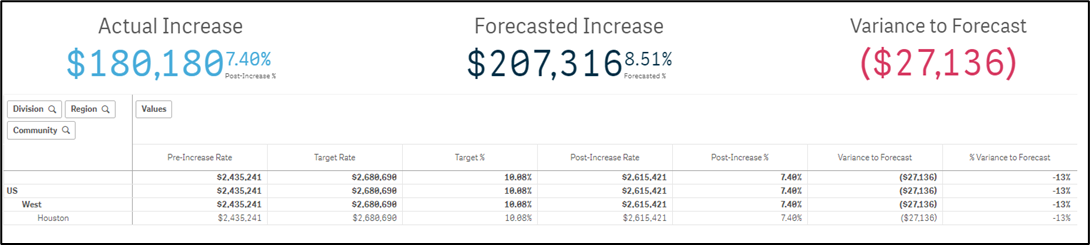
The next sheet, Resident Level Detail, is used to view a resident’s current rate vs the increased rate. Selecting a community out of the portfolio displays the forecasted rate increase revenue, the actual rate increase revenue, and the variance of revenue from the forecast, along with each individual resident’s pre and post rate increase rates.

The final sheet in the Rate Increase Tool App is the Rate Increase Outlook Sheet. Like the name suggests, this sheet will provide details pertaining to rate increases with respect to communities in the organization’s portfolio.
Some questions users may be able to answer using this sheet are:
- Which communities have successfully, or unsuccessfully, implemented rate increases?
- Which communities have more negotiation cases or room change cases?
- Which communities have more move out cases?
Remember that data set selections can be cleared individually in the Filter Pane by selecting the X button on each selection. All selections can be cleared at once by selecting the filter reset button (first image shown below), and
data can also be downloaded or viewed full screen by selecting the three dots from the menu below:


Was this article helpful?
That’s Great!
Thank you for your feedback
Sorry! We couldn't be helpful
Thank you for your feedback
Feedback sent
We appreciate your effort and will try to fix the article