Overview
In this article, we will review the revenue workflows for RRA.
Recurring Revenue Adjustment Request (RRA)
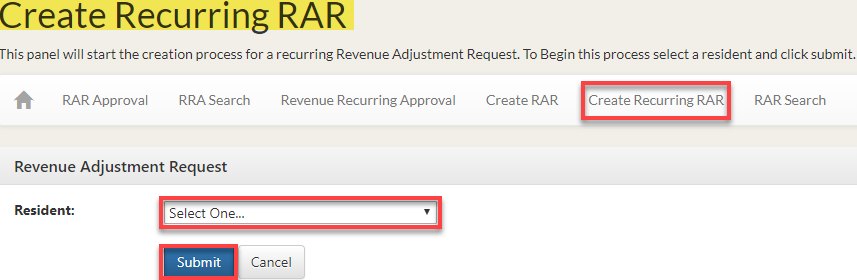
Step 1: Navigate to the Create Recurring RAR page. This page allows you to create a recurring Revenue Adjustment Request for resident.
Step 2: Within the Revenue Adjustment Request window, use the drop-down box to select the Resident. Then click Submit
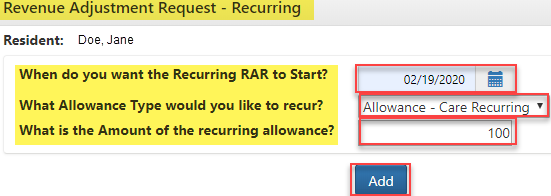
Step 3: On the Revenue Adjustment Request - Recurring page, enter the Starting Date, Allowance Type, and Amount. Then click Add.
Step 4: To process the request, click Submit.

Step 5: The Revenue Recurring Approval page.

Step 6: The Revenue Request section allows the user to view all RRAs with a status of Pending, Denied, Completed, or Canceled.
Step 7: Within the Revenue Request section, clicking View will refresh the other sections on the page to reflect the selection.
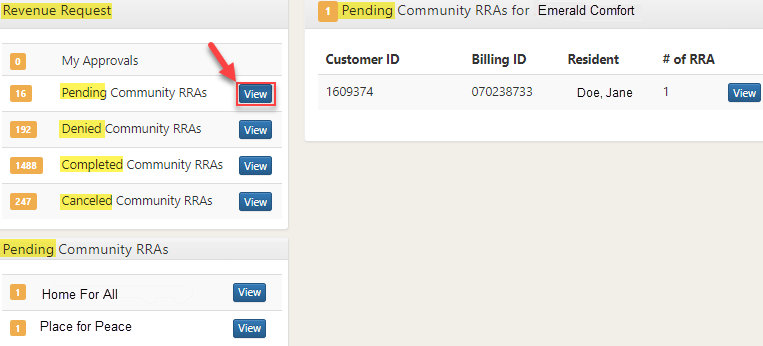
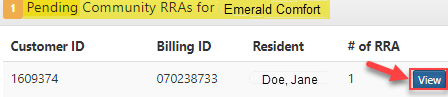
Step 8: Within the Pending Community RRAs section, click View next to the resident’s name for more information regarding the specific resident.
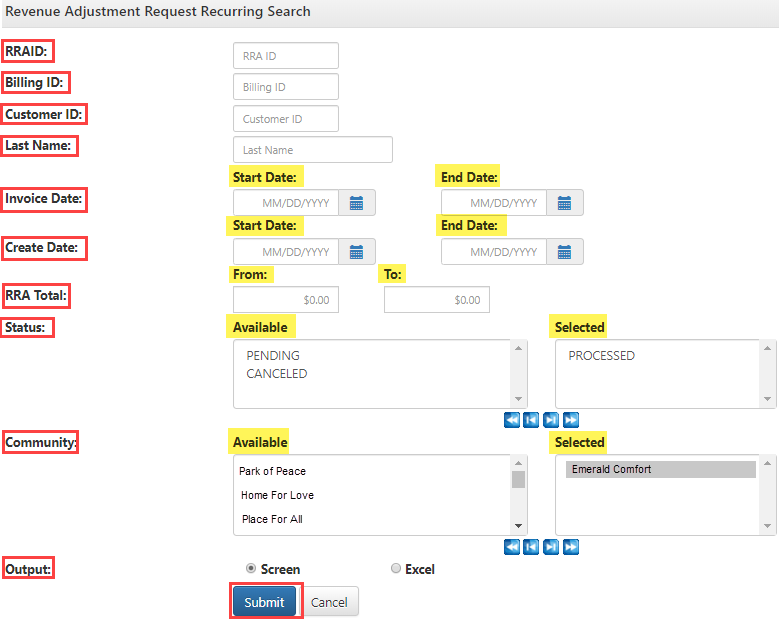
Step 9: On the RRA Search page, provide the resident’s necessary information to search for their RRA in the database. Click Submit to view the search results.
Submit Recurring Revenue Adjustment Request (RAR) Video
Was this article helpful?
That’s Great!
Thank you for your feedback
Sorry! We couldn't be helpful
Thank you for your feedback
Feedback sent
We appreciate your effort and will try to fix the article