Overview
In this article, we'll detail the steps required to request a Revenue Adjustment along with diving into how administrative personnel can approve or deny Revenue Adjustments by utilizing the Revenue Adjustment Workflow.
Requesting a Revenue Adjustment
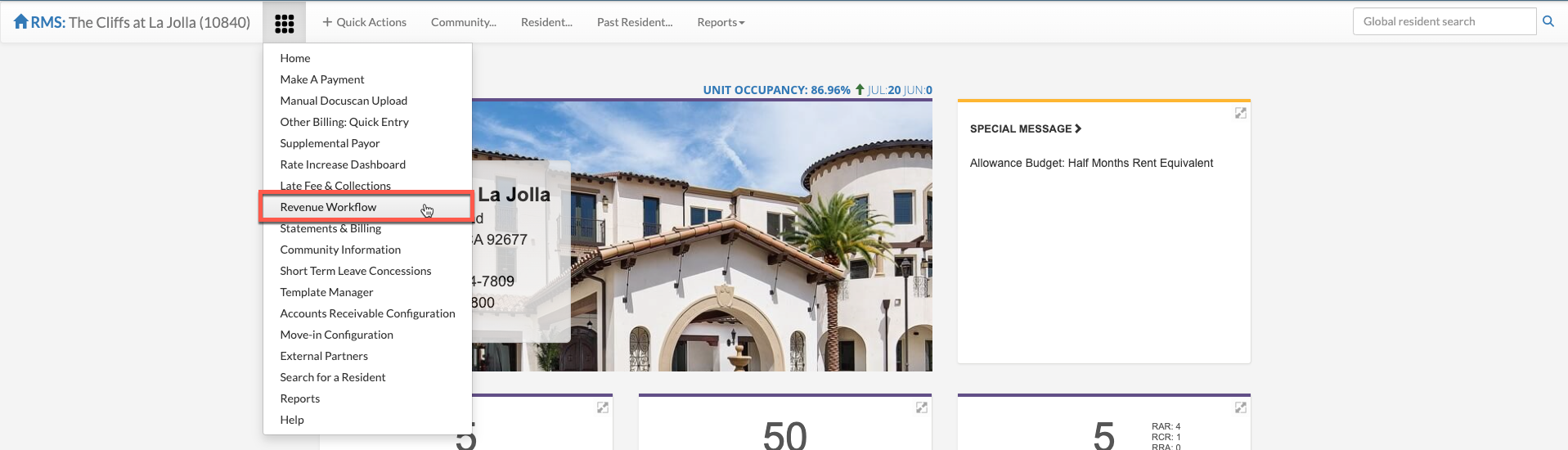
Step 1: After logging into the Aline Suite and opening the Aline Revenue Application, users can access available Revenue Adjustments in the Revenue Workflow tool. To open the Revenue Workflow tool, first select the Waffle Menu and then select "Revenue Workflow".
Note: Some organizations may not have Revenue Adjustments configured. Consult with your organizational leadership team to determine what Revenue Adjustment types are available for your organization.
Step 2: To request a new Revenue Adjustment, select "Request an Adjustment" and then select whether you're requesting a non-recurring (one-time) adjustment or a recurring adjustment.

Step 3: Select the Resident to issue the adjustment to.
Step 4: Select the Lease to attach the adjustment to.
Step 5: Select the Invoice Date (or accounting period) for which the adjustment should apply.
Step 6: Select the Adjustment Type from the dropdown list. These Adjustment Types are customized for your particular organization/community.
Step 7: Enter the Amount for the adjustment.
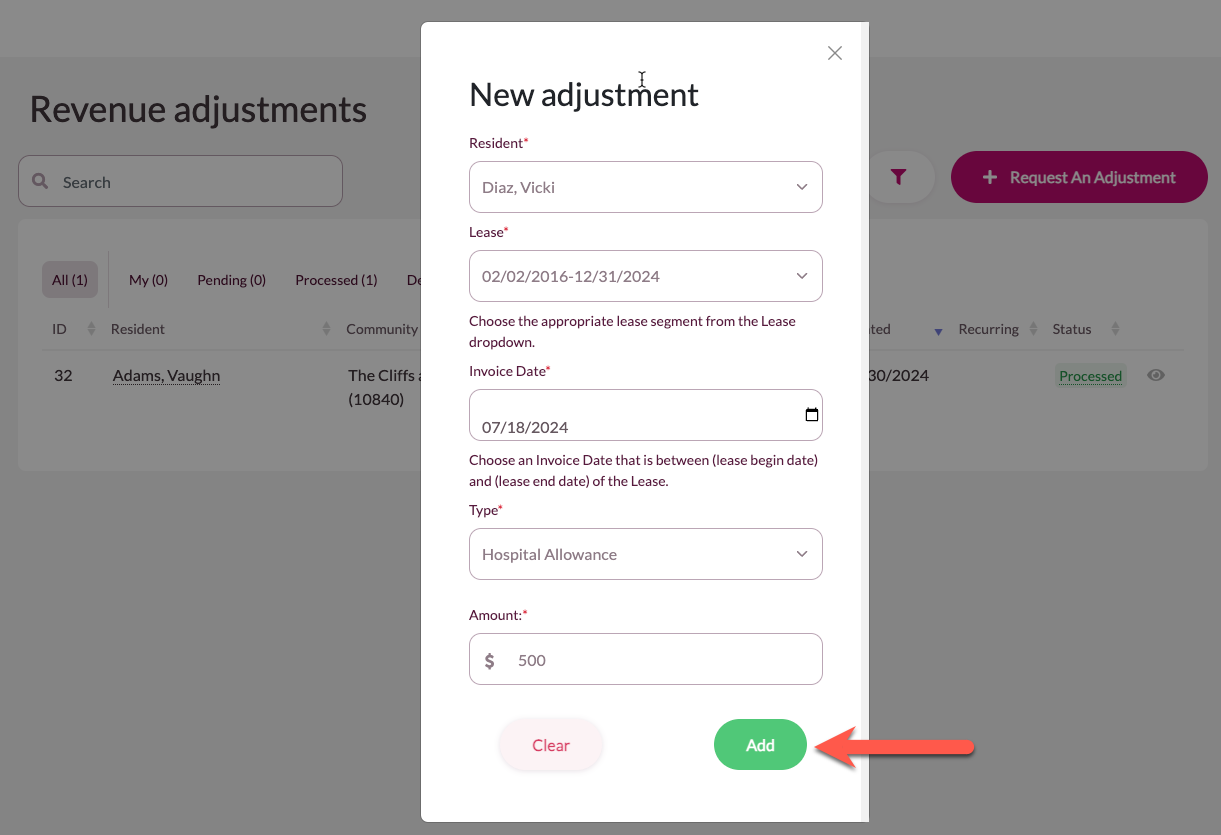
Step 8: Select "Add" to save the new Revenue Adjustment Request.
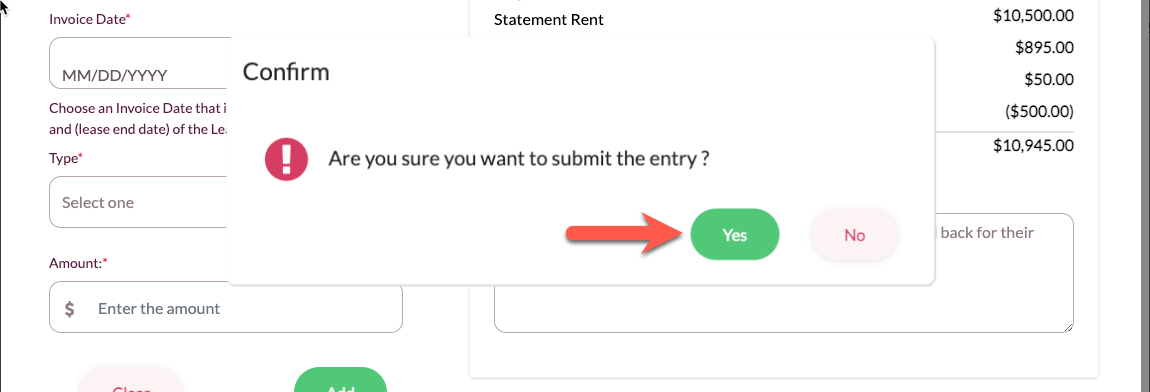
Step 9: Review the resident's bill, including the incorporated Revenue Adjustment Request. Enter in a required Reason for the Revenue Adjustment Request and then select "Submit".

Step 10: Select "Yes" to confirm the new Revenue Adjustment Request submission.
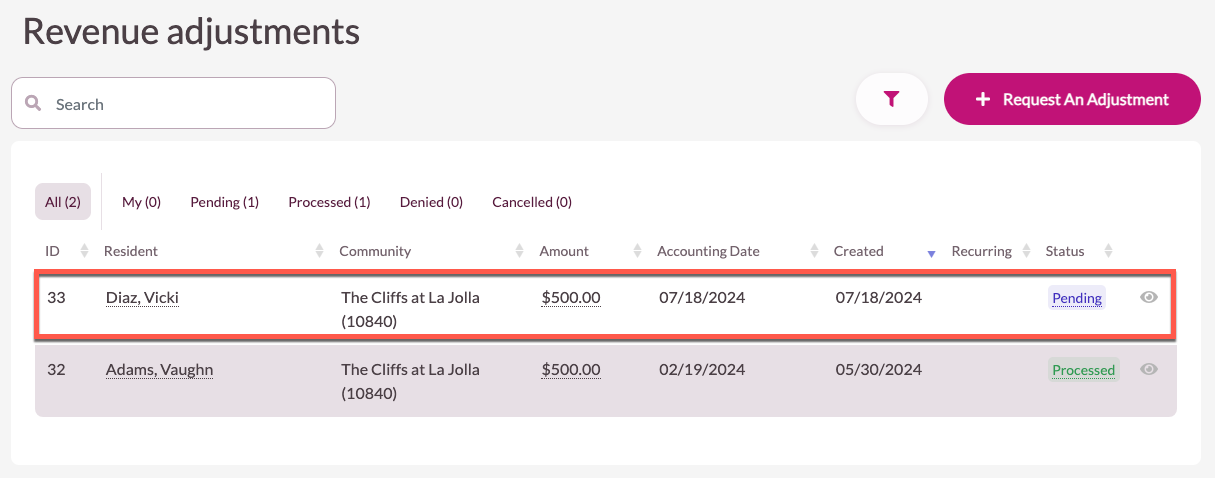
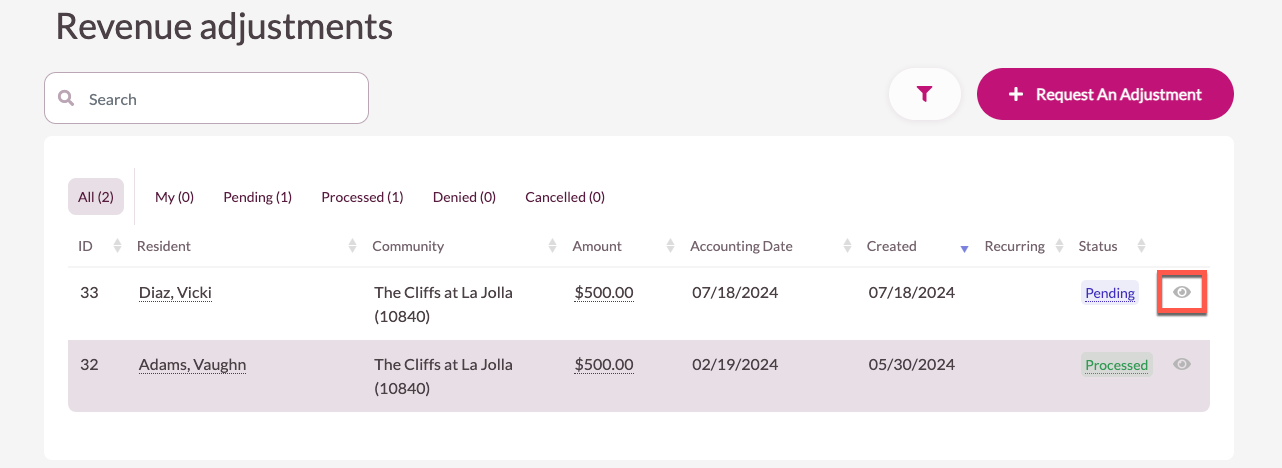
Step 11: The new request will now display in the list with a status of "Pending". The list can be sorted by the various status seen at the top of the list. If the request is approved, the Revenue Adjustment will take place. If the request is denied, the adjustment will not take place.
Step 12: To review the request details or approval status, select the Eye Icon.
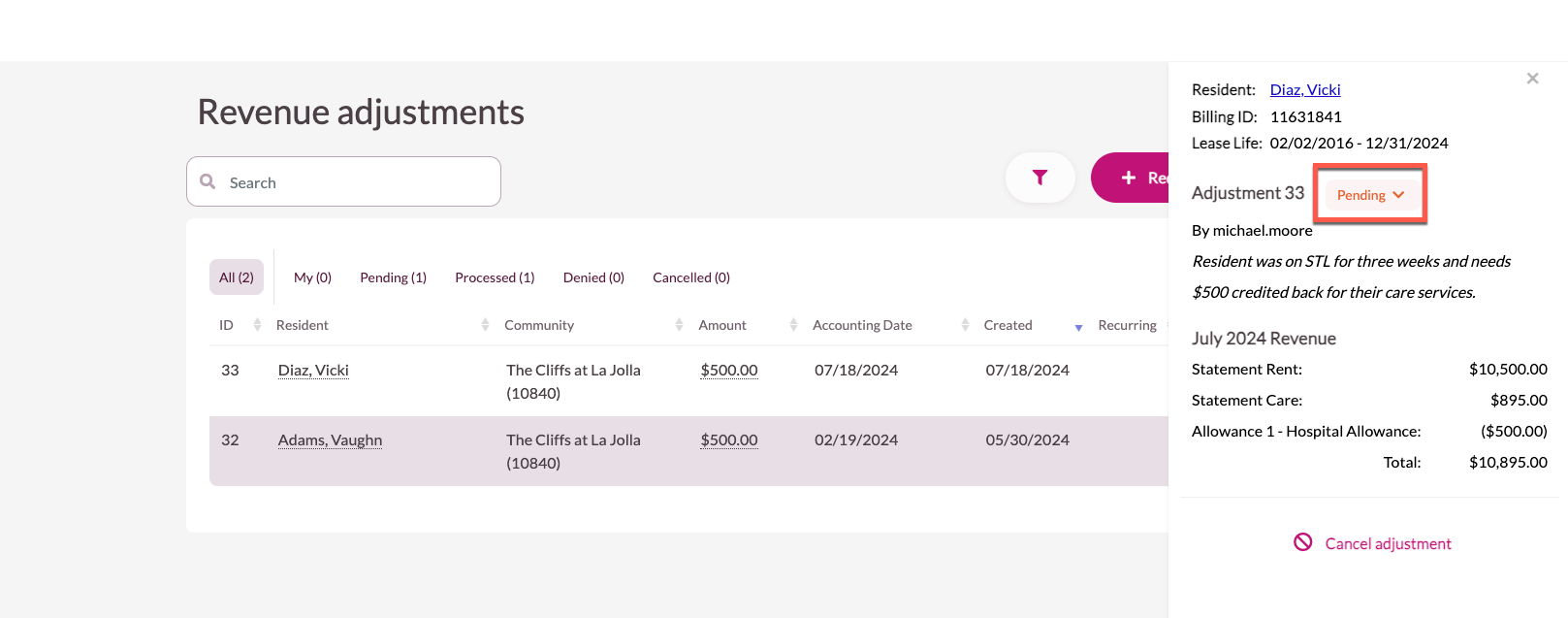
Step 13: The Revenue Adjustment Request details and approval status will now display. If the request needs to be canceled, users can select "Cancel Adjustment". Community or organizational personnel with approval rights can now also select an approval status.
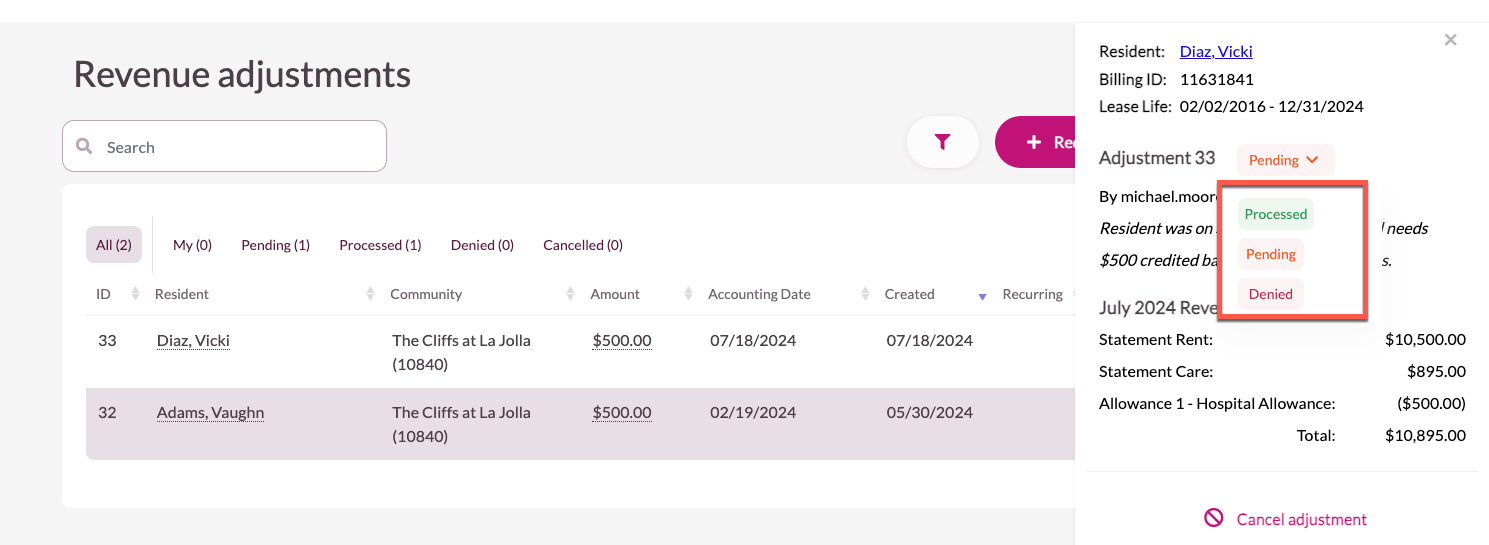
Step 14: Approvers can select "Processed" to approve the request or "Denied" to deny the request. In this example, we'll select "Processed".
Step 15: The Revenue Adjustment Requested has now been approved and processed. The request will remain in the list with it's final status (Processed in this case) for reference.
Note: Each organization / community may have different approval workflows configured. Consult with your organizational leadership team for more information about your specific operation's approval workflow.
Was this article helpful?
That’s Great!
Thank you for your feedback
Sorry! We couldn't be helpful
Thank you for your feedback
Feedback sent
We appreciate your effort and will try to fix the article