Overview
In this article, we will review the revenue workflows for RAR.
RAR Dashboard
The Revenue Adjustment Request Dashboard allows communities and approvers to review, create, approve, and search for RARs and Recurring RARs.
Step 1: Select the appropriate community.
Step 2: Click the Community tab at the top of the Resident Management homepage.

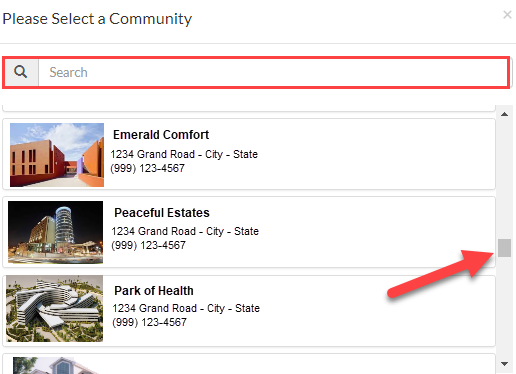
Step 3: Use the Please Select a Community window to find the appropriate community.
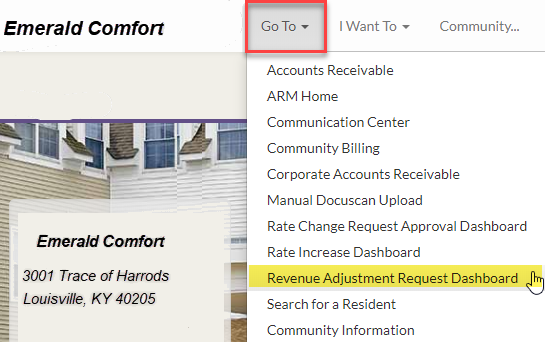
Step 4: Once on the Community page, click the Go To tab, then select Revenue Adjustment Request Dashboard.
Step 5: This will direct you to the RAR Dashboard.
Step 6: The RAR Dashboard will default to RAR Approval; navigate to different modules by clicking on the top selection bar.

Entering Revenue Adjustment Request (RAR) Video
Was this article helpful?
That’s Great!
Thank you for your feedback
Sorry! We couldn't be helpful
Thank you for your feedback
Feedback sent
We appreciate your effort and will try to fix the article