Overview
In this article, we will review the responsible party information window.
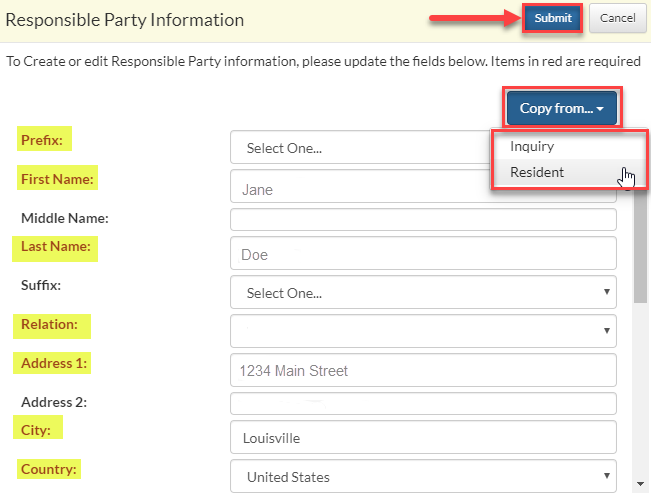
The Responsible Party Information window
Note: If the Responsible Party exists in the system already, click Copy From. Otherwise, input the responsible party’s information. Click Submit.
For example: If the resident’s Responsible Party is the inquirer, then this option would allow you to automatically input the inquirer’s information.
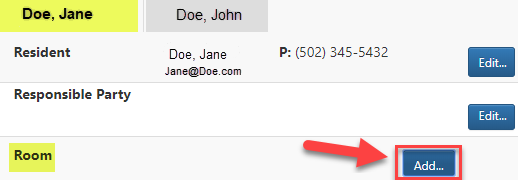
Step 1: To select the resident’s Room, click Add.
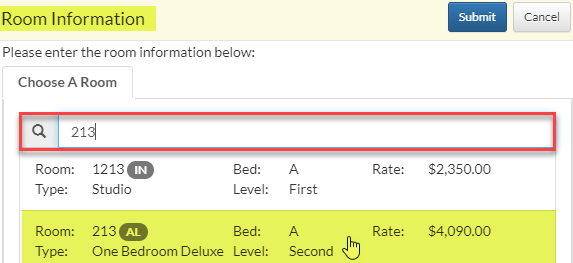
Step 2: The Room Information window will appear.
Step 3: Use this window to select the resident’s Room.
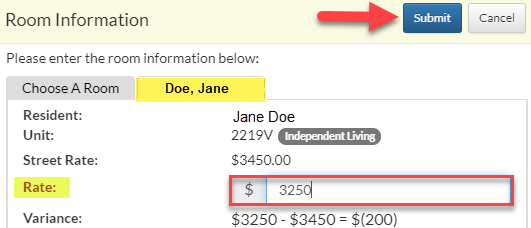
Step 4: After the room is selected, a tab will appear labeled with the Resident Name.
Step 5: On the Resident Name tab, enter the room Rate, then click Submit.
Note: If there are multiple residents on the lease, click the tab labeled with the other resident’s name. Repeat steps.
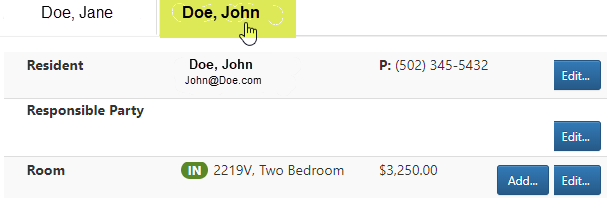
Step 8: The level of Care will input automatically based on the Room selected.

Step 9: If you need to update the resident’s Care type, click Edit.

Was this article helpful?
That’s Great!
Thank you for your feedback
Sorry! We couldn't be helpful
Thank you for your feedback
Feedback sent
We appreciate your effort and will try to fix the article