Overview
In this article, we will review the steps required to move in a new resident in the Aline Revenue application.
Starting a New Move In
When beginning a new move in, there are two main ways to start: 1) processing a move in found in the Reservations Panel on the Revenue Dashboard, OR 2) utilizing the Move a Resident In tool found in the Quick Actions Menu on the Revenue Dashboard.
Aline Suite customers that utilize an Aline CRM offering will benefit from reservations automatically flowing from the CRM into the Aline Revenue application in the Reservations Panel. This is the primary way to begin and process new move ins, so we will cover those steps below.
Step 1: On the Revenue Dashboard, scroll down to the Reservations Panel and select "Move In" on the desired resident. This will initiate the move in process.
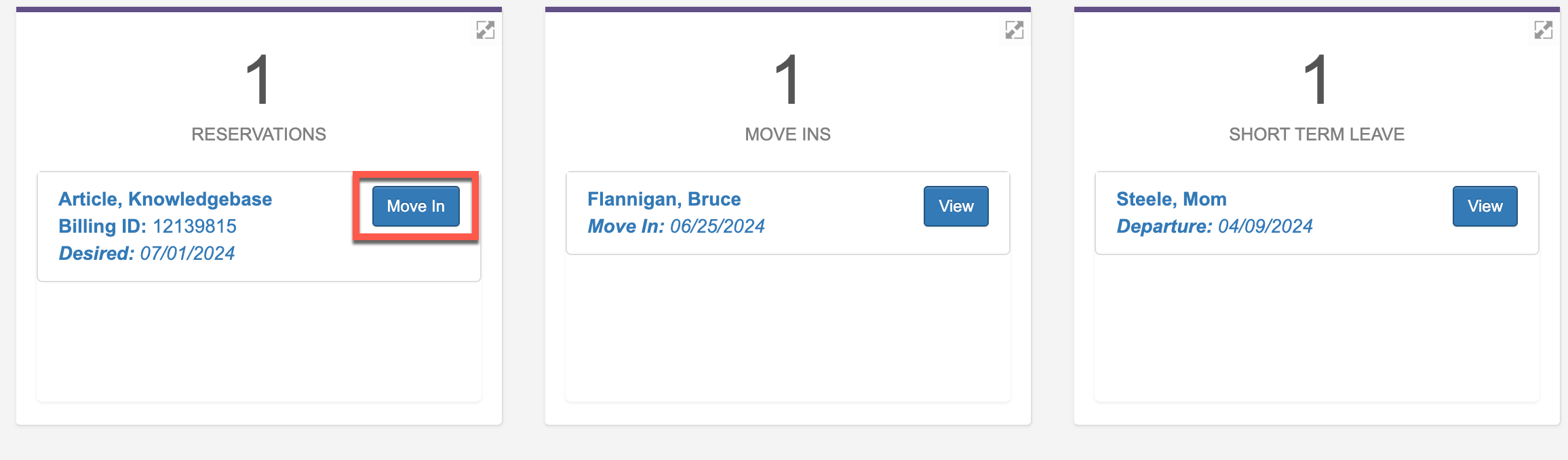
Note: Reservations interfaced from the CRM will include a unique Billing ID along with a desired date of move in. The desired date of move in is purely informational. Additionally, the reservations interfaced from the CRM will stay in the Reservations Panel indefinitely. If a reservation happens to fall through, reservations can only be canceled using the CRM - and not the Revenue application.
Step 2: On the Move a Resident In page, users will start at the top of the page and fill in each form field required for processing the move in. Various organizations / communities will have assorted requirements, so some variation here is expected. To begin filling the in the form, we'll start by entering in the Lease Information. To do so, first select "Edit".
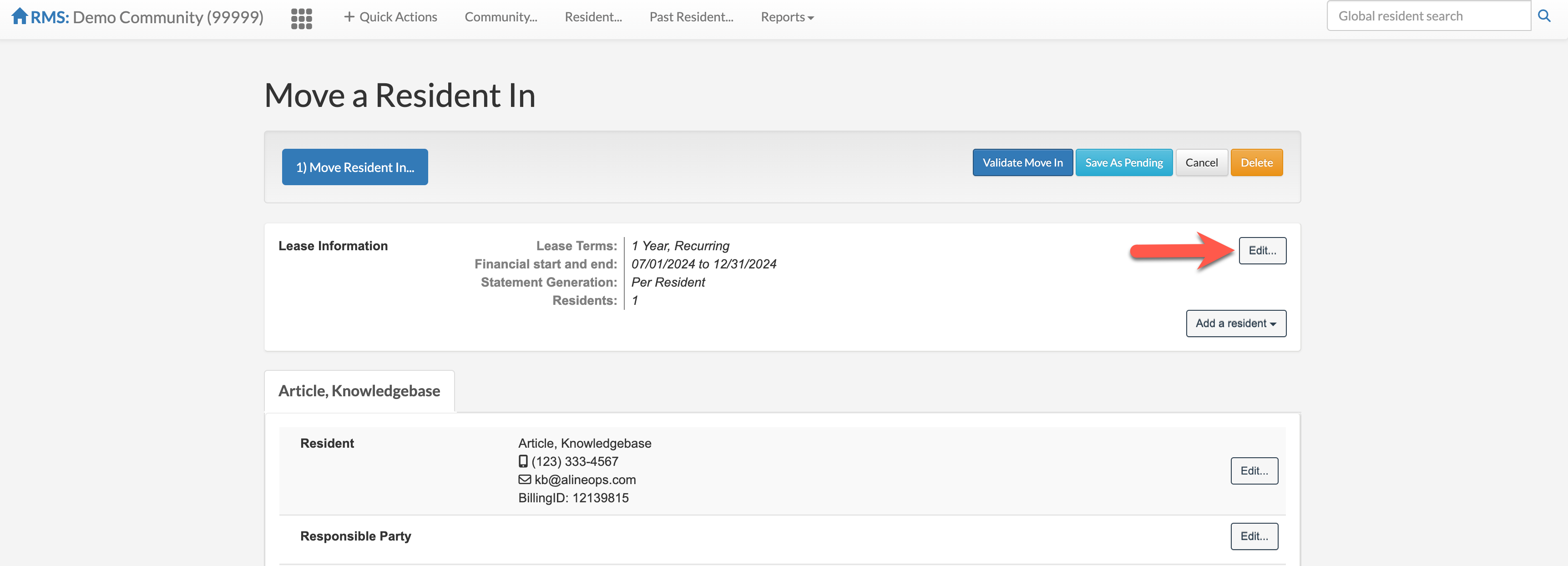
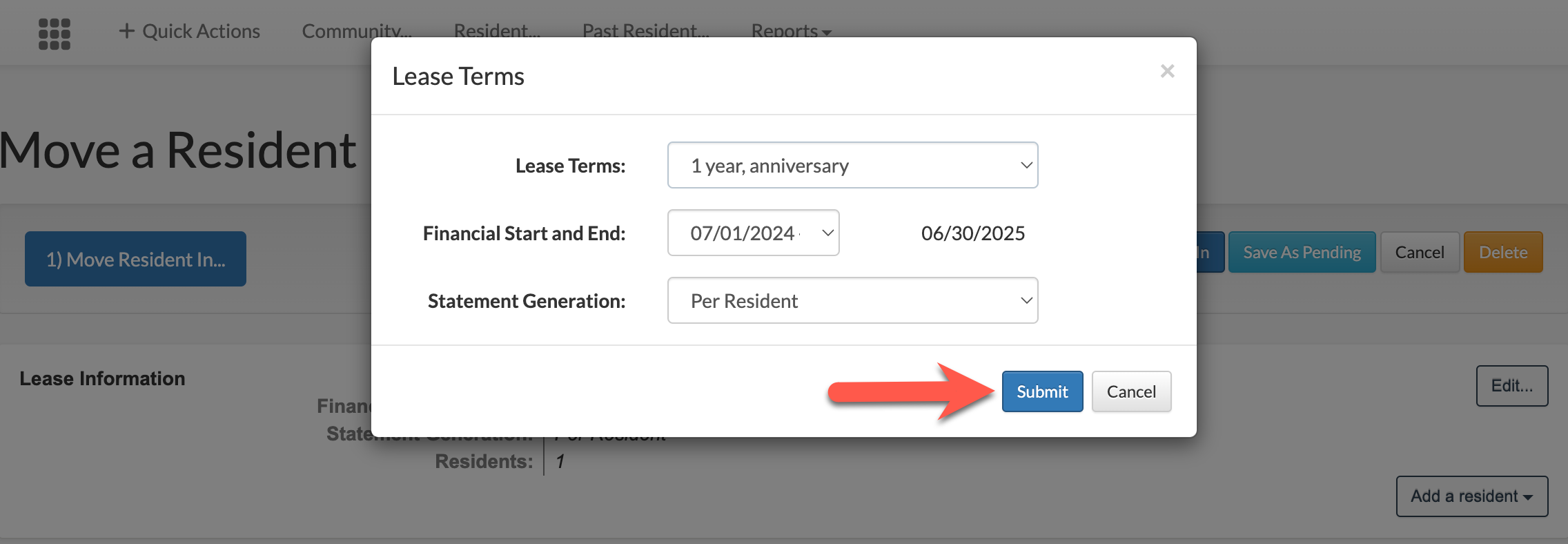
Step 3: Select the Lease Terms. Lease Terms will be configured for your operation, so make the selection that is the best fit for the current move in.
Step 4: Adjust the Financial Start Date, if necessary. The Financial Start Date does NOT have to match the Physical Move In Date that we'll set up a bit later in the process. The Financial Start Date purely informs the Revenue application when to begin billing the resident.
Step 5: Adjust the Statement Generation, if necessary. "Per Resident" will generate one statement, or invoice, for each resident attached to the lease. IF there are multiple residents on the lease and IF the residents would prefer their statements be combined into one, this selection can be adjusted to "Per Lease".
Step 6: Select "Submit".
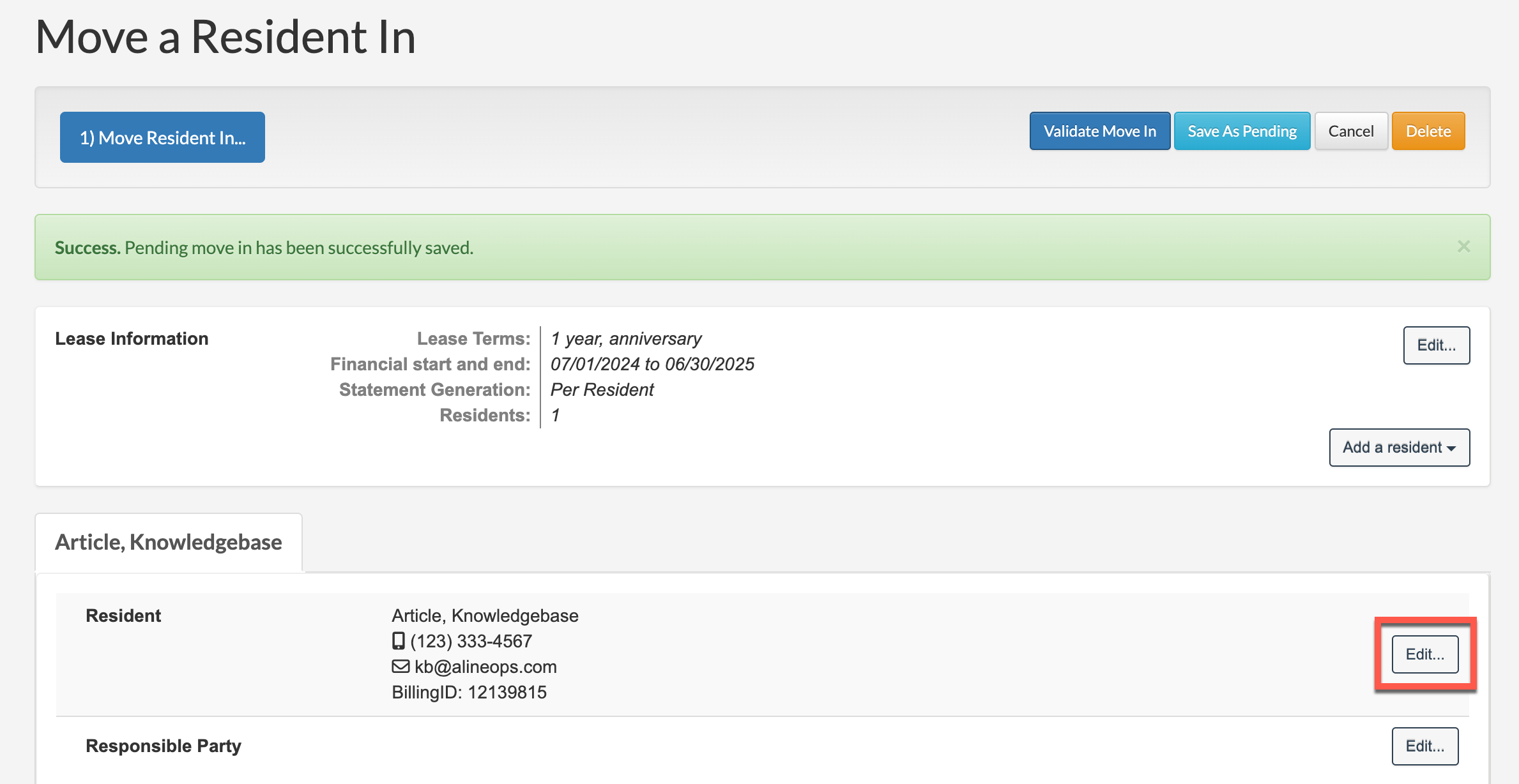
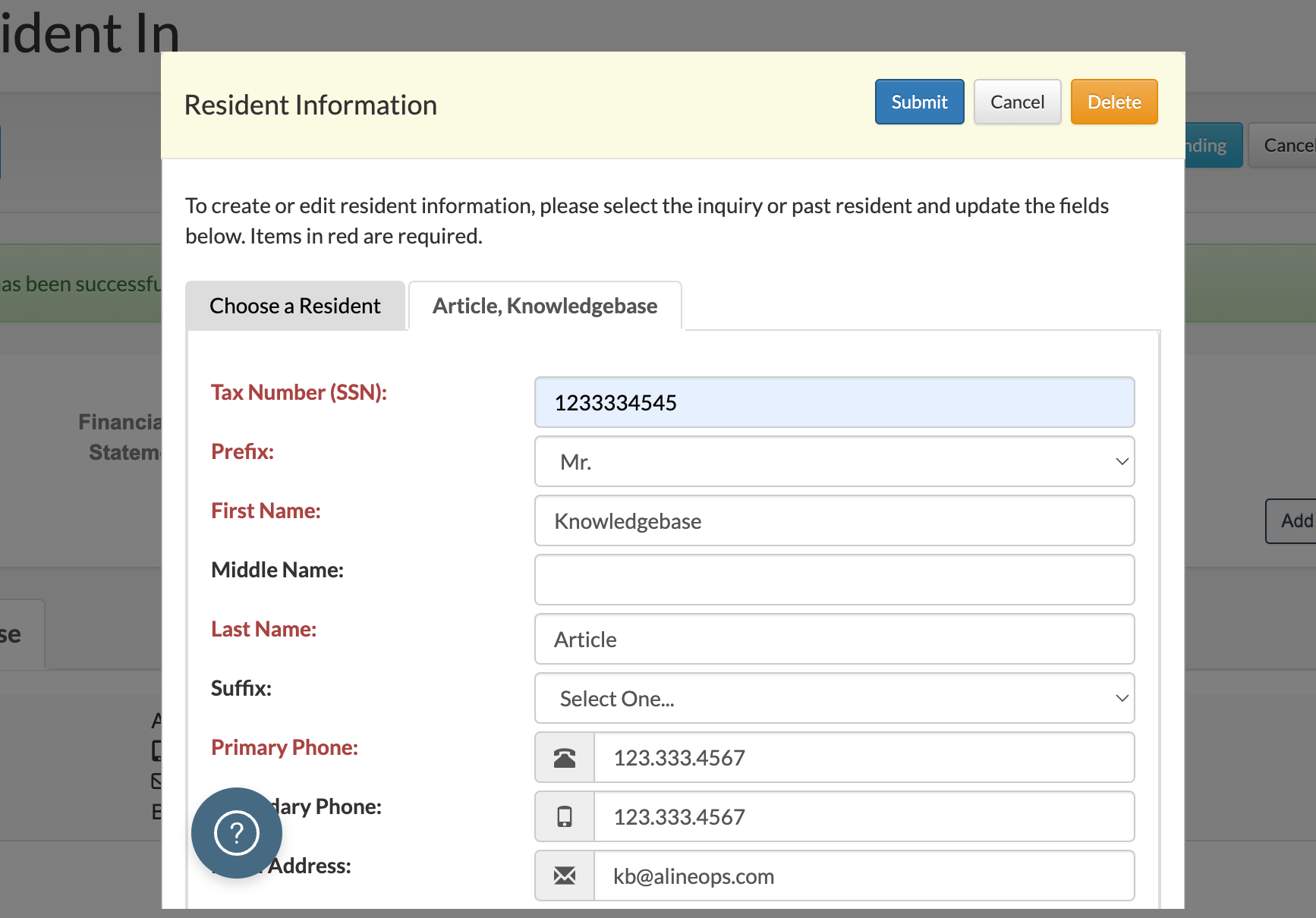
Step 7: Next, we'll need to ensure all required resident information has been entered. To do so, select "Edit" next to the Resident category.
Step 8: Complete all required form fields. Required form fields will be highlighted in red, as seen below. Once all required form fields have been completed, select "Submit".
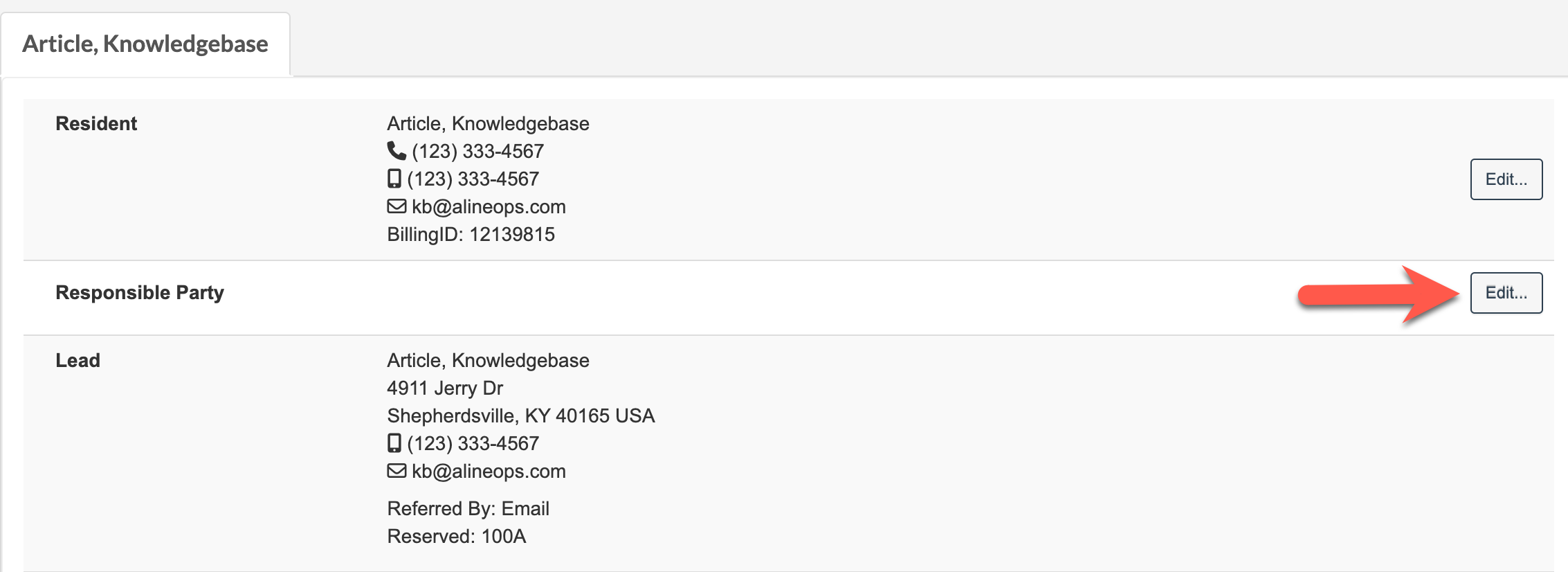
Step 9: Next, a Responsible Party is required for all residents. Select "Edit" next to the Responsible Party category to edit or enter in a Responsible Party.
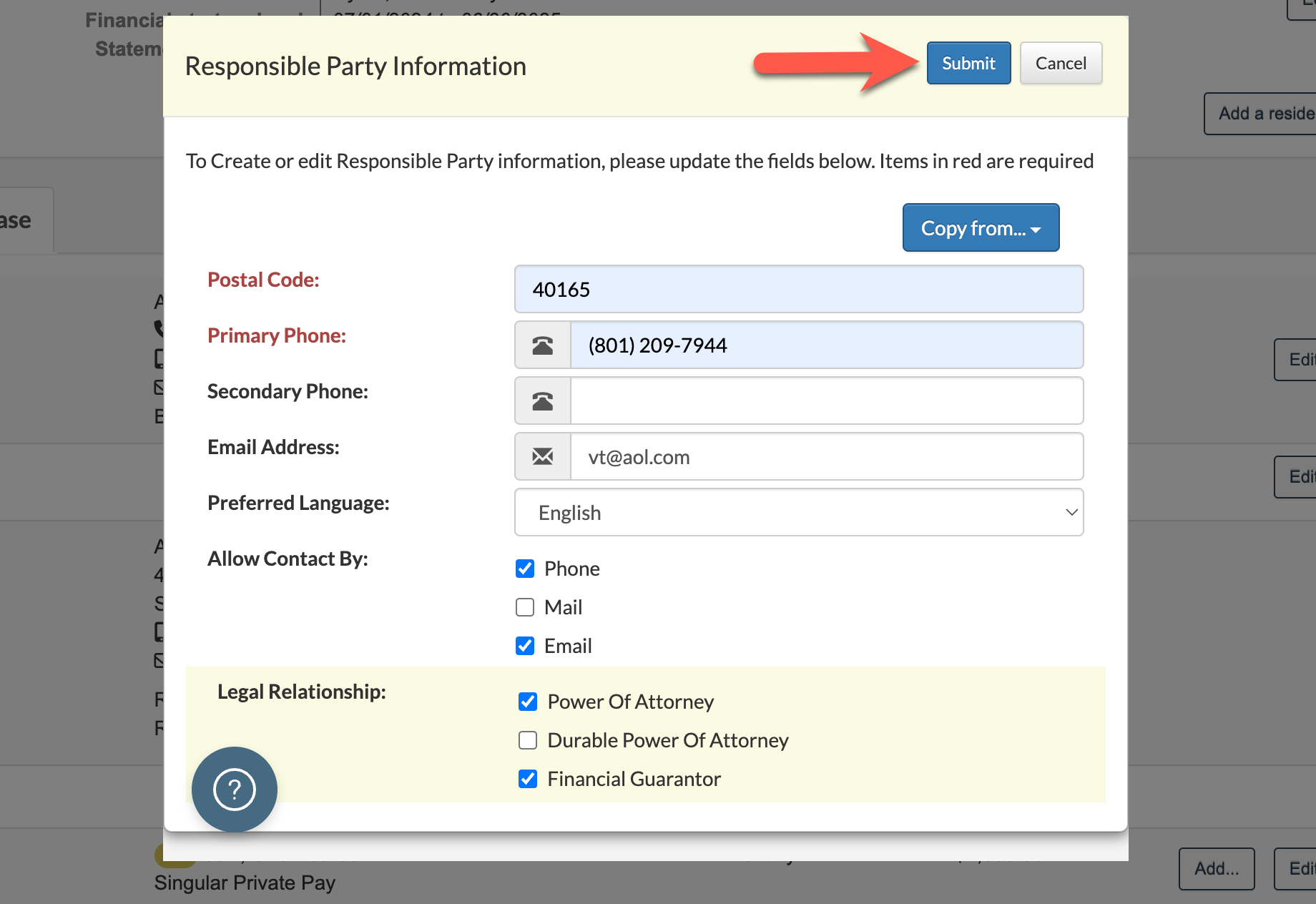
Step 10: Complete all required form fields. Required form fields will be highlighted in red, as seen below. Additional fields here include contact preferences and legal relationship designations. Also included is the Statement Delivery Preference where users can indicate an emailed statement, a print statement, or both are preferred.
Once all required Responsible Party form fields have been completed, select "Submit".
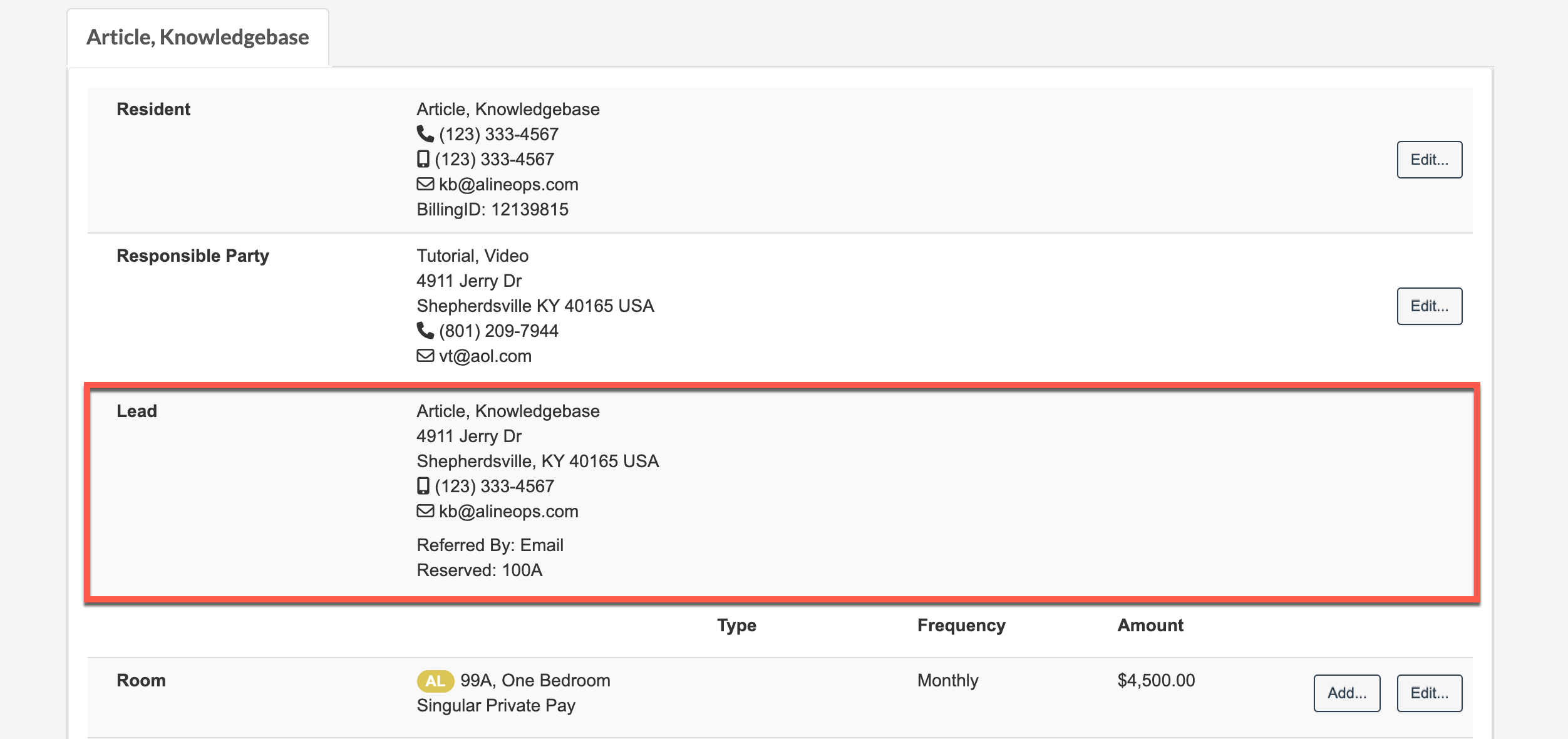
Note: Lead information will copy over automatically from the Aline CRM if it is in use. Some configurations of Aline Revenue allows the editing of lead information during this time. For those use cases, edit the lead information as necessary in accordance with organizational policy.
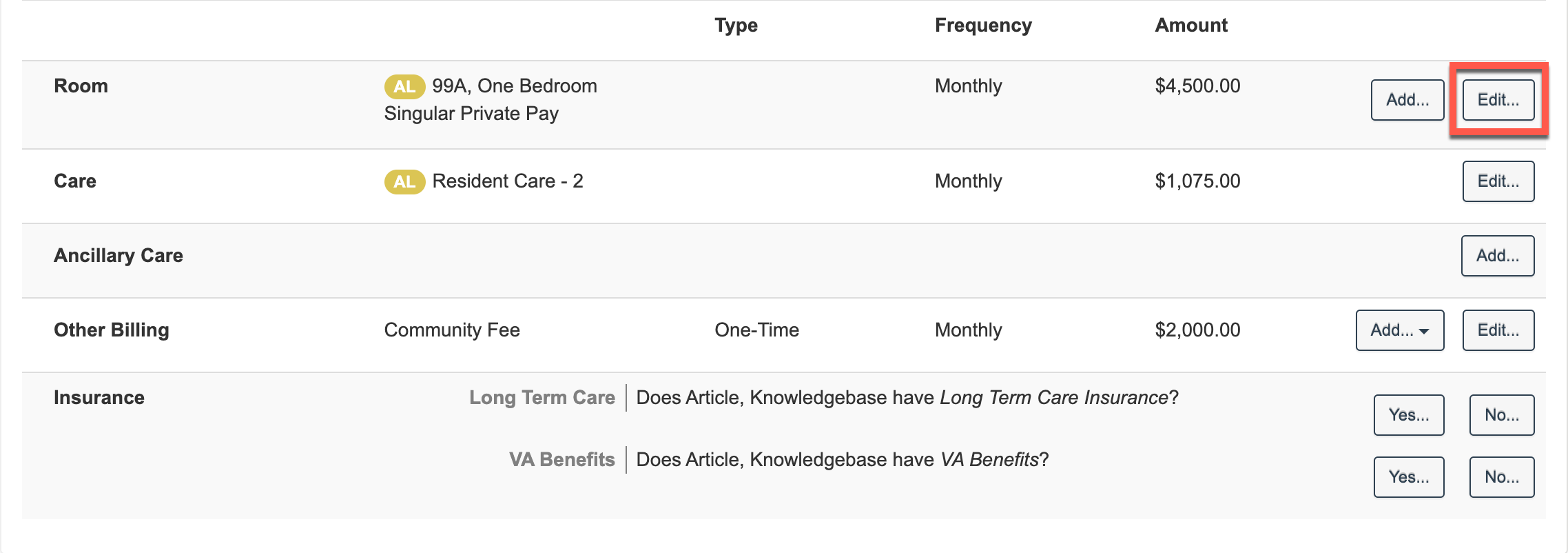
Step 11 (Optional): Next, the resident's room assignment should have automatically flowed in with the reservation from the CRM if it is in use. Confirm the room, room details, and room price is correct. If necessary, select "Edit" to edit the room assignment, room number, or room price.
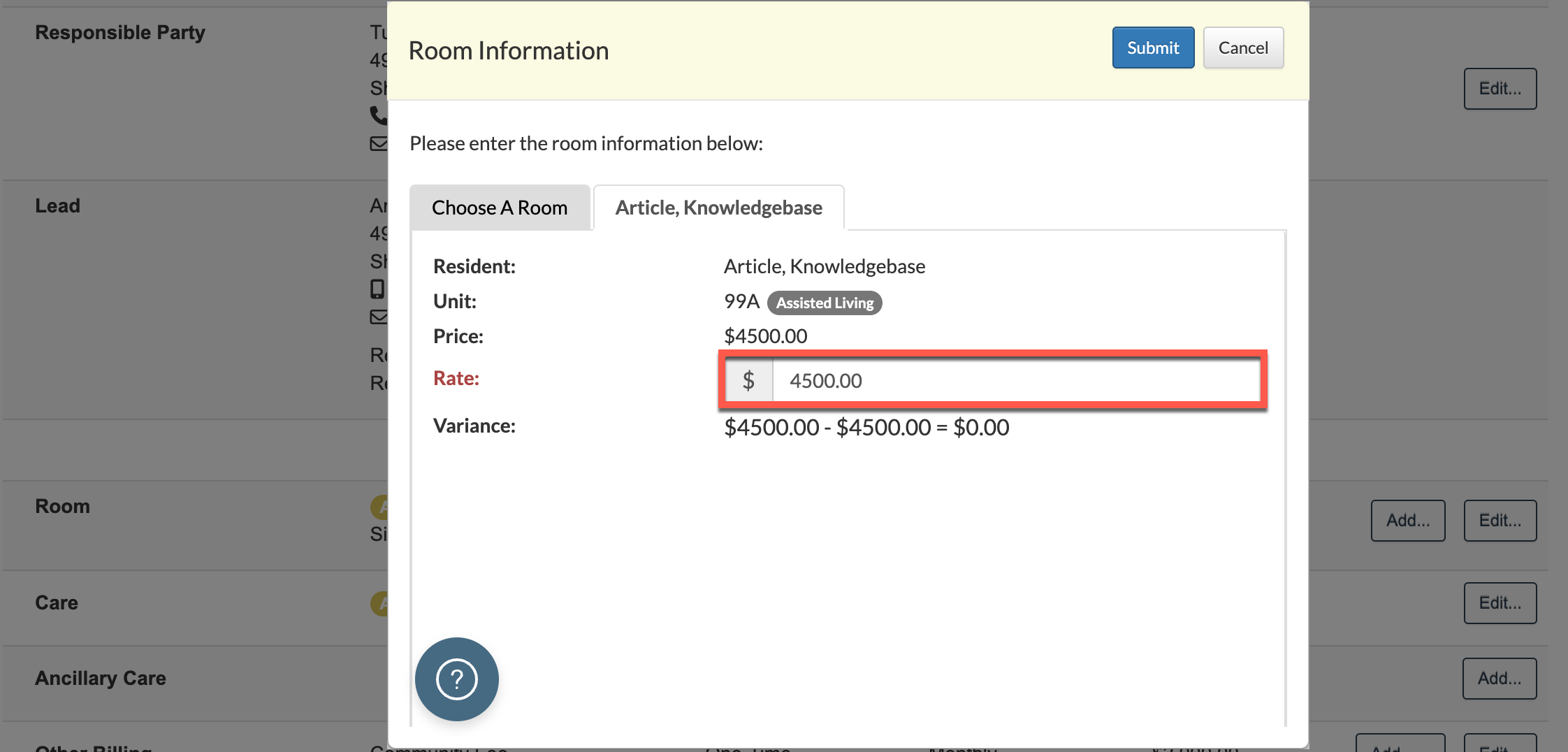
If the room pricing needs to be changed, enter the corrected amount in the rate field and then select "Submit".
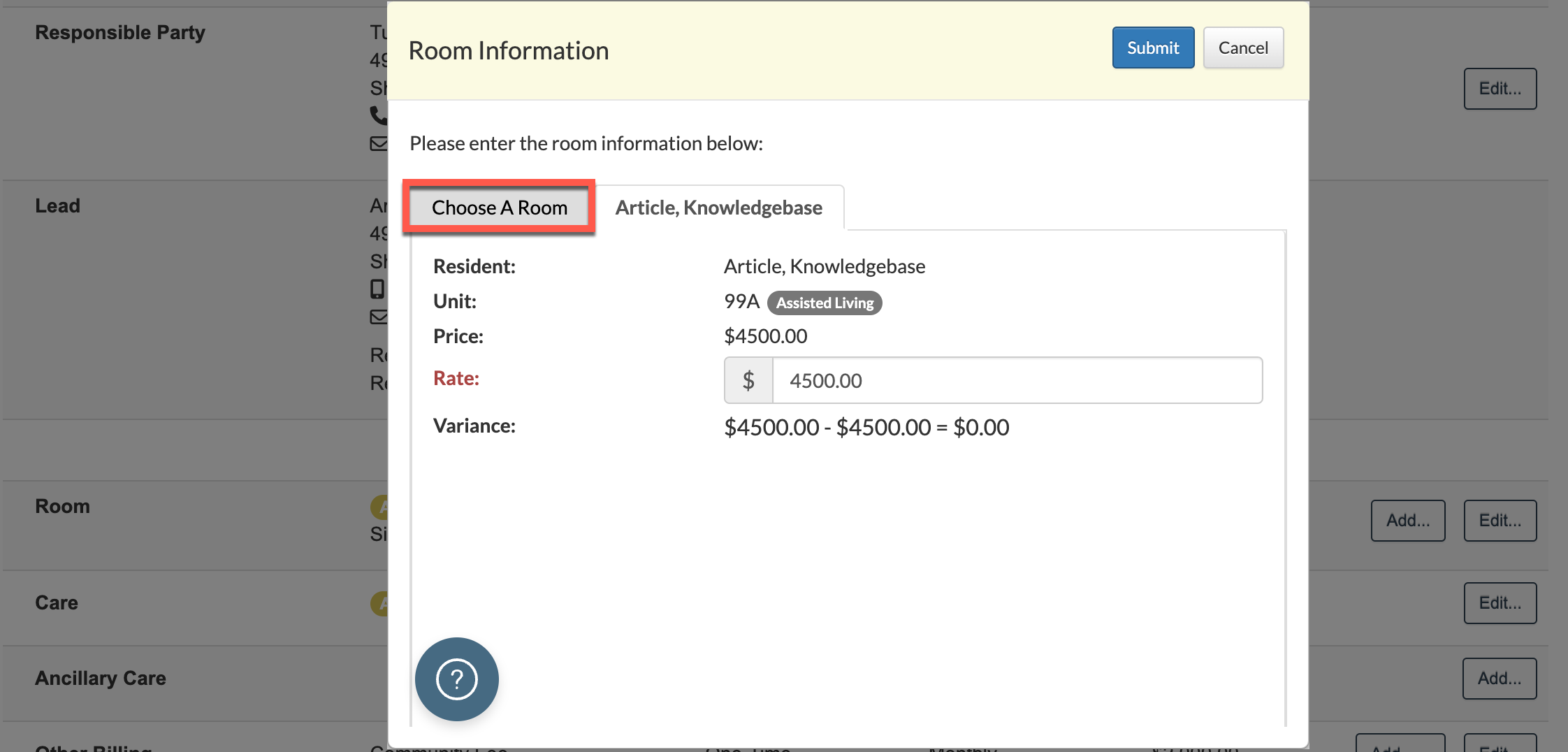
If a different room needs to be selected, select the "Choose a Room" tab.
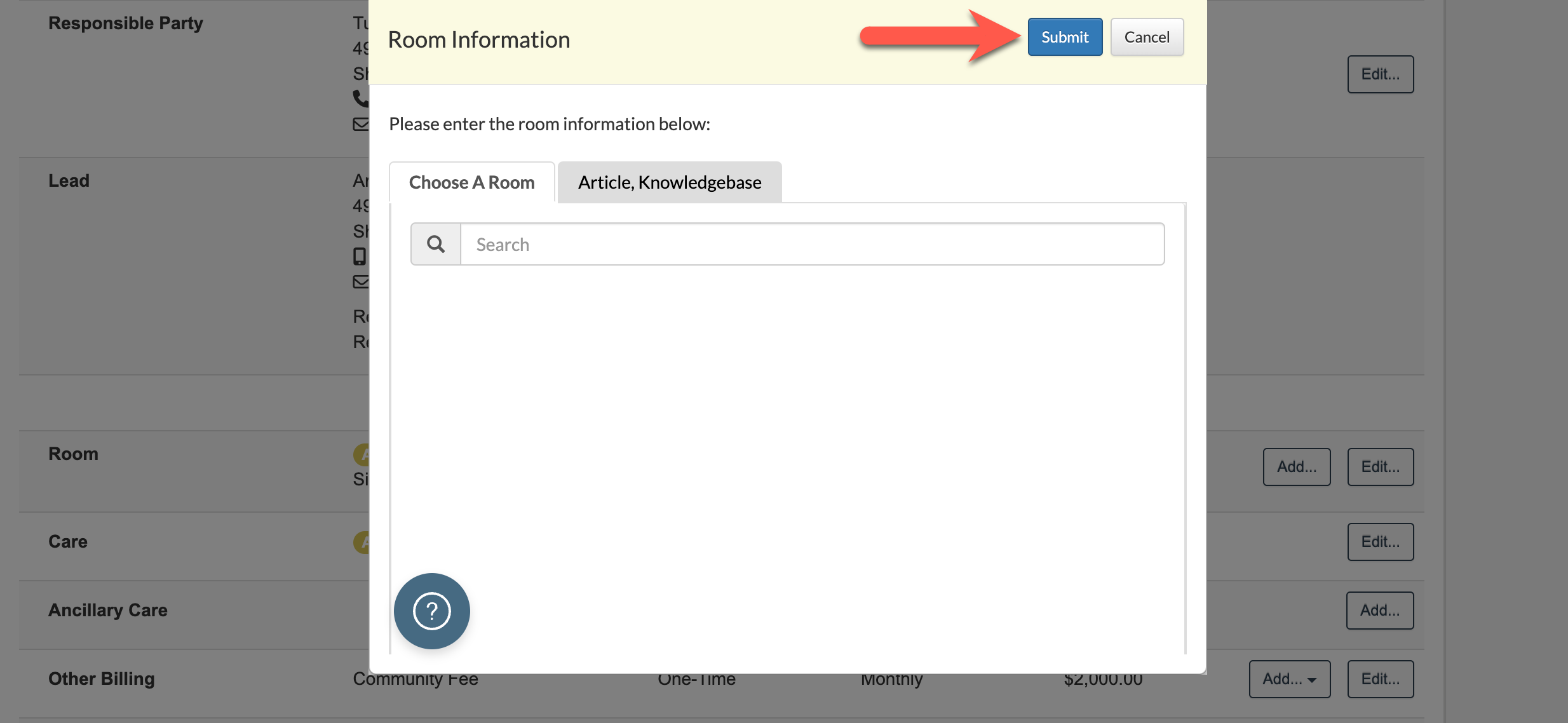
A list of available rooms will display. Only unoccupied rooms will display. If there are no rooms available, no rooms will display, as pictured below. After selecting the desired room, select "Submit".
Step 12 (Optional): Next, if the resident has already been assessed, or evaluated, by the clinical team using the Aline Care application, then the assessed level of care + the associated costs will already be displaying in the Care Category unless your organization utilizes a Price Per Point Care Rate structure.
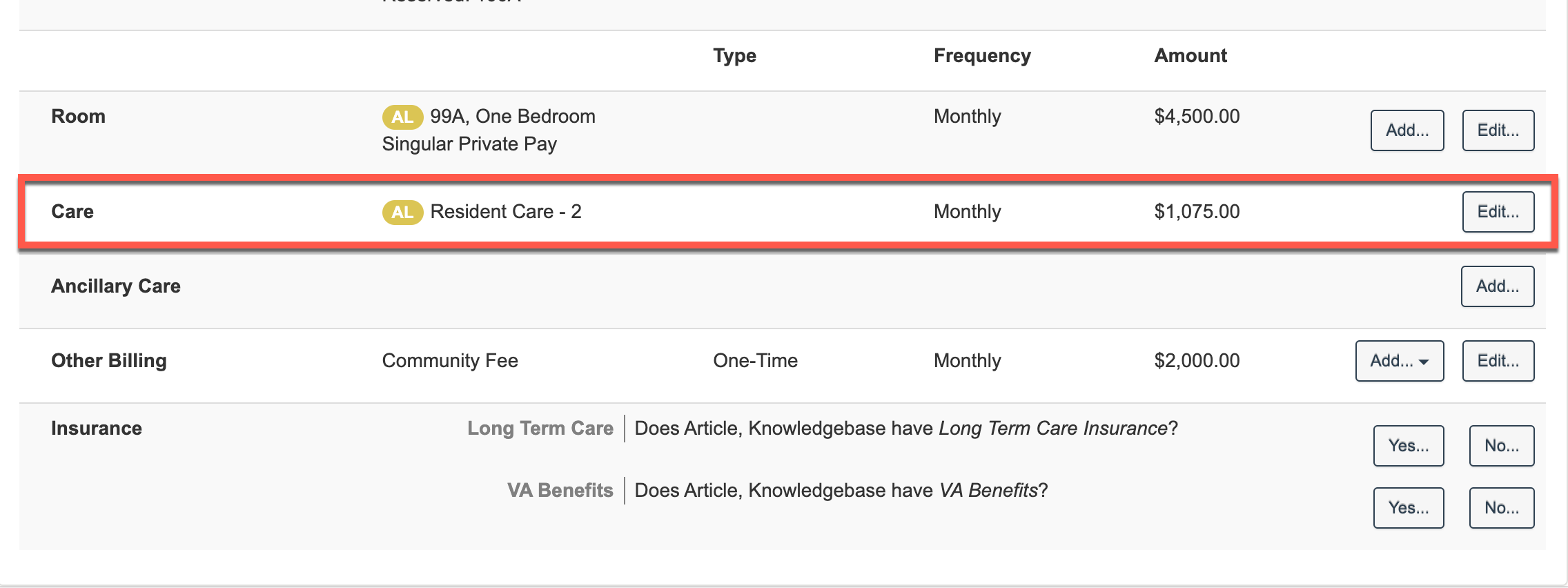
If a level of care needs to be manually assigned for Price Per Point organizations OR if the level of care / care cost needs to be manually adjusted, users can select "Edit".
If the care pricing needs to be input or changed, enter the corrected amount in the rate field and then select "Submit".
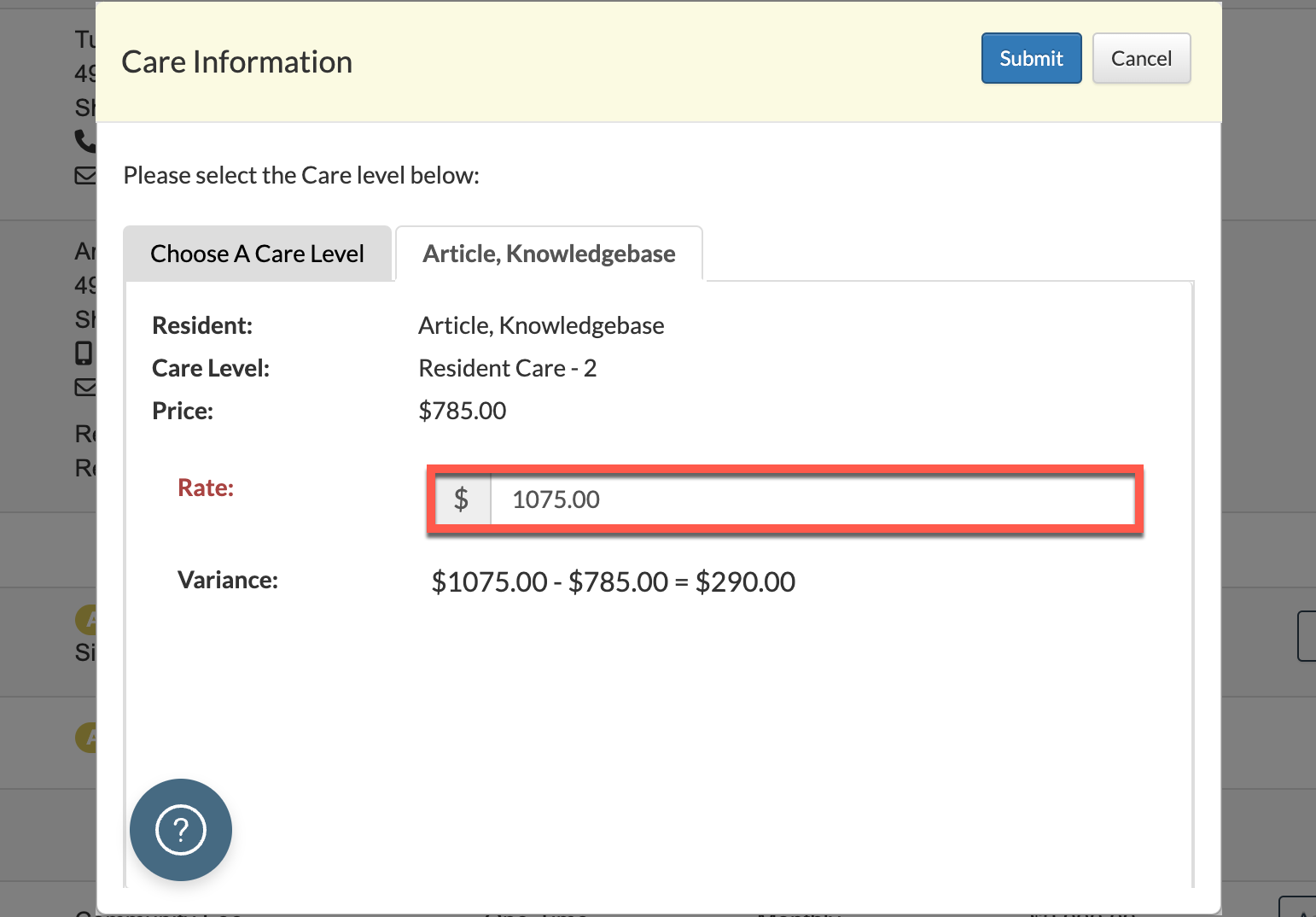
If a different care level needs to be selected, select the "Choose a Care Level" tab.
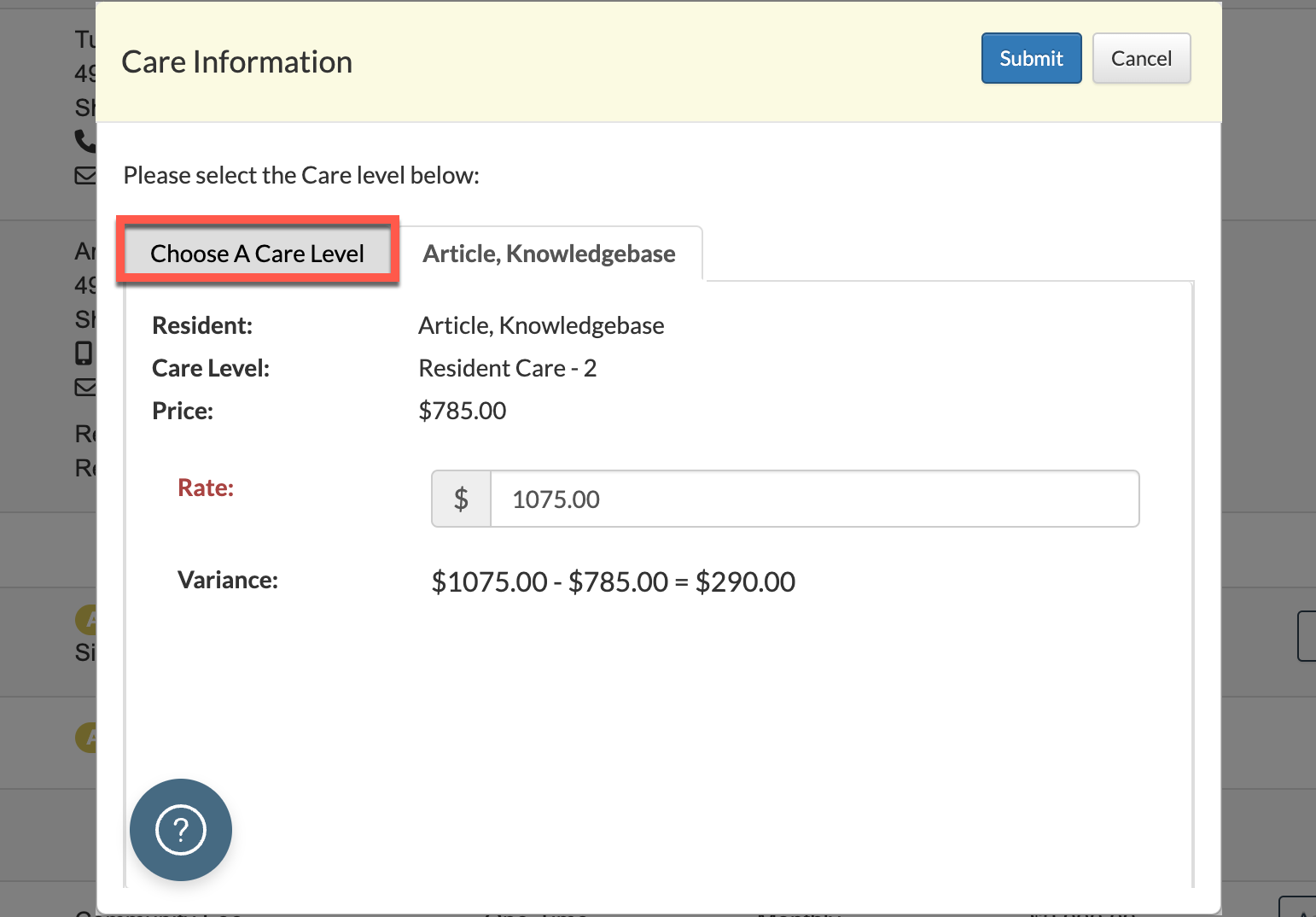
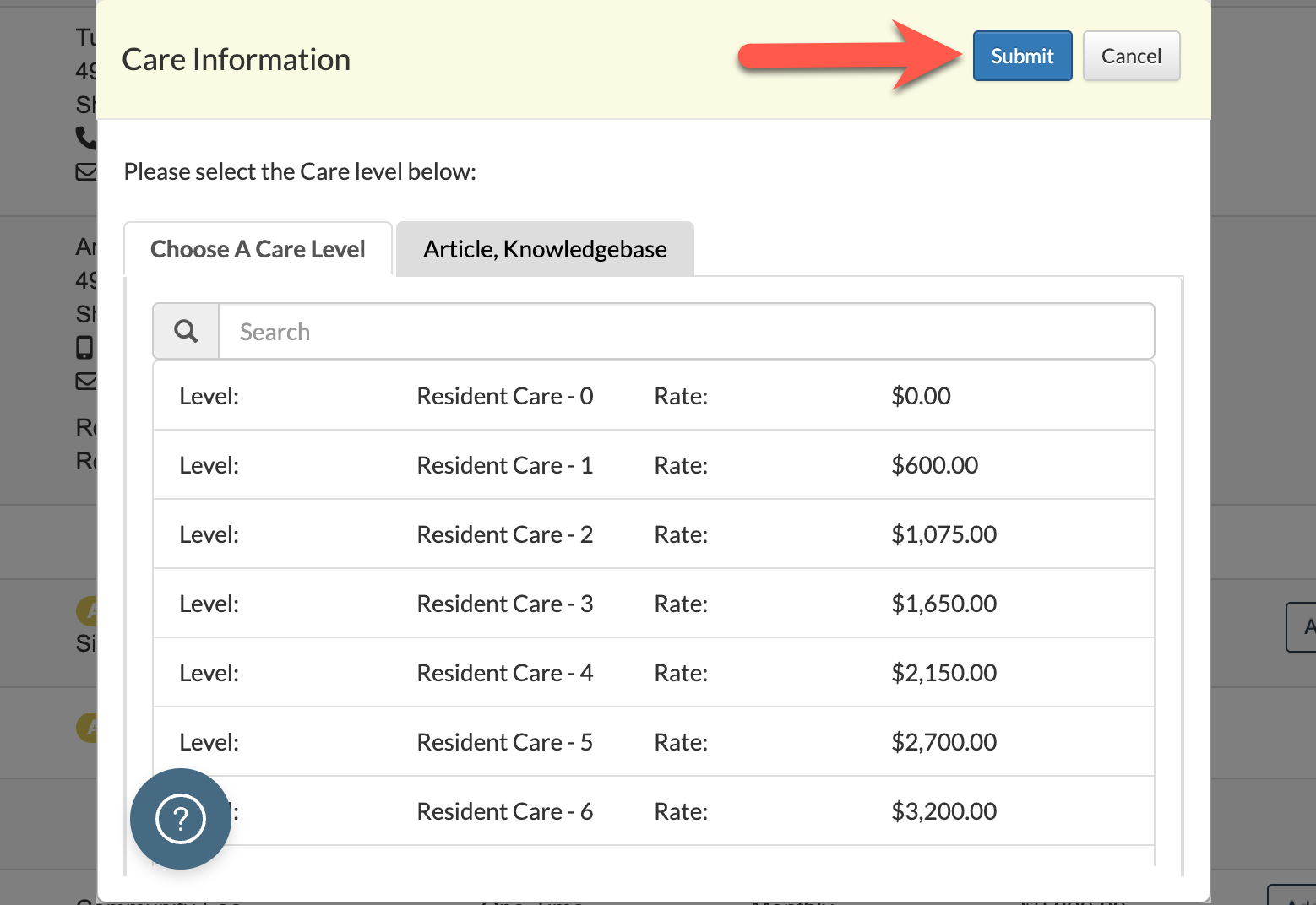
A list of available care levels will display. After selecting the desired care level, select "Submit".
Please Note: if your organization utilizes a Price Per Point care pricing structure, please be aware that the Care Rate will need to be manually inserted into the Rate field as Aline Leasing & Billing will NOT automatically calculate Price Per Point Care Rates.
Step 13 (Optional): Ancillary Care information and cost, like Primary Care and cost, will also flow into the Revenue application after the clinical team completes the resident assessment, or evaluation. Also like Primary Care, Ancillary Care rates and levels can be adjusted as needed by selecting "Edit" and making necessary changes.
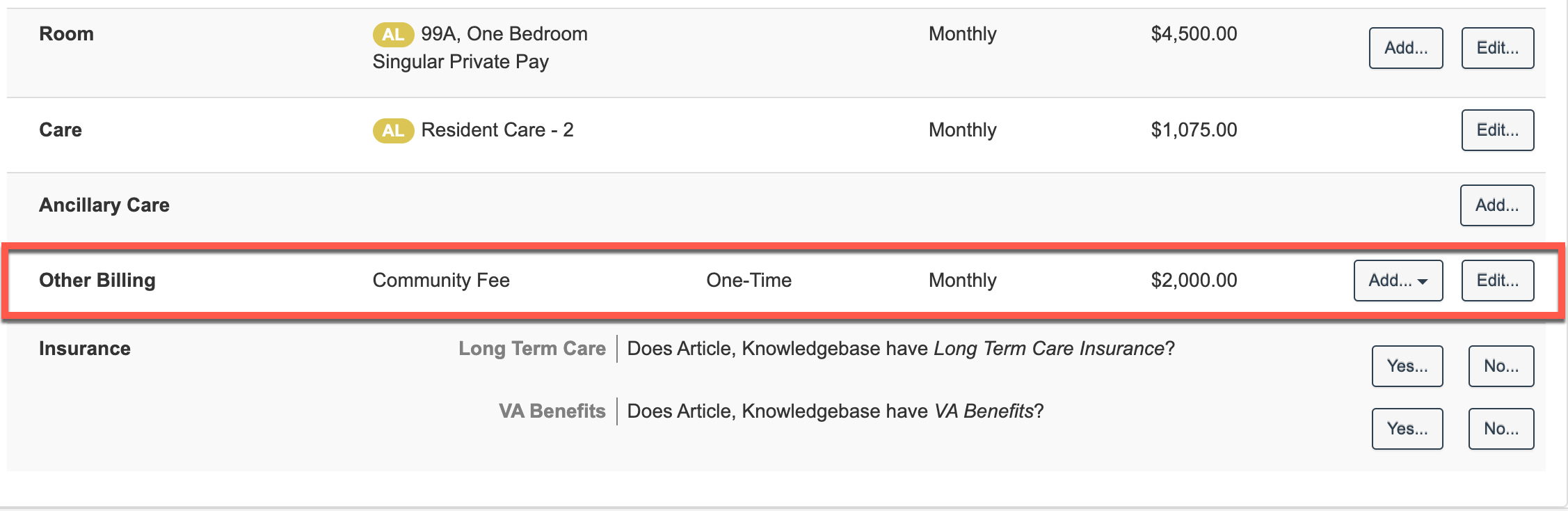
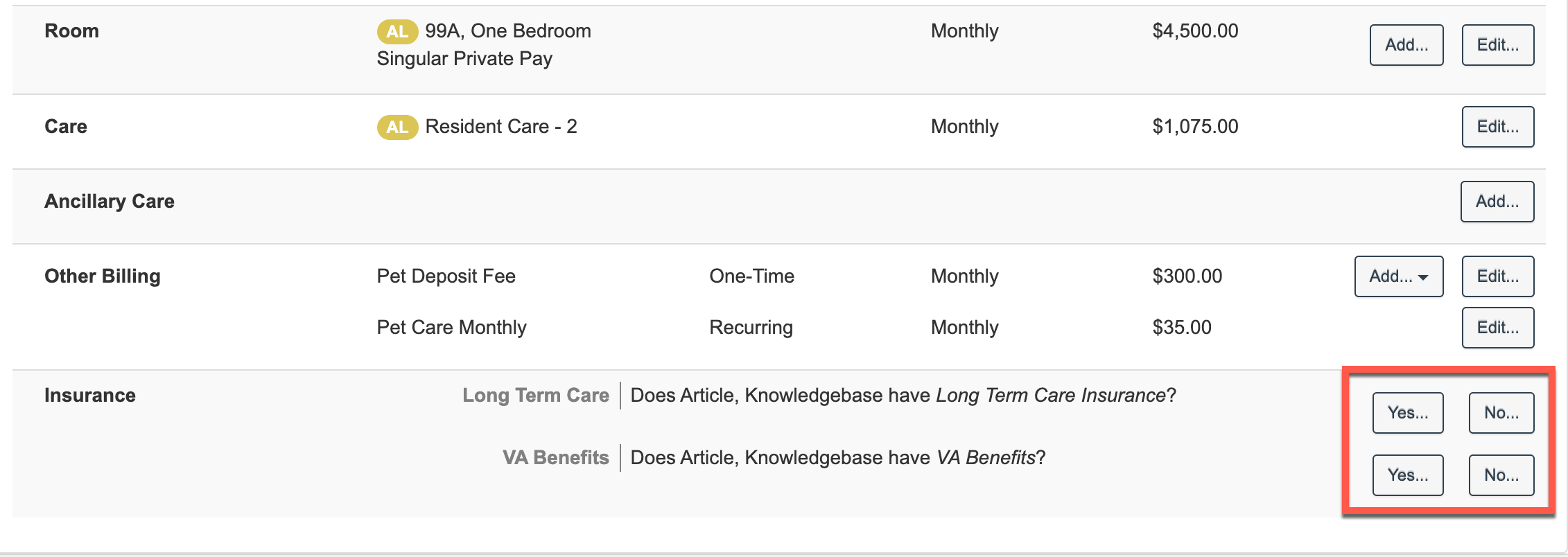
Step 14: Other Billing items can be added at this time. Other Billing is defined as other charges or credits issued to the resident outside of the monthly responsibilities of room & board and monthly care services. Some Other Billing items, like community fees, may already be automatically configured to display for each and every move in - as pictured below. To add additional Other Billing items, select "Add".
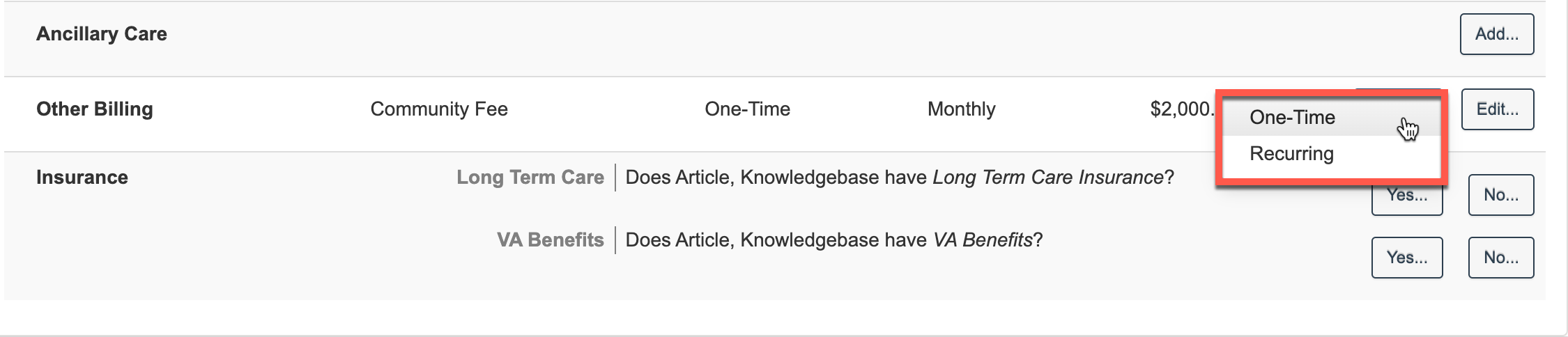
Next, select whether the new Other Billing item will be a one-time or recurring item.
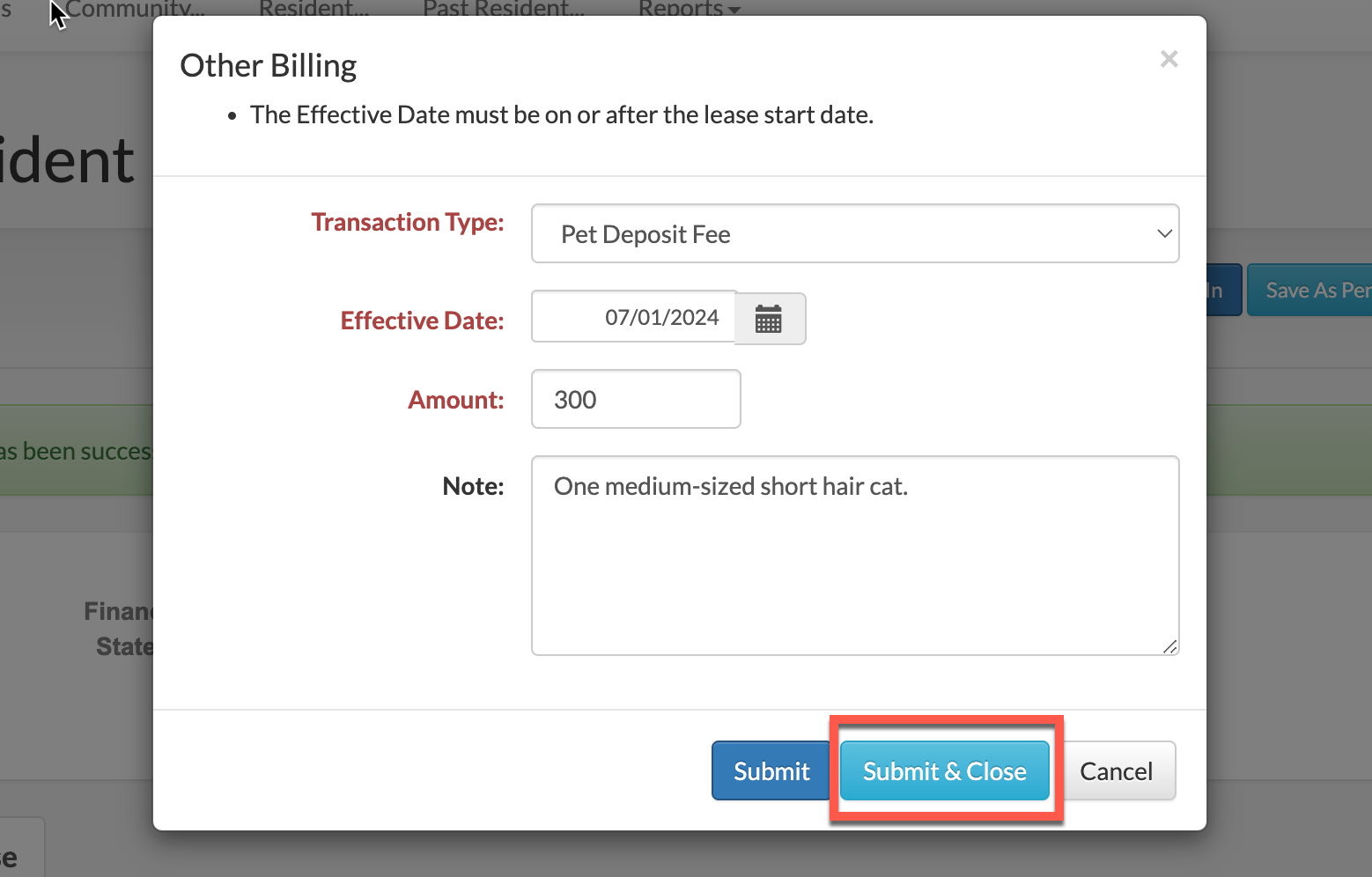
For one-time items, enter in the Transaction Type, Effective Date, Amount (if it is not already automatically displaying with the correct rate), and an optional note. Transactions Types are customized to each organization / community, so they will vary depending on configurations.
Select "Submit & Close" to save the new one-time Other Billing charge.
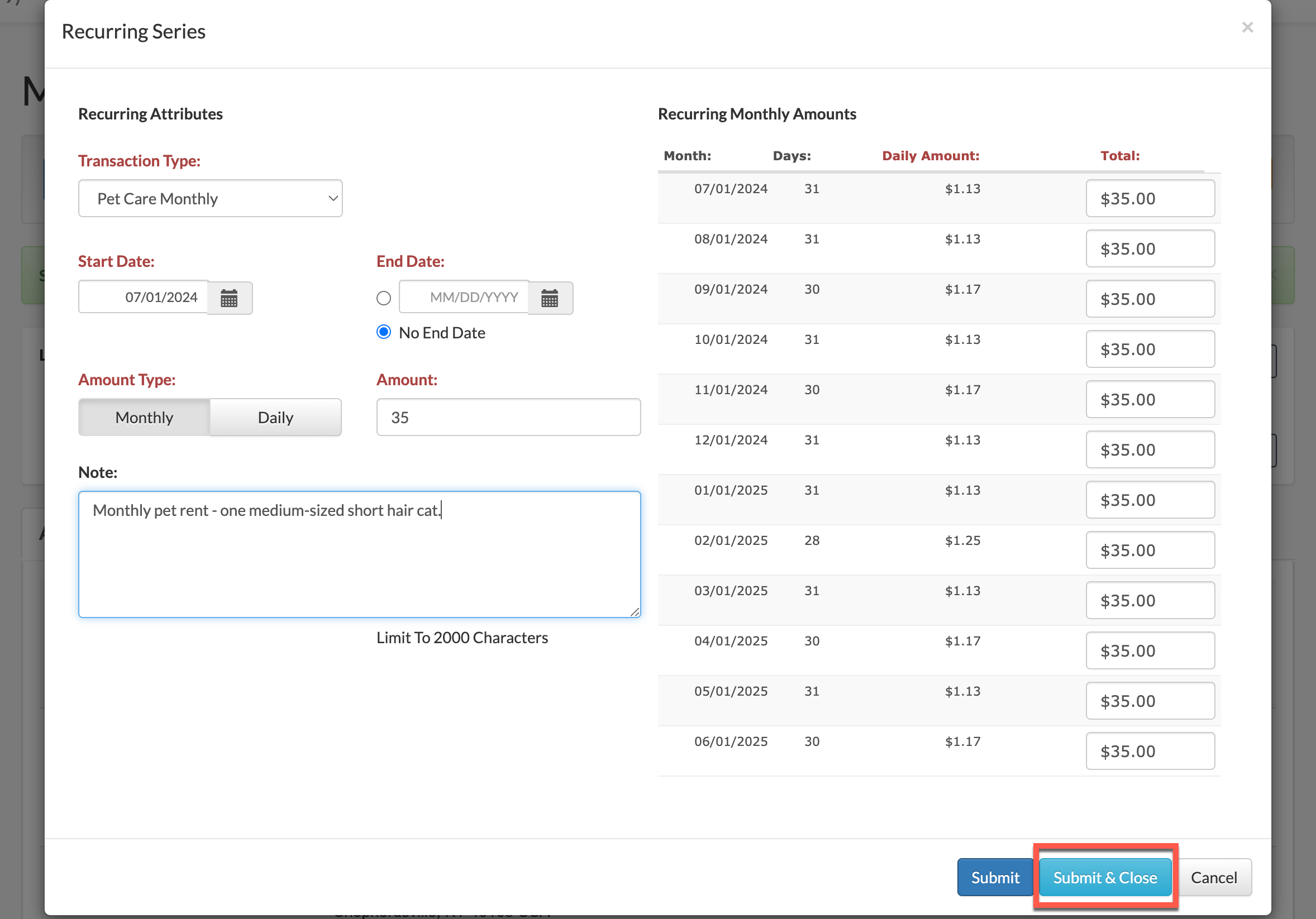
To add a monthly recurring Other Billing item, select "Add" and then select "Recurring".
Input the desired Transaction Type, the Start Date, the Ending Date (either a specific end date OR No End Date for the charge to last through the end of the resident's lease), the Amount Type (whether the monthly recurring charge is a daily charge or monthly charge), the Amount to be charged, and a note if desired. Once the Amount Type and Amount have been entered, a breakdown for the monthly recurring charge will display on the right side of the panel for reference.
Select "Submit & Close" to save the new recurring Other Billing item.
Step 15: Next, if the resident has Long Term Care insurance or VA Benefits, users can document the specifics of those plans in the next section. Select "Yes" next to either category if the resident has the coverage. Select "No" if the resident does not have the coverage.
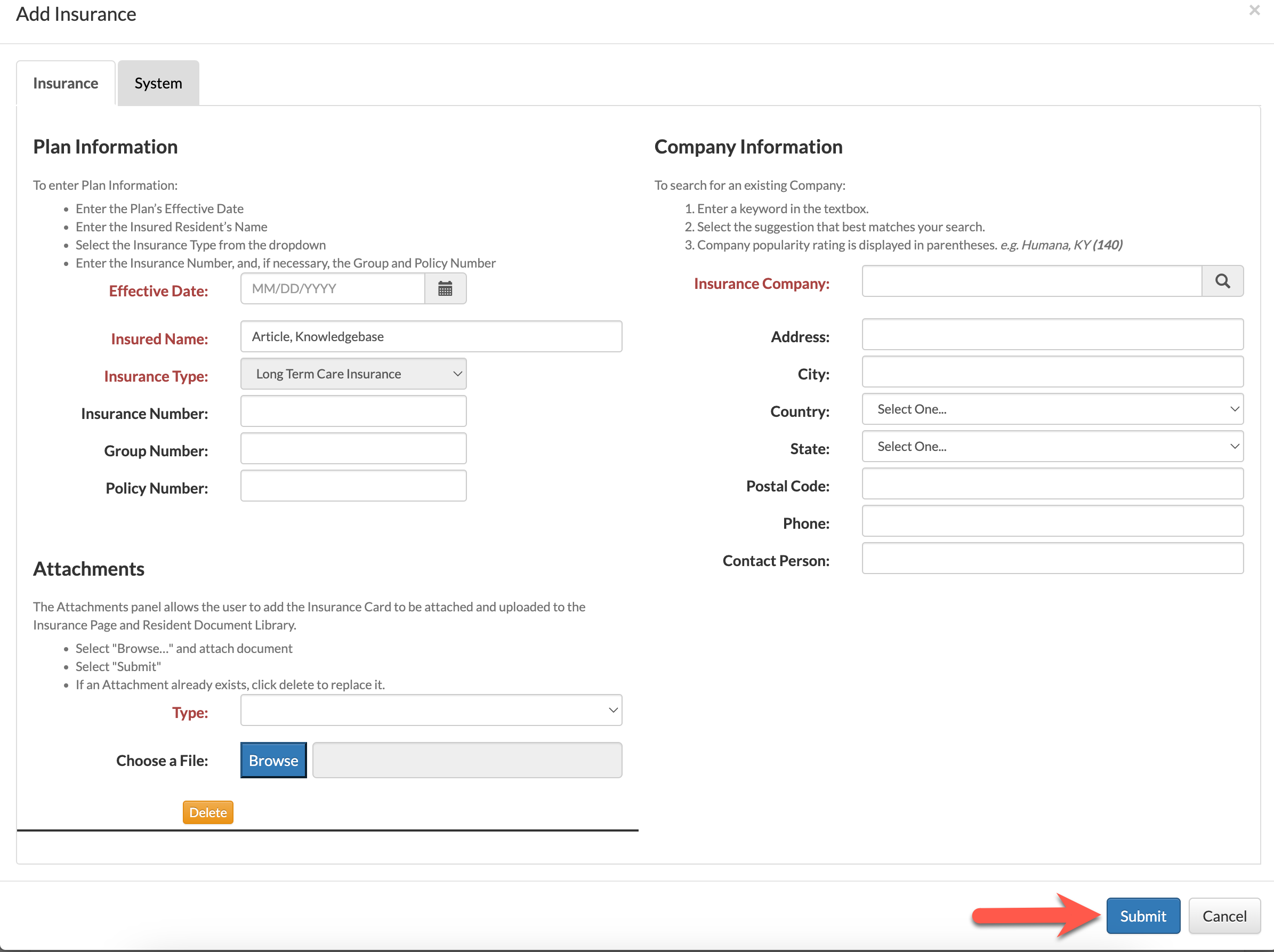
Selecting "Yes" in either category will present the user with a form to complete for both the specific plan information and the insurance provider information. Additionally, a photocopy of the resident's insurance card can be uploaded to the documentation.
Once all required information is input, select "Submit" to save the insurance information.
Step 16: Now it's time to review the Proposed Billing data included in the forecasted ledger below our form fields. Ensure that each line item is appropriately dated and that the charges are correct. Users can export the form via PDF by selecting the PDF icon on the upper right side of the panel.
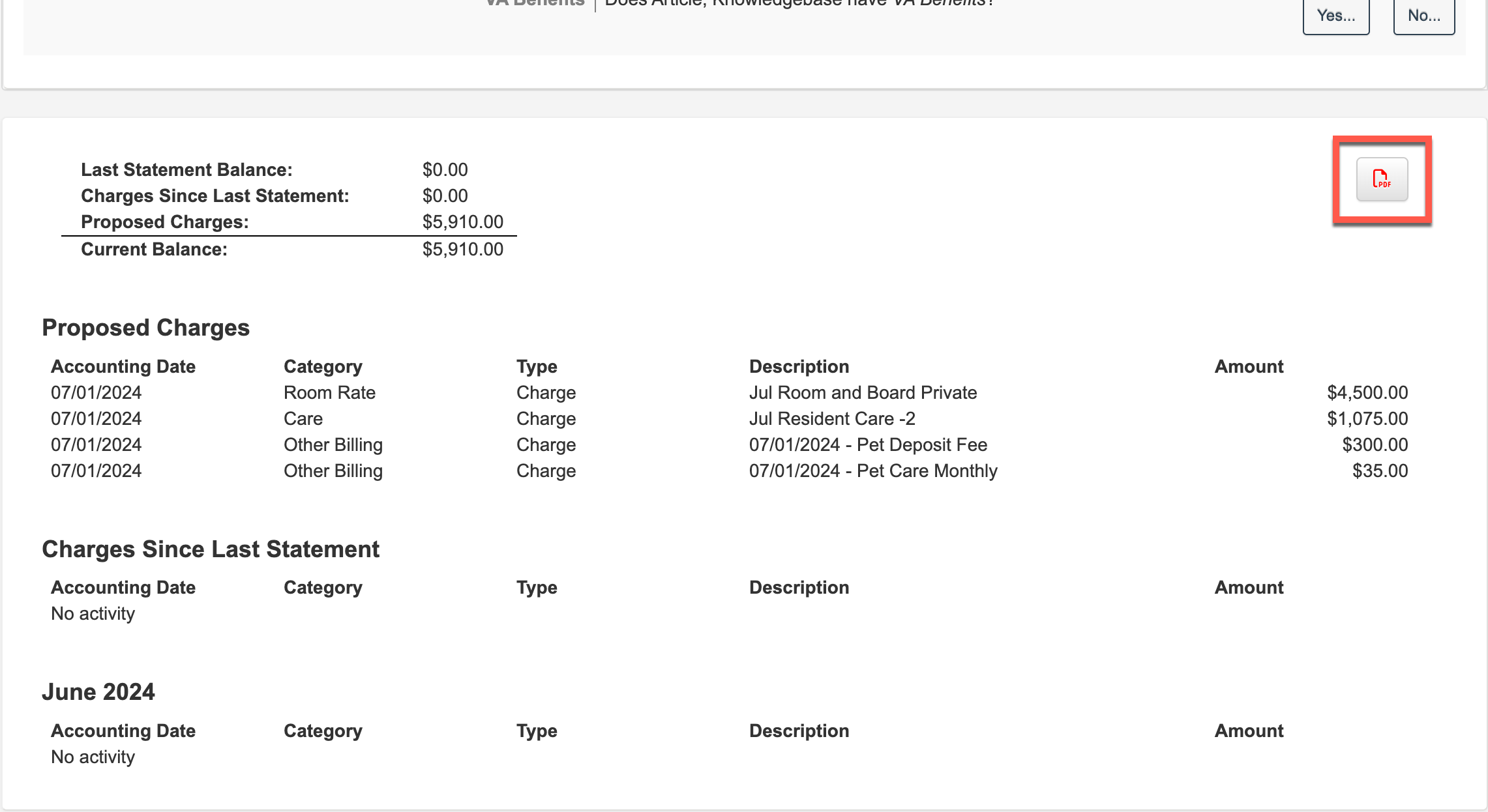
Note: the forecasted ledger data is based off of the Financial Start Date along with any move in prorations that may be configured for the Other Billing items. In the above example, the resident will be paying the full month's bill for both room & board and care services as the Financial Start Date is set for the first of the month.
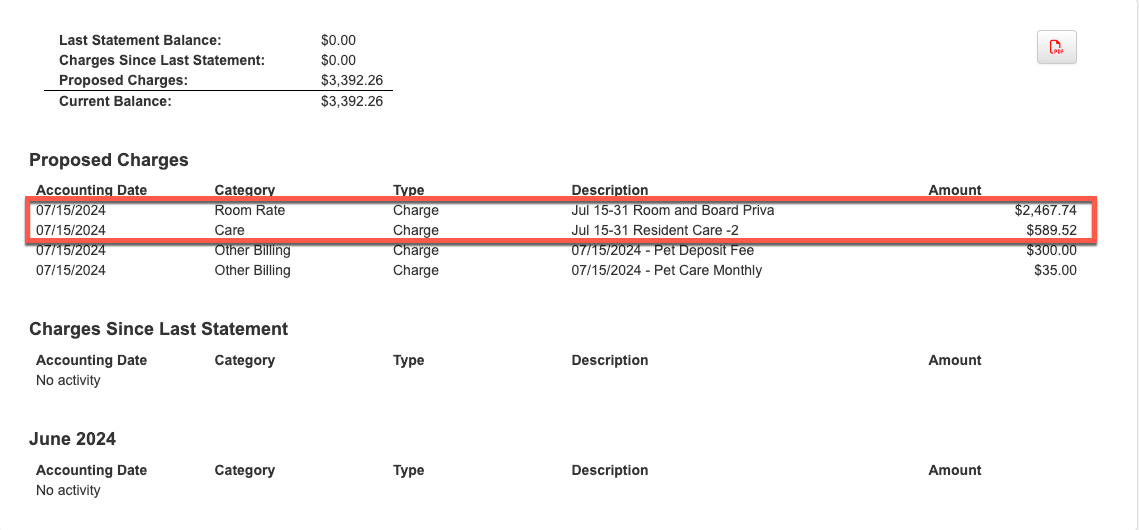
In the below example, the Financial Start Date has been adjusted to the fifteenth of the month to demonstrate the forecasted ledger data automatically prorating the necessary charges like room & board and care services.
Step 17: Before processing the new move in, users will likely also want to generate lease agreements, or residentcy agreements, to fill out with their new tenants. The last category listed on the Move a Resident In page is the Document Library.
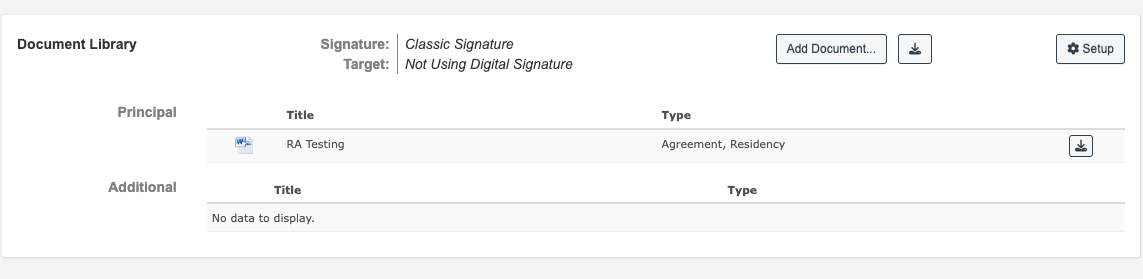
Note: The Document Library will not be in use for all clients, and some clients will be utilizing other third party e-signature integrations like DocuSign. Please reference those specific articles for third party integrations as this article will cover the Classic Signature process built directly into Aline Revenue.
When using the Classic Signature process, your organization / community's principal and additional documents will be automatically displayed in those respective categories. Simply enough, users can select the download icon t export the leasing documents out of Aline Revenue.
Additionally, documents exported out of Aline Revenue will automatically map certain pieces if information directly into the downloaded copy - this would include items like resident names, community name, room number, rates, financial start and end dates, etc.
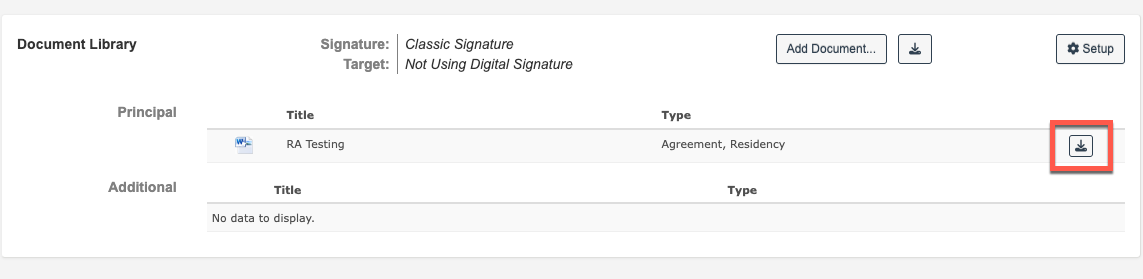
Once the remainder of the document, or documents, are completed, they can then be uploaded onto the resident's profile in Aline Revenue in their personal Document Library located on their profile page.
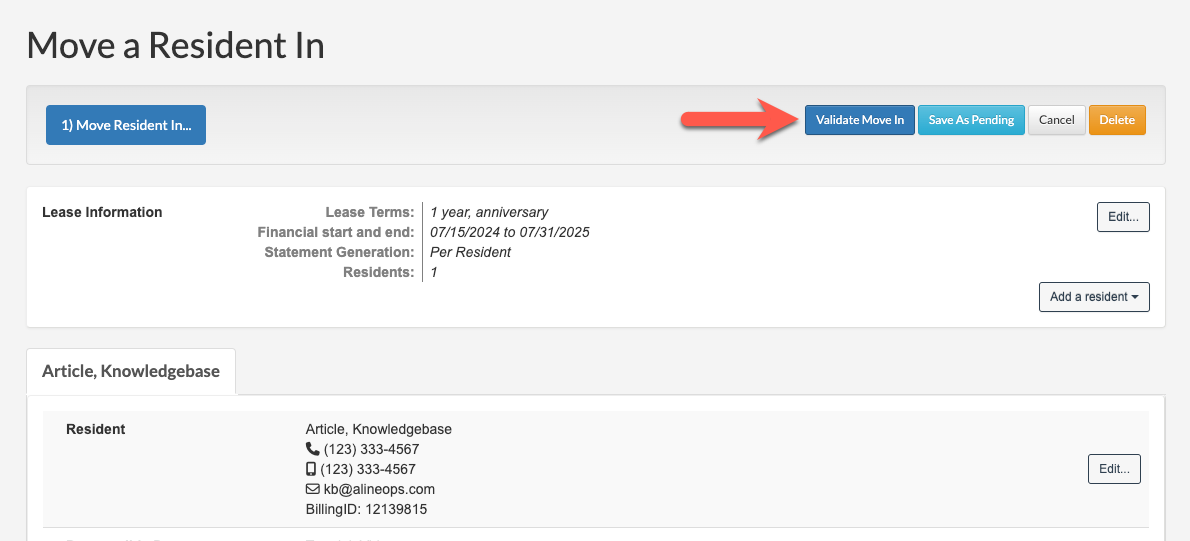
Step 18: Our last step is to process the new move in by selecting "Validate Move In" at the top of the page. That being said, users can also select "Save As Pending" if they'd like to save their work and return to the move in at a later time.
Was this article helpful?
That’s Great!
Thank you for your feedback
Sorry! We couldn't be helpful
Thank you for your feedback
Feedback sent
We appreciate your effort and will try to fix the article