DocuSign Integration Requirements
Aline Revenue Management System offers e-signature of leasing documents with DocuSign. To deploy this integration, at the time of move in the resident, responsible party, and community officer all must have an email address on file.
Please note that if the resident is the same as the responsible party, the same email address may be used twice. The resident will receive two copies of the leasing documents and sign each one
How to Sign Leasing Documents with DocuSign
After selecting a reservation from the Reservation Panel on the Revenue Dashboard, or initiating a move in from the Quick Actions menu, users can sign leasing documents by completing the following steps.
Step 1: Ensure resident, responsible party, and community officer email addresses are correct. Email addresses can be added or edited in the Document Library panel on the Resident Move-in Page
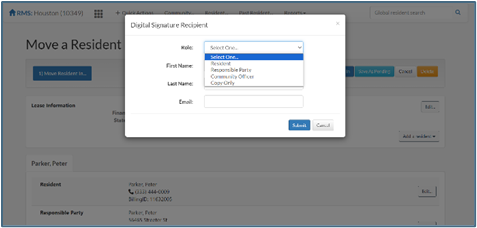
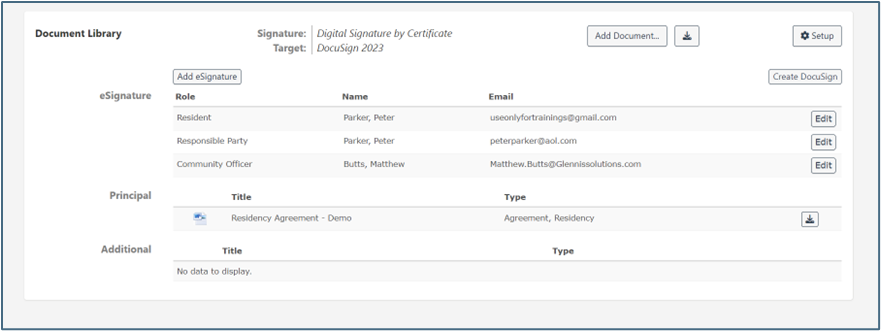 Users can also choose to send read-only copies of executed documents to interested parties by select Add eSignature, selecting Copy Only, and inputting the interested party’s name and email address. After selecting Submit, this new person will appear on the dashboard.
 Step 2: Once users have ensured that all email addresses are correct, best practice is to verify that the move-in packet is complete. To do this, select the Download Document Package which will allow users to view the move in packet one final time before proceeding with signatures.
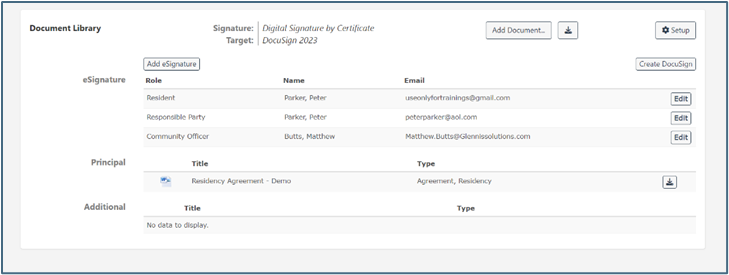 Step 3: Once all parties are ready to sign, users should select Setup and ensure that Digital signature and DocuSign are selected.
Step 4: Select Create DocuSign to initiate the signature process. DocuSign seamlessly guides users through the process of signing and executing documents, which all feature community branding. The documents are sent for signatures via email in the following order:
- Resident
- Responsible party
- Community officer
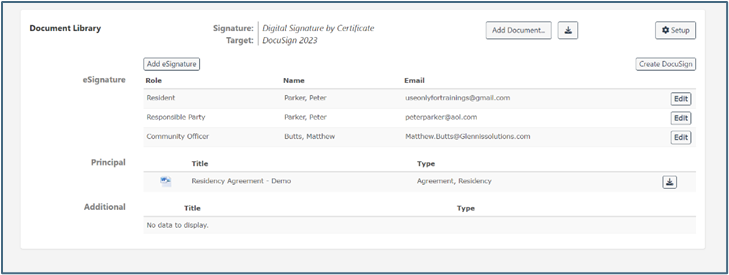
Note: If any changes need to be made to email addresses, users must cancel the DocuSign and begin the process over.
Step 5: After all parties have signed, everyone will receive a copy of the executed documents via email.
Step 6: After the move in is processed, the fully signed documents will automatically be available on the resident dashboard under the Digital Signature File Library. 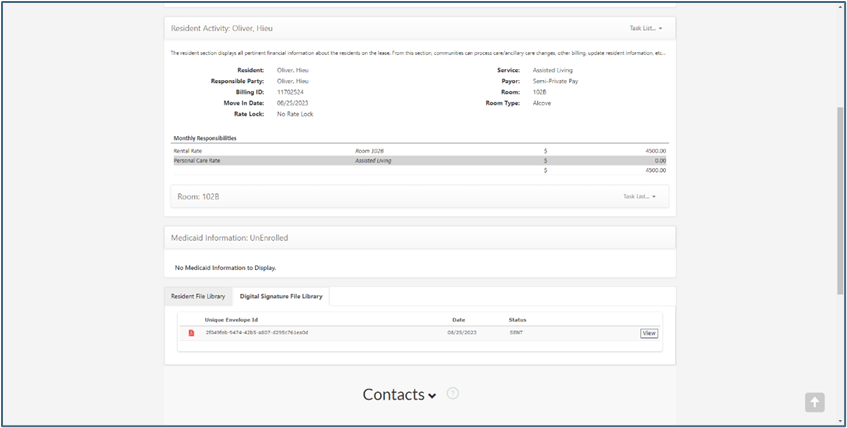
DocuSign Walkthrough Video
Was this article helpful?
That’s Great!
Thank you for your feedback
Sorry! We couldn't be helpful
Thank you for your feedback
Feedback sent
We appreciate your effort and will try to fix the article