Overview
In this article, we will review how to delete a payment.
Delete a Payment
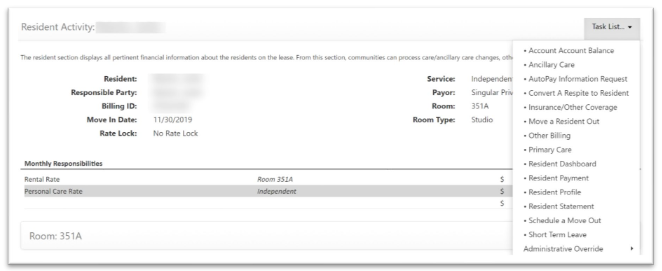
Step 1: Go to the Resident’s Lease Management page and select Resident Payment from the Resident Activity Task List.
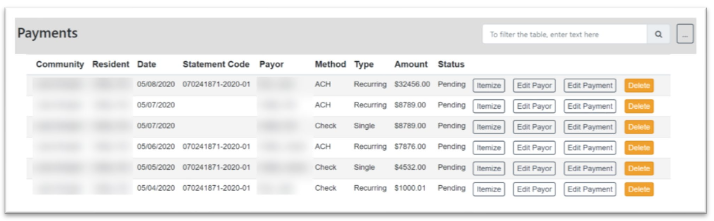
Step 2: On the Resident Payment Page, select the Delete button on the Payment you would like to delete.
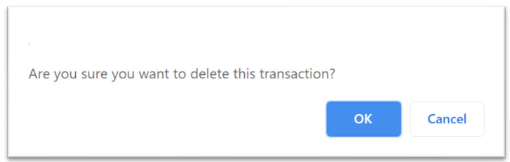
Step 3: After selecting the Delete button, you will receive a prompt to Delete. Select OK.
Step 4: Once submitted, the payment will no longer display in payments.
Was this article helpful?
That’s Great!
Thank you for your feedback
Sorry! We couldn't be helpful
Thank you for your feedback
Feedback sent
We appreciate your effort and will try to fix the article