Voiding Transactions
In this article, we'll detail the necessary steps required to void a transaction in Aline Payments.
Please Note: transactions can only be voided in the status of Queued or Approved. Each day, when a transaction is made, it will present the status of queued and then will quickly switch to Approved. The payment status will stay Approved until 8:00PM CST / 7:00PM EST, at which point, the status will begin to process and the status will change to Pending.
Pending and Processed payments CANNOT be voided. Only payments with the status of Queued can be voided.
Steps to Void a Transaction
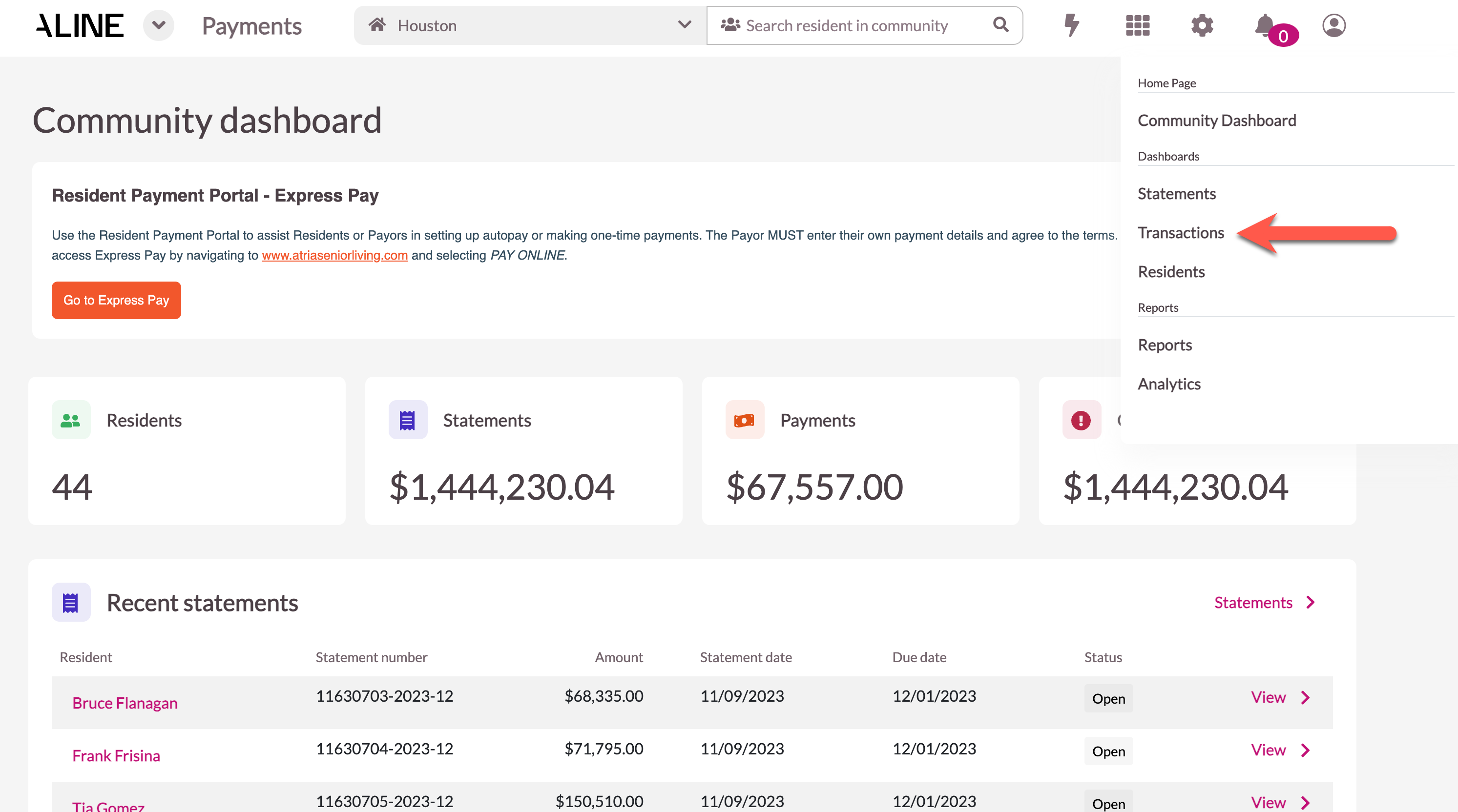
Step 1: After logging into Aline Payments, select the Waffle Menu and then Transactions. All payments must be voided from the transactions page.
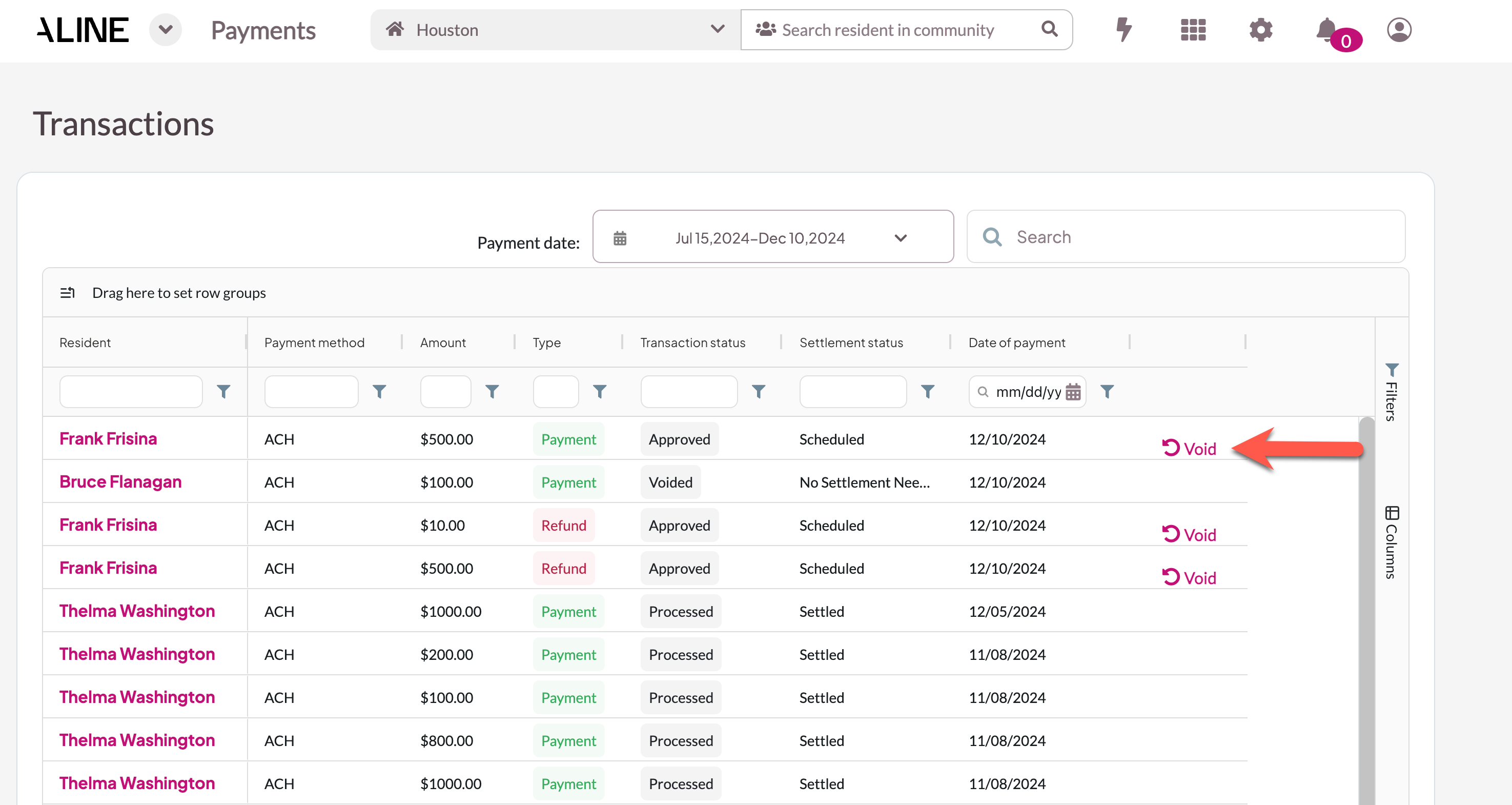
Step 2: On the transactions page, past transactions will display in reverse chronological order. Transactions in a status of Queued or Approved will display with a Void option to the side as pictured below. Select Void.
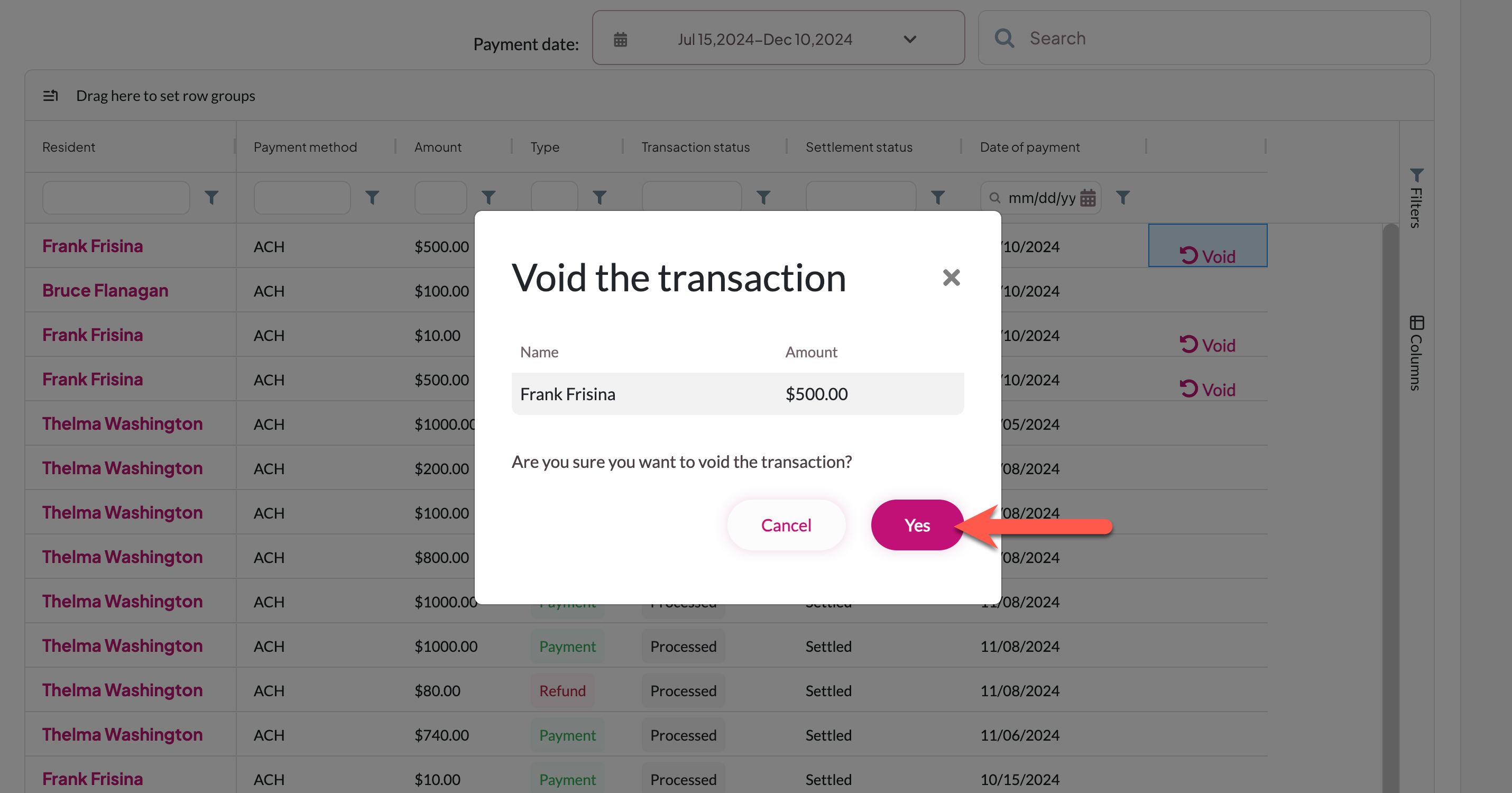
Step 3: Simply select Void to void the transaction and stop the processing process in its tracks.
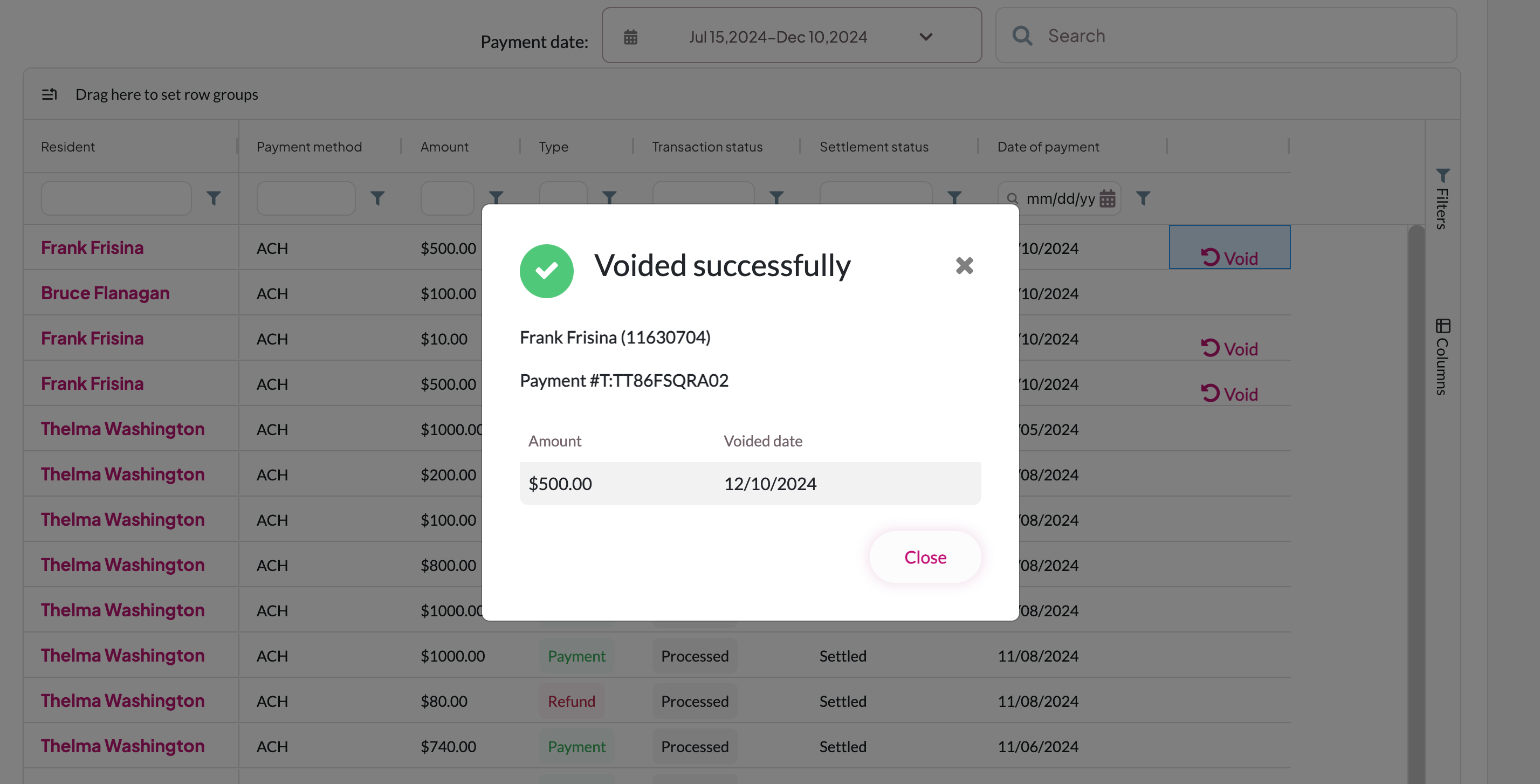
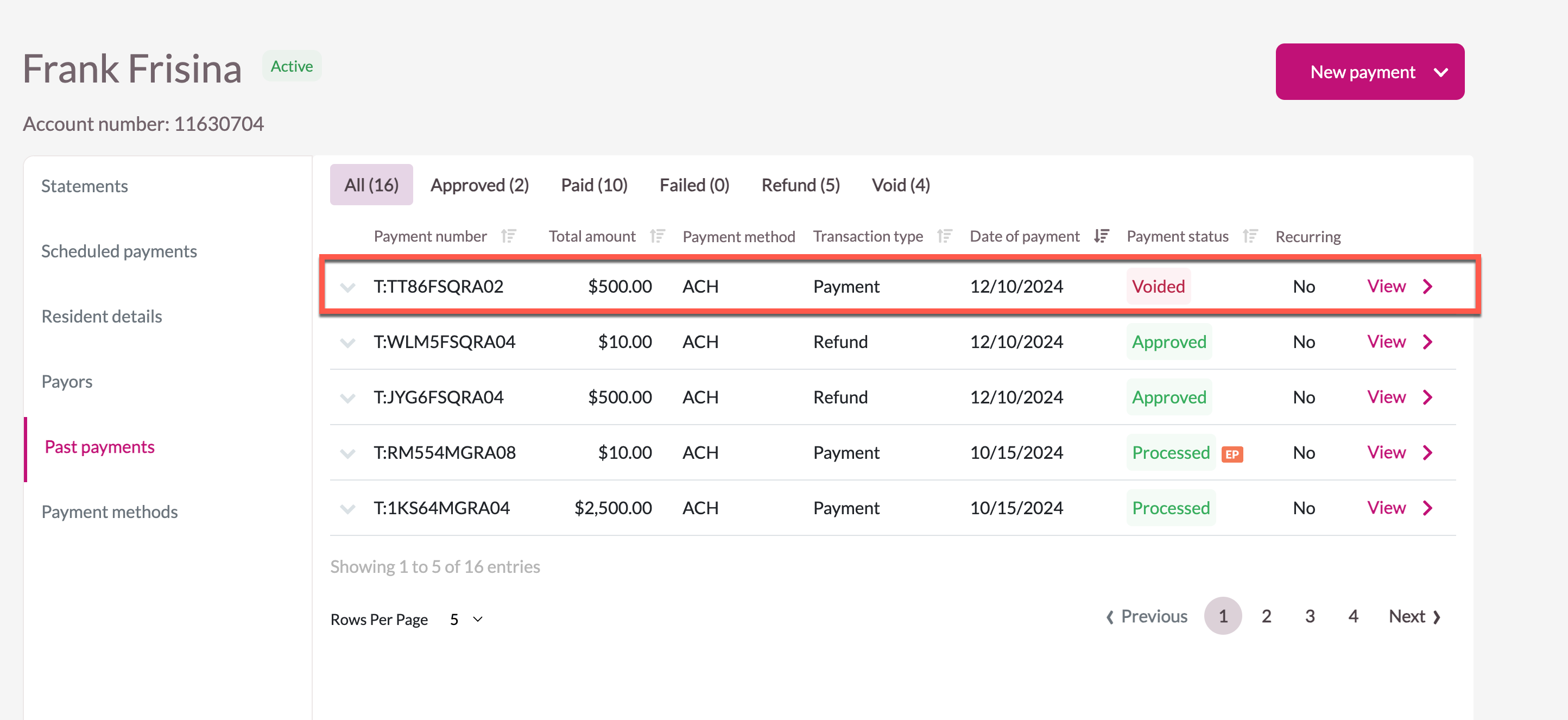
Step 4: A confirmation message will display. The voided payment will also display on the resident's profile under Past Payments.
Was this article helpful?
That’s Great!
Thank you for your feedback
Sorry! We couldn't be helpful
Thank you for your feedback
Feedback sent
We appreciate your effort and will try to fix the article