Overview
In this article, we'll detail the steps required to run and export the analytical reports include in the Aline Payments application.
Steps for Running and Exporting Reports
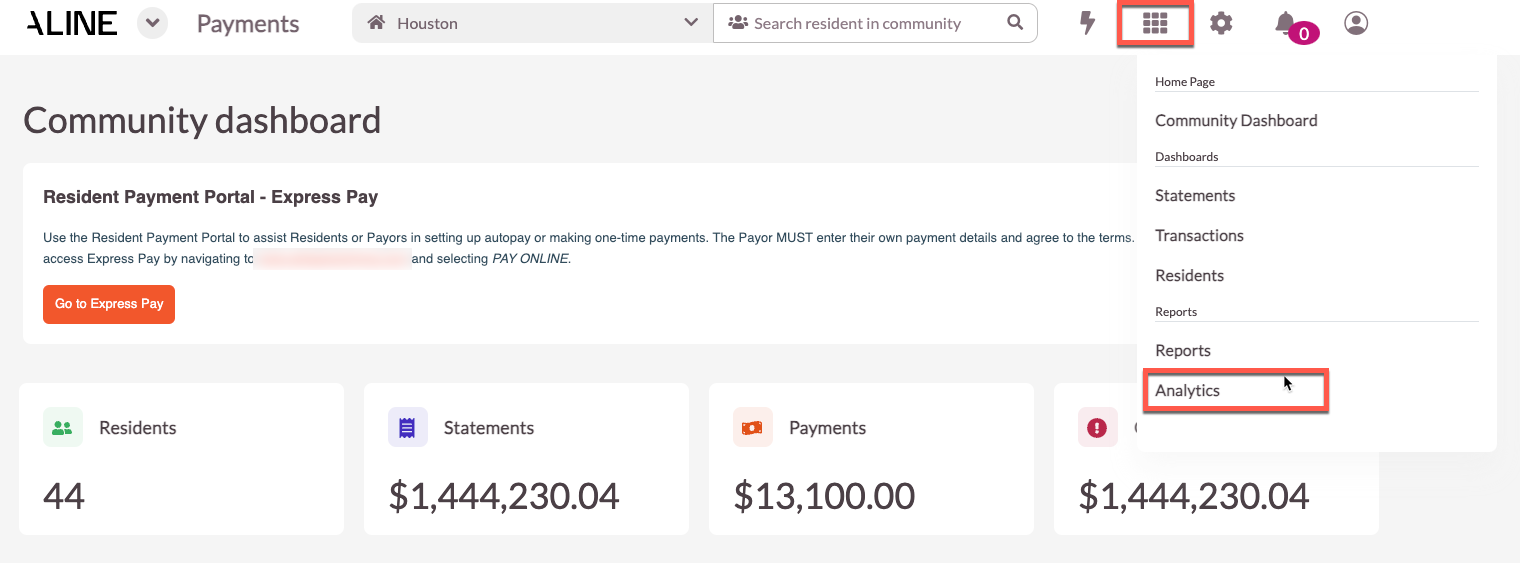
Step 1: After logging into the Aline Suite and opening the Payments application, select the Waffle Menu and then select 'Analytics'.
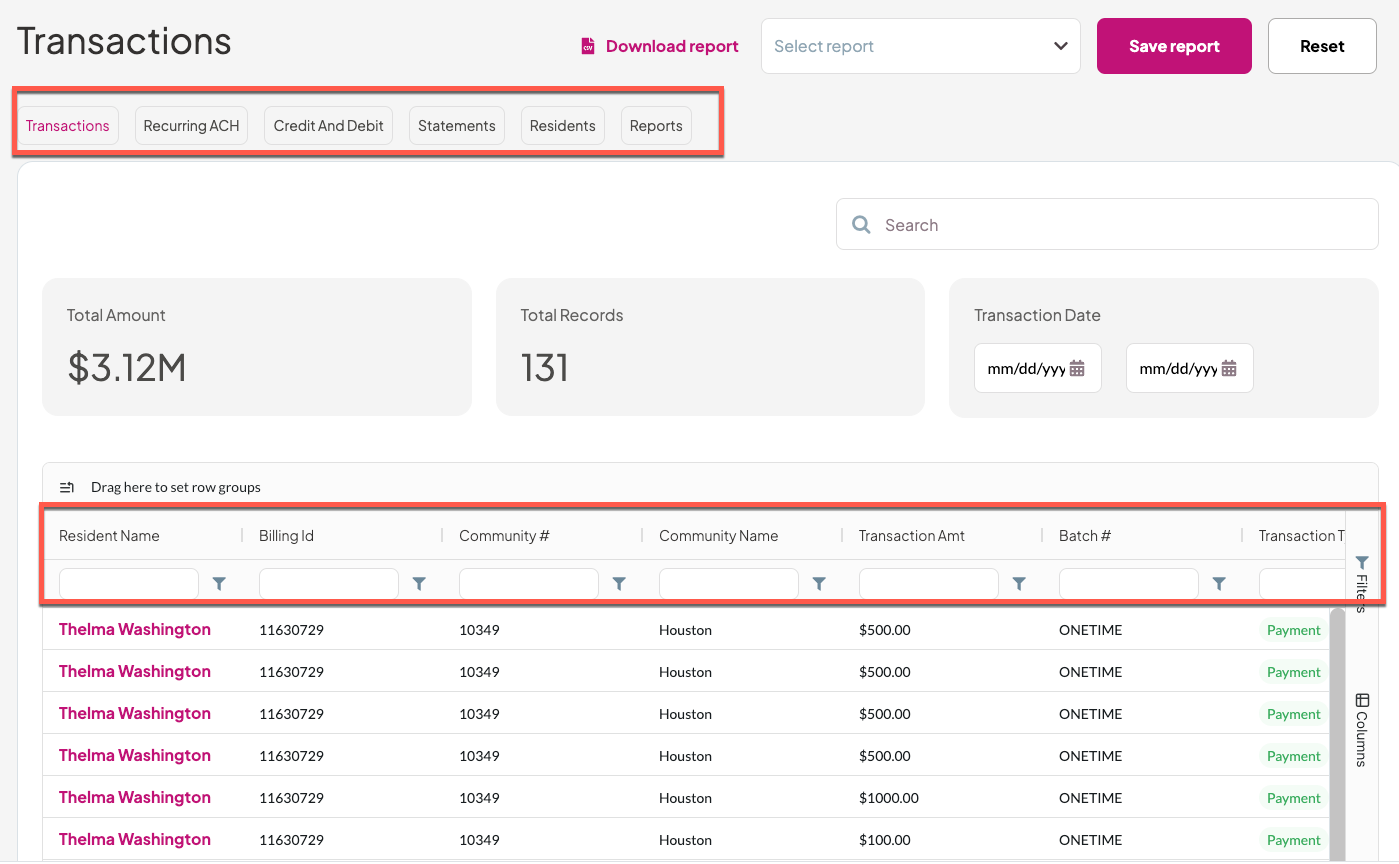
Step 2: The various reports will display for selection, including: Transactions, Recurring ACH, Credit and Debit, Statements, and Residents reports. Select any of the reports to view the included data. Reports can be filteres by any of the included column headers.
Note: Some reports, like the Transactions Report pictures below, also include date ranges to select in addition to the included column headers.
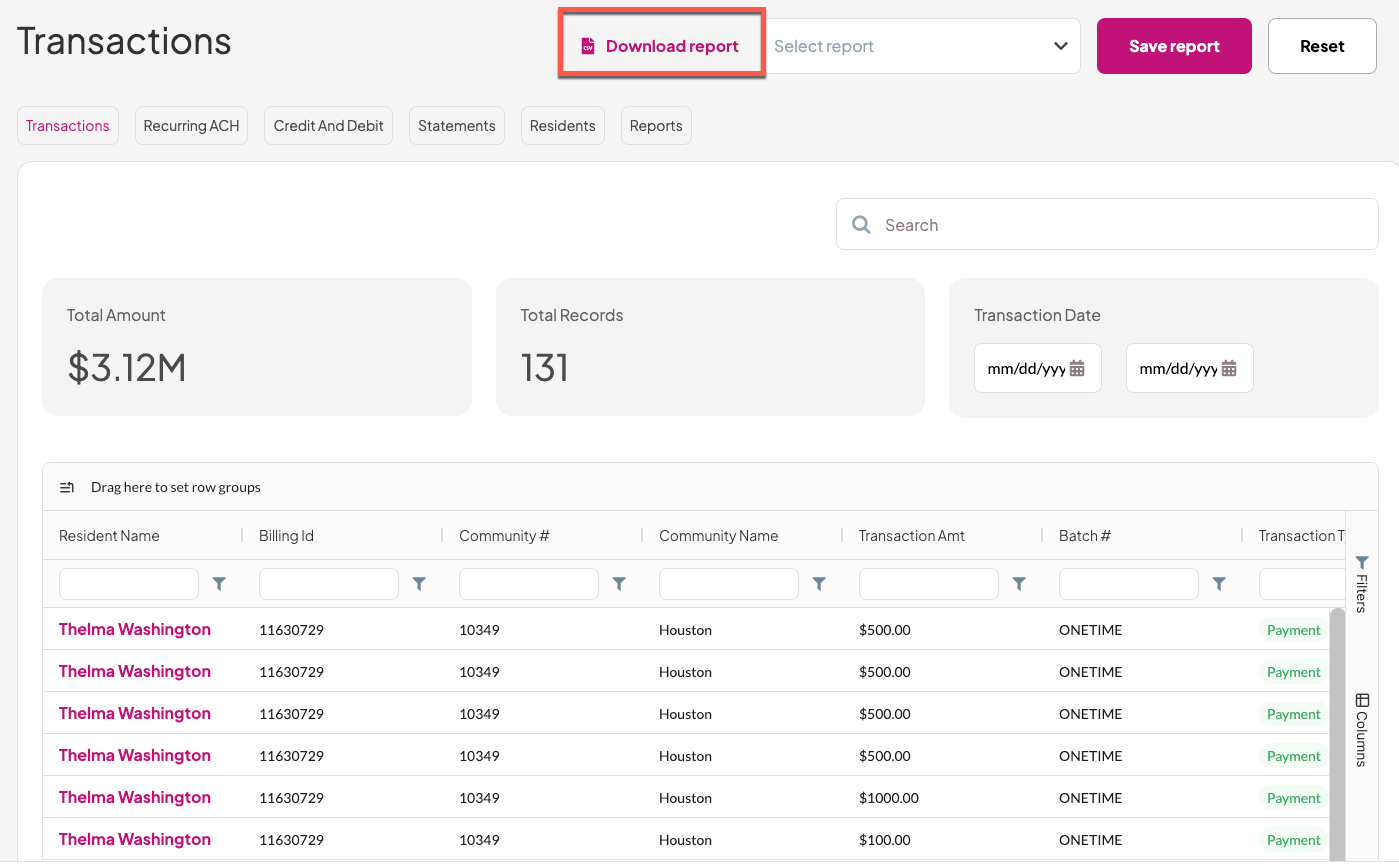
Step 3: The various reports will display for selection, including: Transactions, To export the report into Excel format, simply select 'Download report'. The report will then download to your device.
Was this article helpful?
That’s Great!
Thank you for your feedback
Sorry! We couldn't be helpful
Thank you for your feedback
Feedback sent
We appreciate your effort and will try to fix the article