Overview
In this article, we will discuss the steps required to set up a recurring payment on a resident profile in Aline Revenue. Recurring payments will feed into the Aging Report and bulk payments.
Steps to Set Up a Recurring Payment
Step 1: Navigate to the desired resident profile.
Step 2: Scroll down to the Resident Activity module. Beneath the resident's Monthly Responsibility grid, any active recurring payments will be listed.
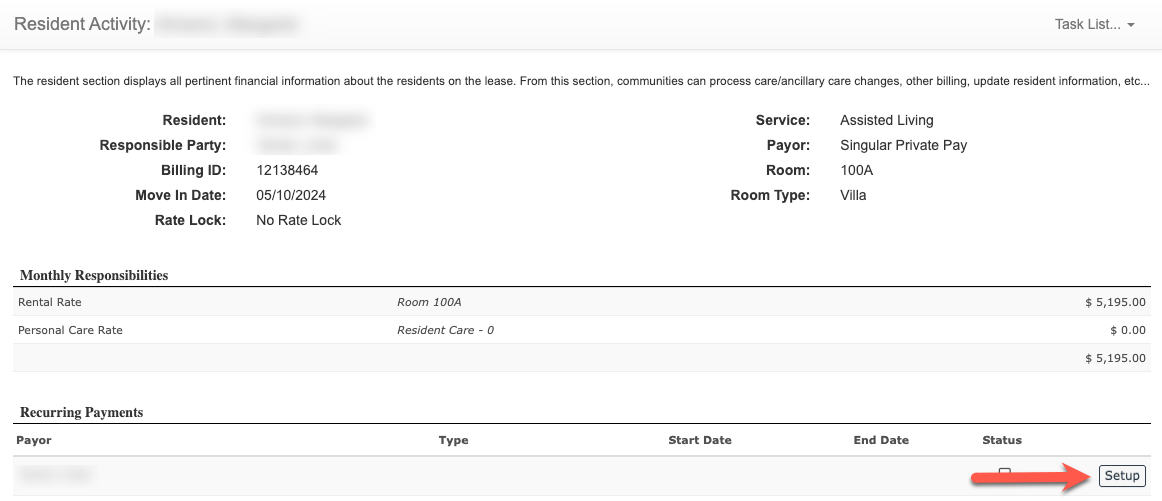
Step 3: To set up a new recurring payment, select "Setup".
Step 4: Select the Type of recurring payment.
Step 5: Enter the Start Date and End Date for the recurring payment.
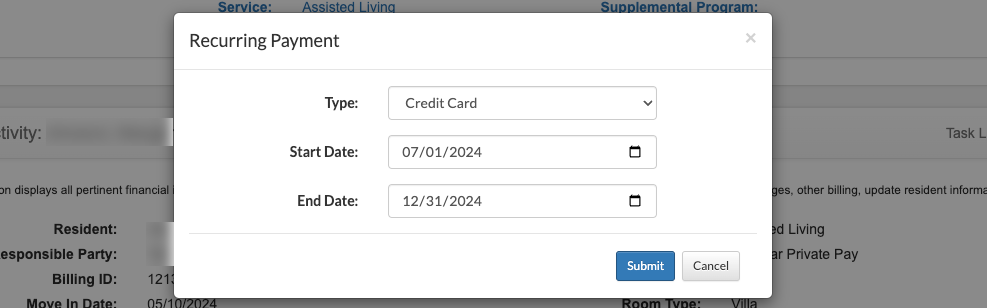
Step 6: Select "Submit" to save the new recurring payment.

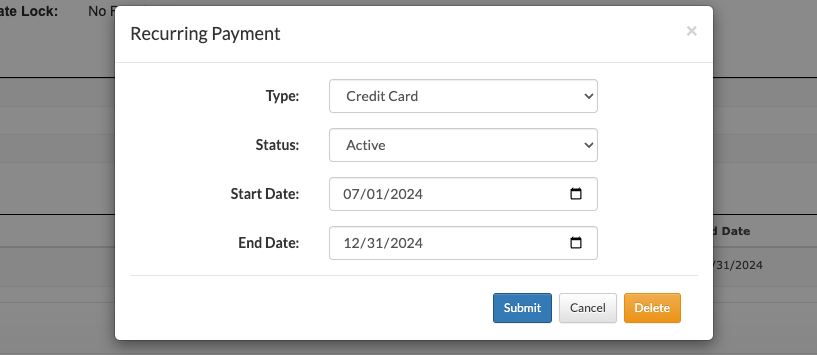
Please note: recurring payments can also be edited, or deleted, by selecting "Edit" on the existing recurring payment.
Was this article helpful?
That’s Great!
Thank you for your feedback
Sorry! We couldn't be helpful
Thank you for your feedback
Feedback sent
We appreciate your effort and will try to fix the article