Overview
In this article, we'll discuss the steps necessary for viewing and adding Resident Notes on a resident profile in Aline Revenue.
Steps to View a Resident Note
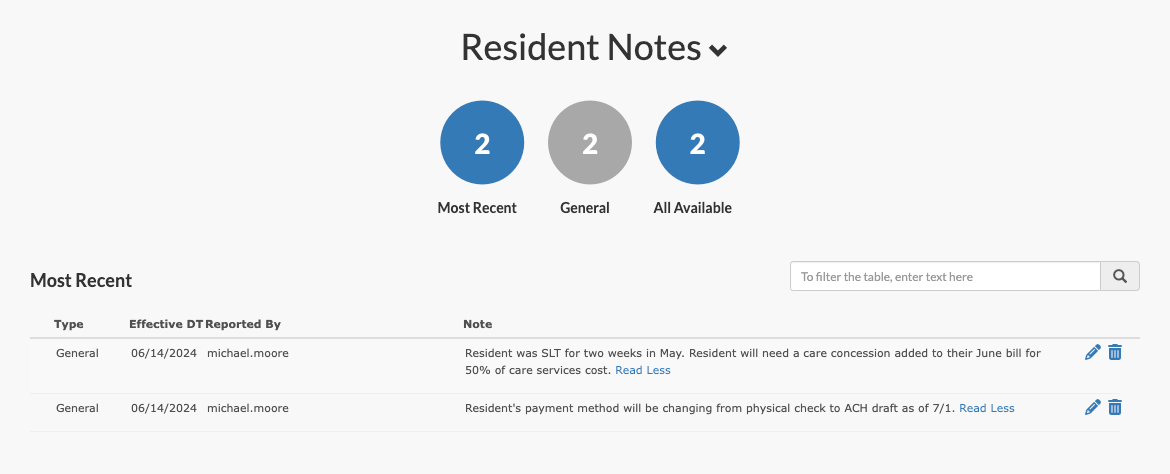
Step 1: Navigate to the desired resident profile.
Step 2: Scroll down to the Resident Notes feature.
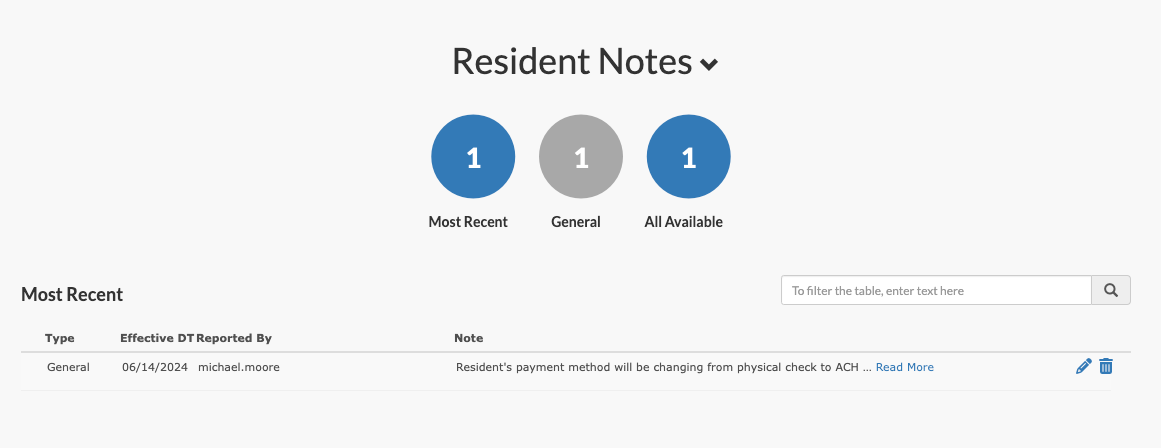
Step 3: All resident notes will be listed here. Notes can be sorted by selecting a specific note type, such as General, or searched for using the included search box.
Steps to Add a Resident Note
Step 1: Navigate to the desired resident profile.
Step 2: Scroll down to the Resident Notes feature.
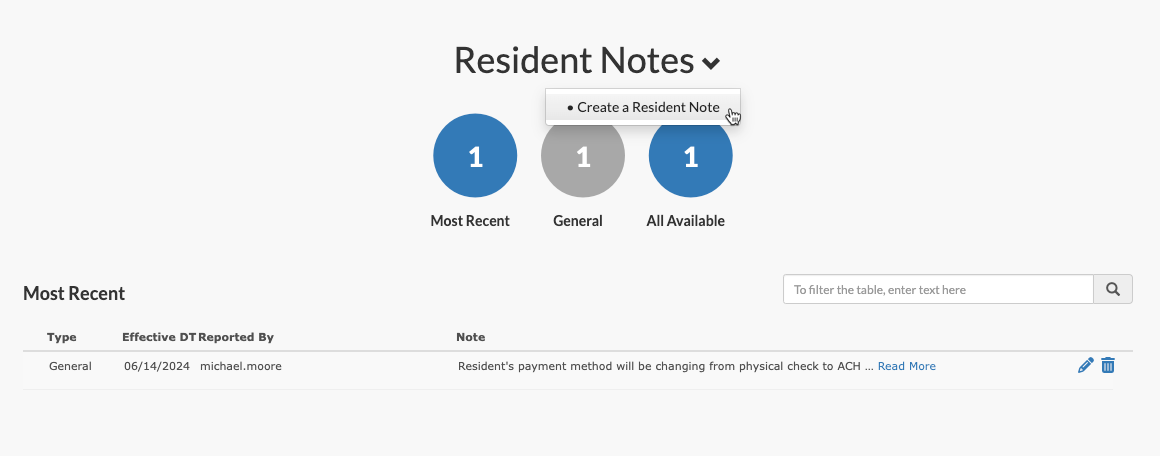
Step 3: Select the down arrow next to Resident Notes and then select "Create a Resident Note".
Step 4: On the Create a Resident Note page, enter in the effective date and time the note should be added for.
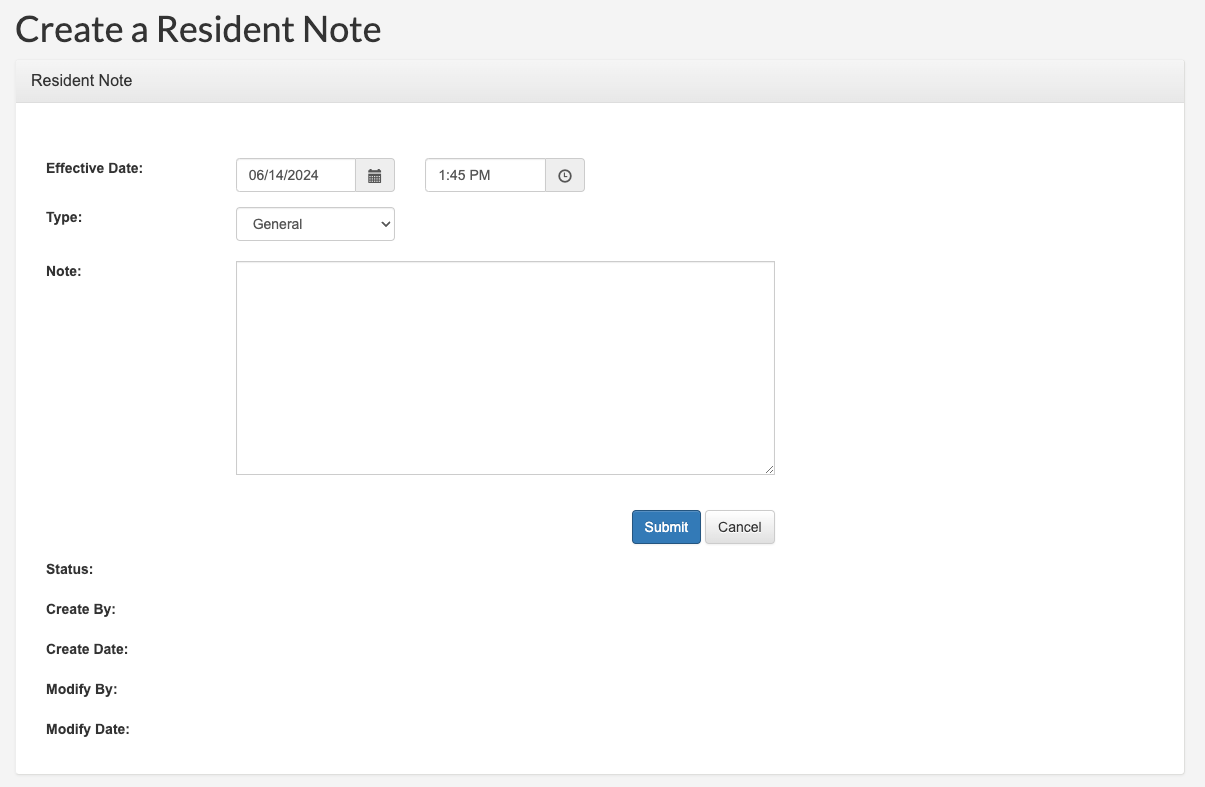
Step 5: Select the Note Type. Note Types will vary from organization to organization.
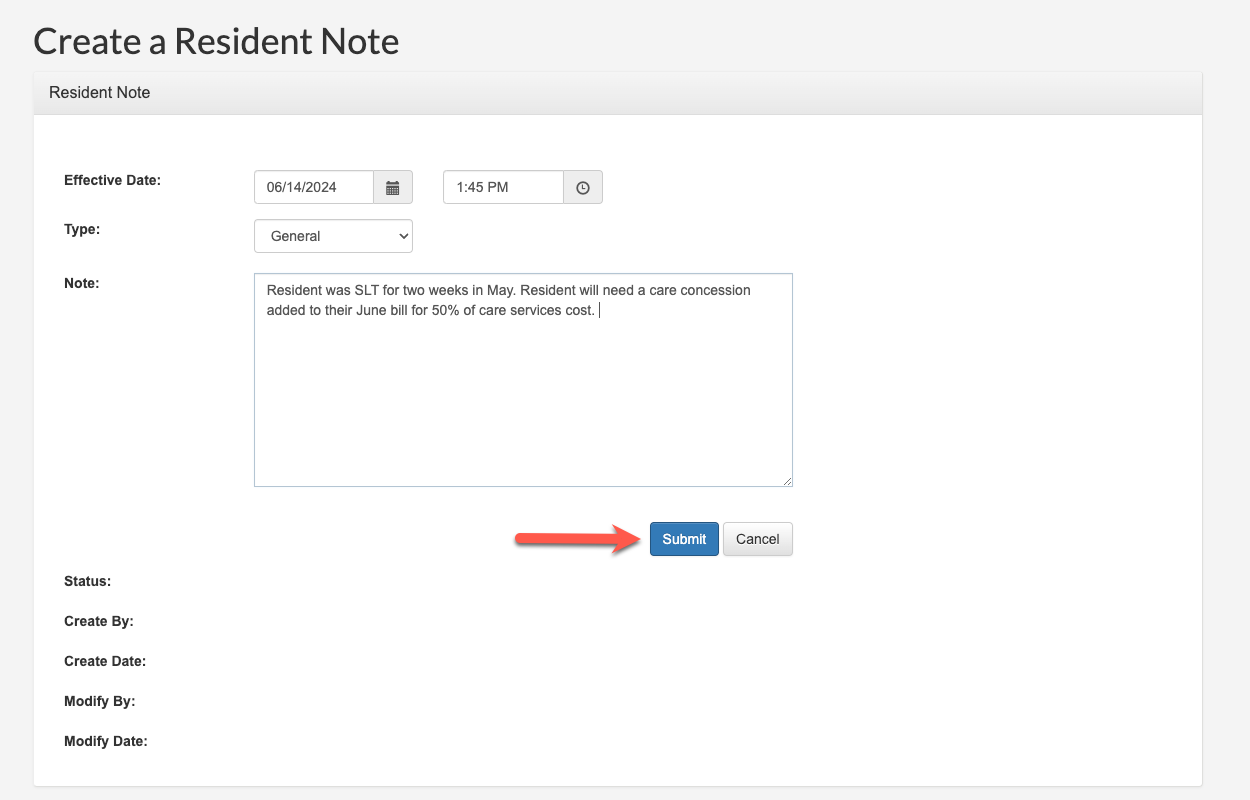
Step 6: Enter the text of the note.
Step 7: Select "Submit" to save the new note to the resident's profile.
Step 8: The note is now viewable on the resident profile.
Was this article helpful?
That’s Great!
Thank you for your feedback
Sorry! We couldn't be helpful
Thank you for your feedback
Feedback sent
We appreciate your effort and will try to fix the article