Overview
In this article, we will review the Other Billing feature within the Aline Revenue application along with the steps necessary to manage a resident's one-time / recurring monthly Other Billing items.
Other Billing Basics
In this section, let's take a look at the Other Billing Dashboard located on each resident's profile within the Aline Revenue application. To begin, below are the steps to access Other Billing:
Step 1: From the Aline Revenue dashboard, select the desired resident.
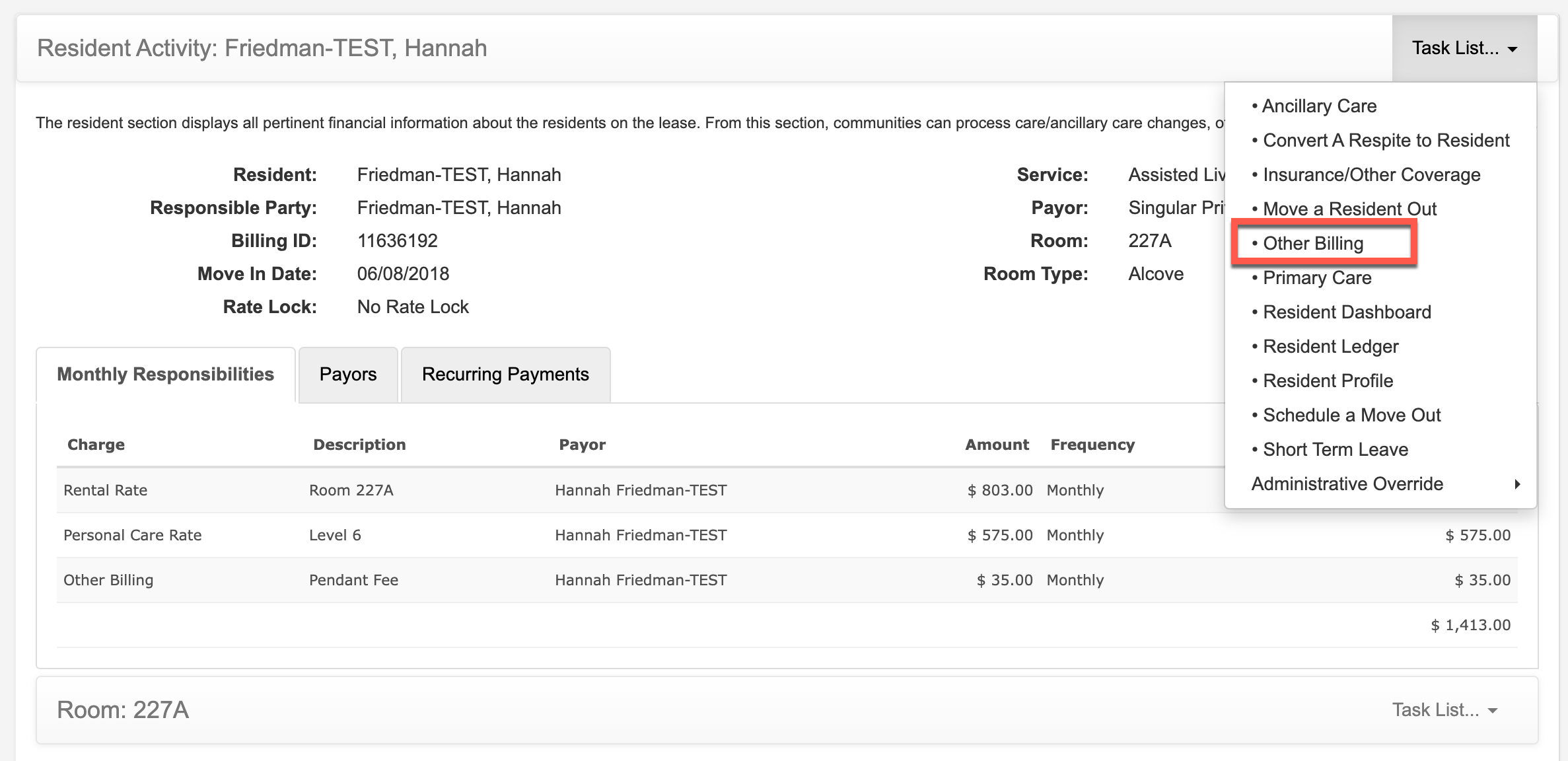
Step 2: On the resident profile, scroll down to the Resident Activity panel and then select the Task List Menu.
Step 3: Select "Other Billing".
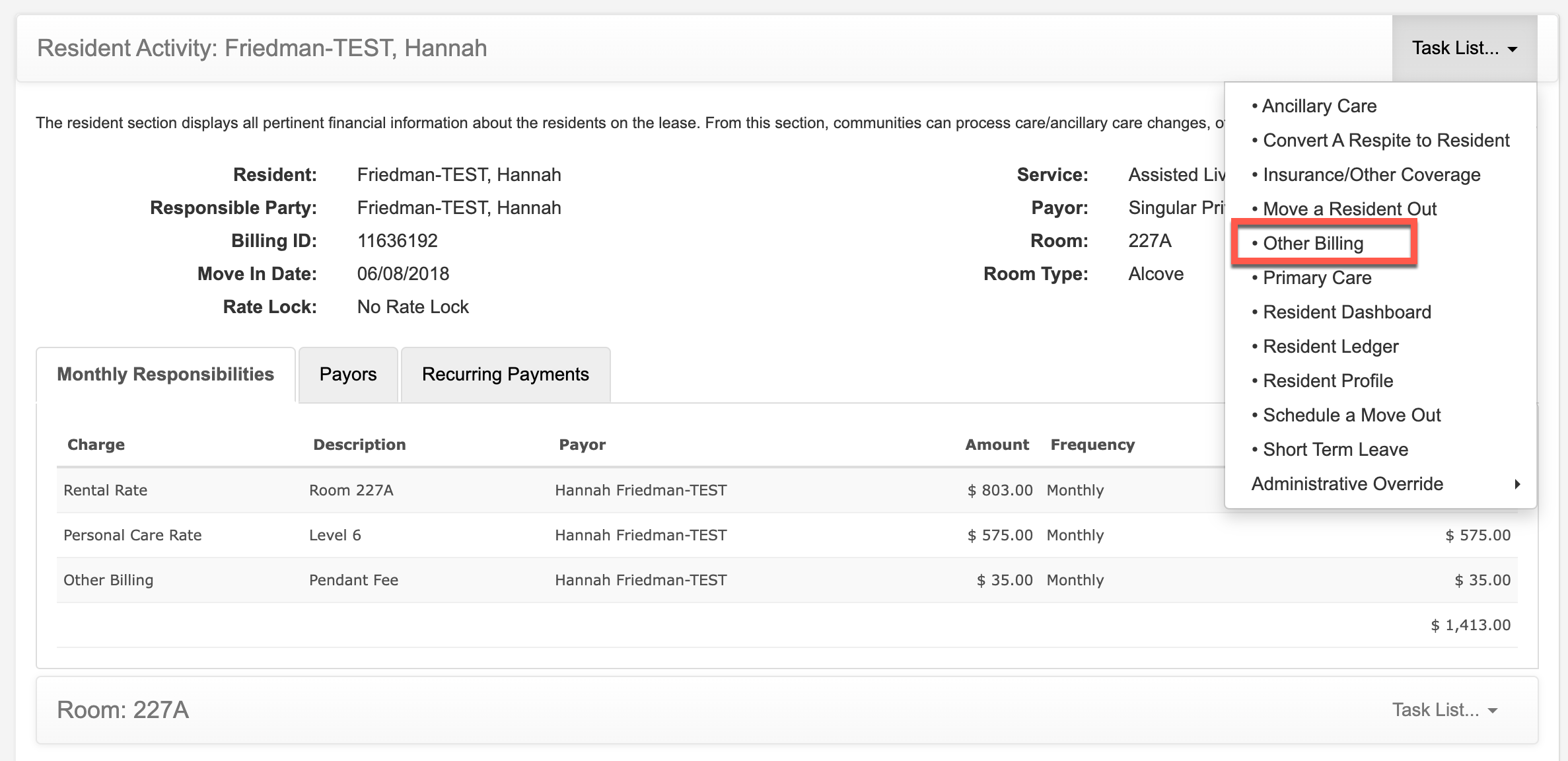
Step 4: From the Other Billing dashboard, previously billed one-time or recurring monthly items can be reviewed and managed. In addition, new one-time or monthly recurring items can continually be added to the resident's bill.

- Selecting the Other Billing Tab displays all current one-time and monthly recurring charges that have not been processed (included in a monthly statement).
- Selecting the Recurring Tab displays all recurring monthly Other Billing series.
- Selecting the "Add" button allows users to add new Other Billing items to a resident's profile.
- Selecting the "Edit" button allows users to edit previously added Other Billing entries.
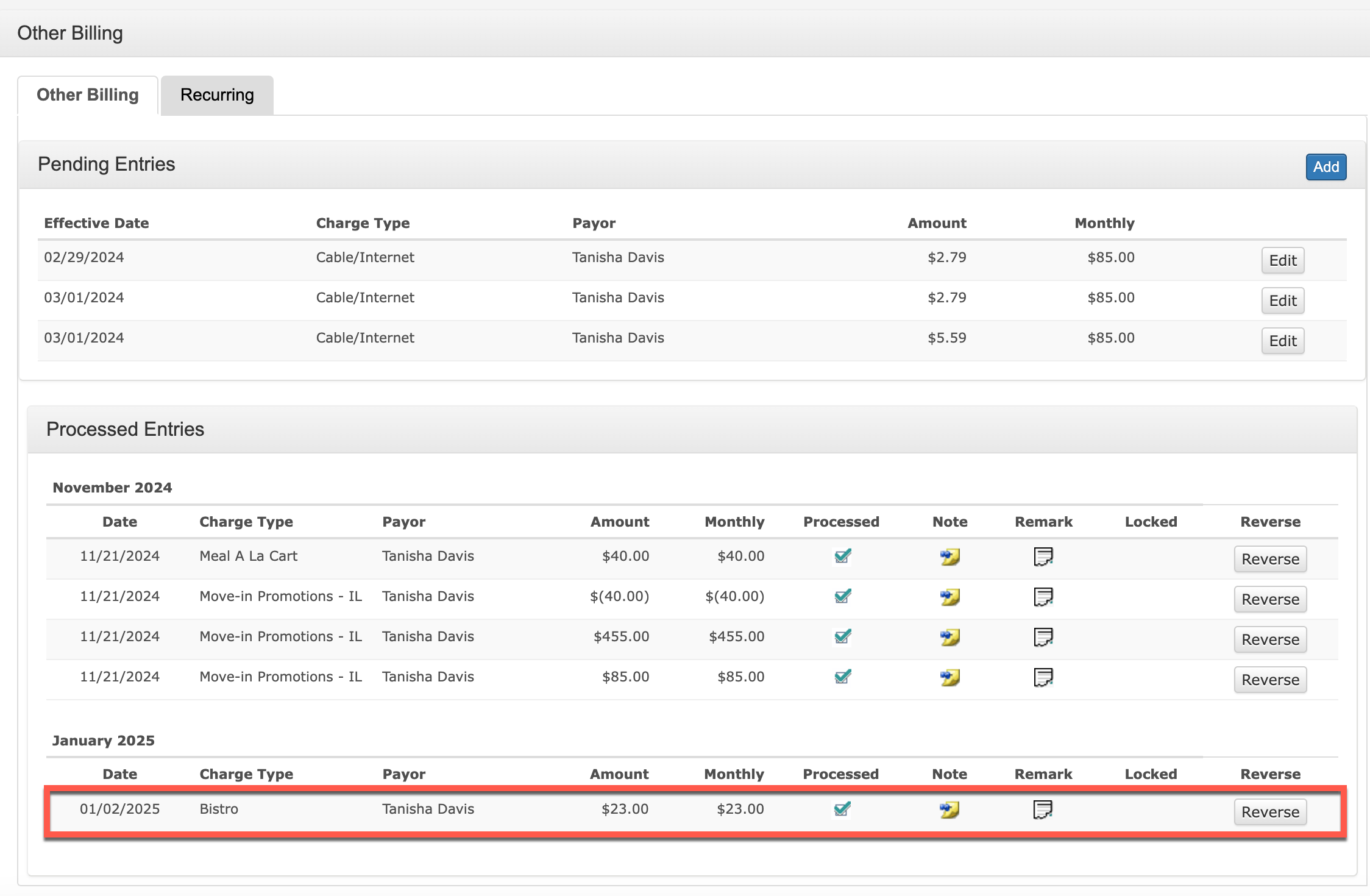
- Processed Entries displays all one-time and monthly recurring charges that have already been processed (included in a monthly statement).
- Selecting "Reverse" allows users to reverse the process charge and credit the charged amount back to the resident's account.
Adding a One-Time Other Billing Item
In this section, let's take a look at adding a one-time Other Billing item to a resident's account.
Step 1: From the Aline Revenue dashboard, select the desired resident.
Step 2: On the resident profile, scroll down to the Resident Activity panel and then select the Task List Menu.
Step 3: Select "Other Billing".
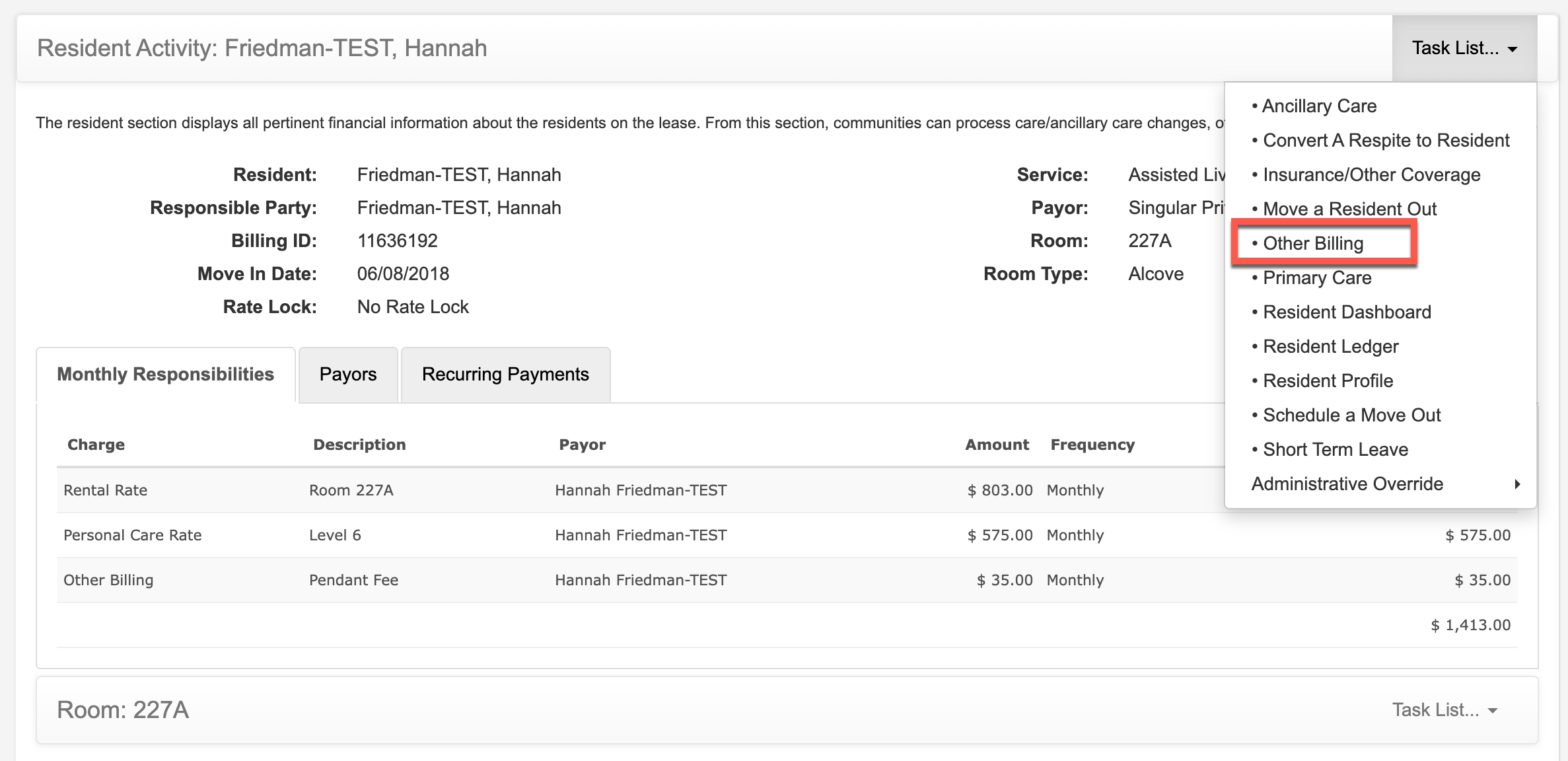
Step 4: To add a one-time Other Billing item, select the "Add" button.
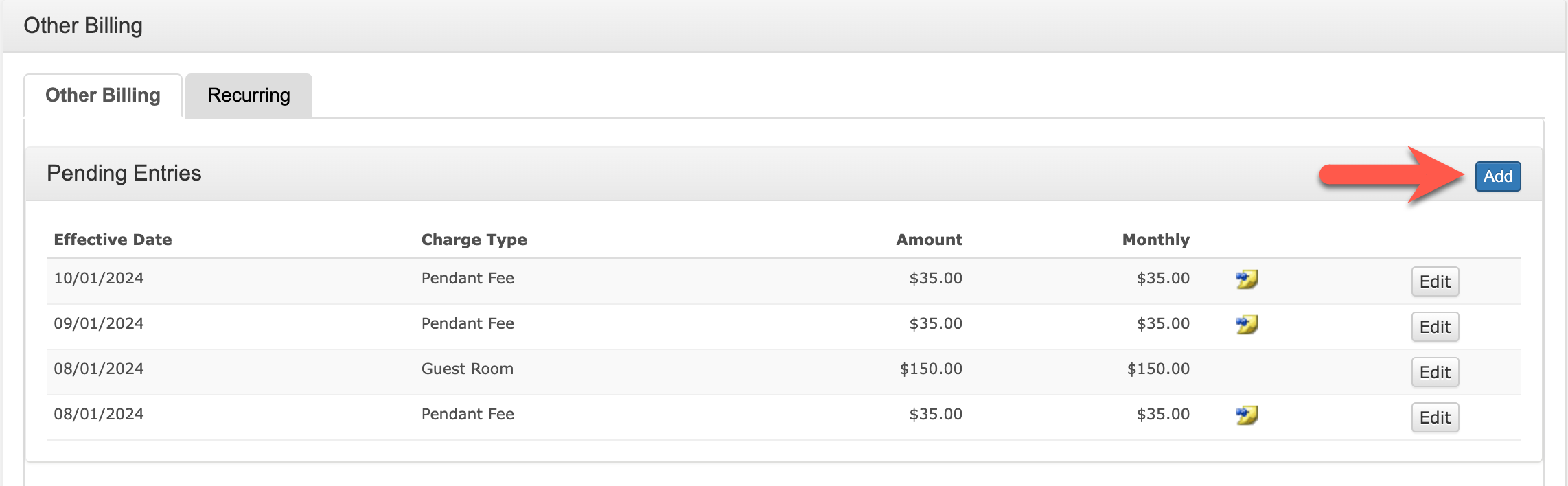
Step 5: Select a Transaction Type from the dropdown menu. These Transaction Types will be limited to one-time transactions. Transaction Types can be specific to organizations or even specific communities.
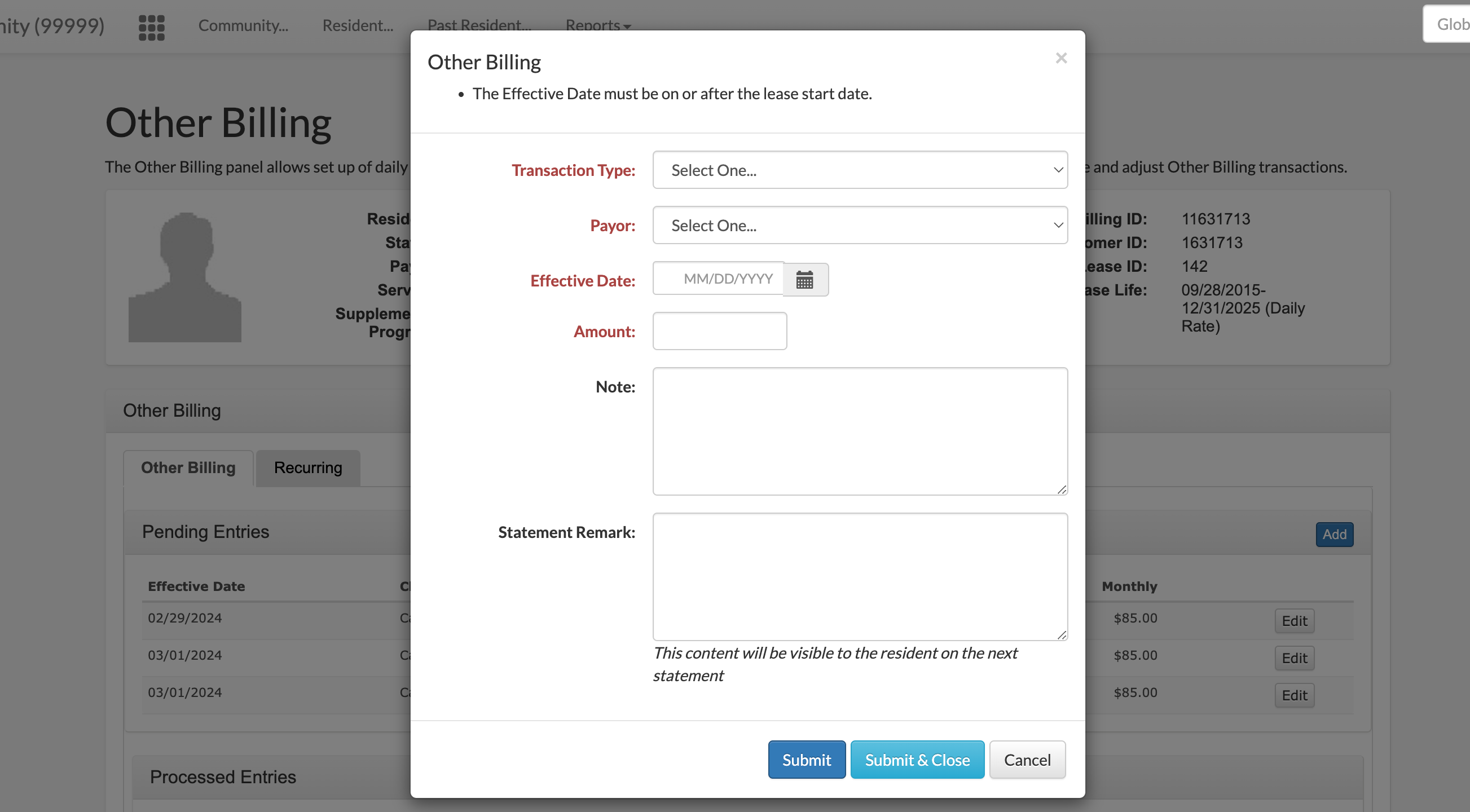
Step 6: Enter the Payor. This may be the resident, the responsible party, or any interested parties that have been added to the resident's contacts.
Step 7: Enter in the Effective Date. The Effective Date dictates which accounting period the item will bill for. Other Billing items with an Effective Date for future accounting periods will be billed for during that specific accounting period. The Effective Date also incorporates prorations when prorations are configured for the given transaction type.
Step 8: Enter the Amount. Some Transaction Types may have preconfigured amounts that auto-populate into the amount field whereas other Transaction Types require an amount to be entered.
Step 9 (Optional): Enter an optional Note or Statement Remark. Adding a Note will save the information on the Other Billing table for easy review. These notes are for internal reference and do not affect the statement directly. Conversely, adding a Statement Remark will include the remark onto the next round of statements.
Both note fields can be used concurrently or not at all.
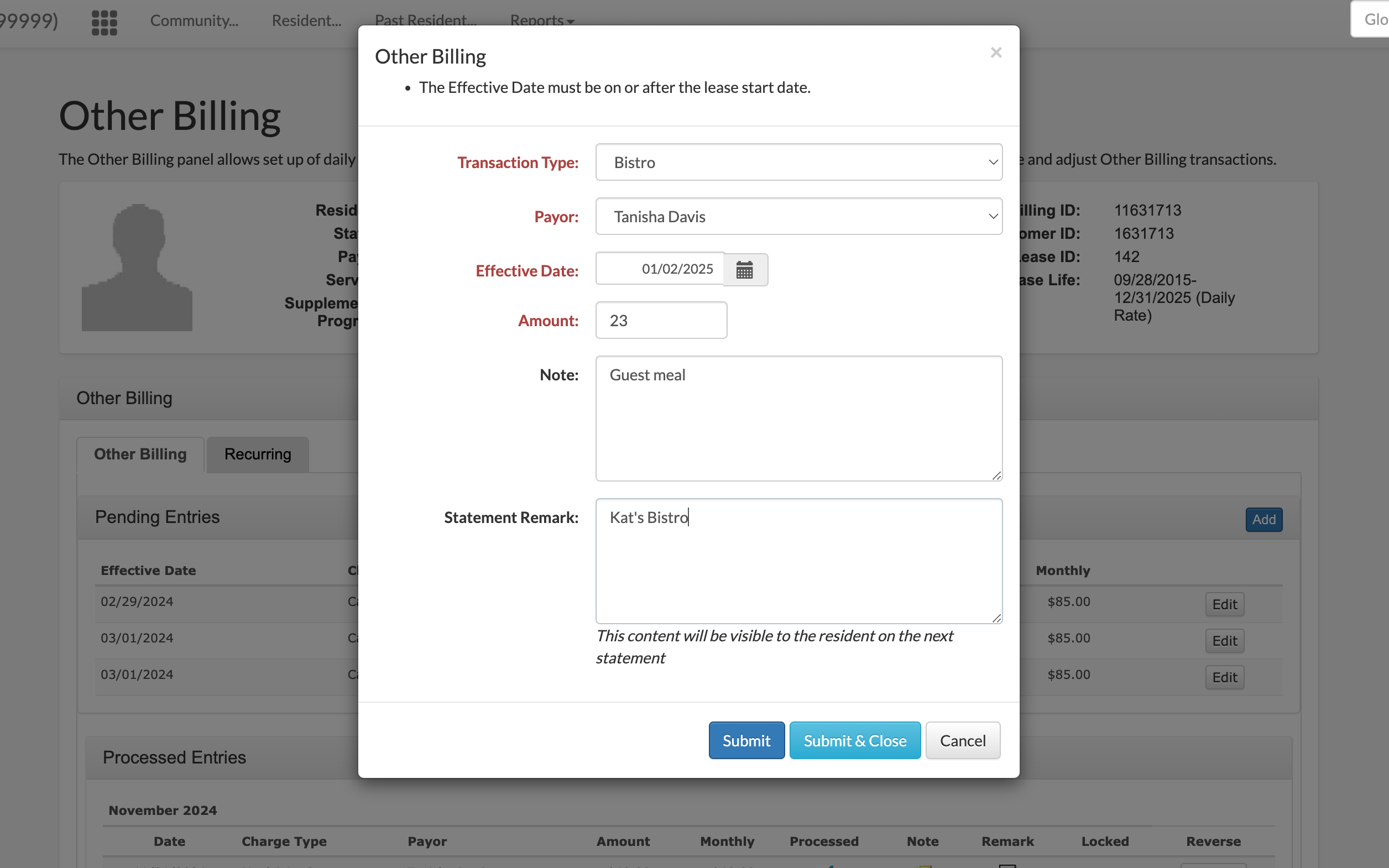
Step 10: Select "Submit & Close" to save the new entry.
Adding a Recurring Monthly Other Billing Item
In this section, let's take a look at adding a monthly recurring Other Billing item to a resident's account.
Step 1: From the Aline Revenue dashboard, select the desired resident.
Step 2: On the resident profile, scroll down to the Resident Activity panel and then select the Task List Menu.
Step 3: Select "Other Billing".
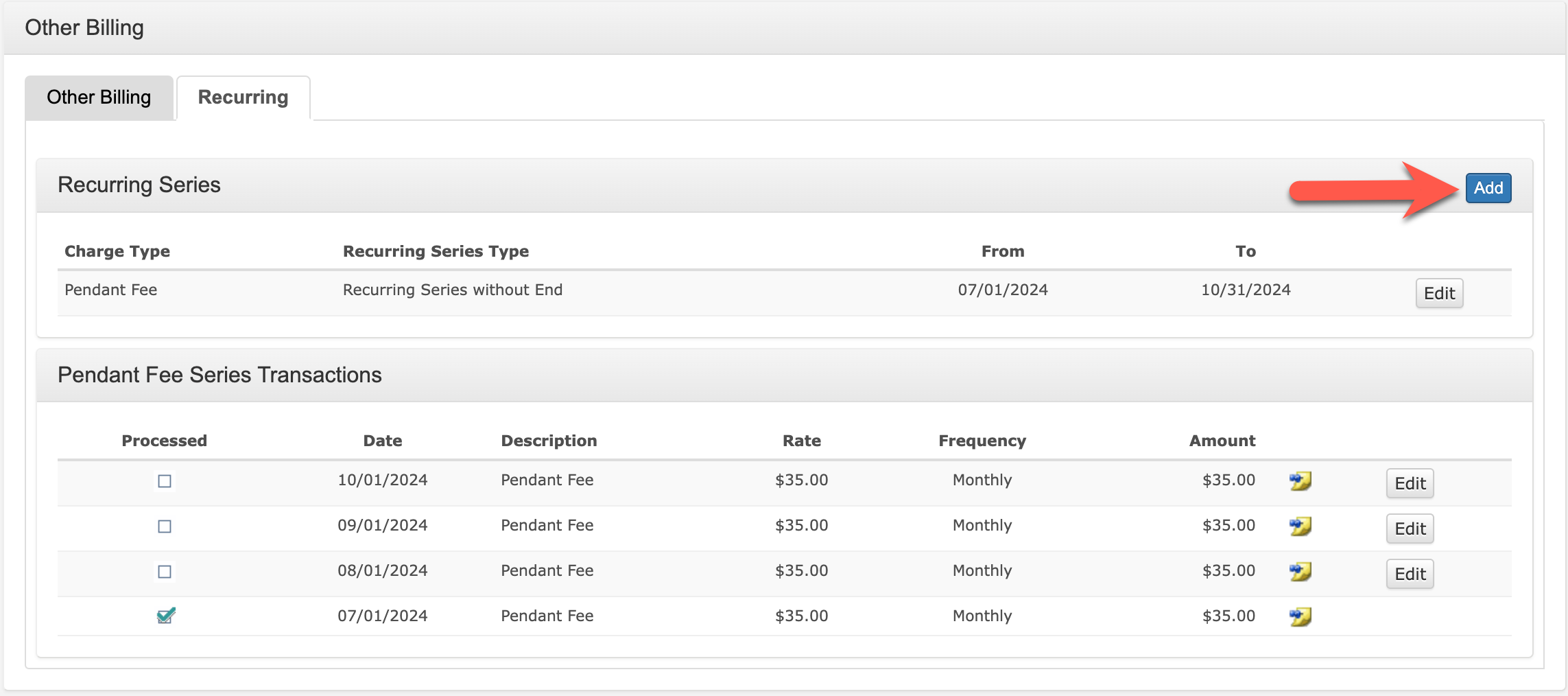
Step 4: To add a recurring monthly Other Billing item, first select the Recurring Tab.
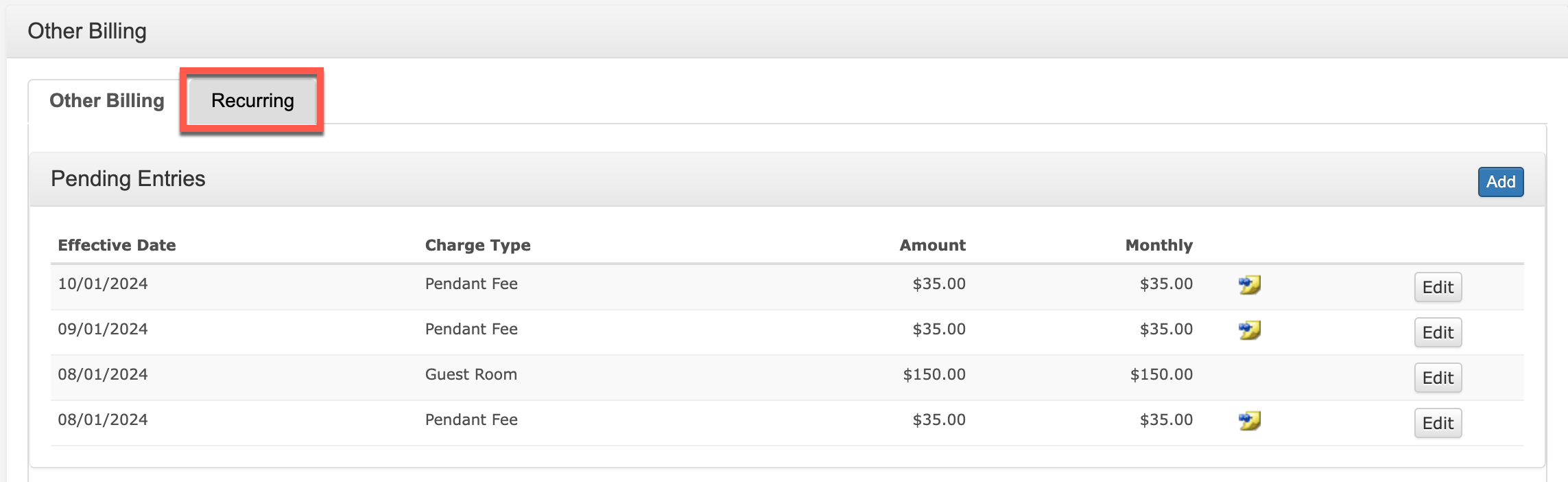
Step 5: The Recurring Tab will display any active Recurring Series previously added to the resident's profile along with each individual series transactions. To add a new monthly recurring Other Billing item, select "Add".
Step 6: Select a Transaction Type from the dropdown menu. These transactions will be limited to monthly recurring transactions. Transaction Types can be specific to organizations or even specific communities.
Step 7: Select the Payor. This may be the resident, the responsible party, or any interested parties that have been added to the resident's contacts.
Step 8: Select the Start Date. The Start Date dictates in which accounting period the item will begin billing for. Items with a Start Date for future accounting periods will begin billing during that specific accounting period. The Start Date also incorporates prorations when prorations are configured for the given transaction type.
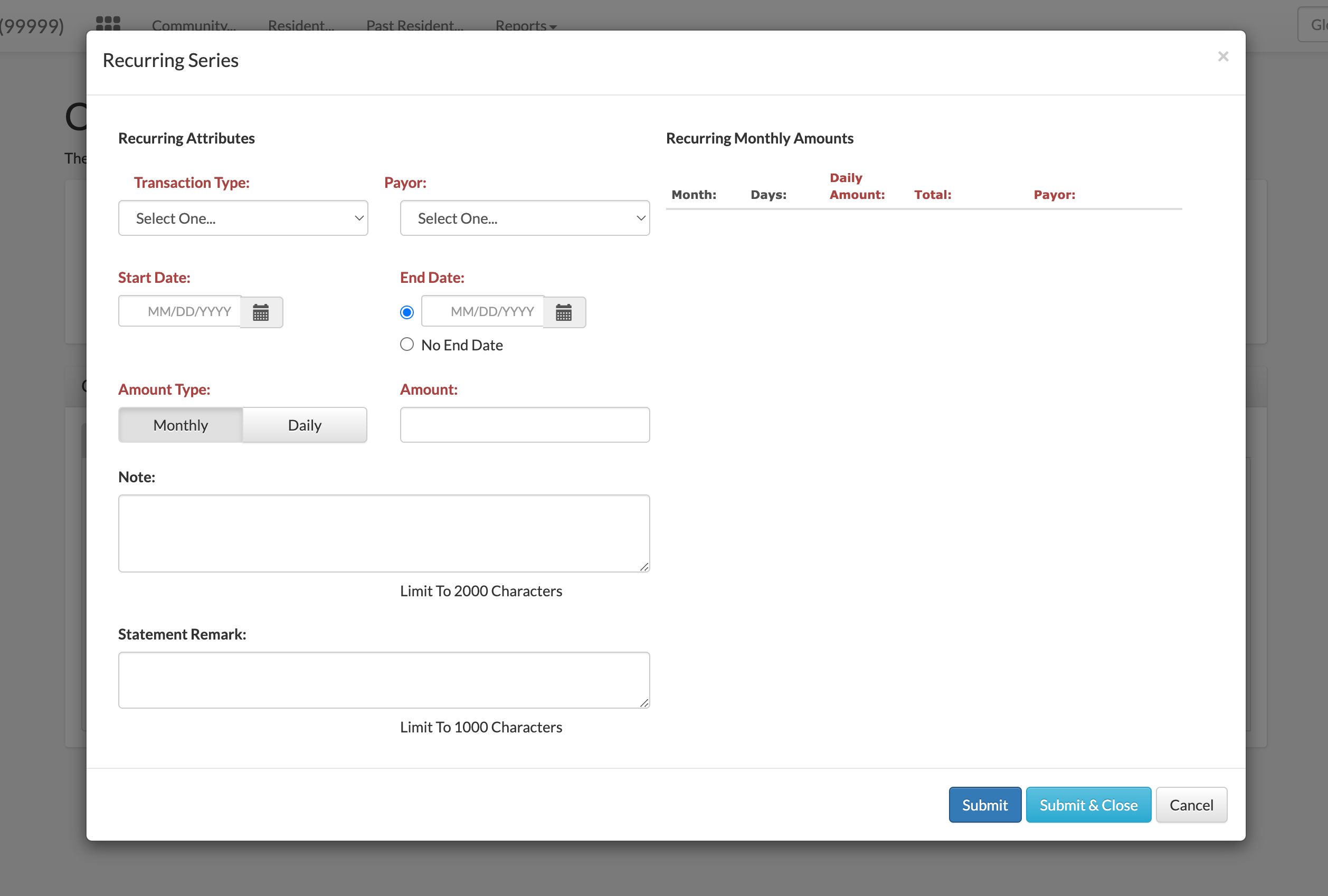
Step 9: Select an End Date OR select No End Date. The End Date dictates when the monthly recurring item should cease billing (1 three-month charge, for example) and will also incorporate prorations when prorations are configured for the given transaction type. Selecting No End Date will schedule the monthly recurring charge through to the end of the resident's current lease range.
Step 10: Select the Amount Type - either Monthly OR Daily. Monthly amounts will charge the flat monthly fee each month until the end date is reached whereas Daily amounts will charge the daily amount for each day of the given month until the end date is reached. A breakdown of these forecasted charges will display in the Recurring Monthly Amounts panel.
Step 11 (Optional): Enter an optional Note or Statement Remark. Adding a Note will save the information on the Other Billing table for easy review. These notes are for internal reference and do not affect the statement directly. Conversely, adding a Statement Remark will include the remark onto the next round of statements.
Both note fields can be used concurrently or not at all.
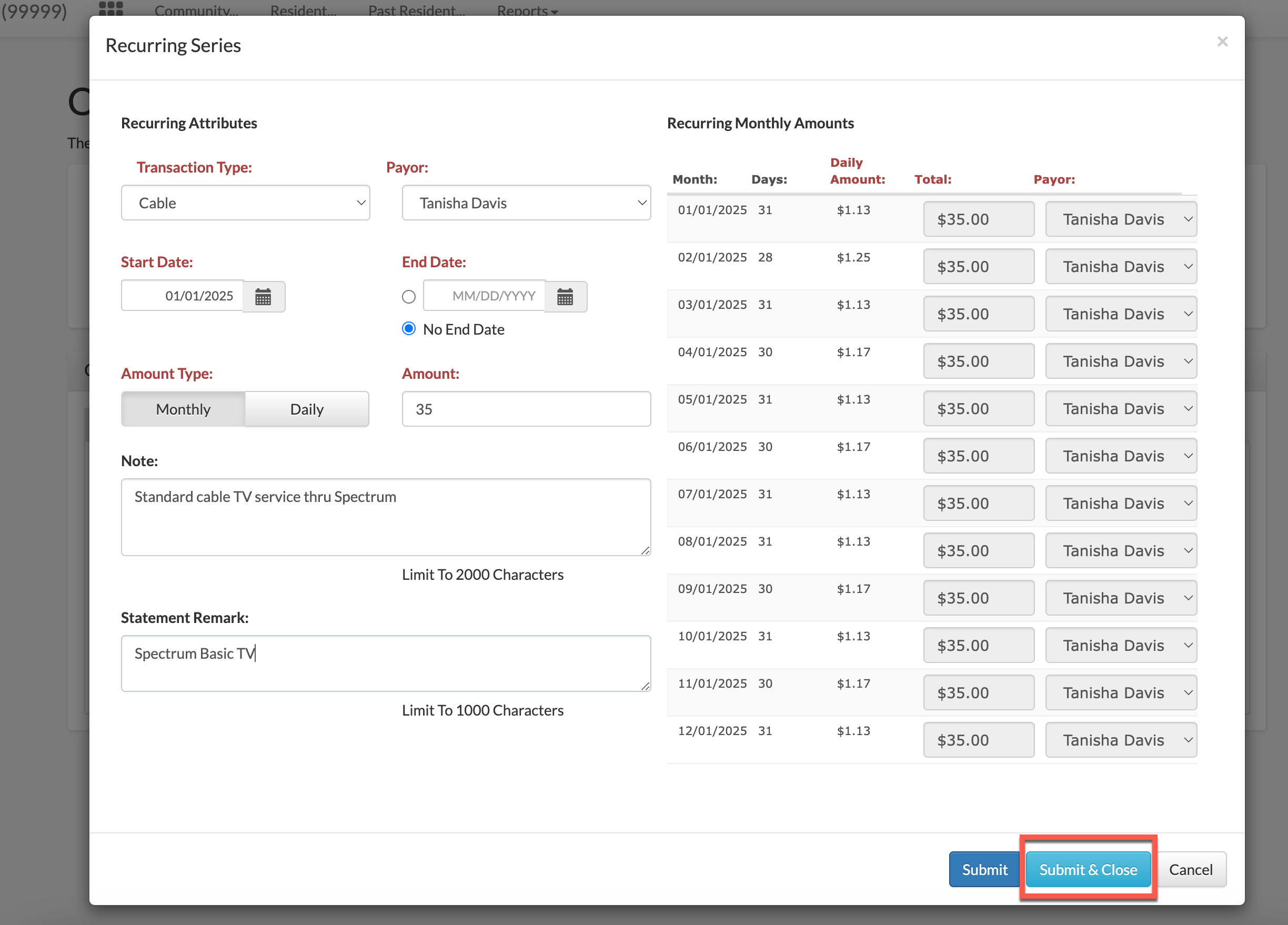
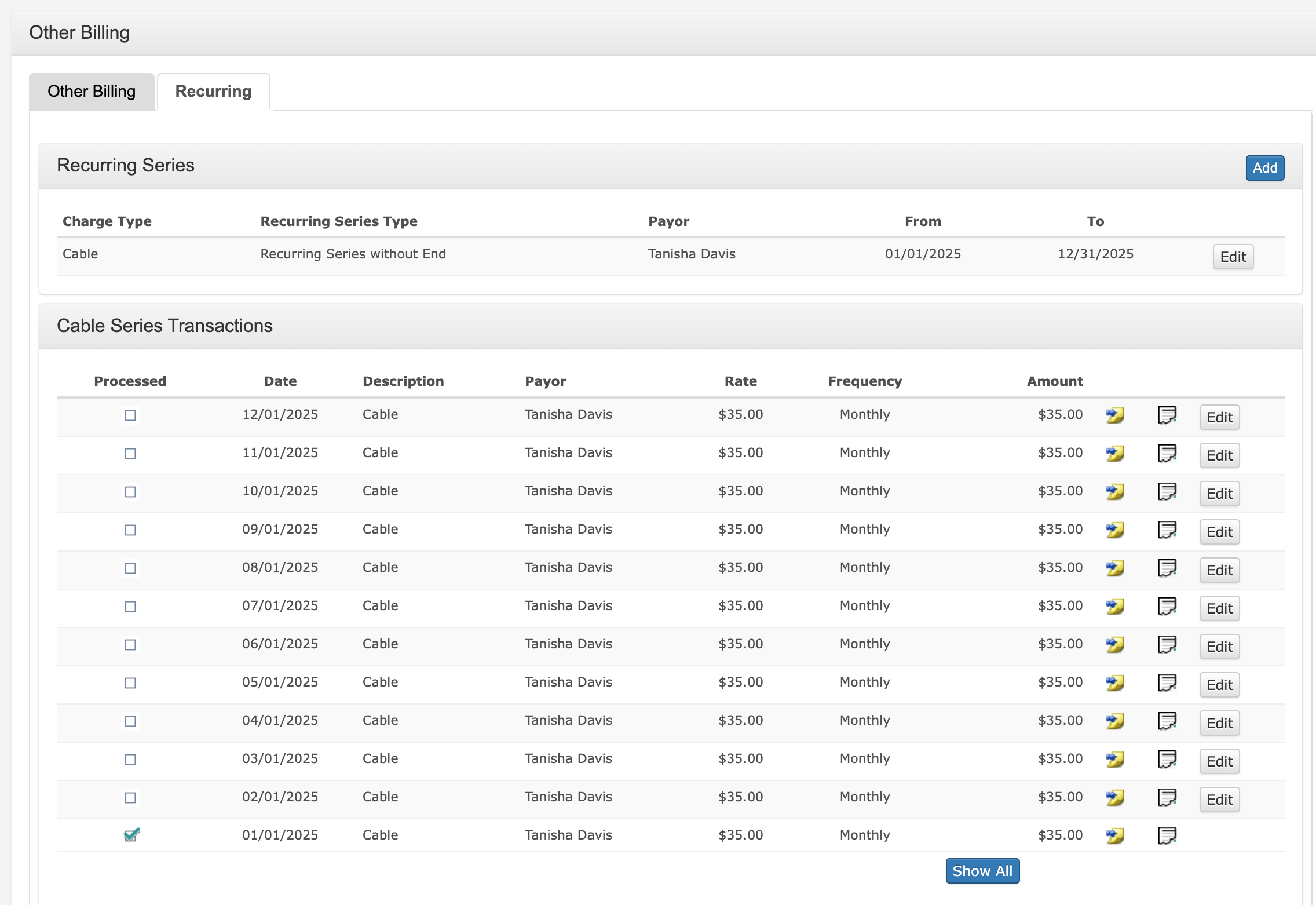
Step 12: Select "Submit & Close" to save the new entry.
Was this article helpful?
That’s Great!
Thank you for your feedback
Sorry! We couldn't be helpful
Thank you for your feedback
Feedback sent
We appreciate your effort and will try to fix the article