Overview
In this article, we'll review the Occupancy Report and the necessary steps for how to access, customize, and export the report.
Steps Required to Access & Run the Occupancy Report
While related to operations in the Aline Revenue application, the Occupancy Report is actually located outside of the application on the main Aline Suite Dashboard page.
Step 1: Log in to the Aline Suite.
Step 2: Select the Applications Menu.
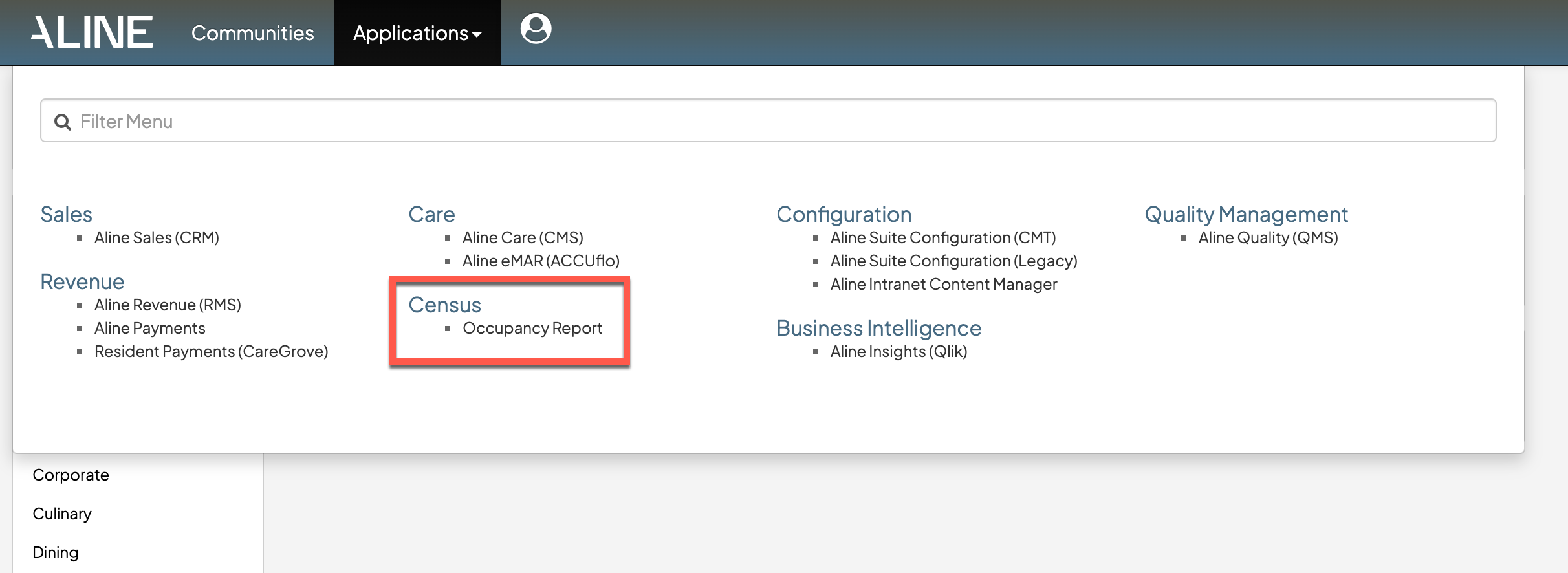
Step 3: Under the Census category, select "Occupancy Report".
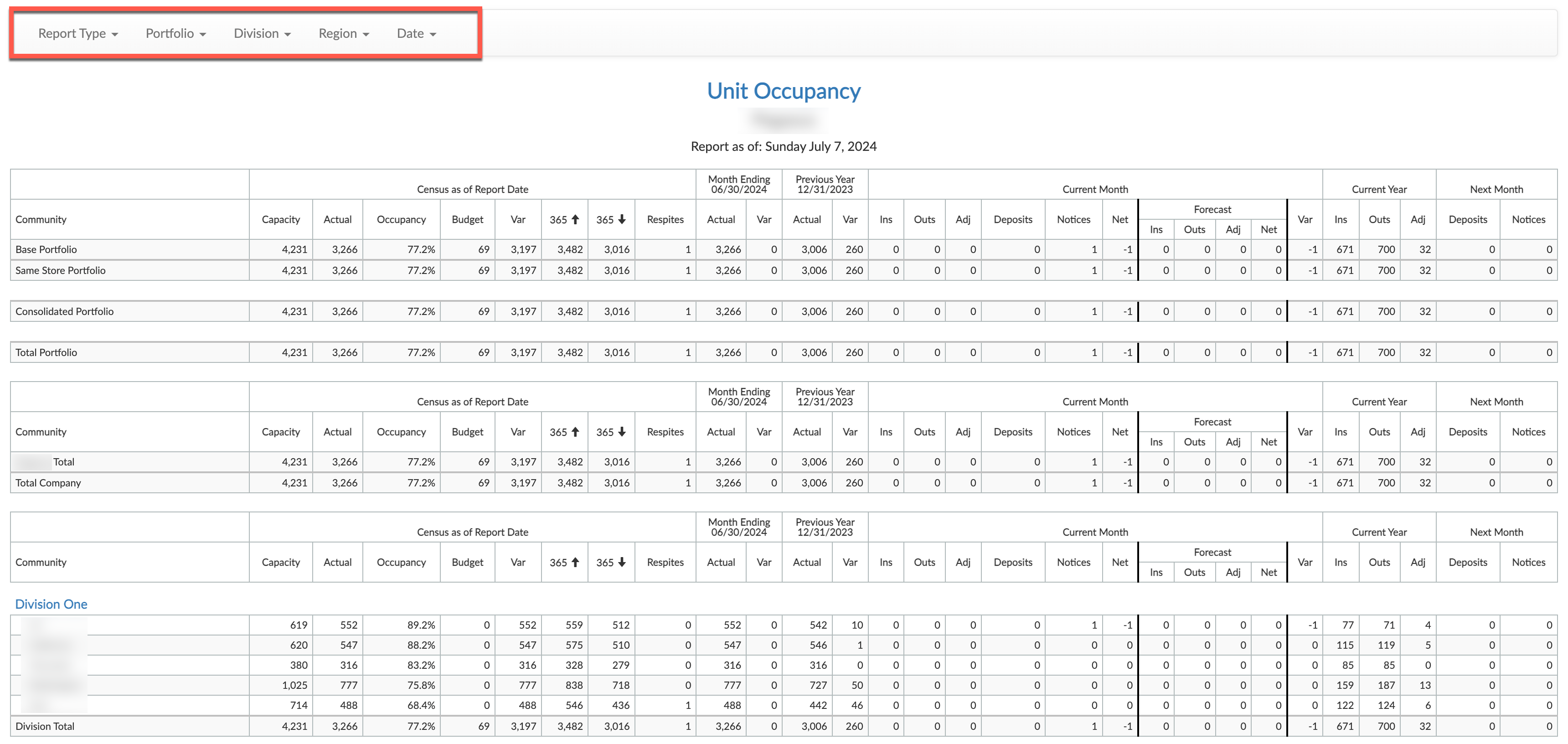
The default Occupancy Report will now display. The default Occupancy Report is Unit Occupancy. Selecting "Report Type" allows users to swap between reports for Unit Occupancy, Resident Occupancy, and Days of Occupancy. Additional filters, like Portfolio, Division, Region, and Date are available at the top of report.
Pertinent data displays in the corresponding tables below.
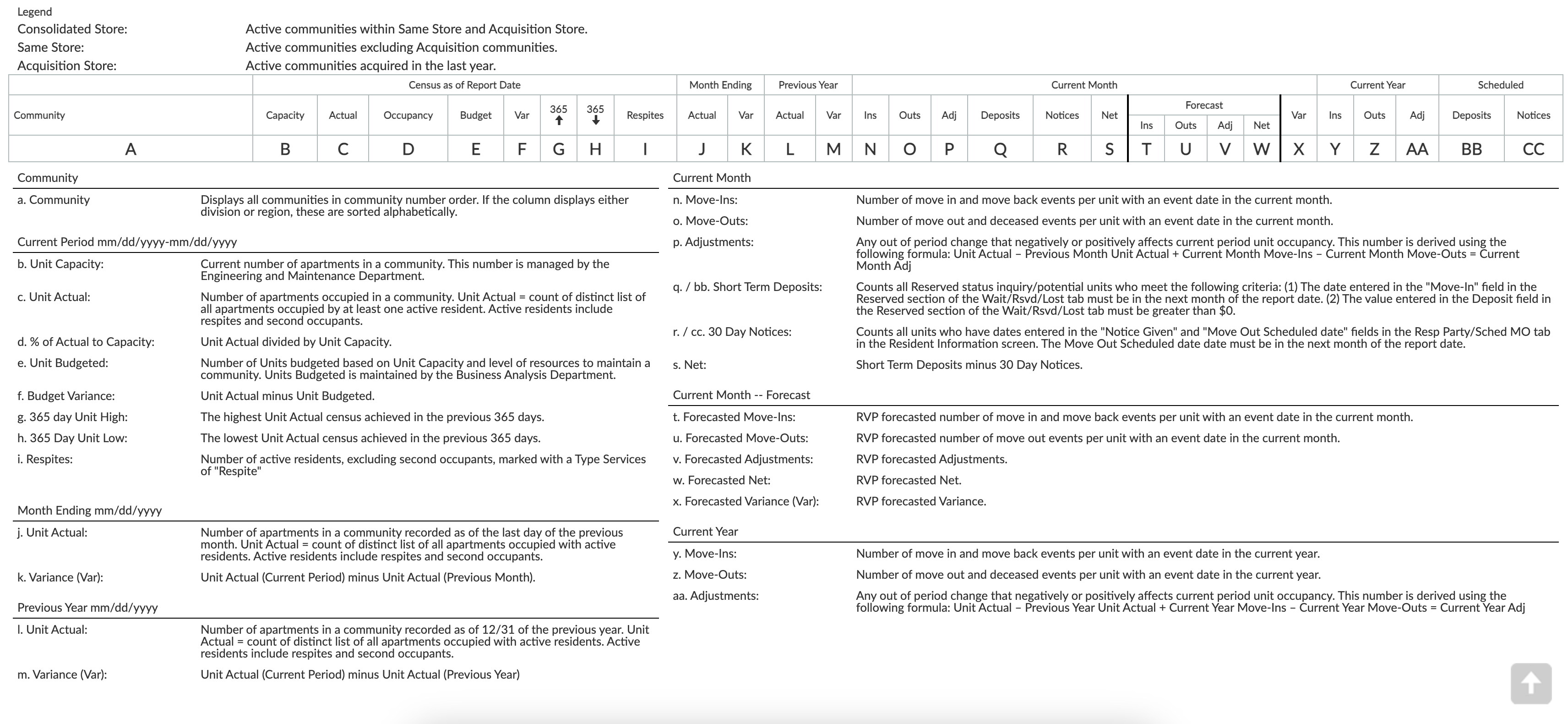
A detailed Report Legend will also display at the bottom of the report.
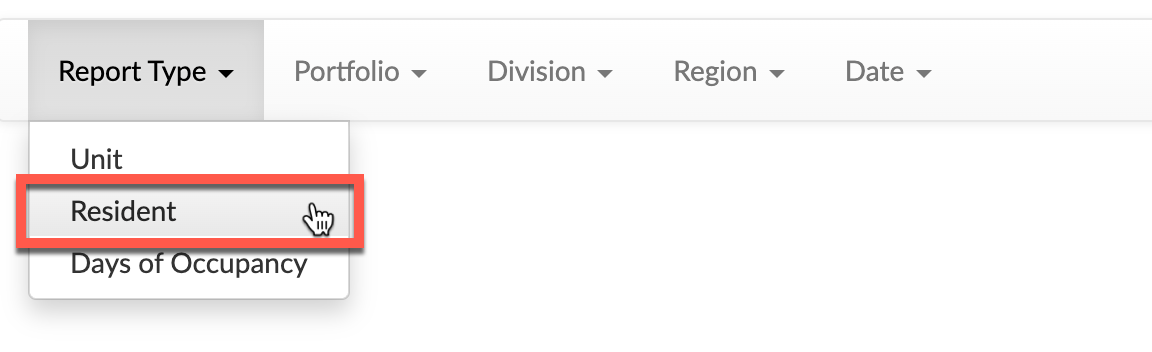
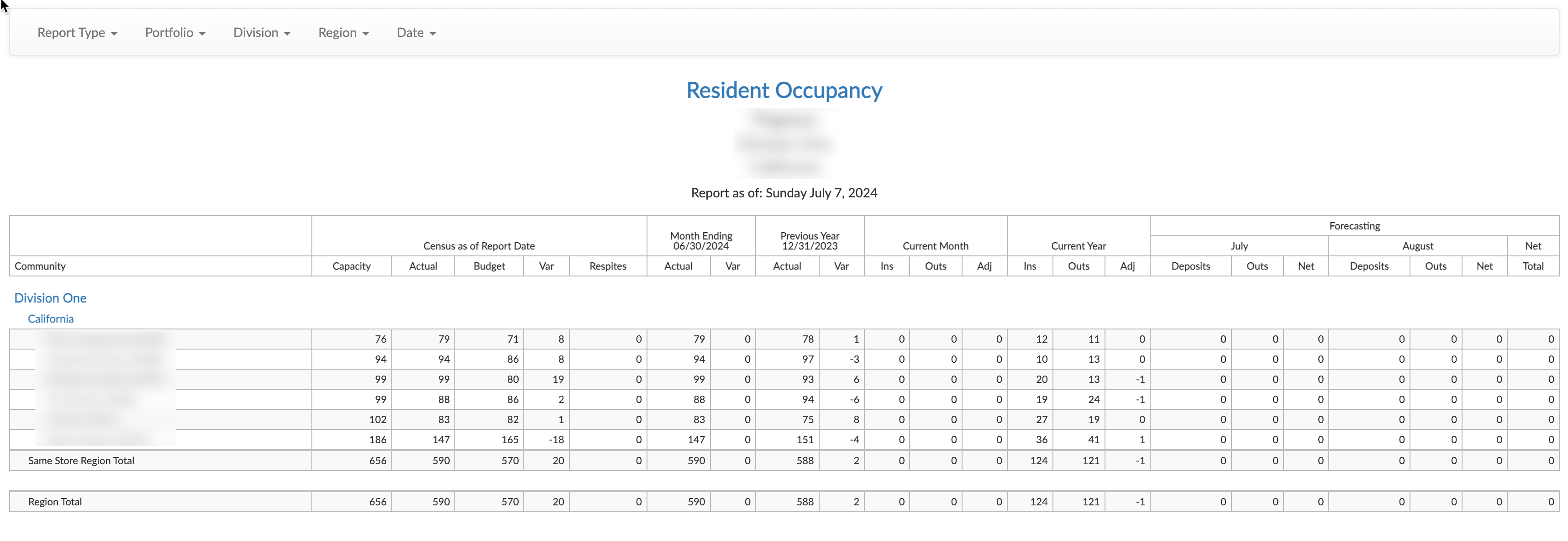
Step 4: To view the Resident Occupancy Report, select "Report Type" and then select "Resident".
Step 5 (Optional): Utilize the Portfolio, Division, Region, and Date filters as necessary.
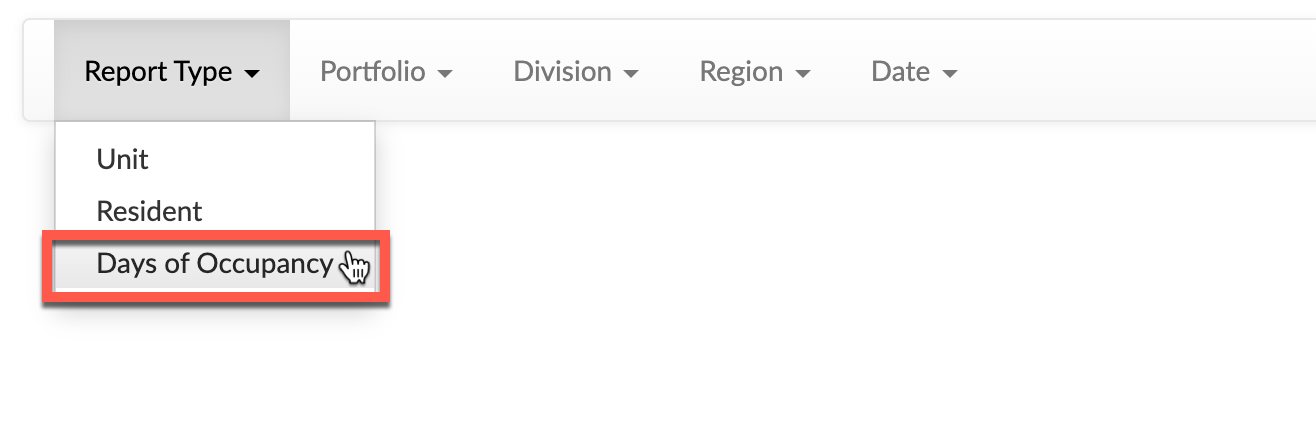
Step 6: To view the Days of Occupancy Report, select "Report Type" and then select "Days of Occupancy".
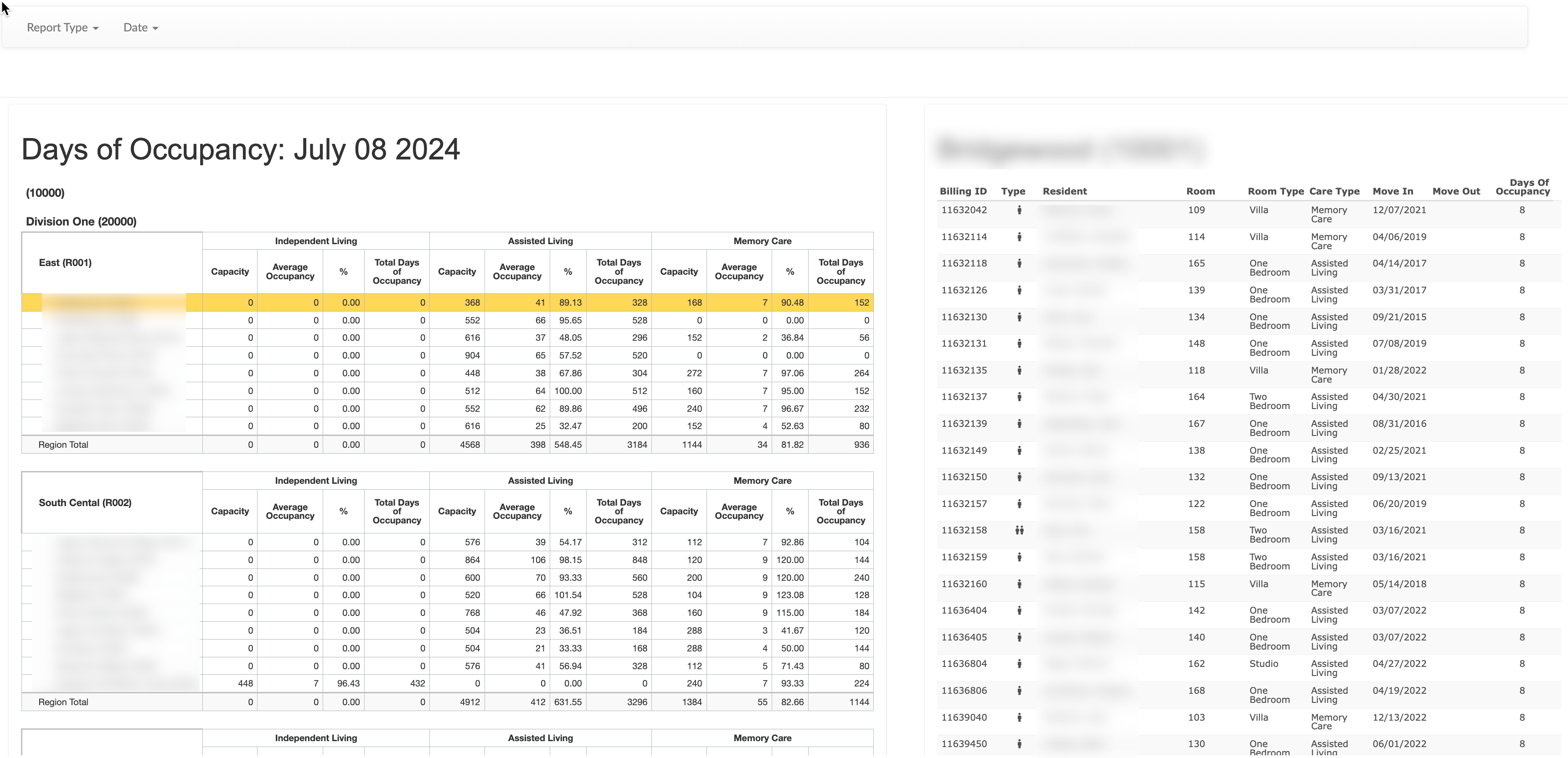
Step 5 (Optional): Select a specific community from the main table to display resident specific info on the table to the right. Utilize the "Date" filter as necessary.
Steps to Export an Occupancy Report
While data available in the various Occupancy Reports can be viewed onscreen, the data can also be exported to Microsoft Excel.
Step 1: Log in to the Aline Suite.
Step 2: Select the Applications Menu.
Step 3: Under the Census category, select "Occupancy Report".
Step 4: After selecting the desired report and utilizing any desired filters, select "Date" and then select "Export To".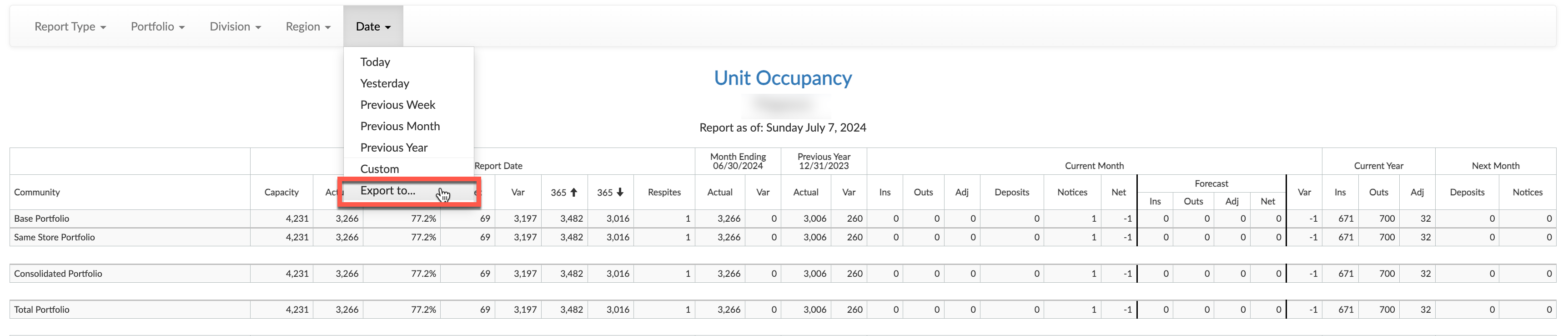
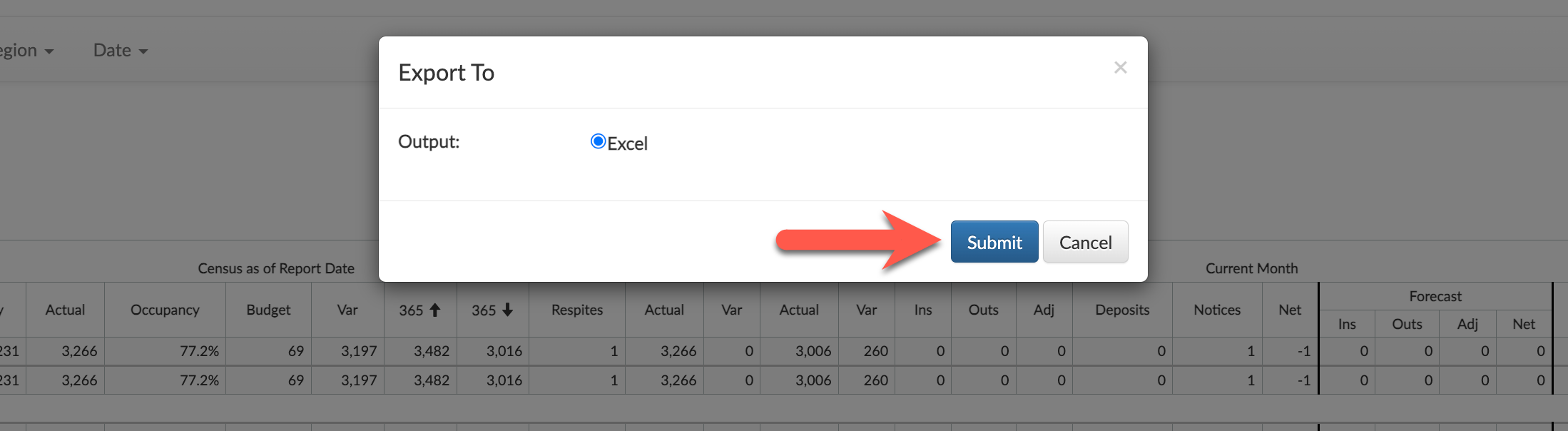
Step 5: Ensure "Excel" is checked and then select "Submit".
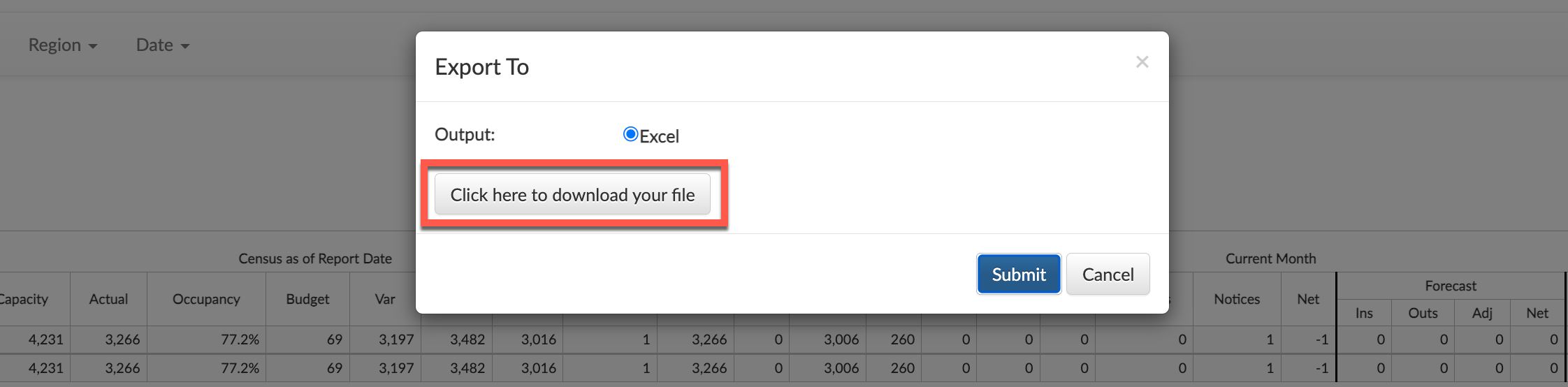
Step 6: The Excel file will generate. Select "Click here to download your file".
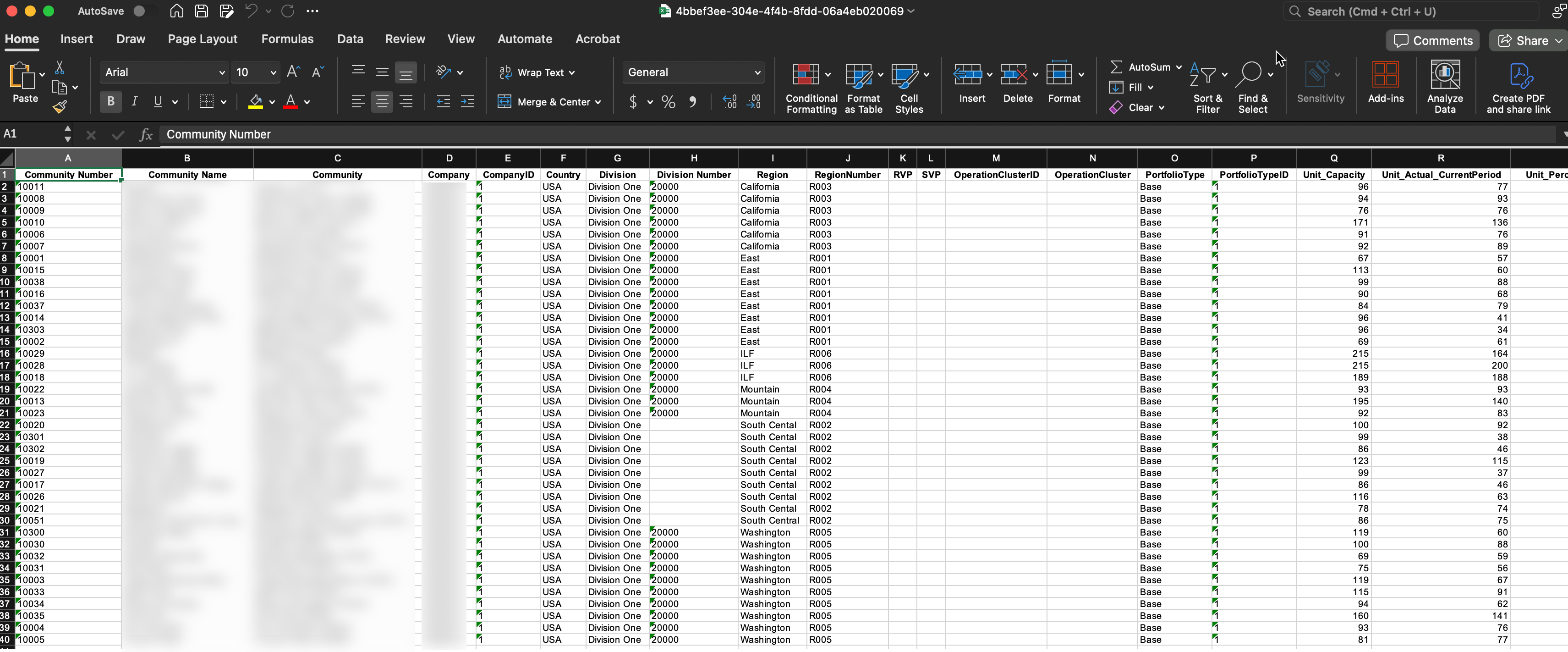
The file will download to your device and can be opened with Microsoft Excel.
Was this article helpful?
That’s Great!
Thank you for your feedback
Sorry! We couldn't be helpful
Thank you for your feedback
Feedback sent
We appreciate your effort and will try to fix the article