Overview
In this article, we will review the steps to generate lease documents.
Generating Lease Documents
Step 1: select the appropriate community.
Step 2: Click the Community tab at the top of the Resident Management homepage.

Step 3: Use the Please Select a Community window to find the appropriate community.
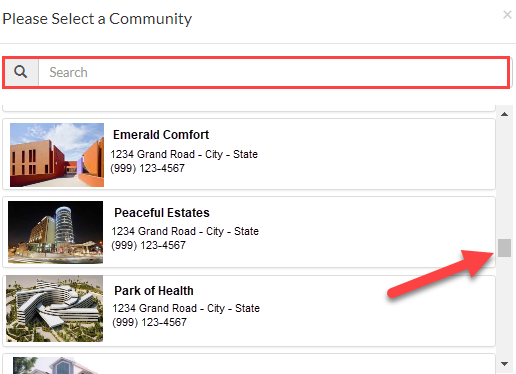
Step 4: Once on the Community page, click the Resident tab.

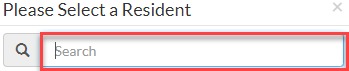
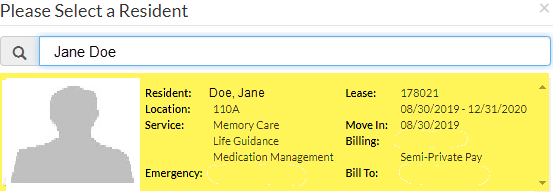
Step 5: In the Please Select a Resident window, search for and select a resident. Search by Name, Resident ID #, Room #.
Step 6: Click the picture of the resident to be directed to their Lease Management page.
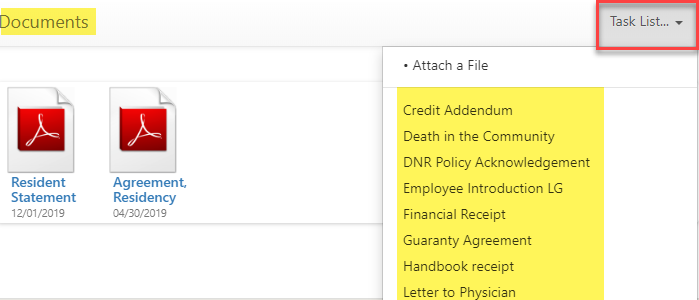
Step 7: On the resident’s Lease Management page, scroll down to the Documents section of the page.
Step 8: Click the Task List menu, then select the required document.
Was this article helpful?
That’s Great!
Thank you for your feedback
Sorry! We couldn't be helpful
Thank you for your feedback
Feedback sent
We appreciate your effort and will try to fix the article