Overview
In this article, we'll cover the steps required to revise a resident's lease.
Revising a resident's lease allows users to change items like who the primary resident is, the specific lease terms, the range of the current lease, and whether the resident statement should be seperate or combined onto one bill (for leases with multiple residents).
Revising a Lease
Step 1: After signing into the Aline Suite and navigating to the Leasing & Billing application, select a desired resident.
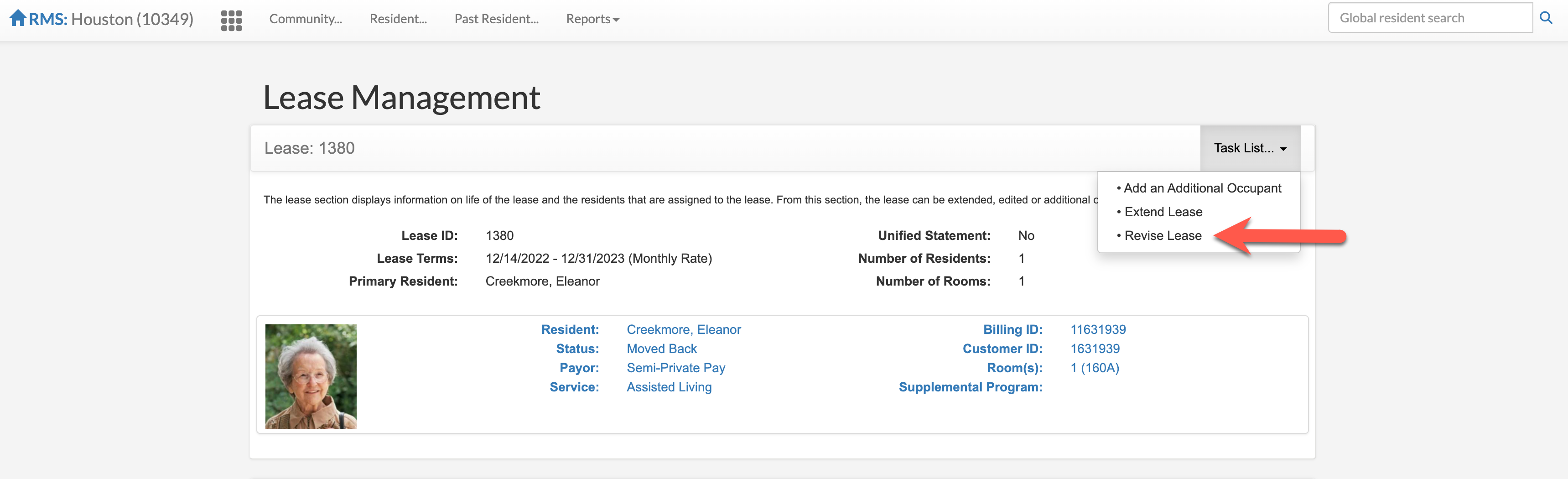
Step 2: At the top of the resident profile, under the Lease Management category, select the task list and then select Revise Lease.
Step 3: This will display editable items. Users can update Primary Resident, Lease Terms, Lease Range, and Statement Generation fields.
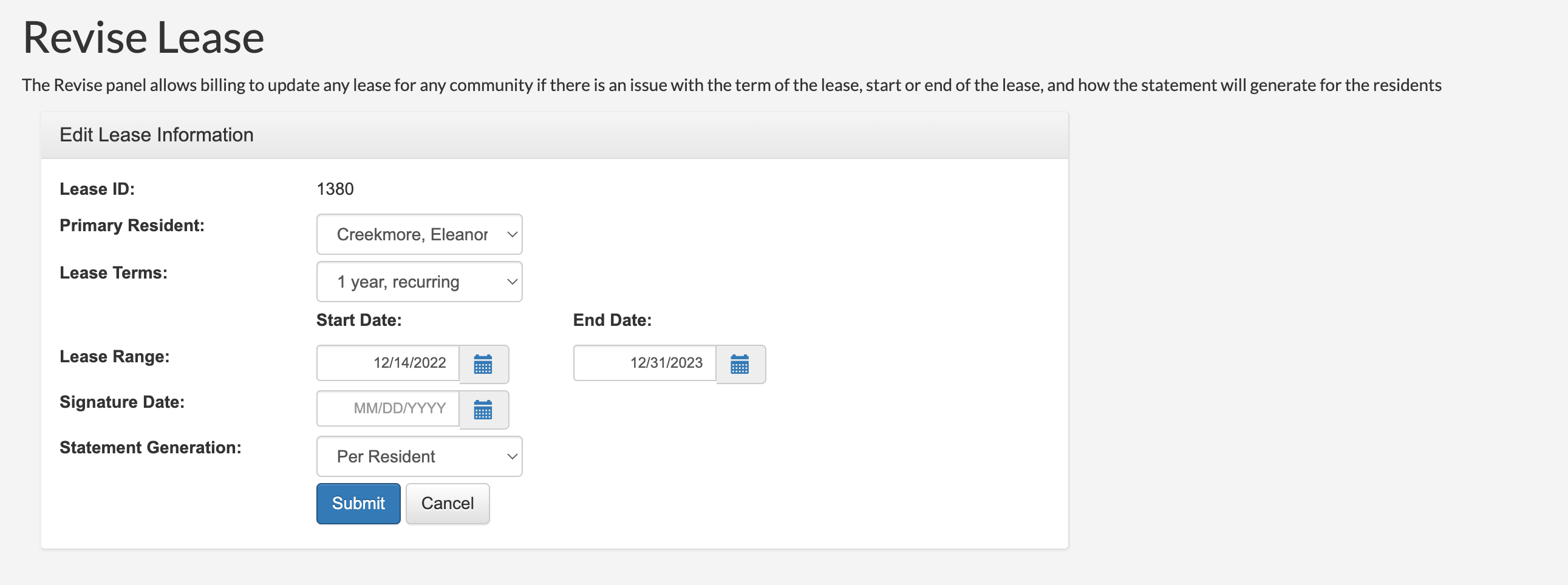
Primary Resident: updating Primary Resident allows users to switch who the Primary Resident is on leases with more than one tenant attached to a lease.
Lease Terms: updating Lease Terms allows users to edit the specific lease terms, like from One Year, Anniversary to One Year, Recurring.
Lease Range: updating Lease Range allows users to change the specific dates of the lease's range.
Statement Generation: updating the statement generation method from Per Resident to Per Lease allows statements to be combined onto one bill for leases with multiple residents. Please Note, when combining statements, the statement will be unified upon the next accounting period. Any remaining charges for the resident's from prior accounting periods will need to be adjusted via Other Billing in order for them to display correctly on the combine Resident Ledger.
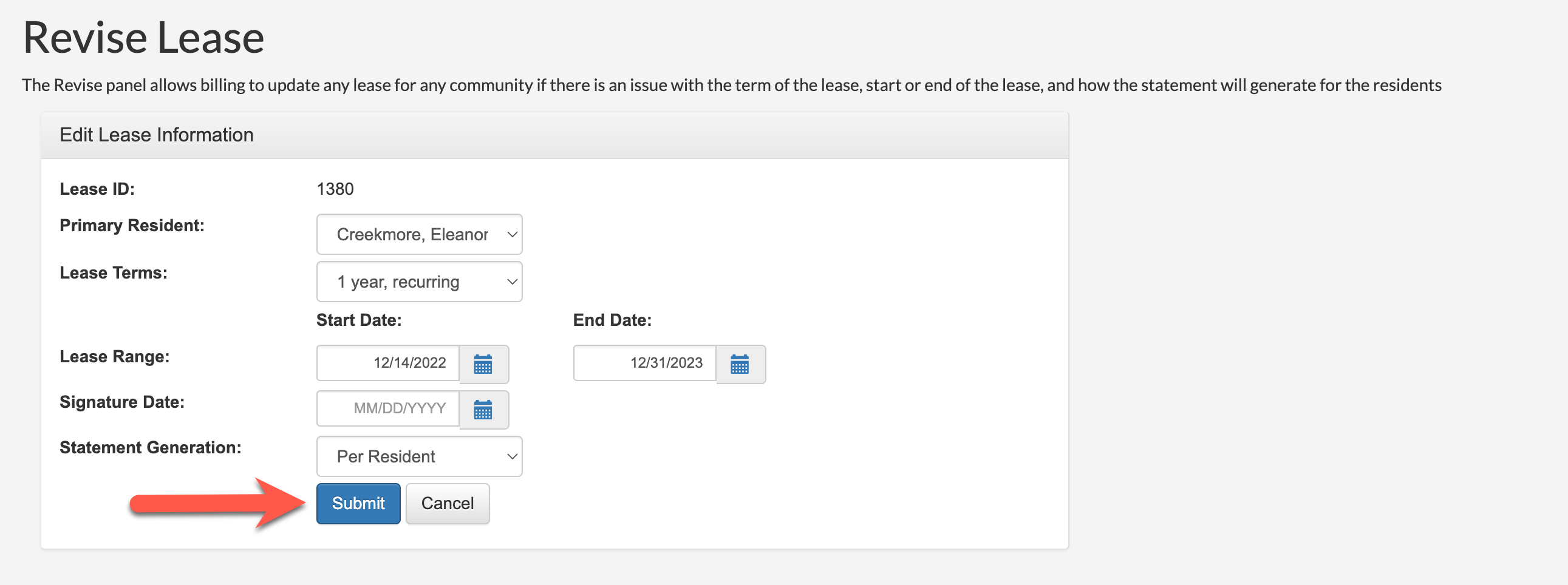
Step 4: Select Submit to save any changes.
Was this article helpful?
That’s Great!
Thank you for your feedback
Sorry! We couldn't be helpful
Thank you for your feedback
Feedback sent
We appreciate your effort and will try to fix the article