Overview
In this article, we will review how to search for a resident. There are two ways to search for a specific resident. Both methods are simple and equally effective.
Select a Resident Method
Step 1: Click the Community tab at the top of the Resident Management homepage.

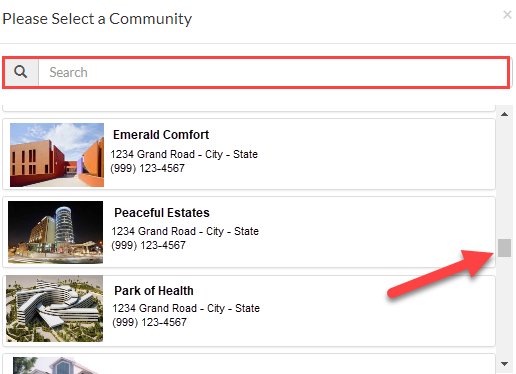
Step 2: Use the Please Select a Community window to select the appropriate community to search within.
Step 3: Once on the Community page, click the Resident tab.

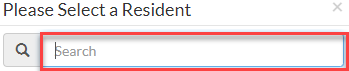
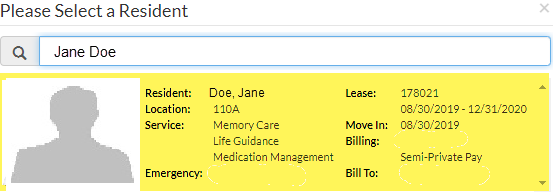
Step 4: In the Please Select a Resident window, search for and select a resident. Search by Name, Resident ID #, Room #.
Search for a Resident Method
Step 1: Click the Community tab at the top of the Resident Management homepage.

Step 2: Use the Please Select a Community window to find the appropriate community to search within.

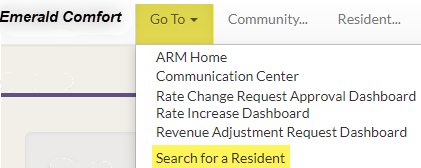
Step 3: Once on the Community page, click the Go To tab, then select Search for a Resident.
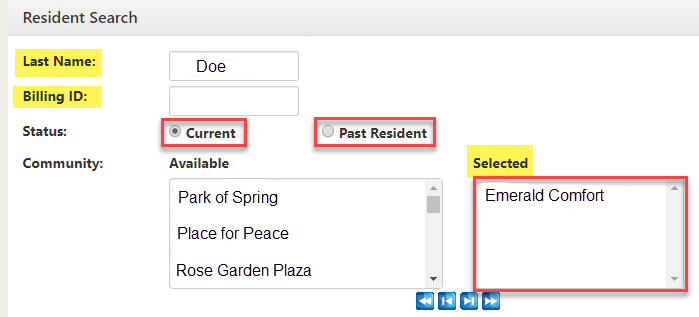
Step 4: The Resident Search box will appear
Step 5: Enter the resident’s Last Name or Billing ID #.
Step 6: Specify the resident’s Status as Current or Past Resident.
Step 7: Confirm the appropriate community is in the Selected section.
Step 8: Confirm that the Payor Type in the Selected section is correct.
Step 9: Confirm that the Service Type in the Selected section is correct.
Step 10: Indicate how you want the Output to be generated. (Screen or Excel)
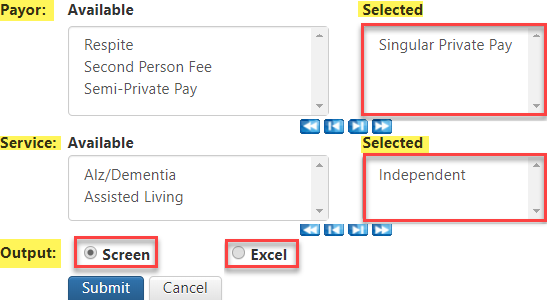
Step 11: After you click Submit, scroll down the page to see the results.
Step 12: Find the resident, then click View.

Step 13: Arrive at the resident’s Lease Management page.
Was this article helpful?
That’s Great!
Thank you for your feedback
Sorry! We couldn't be helpful
Thank you for your feedback
Feedback sent
We appreciate your effort and will try to fix the article