Overview
Steps for Resetting a Password with an Email Address
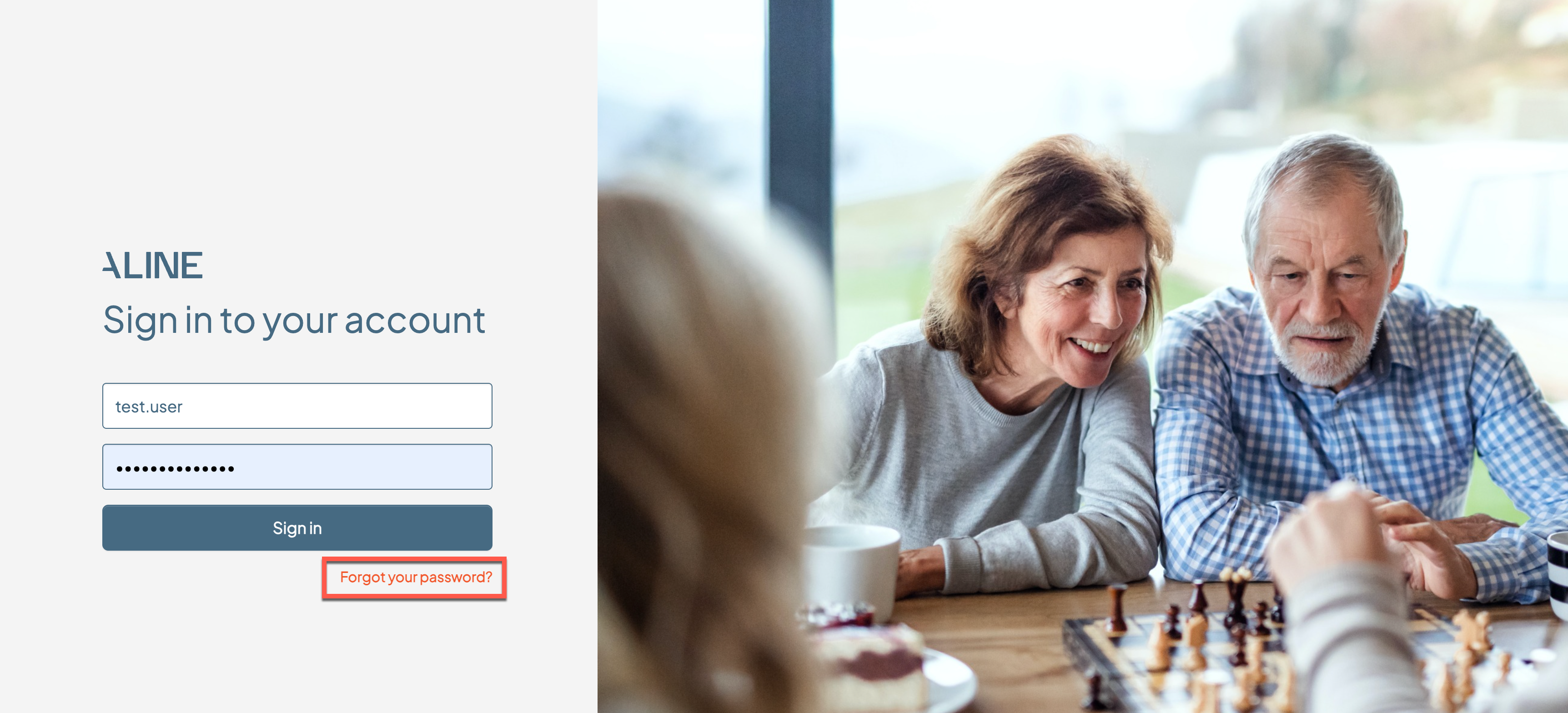
Step 2: On the Password Recovery page, enter your email and select the "Send Email" button.
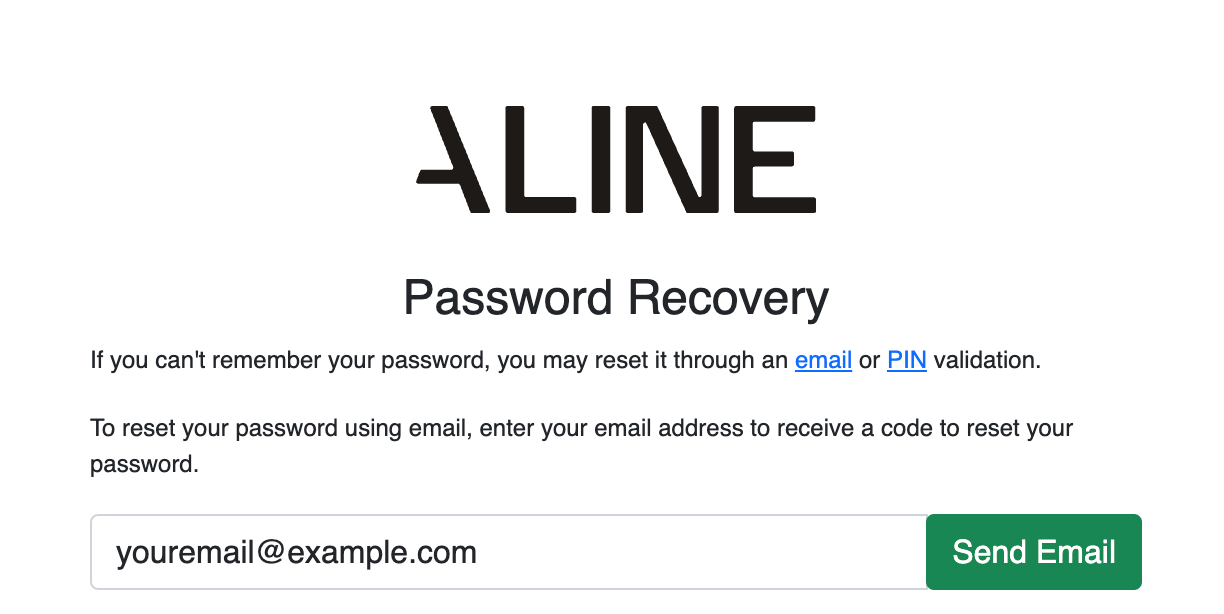
Step 3: The provided email address will receive a password reset link. In the email, select Reset Password.
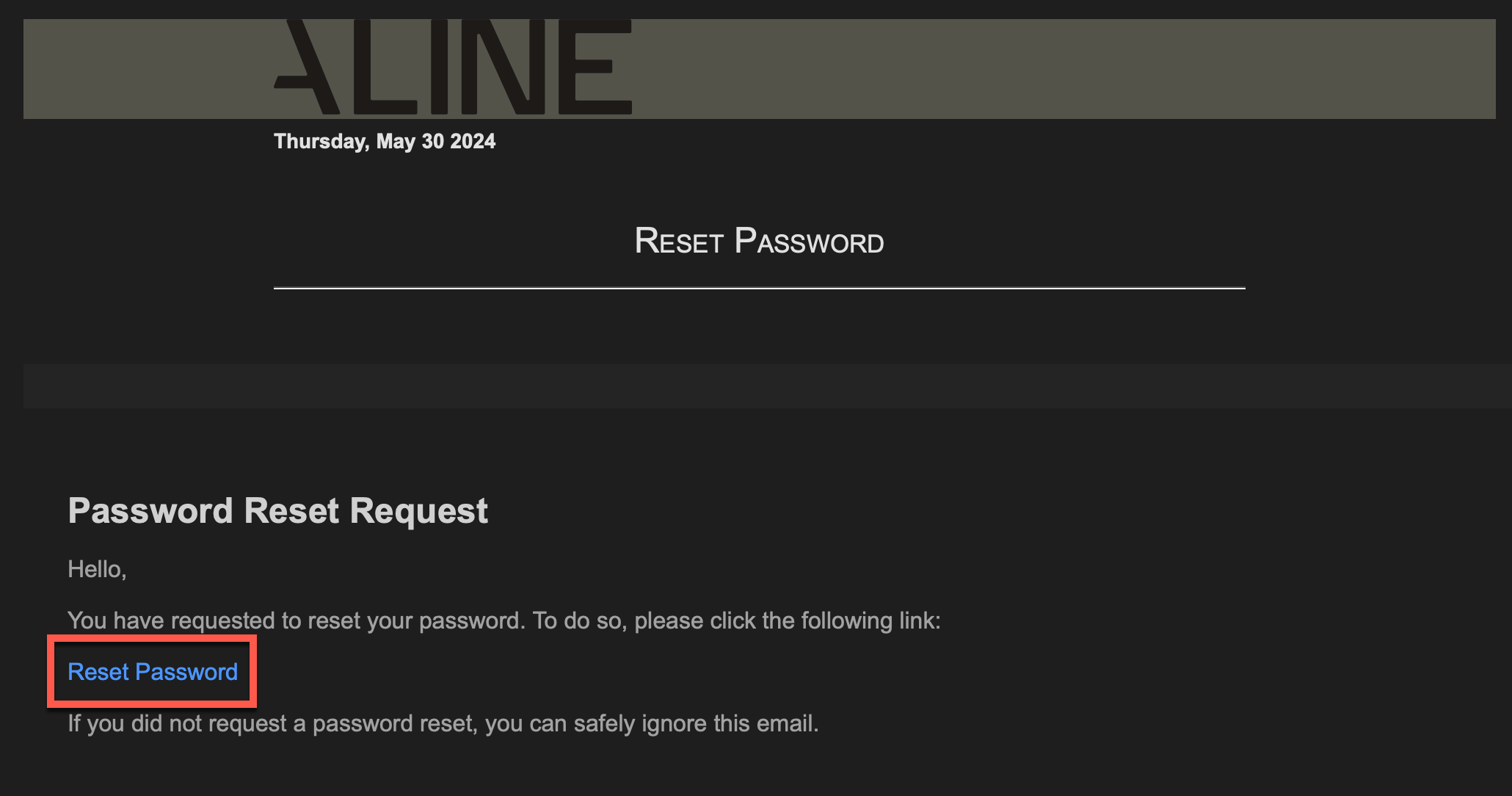
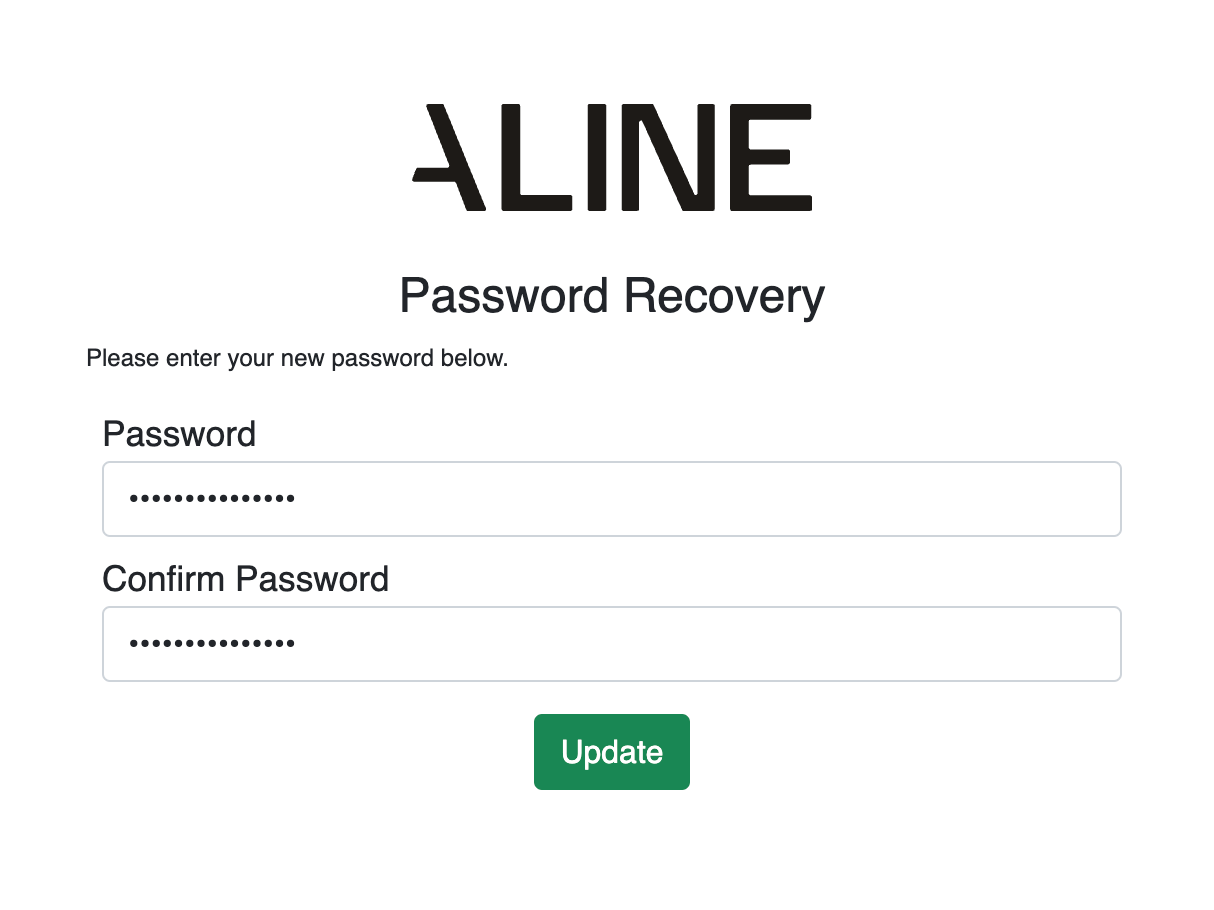
Step 4: Enter in your new password and then enter it in again to confirm. Lastly, select "Update" to save your new password. You can now log into the Aline Suite with your updated password!
Steps for Resetting a Password with a Pin Number
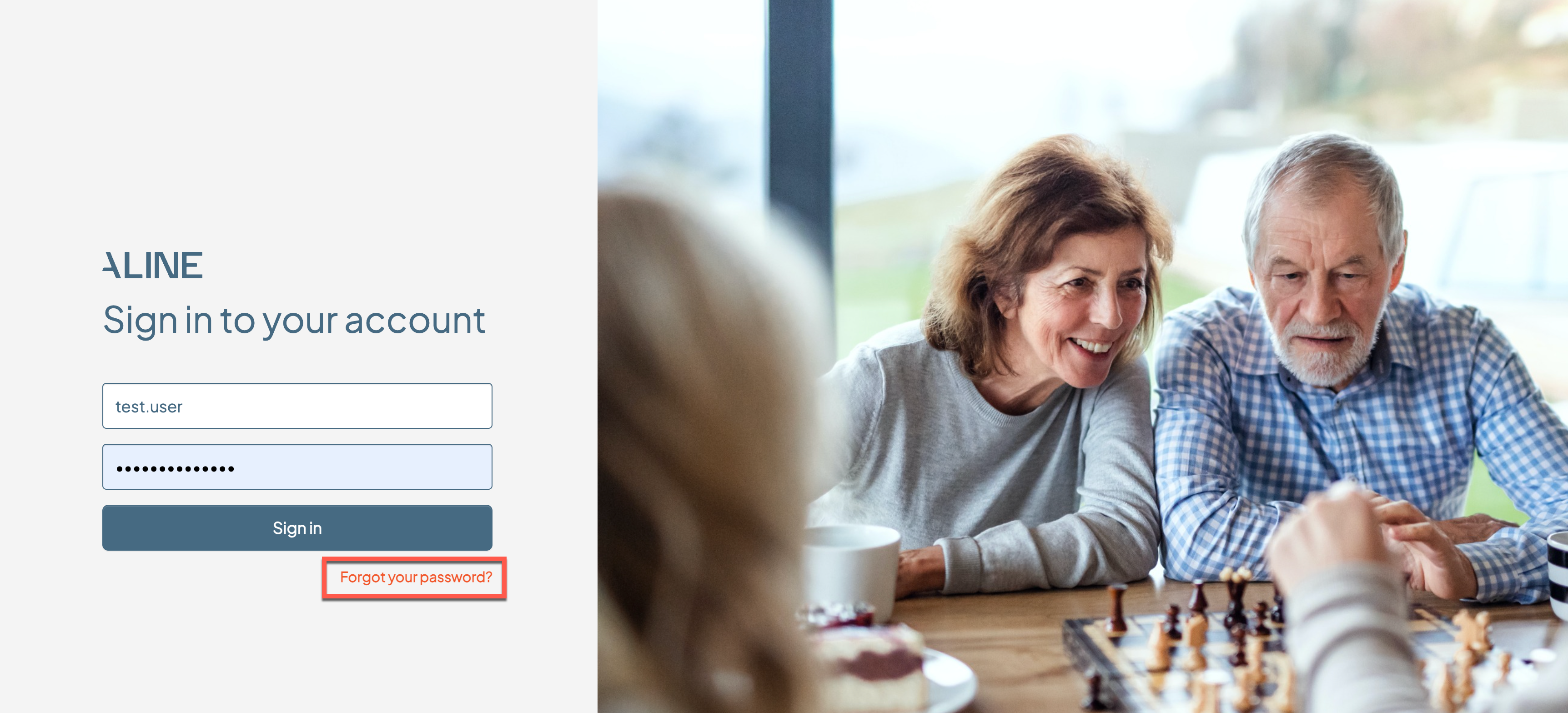
Step 1: On the Aline Suite login page, select "Forgot Your Password" if you are not able to successfully log in.
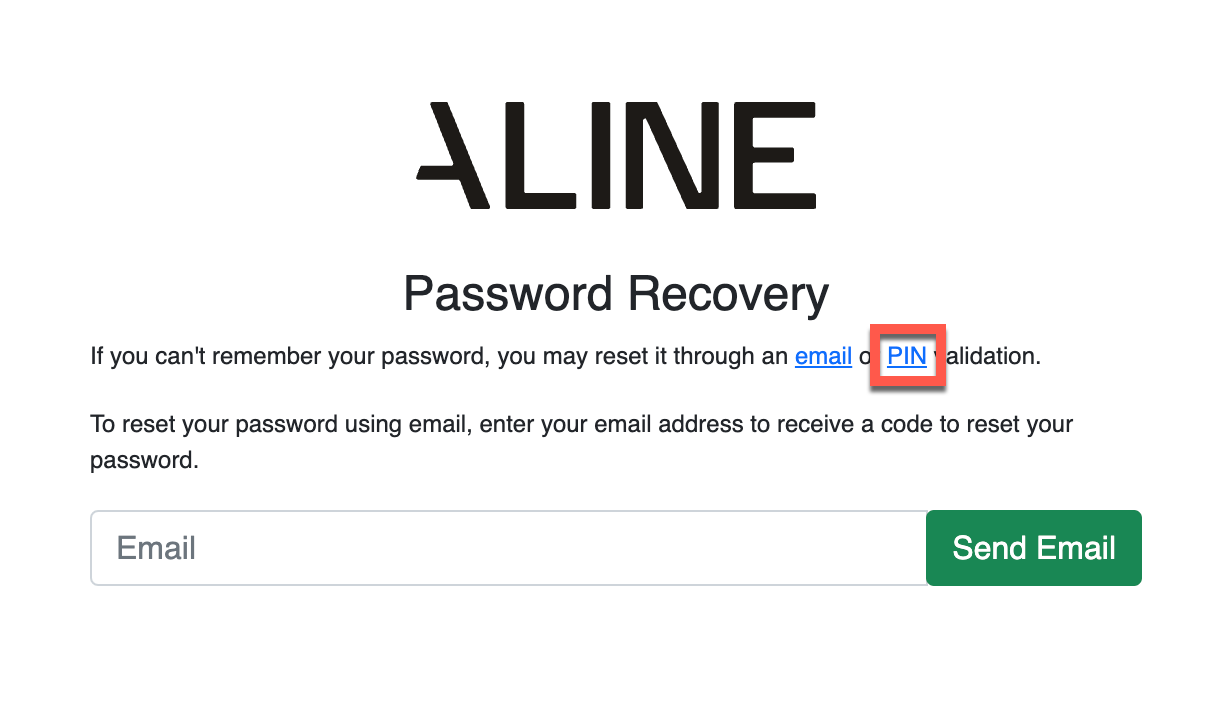
Step 2: For users who have a pin number associated with their Aline Suite user account, select "Pin".
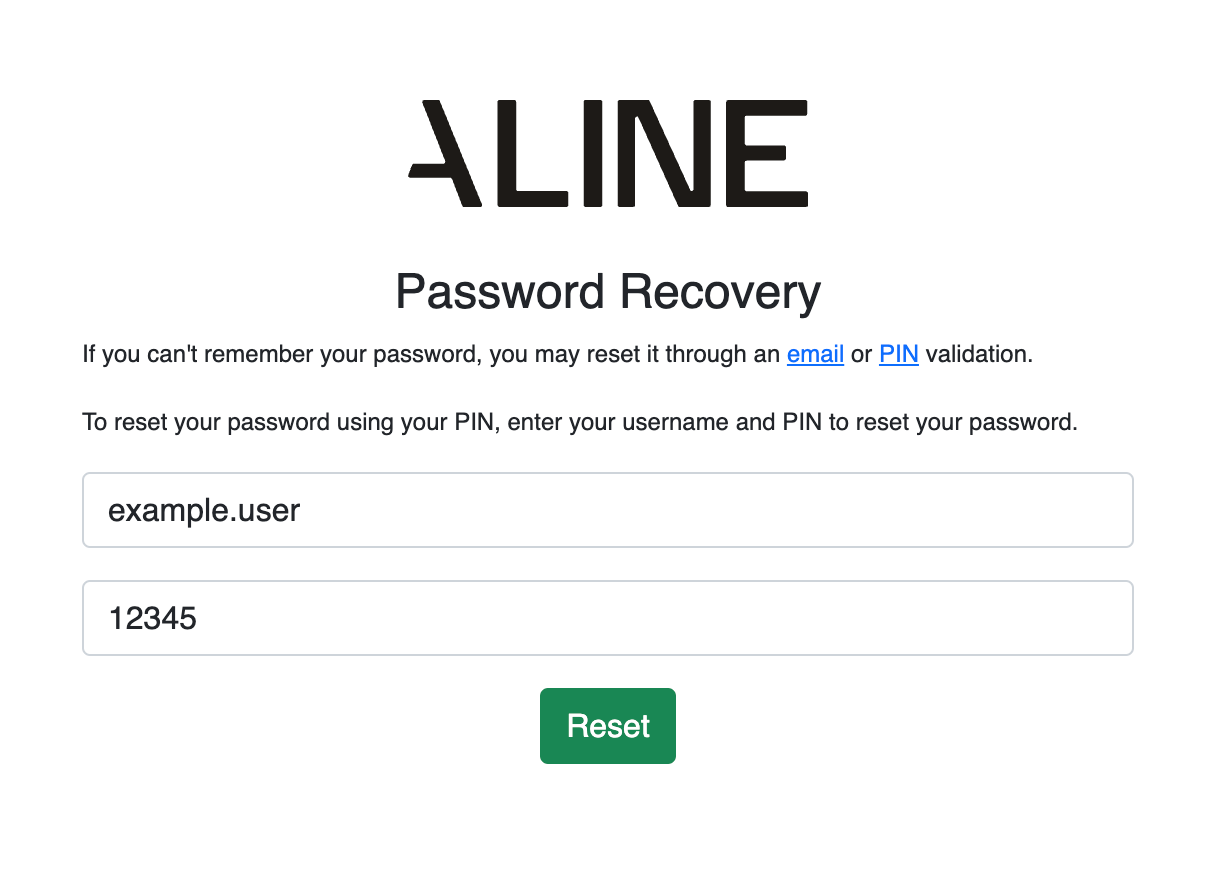
Step 3: Input both the username and pin number of the user who needs a password reset. Select "Reset".
Step 4: Enter in your new password and then enter it in again to confirm. Lastly, select "Update" to save your new password. The user can now log into the Aline Suite with your updated password!
Was this article helpful?
That’s Great!
Thank you for your feedback
Sorry! We couldn't be helpful
Thank you for your feedback
Feedback sent
We appreciate your effort and will try to fix the article