Overview
In this article, we will review user management, job codes and categories, adding new users, and editing or deleting users.
User Management Navigation
On the Glennis Suite Dashboard, navigate to Configuration and select CMT (Configuration Management Tool). Select the Go To menu, and the Security Configurations tool. This tool allows users to add and edit Glennis Suite users and view job codes and categories that restrict users to only the tools they’ll need for their job function.

Job Codes and Job Categories
Job codes are the various job titles used in each organization. Job codes are associated with each Glennis suite user. Job categories are comprised of multiple job codes. Job categories grant users their security permissions.
For example, an Executive Director and an Assistant Executive Director are both Job Codes. These titles are different, but they would need the same security permissions, so they fall under the same Job Category.
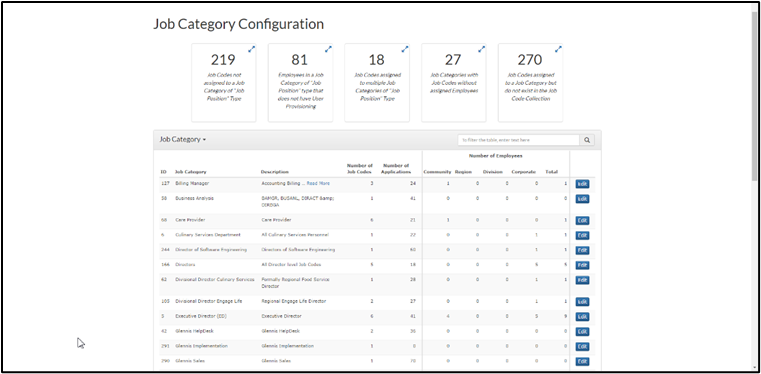
Job Categories show the description, the number of job codes associated with the category, and the number of employees assigned to the category in the community.
Note: For User Management configuration requests, please contact Aline Support.
Adding New Users
On the security configurations page, select Manage Users to see a list of existing users.
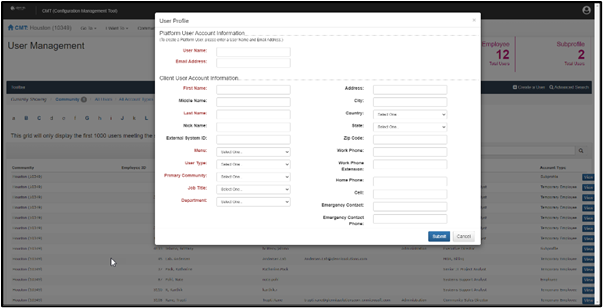
To add a new user, select Create User and fill in all the required criteria, which are indicated in red. Select Submit when finished.
Each user page displays a user’s basic information, which communities the user has access to, the assigned job role, and the inherited access from the job category assigned to the job role.
To provide a new user with a password, select the Add button beside Authenticate Type.
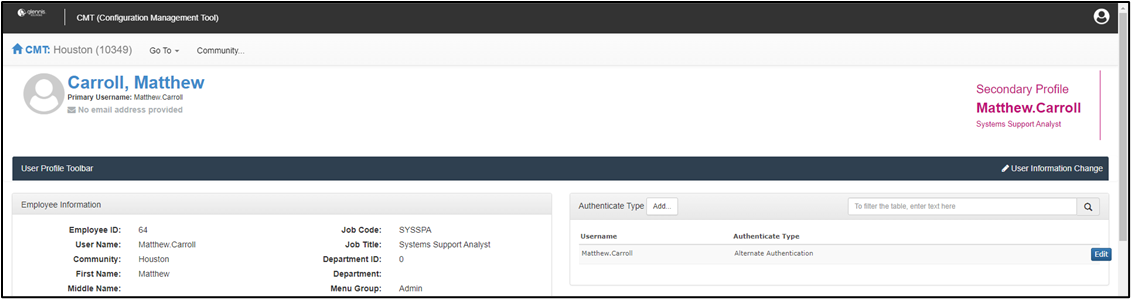
In the pop-up window that appears, select Alternate Authentication. Simply re-enter the username, and then select a new password for that user. Select Submit to save the new password.
Editing or Deleting Existing Users
This page allows users to update a user’s password, edit a user’s basic information, or delete the user if he/she is no longer with the community.
To edit or delete existing users, select Manage Users, and then use the search bar to search for the desired user. From the user’s page, select User Information Change.
From here, select User Information Change to edit a user’s information and then press Submit. To deactivate an active user, select Delete instead to delete the user’s account. 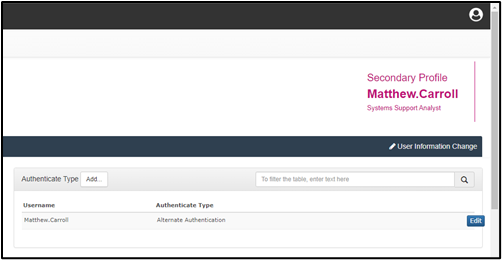
Updating a User Password & Unlocking Accounts
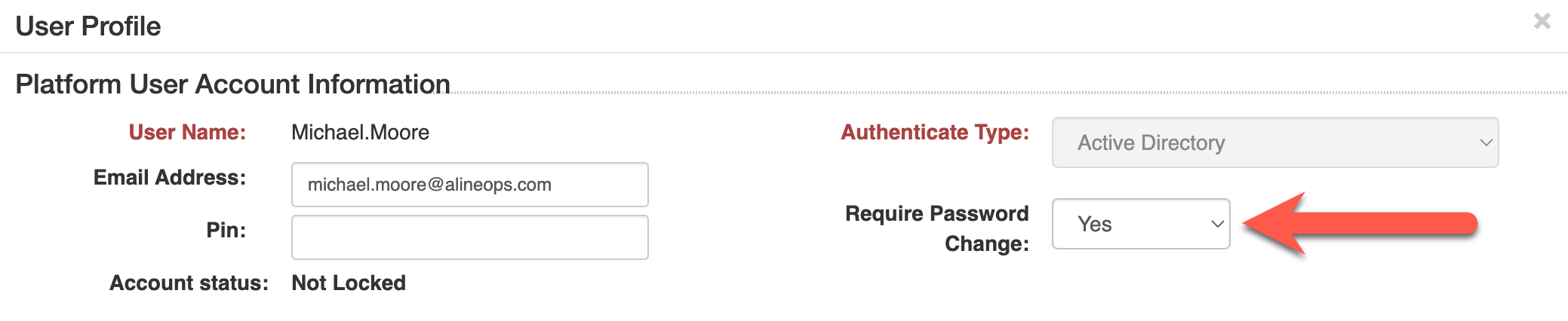
When changing a user's password, change the option to Yes in the Require Password Change field to force the user to reset their password upon the next login.
Was this article helpful?
That’s Great!
Thank you for your feedback
Sorry! We couldn't be helpful
Thank you for your feedback
Feedback sent
We appreciate your effort and will try to fix the article